
Introduction
This manual provides instructions for the safe and effective use of your Spigen S540 Selfie Stick Tripod. Please read this manual thoroughly before operating the device and retain it for future reference.
Product Overview
The Spigen S540 is a versatile 2-in-1 device designed to function as both a selfie stick and a tripod, featuring a wireless Bluetooth remote for convenient photo and video capture.
Key Features:
- Innovative tripod-base design for hands-free photos and videos.
- Bluetooth connection with a wireless remote for easy control.
- Quick 45-minute charge for the remote with built-in sleep & quick wake function.
- 360-degree rotation for both portrait and landscape orientations.
- Lightweight yet durable aluminum body for portability.
- Adjustable phone clamp compatible with devices from 2.1" to 3.4" width.
Components:
- Selfie Stick/Tripod Unit
- Wireless Bluetooth Remote
- Micro USB Charging Cable (for remote)
- User Manual (this document)

Image: The Spigen S540 device shown in both its extended selfie stick configuration and its tripod configuration, demonstrating its dual functionality.

Image: Illustration of the Spigen S540 being used as a tripod for a group photo and as a selfie stick for an individual shot, highlighting its 2-in-1 combination feature.

Image: The package contents including the Spigen S540 Selfie Stick Tripod, a Micro USB charging cable, and a user manual.
Setup
1. Charging the Remote Control:
- Locate the Micro USB charging port on the side of the wireless remote.
- Connect the provided Micro USB cable to the remote and a USB power source (e.g., computer, wall adapter).
- The remote typically charges in approximately 45 minutes. A full charge provides extended usage.
2. Pairing the Bluetooth Remote:
- Ensure the remote control is charged.
- Press and hold the button on the remote control until the indicator light begins to flash, indicating it is in pairing mode.
- On your smartphone (iOS or Android), navigate to your Bluetooth settings.
- Search for available devices and select "Spigen S540" or a similar name.
- Once paired, the indicator light on the remote will stop flashing and remain solid or turn off, depending on the model.
- The remote will automatically reconnect to your device when turned on and within range after initial pairing.

Image: A hand holding the wireless Bluetooth remote control, with a phone mounted on the selfie stick tripod in the background, illustrating the remote's function.
3. Attaching Your Smartphone:
- Gently pull apart the spring-loaded phone clamp at the top of the stick.
- Carefully insert your smartphone into the clamp, ensuring it is securely held. The clamp is adjustable for phones between 2.1 inches and 3.4 inches in width.
- Ensure the phone is centered to maintain balance, especially when using the tripod function.

Image: Two smartphones of different sizes mounted in the Spigen S540 phone clamp, demonstrating its adjustable compatibility from 2.1 to 3.4 inches.
Operating Instructions
Using as a Selfie Stick:
- With your phone securely attached, extend the telescopic aluminum rod to your desired length (up to 38 inches).
- Hold the handle firmly and use the Bluetooth remote to capture photos or start/stop video recording.
Using as a Tripod:
- Locate the tripod legs at the base of the handle.
- Gently unfold the three legs outwards until they lock into place, forming a stable base.
- Place the tripod on a flat, stable surface.
- Extend the telescopic rod to adjust the height as needed.
- Use the Bluetooth remote to capture photos or videos from a distance.

Image: The Spigen S540 Selfie Stick Tripod deployed in tripod mode with a smartphone mounted, ready for hands-free use.
Adjusting Phone Orientation:
- The phone holder allows for 360-degree rotation. Loosen the adjustment knob if present, rotate your phone to portrait or landscape mode, and then tighten to secure.
- The phone clamp itself can also be tilted up to 295 degrees to achieve the desired angle.

Image: A smartphone mounted on the Spigen S540, demonstrating the ability to switch between landscape and portrait orientations for photography.

Image: An illustration showing the Spigen S540 phone holder's ability to rotate up to 295 degrees, allowing for flexible camera angles.
Maintenance
- Cleaning: Wipe the device with a soft, dry cloth. Avoid using harsh chemicals or abrasive cleaners.
- Storage: When not in use, collapse the selfie stick and fold the tripod legs. Store in a cool, dry place away from direct sunlight and extreme temperatures.
- Battery Care (Remote): Recharge the remote control regularly, even if not frequently used, to maintain battery health. Avoid fully depleting the battery for extended periods.
Troubleshooting
- Remote Control Not Pairing:
- Ensure the remote is charged.
- Make sure Bluetooth is enabled on your smartphone.
- Turn off and on the remote, then try pairing again.
- Forget the device in your phone's Bluetooth settings and re-pair.
- Ensure no other Bluetooth devices are interfering.
- Remote Not Triggering Camera:
- Confirm the remote is successfully paired with your phone.
- Check your phone's camera settings; some phones may require specific settings for external shutter buttons.
- Ensure your phone's volume buttons are not set to control zoom instead of shutter.
- Tripod Instability:
- Ensure the tripod legs are fully extended and locked into position on a flat, stable surface.
- Avoid extending the telescopic rod to its maximum length with heavier phones, as this can affect stability.
- Center your phone securely in the clamp to distribute weight evenly.
- Be mindful of wind or uneven surfaces when using the tripod outdoors.
Specifications
| Feature | Detail |
|---|---|
| Brand | Spigen |
| Model Name | S540 |
| Model Number | 000SS24111 |
| Material | Aluminum |
| Product Dimensions (Folded) | 25.4 x 5.08 x 38.1 cm (approx. 8.2 inches folded length, 38 inches extended) |
| Item Weight | 280 g |
| Compatible Devices | iOS/Android smartphones (2.1" to 3.4" width) |
| Special Features | Wireless Remote, 360-degree Rotation, Tripod Stand |
| Battery (Remote) | 1 Lithium Ion battery (required for remote) |
| Charging Time (Remote) | Approx. 45 minutes |
| Country of Origin | China |
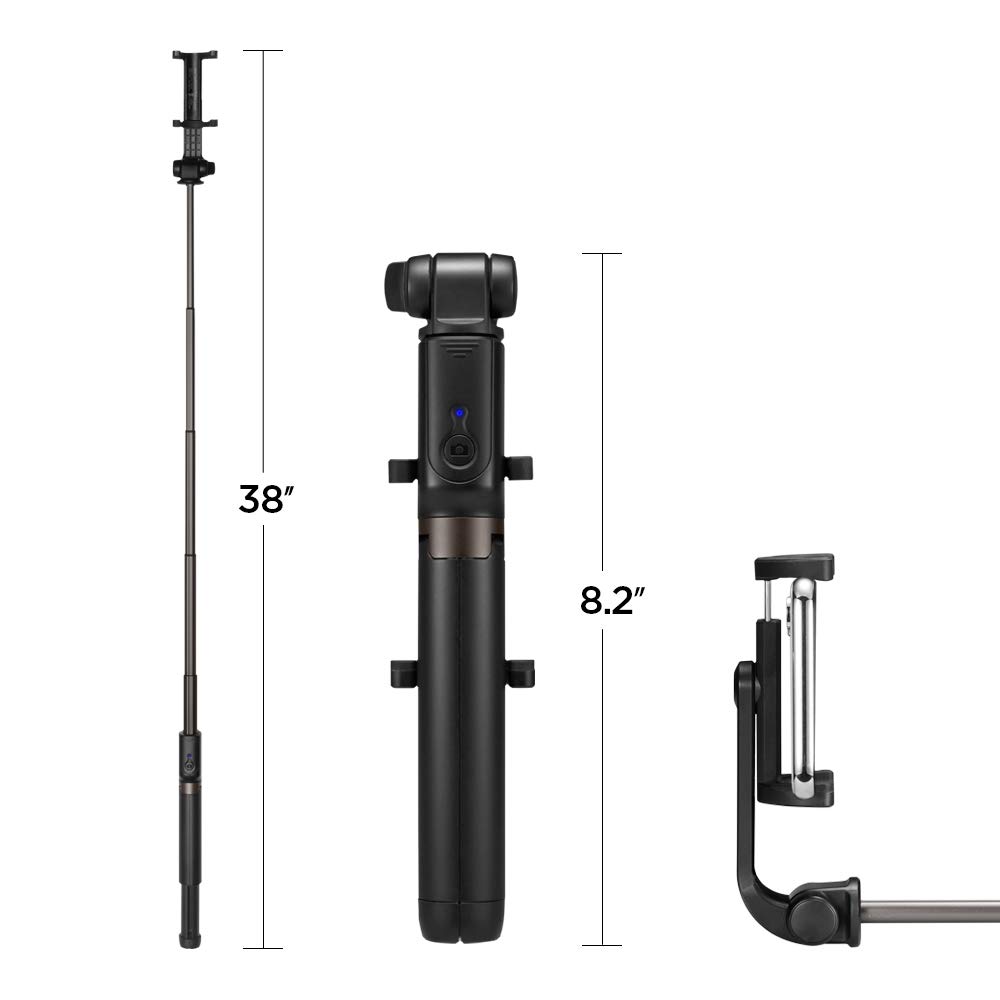
Image: Diagram illustrating the dimensions of the Spigen S540, showing its extended length of 38 inches and folded length of 8.2 inches.
Warranty and Support
Spigen products are manufactured to high-quality standards. For warranty information or technical support, please refer to the official Spigen website or contact Spigen customer service directly. Keep your purchase receipt as proof of purchase.
Manufacturer/Importer: Spigen India Private Limited


