
1. Introduction
The UGREEN KVM HDMI Switch Box 2 In 1 Out (Model UG-KVM-50744) is designed to allow you to control two computers or game consoles using a single 4K display, one keyboard, and one mouse. This device is an efficient solution for workstations, offices, or any environment requiring multitasking between multiple computers with shared peripherals.
2. Product Overview
Key Features:
- 2-Port HDMI KVM Switch: Control two host devices (computers, game consoles) with one monitor, keyboard, and mouse.
- 4-Port Extended USB Hub: Includes two USB 1.1 ports for keyboard and mouse, and two high-speed USB 2.0 ports (480 Mbps) for additional peripherals like printers, card readers, or flash drives.
- High-Definition Video Output: Supports resolutions up to 4K@30Hz and is compatible with 1080p@60Hz. The adapter supports both video and audio transmission simultaneously.
Package Contents:
- UGREEN KVM HDMI Switch Box (Model UG-KVM-50744)
- USB-A to USB-B cables (typically two are included for connecting to host devices)
- User Manual
3. Setup Instructions
Follow these steps to connect your UGREEN KVM HDMI Switch Box:
- Connect Host Devices:
Use HDMI cables to connect the HDMI output ports of your two computers or game consoles to the HDMI INPUT ports on the KVM switch. - Connect USB to Host Devices:
Use the provided USB-A to USB-B cables to connect the USB-B ports on the KVM switch to the USB-A ports on your two computers or game consoles. These connections enable keyboard, mouse, and other USB peripheral sharing, and also provide power to the KVM switch. - Connect Display:
Connect an HDMI cable from the HDMI OUTPUT port on the KVM switch to the HDMI input port on your monitor or TV. - Connect Peripherals:
Connect your USB keyboard and mouse to the dedicated USB 1.1 ports on the KVM switch. For additional peripherals like printers, scanners, or flash drives, use the two USB 2.0 ports. - Power On:
Ensure all connections are secure. The KVM switch is powered via the USB connections to your host devices.

Figure 3.1: Connection Diagram for UGREEN KVM HDMI Switch Box. This image illustrates the various input and output ports, showing how to connect two host devices (computers/PS4/Xbox/TVbox) via HDMI and USB, and how to connect a single monitor/TV, mouse, keyboard, and other USB 2.0 peripherals (printer, card reader, flash drive) to the KVM switch.
4. Operating Instructions
Switching Between Host Devices:
The UGREEN KVM switch offers multiple methods for switching between the two connected host devices:
- Button Switching: Press the physical button on the front of the KVM switch to toggle between the two connected host devices. The LED indicator will show which device is currently active.
- Keyboard Hot-Key Switching: Use specific keyboard hot-keys to switch between devices. Refer to the device's specific hot-key combinations (often Scroll Lock + Scroll Lock + 1/2 or Ctrl + Ctrl + 1/2).
- Auto Switching: The KVM switch may automatically switch to an active input when the current active input is powered off or disconnected.
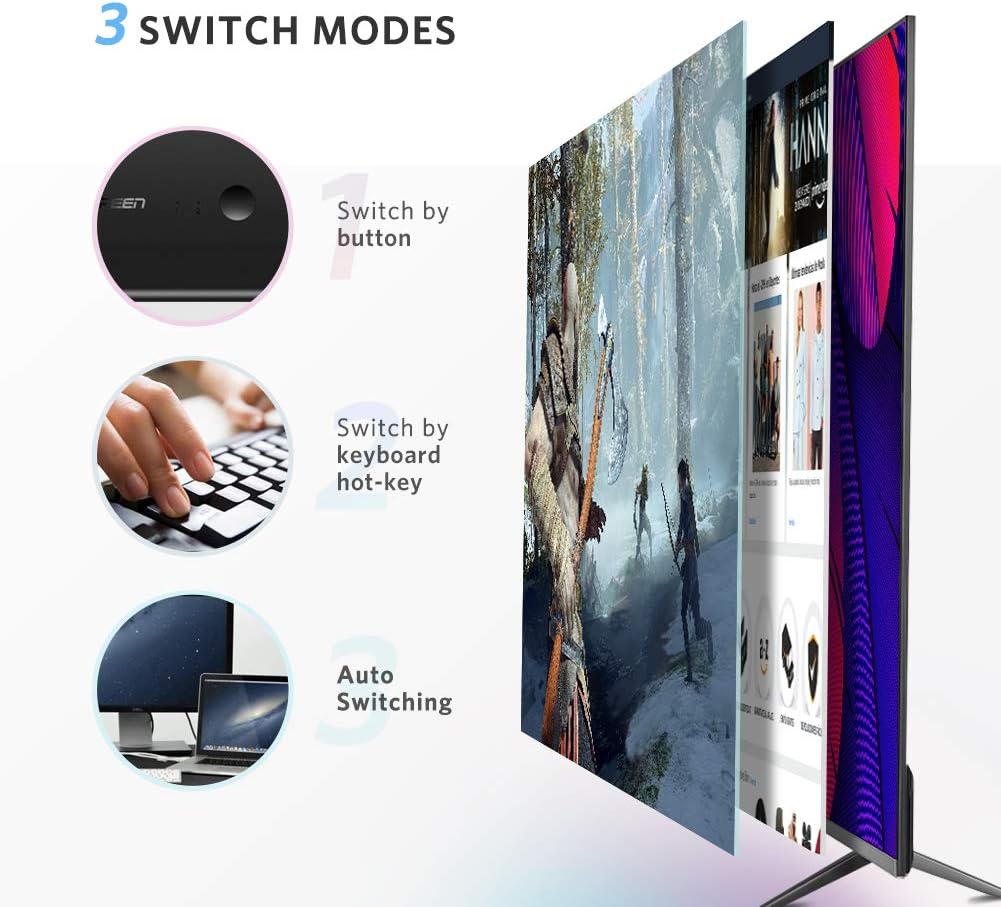
Figure 4.1: Three Switching Modes. This image visually represents the three ways to switch between connected devices: pressing the button on the KVM, using keyboard hot-keys, and automatic switching.

Figure 4.2: KVM Switch Features. This image highlights the USB IN port for power via a USB connection, the LED indicator that shows which computer is in control, and the button for easy switching.
LED Indicator:
The LED indicator on the KVM switch illuminates to show which connected computer or game console is currently active and being controlled.
Universal Compatibility:
The UGREEN KVM switch is designed for broad compatibility with various operating systems, including Windows, macOS, Linux, Vista, and Android.

Figure 4.3: Universal Compatibility. This image shows the KVM switch's compatibility with major operating systems such as Windows, macOS, Linux, and Android, ensuring plug-and-play functionality.
5. Maintenance
To ensure the longevity and optimal performance of your UGREEN KVM HDMI Switch Box, follow these maintenance guidelines:
- Cleaning: Use a soft, dry cloth to clean the exterior of the device. Avoid using liquid cleaners or abrasive materials.
- Environment: Keep the device in a cool, dry place, away from direct sunlight, high temperatures, and humidity.
- Handling: Avoid dropping or subjecting the device to strong impacts. Ensure cables are connected and disconnected gently to prevent damage to ports.
- Ventilation: Do not block any ventilation openings on the device, if present, to prevent overheating.
6. Troubleshooting
If you encounter issues with your UGREEN KVM HDMI Switch Box, refer to the following common troubleshooting steps:
- No Display/Signal:
- Ensure all HDMI cables are securely connected to both the KVM switch and your host devices/monitor.
- Verify that the KVM switch is receiving power via its USB connections to the host devices.
- Try connecting the monitor directly to the host device to confirm the display and cable are functional.
- On your host devices, ensure that the HDMI output ports are configured to be 'always active' in display settings, as some operating systems may delay signal detection.
- Restart the connected host devices and the monitor.
- Keyboard/Mouse Not Responding:
- Ensure the USB cables from the KVM switch are securely connected to the host devices.
- Verify that the keyboard and mouse are connected to the correct USB 1.1 ports on the KVM switch.
- Try connecting the keyboard and mouse directly to the host device to confirm they are functional.
- For older operating systems (e.g., Windows 98), ensure that necessary USB drivers are installed on the host device.
- Slow Switching Time:
- As mentioned above, configuring the HDMI ports of your host devices to be 'always active' can optimize switching time.
- Ensure your monitor is not taking an excessive amount of time to detect the new signal.
- Annoying Beep During Switching:
- Some KVM switches allow disabling the beep sound via a specific hot-key combination. Refer to the full product manual or UGREEN support for specific instructions for this model.
- Peripherals Not Detected (e.g., Printer, Flash Drive):
- Ensure these peripherals are connected to the USB 2.0 ports on the KVM switch.
- Check if the peripheral requires specific drivers to be installed on the active host device.
7. Specifications
| Feature | Specification |
|---|---|
| Model Number | UG-KVM-50744 |
| Brand Name | UGREEN |
| Operating Mode | Automatic |
| Current Rating | 5 Amperes |
| Operating Voltage | 12 Volts |
| Connector Type | HDMI |
| Switch Type | Semiconductor diode or MOSFET |
| Circuit Type | 2-way |
| Mounting Type | Surface mount |
| Number of Positions | 3 |
| Control Type | Push button, Application |
| Connectivity Type | HDMI |
| Power | 50 watts |
| Compatible Devices | Devices with HDMI ports |
| Color | Black |
| Item Dimensions | 12.7 x 7.6 x 2.5 centimeters |
| Unit Count | 1 unit |
| Material (Contact) | Gold |
| International Protection Rating | IP54 |
| Specification Met | CE |
| Max Resolution | 4K@30Hz, 1080p@60Hz |
8. Warranty and Support
Warranty information for the UGREEN KVM HDMI Switch Box (Model UG-KVM-50744) is not explicitly provided in the product data. For detailed warranty terms and conditions, please refer to the documentation included with your purchase or contact UGREEN customer support directly.
Customer Support:
For technical assistance, troubleshooting, or inquiries regarding your product, please visit the official UGREEN website or contact their customer service department through the contact information provided on their website or in your product packaging.