
CPVAN WV-RC01
CPVAN Remote Control User Manual
Model: WV-RC01
Brand: CPVAN
1. Introduction
This manual provides essential instructions for the setup, operation, and maintenance of your CPVAN Remote Control (Model: WV-RC01). This remote control is designed to enhance the functionality of your CPVAN home security devices, offering convenient control over your alarm system.
The CPVAN Remote Control is compatible with the following CPVAN systems:
- CPVAN CP2 Home Alarm System
- CPVAN CP7R Door Window Alarm Sensor
- CPVAN CP8 Home Security System
It operates wirelessly and comes with a pre-installed battery, ready for immediate use after pairing.
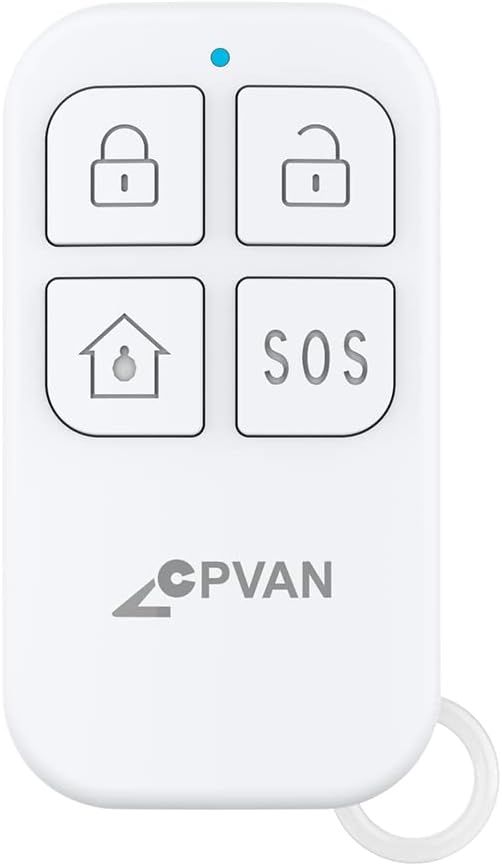
Image 1.1: CPVAN Remote Control (Model: WV-RC01)
This image displays the front view of the CPVAN Remote Control, highlighting its compact design and the four primary function buttons along with an LED indicator.
2. Setup and Pairing
To use your CPVAN Remote Control, it must first be paired with your compatible CPVAN alarm system or sensor. The pairing process is straightforward.
2.1 Pairing a New Remote Control
- Ensure your PIR motion sensor alarm (e.g., CPVAN CP2) is powered ON.
- On the PIR motion sensor alarm, long press the Pairing button to enter pairing mode. The detector light will light up continuously.
- Press any button on your remote control. You will hear two beeps from the alarm system to indicate correct pairing.
- Short press the Pairing button on the alarm system to exit the pairing mode. Your remote has now been paired.

Image 2.1: Pairing Instructions
This image illustrates the step-by-step process for pairing the remote control with a CPVAN PIR motion sensor alarm, showing the interaction between the remote and the alarm unit.
2.2 Pairing Flexibility
The CPVAN system offers flexibility in how devices are paired:
- One remote control can be paired with multiple motion sensor alarms. This allows a single remote to control several alarm units simultaneously.
- One motion sensor alarm can be paired with multiple remote controls. This enables different family members or users to control the same alarm system with their individual remotes.

Image 2.2: One Remote, Multiple Alarms
This image visually represents how a single remote control can be used to manage multiple CPVAN motion sensor alarms, indicated by wireless signal icons.

Image 2.3: One Alarm, Multiple Remotes
This image illustrates how a single CPVAN motion sensor alarm can be controlled by multiple remote controls, demonstrating shared access to the alarm system.
2.3 Video Guides for Pairing
Video 2.1: Adding Multiple Remote Controls
This video demonstrates the process of adding two or more remote controls to your CPVAN CP2 alarm system, showing the pairing steps visually.
Video 2.2: Controlling Multiple Alarms with One Remote
This video illustrates how a single remote control can be used to manage two motion alarms, demonstrating the activation and deactivation of multiple units.
3. Operating Instructions
The CPVAN Remote Control features four distinct buttons for various functions:

Image 3.1: Remote Control Button Functions
This image provides a clear diagram of the CPVAN Remote Control, labeling each button and the LED indicator for easy identification of functions.
- Arm Button (Closed Lock Icon): Press this button to activate or arm your CPVAN alarm system. When armed, the system will monitor for intrusions.
- Disarm Button (Open Lock Icon): Press this button to deactivate or disarm your CPVAN alarm system. This will stop any active alarms and allow you to move freely within the monitored area.
- Home Button (House Icon / Adjusting Volume): This button typically functions as a home arm/disarm or can be used to adjust the volume settings on compatible CPVAN devices. Refer to your specific alarm system's manual for detailed functionality.
- SOS Button (SOS Text): In case of an emergency, press this button to trigger an immediate alarm. This function is designed for urgent situations requiring immediate attention.
The blue LED indicator on the remote control will illuminate briefly when a button is pressed, confirming that a signal has been sent.
4. Maintenance
4.1 Battery Replacement
The CPVAN Remote Control is powered by one CR123A 3V battery (included). When the remote control's range decreases or it becomes unresponsive, it may be time to replace the battery.
- Carefully open the remote control casing.
- Remove the old CR123A battery.
- Insert a new CR123A 3V battery, ensuring correct polarity (+ and -).
- Close the remote control casing securely.

Image 4.1: Battery Type Illustration
This image shows the remote control alongside a coin cell battery (CR2025 shown, but the remote uses CR123A as per specifications) to illustrate the general type of battery used.
5. Troubleshooting
If you experience issues with your CPVAN Remote Control, consider the following:
- Remote Not Responding: Check the battery. If the battery is low or depleted, replace it with a new CR123A 3V battery.
- Limited Range: Ensure there are no significant obstructions (e.g., thick walls, large metal objects) between the remote control and the alarm system. Replace the battery if necessary.
- Pairing Issues: Re-attempt the pairing process as described in Section 2.1. Ensure the alarm system is in pairing mode and the remote is within range.
- Interference: Keep the remote control away from strong electromagnetic fields or other wireless devices that might cause interference.
If problems persist after following these steps, please contact CPVAN customer support for further assistance.
6. Specifications
| Feature | Detail |
|---|---|
| Model Number | WV-RC01 |
| Brand | CPVAN |
| Control Method | Remote |
| Power Source | Battery Powered |
| Battery Type | 1 CR123A 3V (included) |
| Battery Cell Type | Alkaline |
| Maximum Range | 100 Meters |
| Item Weight | 0.634 ounces |
| Package Dimensions | 2.56 x 1.57 x 0.55 inches |
| UPC | 784237315686 |
7. Warranty and Support
For warranty information or technical support regarding your CPVAN Remote Control, please refer to the documentation included with your primary CPVAN alarm system or visit the official CPVAN website. You may also contact CPVAN customer service directly for assistance.
For additional resources and product information, you can visit the CPVAN Store on Amazon.
Related documentsWV-RC01


Ask a question about this manual
Ask about setup, troubleshooting, compatibility, parts, safety, or missing instructions. Manuals+ will review the question and use this page’s manual context to help answer it.