
1. Introduction
This manual provides essential information for the proper setup, operation, and maintenance of your FEITIAN bR301-C45 BLE Bluetooth Smart Card Reader. This device is designed for secure ID authentication, e-payment, and access control applications, supporting various smart card types.
2. Safety Information
- Do not expose the device to extreme temperatures, moisture, or direct sunlight.
- Avoid dropping or subjecting the device to strong impacts.
- Do not attempt to disassemble or modify the device. This will void the warranty.
- Use only the provided or recommended charging cable.
- Keep out of reach of children.
3. Package Contents
Verify that all items are present in your package:
- FEITIAN bR301-C45 BLE Bluetooth Smart Card Reader
- USB Type-C to USB-A Charging/Data Cable
- Quick Start Guide (not included in this manual)

Figure 3.1: Package contents including the bR301-C45 reader and USB cable.
4. Product Overview
Familiarize yourself with the components of your smart card reader.

Figure 4.1: Front view of the bR301-C45 reader, showing the card insertion slot and FEITIAN logo.

Figure 4.2: Back view of the bR301-C45 reader, displaying regulatory compliance marks (RoHS, CE, FC) and Bluetooth logo.
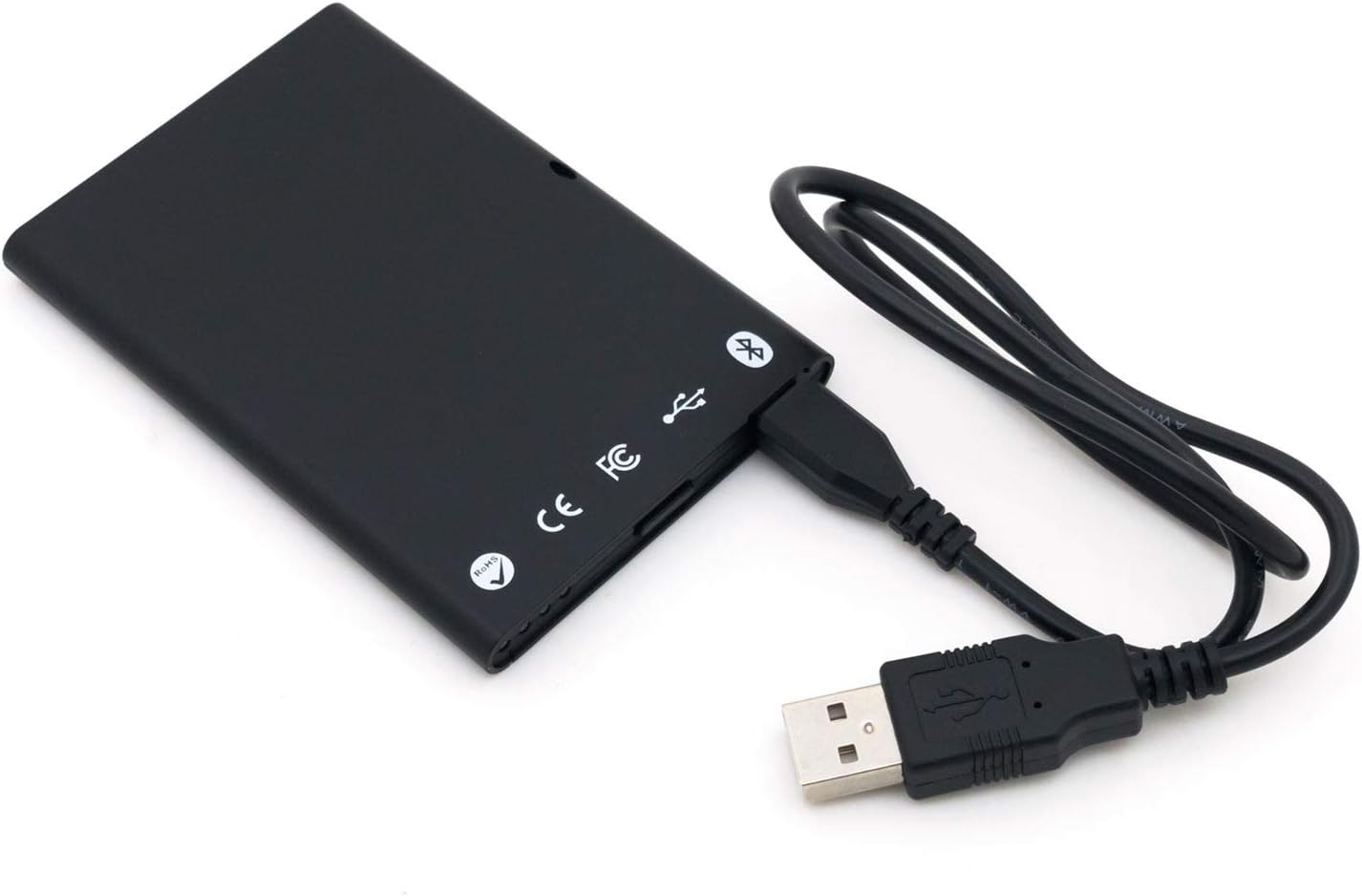
Figure 4.3: The bR301-C45 reader connected to a USB cable, illustrating the USB-C port location.
5. Setup
5.1 Charging the Device
The bR301-C45 reader includes a 350mAh Li-Ion battery. Before initial use, or if the battery is low, charge the device using the provided USB cable.
- Connect the USB Type-C end of the cable to the reader's port.
- Connect the USB-A end of the cable to a powered USB port on a computer or a USB wall adapter.
- The device will indicate charging status (e.g., an LED indicator, refer to specific product documentation for LED behavior).
5.2 USB Connection (Plug and Play)
For direct connection to a computer, the bR301-C45 supports plug-and-play functionality, requiring no additional drivers for basic operation.
- Ensure the reader is charged or connected to a power source.
- Connect the USB Type-C end of the cable to the reader.
- Connect the USB-A end of the cable to an available USB port on your computer.
- Your operating system should automatically detect and configure the device.
5.3 Bluetooth (BLE) Connection
The bR301-C45 can connect wirelessly via Bluetooth Low Energy (BLE) to compatible devices.
- Ensure the reader is sufficiently charged.
- Activate Bluetooth on your host device (e.g., smartphone, tablet, computer).
- Put the bR301-C45 into pairing mode (refer to specific product documentation for button presses or indicators).
- Search for available Bluetooth devices on your host device.
- Select "FEITIAN bR301-C45" or a similar identifier from the list and complete the pairing process.
Note: For certain applications, especially those involving government CAC or PIV cards, specific software or utilities (e.g., "Smart Card Utility") may be required on your host device. These applications may involve additional licensing or configuration steps not covered in this general manual. Consult the software provider's documentation for details.
6. Operating the Device
6.1 Inserting a Smart Card
- Identify the correct orientation for your smart card. Typically, the chip on the card faces upwards and is inserted into the reader.
- Gently slide the smart card into the card slot until it is fully seated. Do not force the card.
- The reader or associated software will indicate successful card detection.
6.2 Removing a Smart Card
To remove a smart card, gently pull it out from the slot. Ensure no active operations are being performed with the card before removal to prevent data corruption.
6.3 Using with Applications
Once connected and a smart card is inserted, the bR301-C45 reader facilitates secure communication between the smart card and your application. This includes:
- Secure ID Authentication: For logging into systems or verifying identity.
- E-Payment: For secure transactions.
- Access Control: For gaining access to restricted areas or digital resources.
The specific steps for using the reader will depend on the application you are using. Refer to the documentation for your specific software or service.
7. Maintenance
7.1 Cleaning
To clean the device, use a soft, dry, lint-free cloth. Do not use liquid cleaners, aerosols, or solvents, as these can damage the device.
7.2 Battery Care
- Avoid fully discharging the battery frequently.
- Store the device in a cool, dry place when not in use for extended periods.
- Charge the device periodically if stored for a long time to maintain battery health.
8. Troubleshooting
- Device not recognized via USB:
- Try a different USB port.
- Ensure the USB cable is securely connected at both ends.
- Restart your computer.
- Bluetooth pairing issues:
- Ensure the reader is in pairing mode.
- Check that Bluetooth is enabled on your host device.
- Move the reader closer to the host device.
- Remove previous pairings and try again.
- Smart card not detected:
- Ensure the smart card is inserted correctly and fully seated.
- Check if the smart card is damaged or dirty.
- Verify that the necessary software/drivers are installed and configured on your computer for the specific smart card type.
- Battery not charging:
- Ensure the USB cable is functional and properly connected.
- Try a different USB power source.
- If the issue persists, contact support.
9. Specifications
| Feature | Detail |
|---|---|
| Model Number | bR301 C45 |
| Connectivity | USB Type C, Bluetooth Low Energy (BLE) |
| Supported Card Types | 1.8V, 3V, and 5V smart cards |
| Battery | 350mAh Li-Ion (included) |
| Operating System Compatibility | All operating systems (Plug & Play for USB) |
| Dimensions (LxWxH) | 3.66 x 2.09 x 0.31 inches |
| Weight | 1.27 ounces |
| Color | Black |
10. Warranty Information
FEITIAN products typically come with a limited warranty. For specific warranty terms and conditions, please refer to the warranty card included with your product or visit the official FEITIAN website. Keep your proof of purchase for warranty claims.
11. Support
For further assistance, technical support, or to download the latest drivers and software, please visit the official FEITIAN website:
You may also contact FEITIAN customer service through the contact information provided on their website.


