
Introduction
The Sony BDP-S6700 is a versatile Blu-ray Disc player designed to enhance your home entertainment experience. It features 4K upscaling for improved picture quality on compatible displays, 3D playback capabilities, and access to a wide range of streaming services. This player also supports wireless connectivity for Bluetooth headphones and speakers, and allows playback of music and other media from CDs and USB devices.
Safety Information
- Power Source: Connect the player only to the type of power source indicated on the marking label.
- Ventilation: Ensure adequate ventilation around the unit. Do not block ventilation openings.
- Liquid Exposure: Do not expose the unit to rain or moisture. Do not place objects filled with liquids, such as vases, on the unit.
- Cleaning: Unplug the unit from the wall outlet before cleaning. Use a soft, dry cloth.
- Servicing: Do not attempt to service the unit yourself. Refer all servicing to qualified service personnel.
What's in the Box
Verify that all items are present in the packaging:
- Sony BDP-S6700 Blu-ray Disc Player
- Remote Control (RMT-VB200U)
- AAA Batteries (x2)
- Instruction Manual (Simple Web Manual)
- Warranty Card
- 6ft High Speed HDMI Cable
Setup
1. Physical Connections
Connect the Blu-ray Disc player to your television and power source.

Image: Front view of the Sony BDP-S6700 Blu-ray Disc Player, showing its sleek black design and front panel controls.
- HDMI Connection: Use the supplied 6ft High Speed HDMI Cable to connect the HDMI OUT port on the player to an HDMI IN port on your TV. Note the HDMI input number on your TV.
- Power Connection: Connect the AC power cord to the player's AC IN jack, then plug the other end into a wall outlet.

Image: A coiled 6ft High Speed HDMI Cable, used for connecting the player to a television.
2. Network Setup (Wi-Fi)
The BDP-S6700 supports Wi-Fi for internet connectivity, enabling access to streaming services and firmware updates.
Image: The Wi-Fi Certified logo, indicating the player's wireless network capability.
- Turn on your TV and select the correct HDMI input for the player.
- Power on the Blu-ray Disc player.
- From the player's Home menu, navigate to Settings > Network Settings > Internet Settings.
- Select Wireless Setup and follow the on-screen instructions to connect to your home Wi-Fi network. You may need to enter your network password.
3. Initial Settings
After connecting, the player may guide you through initial setup steps, including language selection and time zone settings.
Operating
1. Remote Control Usage
The supplied remote control (RMT-VB200U) provides full control over the player's functions.

Image: The Sony RMT-VB200U remote control, featuring dedicated buttons for Netflix and Bluetooth.
- Power: Turns the player on or off.
- Home: Accesses the main menu.
- Navigation Buttons: Use the arrow keys and ENTER button to navigate menus.
- Playback Controls: Play, Pause, Stop, Fast Forward, Rewind, Skip.
- Netflix Button: Direct access to the Netflix streaming service.
- Bluetooth Button: Toggles Bluetooth on/off for audio device pairing.
2. Playing Discs
The player supports Blu-ray Discs, DVDs, and CDs.
- Press the OPEN/CLOSE button on the player or remote to open the disc tray.
- Place a disc gently into the tray with the label side facing up.
- Press the OPEN/CLOSE button again to close the tray.
- Playback will usually start automatically. If not, select the disc icon from the Home menu.
3. Streaming Services
Access a variety of online streaming content directly from the player.
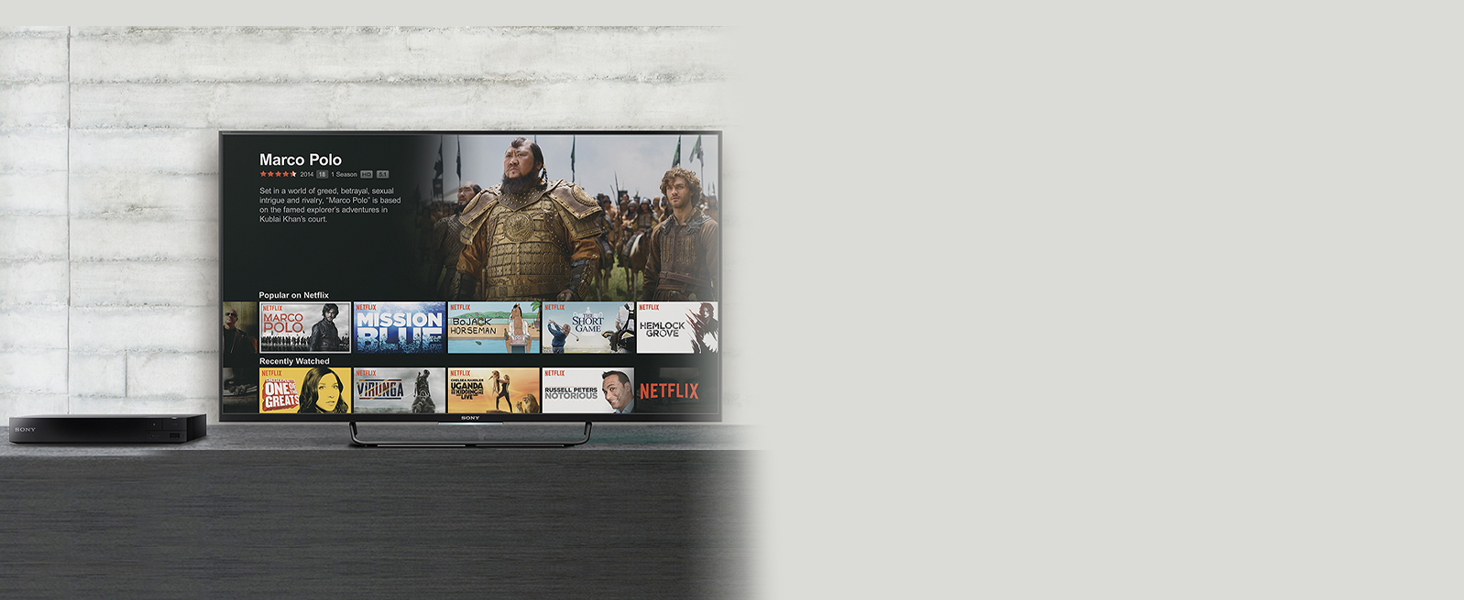
Image: A television screen displaying the Netflix streaming interface, accessible via the Blu-ray player.
- Ensure the player is connected to the internet via Wi-Fi.
- From the Home menu, navigate to the Featured Apps or My Apps section.
- Select your desired streaming service (e.g., Netflix, YouTube, Tubi).
- Log in with your account credentials if prompted.
4. 4K Upscaling
The player can enhance the resolution of standard Blu-ray Discs and DVDs to near-4K quality when connected to a 4K compatible television.

Image: A visual comparison showing the enhanced detail and color of a 4K upscaled image on the right, compared to a standard resolution image on the left.
- Connect the player to a 4K television using an HDMI cable.
- The upscaling process is automatic. No special settings are typically required.
5. 3D Playback
Enjoy 3D Blu-ray content with a compatible 3D TV and 3D glasses.
- Ensure your television supports 3D playback and you have active 3D glasses.
- Insert a 3D Blu-ray Disc. The player will automatically detect and prompt for 3D playback.
- 3D settings can be adjusted in the player's menu if needed.
6. Bluetooth Connectivity
Connect wireless headphones or speakers for a personalized audio experience.

Image: A person wearing wireless headphones, enjoying content from the Blu-ray player on a television, demonstrating Bluetooth audio connectivity.
- Press the Bluetooth button on the remote control or navigate to Settings > Bluetooth Settings.
- Put your Bluetooth audio device into pairing mode.
- Select your device from the list on the TV screen to pair.
7. USB Playback
Play media files from a USB storage device.
- Insert a USB storage device into the USB port on the front of the player.
- From the Home menu, select the USB icon or navigate to the media playback section.
- Browse and select the desired media file (e.g., MP3, AAC).
Maintenance
1. Cleaning
- Wipe the exterior of the player with a soft, dry cloth. Do not use liquid or aerosol cleaners.
- Keep the disc tray and lens free of dust and debris. Do not use disc cleaning kits that insert into the player.
2. Firmware Updates
Regularly check for and install firmware updates to ensure optimal performance and access to the latest features and security enhancements.
- Ensure the player is connected to the internet.
- Navigate to Settings > System Settings > Software Update.
- Follow the on-screen prompts to check for and install any available updates. Do not power off the player during an update.
Troubleshooting
If you encounter issues with your player, refer to the following common solutions:
- No Power: Ensure the power cord is securely connected to the player and a working electrical outlet. Try a different outlet.
- No Picture/Sound: Verify that the HDMI cable is securely connected to both the player and the TV. Ensure your TV is set to the correct HDMI input. Check TV volume and player audio settings.
- Disc Not Playing: Ensure the disc is inserted correctly (label side up) and is clean and free of scratches. Verify the disc format is supported by the player (Blu-ray, DVD, CD).
- No Network Connection: Check your Wi-Fi router and ensure it is powered on and functioning. Re-enter your Wi-Fi password in the player's network settings. Restart both the player and your router.
- Remote Control Not Working: Check the batteries in the remote control and replace them if necessary. Ensure there are no obstructions between the remote and the player's IR sensor.
Specifications
| Feature | Description |
|---|---|
| Brand | Sony |
| Model | BDP-S6700 |
| Media Type | Blu-Ray Disc, DVD, CD |
| Video Output Resolution | 1080p, 4K UHD (Upscaled) |
| Special Features | 4K Upscaling, 3D Playback, Streaming Services, Bluetooth, Wi-Fi |
| Connectivity Technology | Bluetooth, HDMI, USB, Wi-Fi |
| Connector Type | HDMI, USB |
| Audio Output Mode | Surround |
| Supported Audio Format | Dolby TrueHD, DTS-HD |
| Power Consumption | 12 Watts |
| Item Weight | 2 Pounds |
Warranty and Support
For detailed warranty information, please refer to the Warranty Card included with your product. This card outlines the terms and conditions of your warranty coverage.
For technical assistance, product registration, or additional support resources, please visit the official Sony support website or contact Sony customer service directly. Contact information can typically be found on the Sony website or in your product documentation.


