
Introduction
Thank you for choosing the Lamax X9.1 Action Camera. This manual provides essential information for setting up, operating, and maintaining your camera. Please read it thoroughly before use to ensure optimal performance and longevity of your device. The Lamax X9.1 is designed to capture your adventures in stunning 4K Ultra HD video and 12-megapixel photos, featuring Wi-Fi connectivity and a robust design.
Package Contents
Please check the package contents upon unboxing. Typical accessories include:
- Lamax X9.1 Action Camera
- Remote Control
- Waterproof Case
- Mounting Accessories
- USB Cable
- User Manual
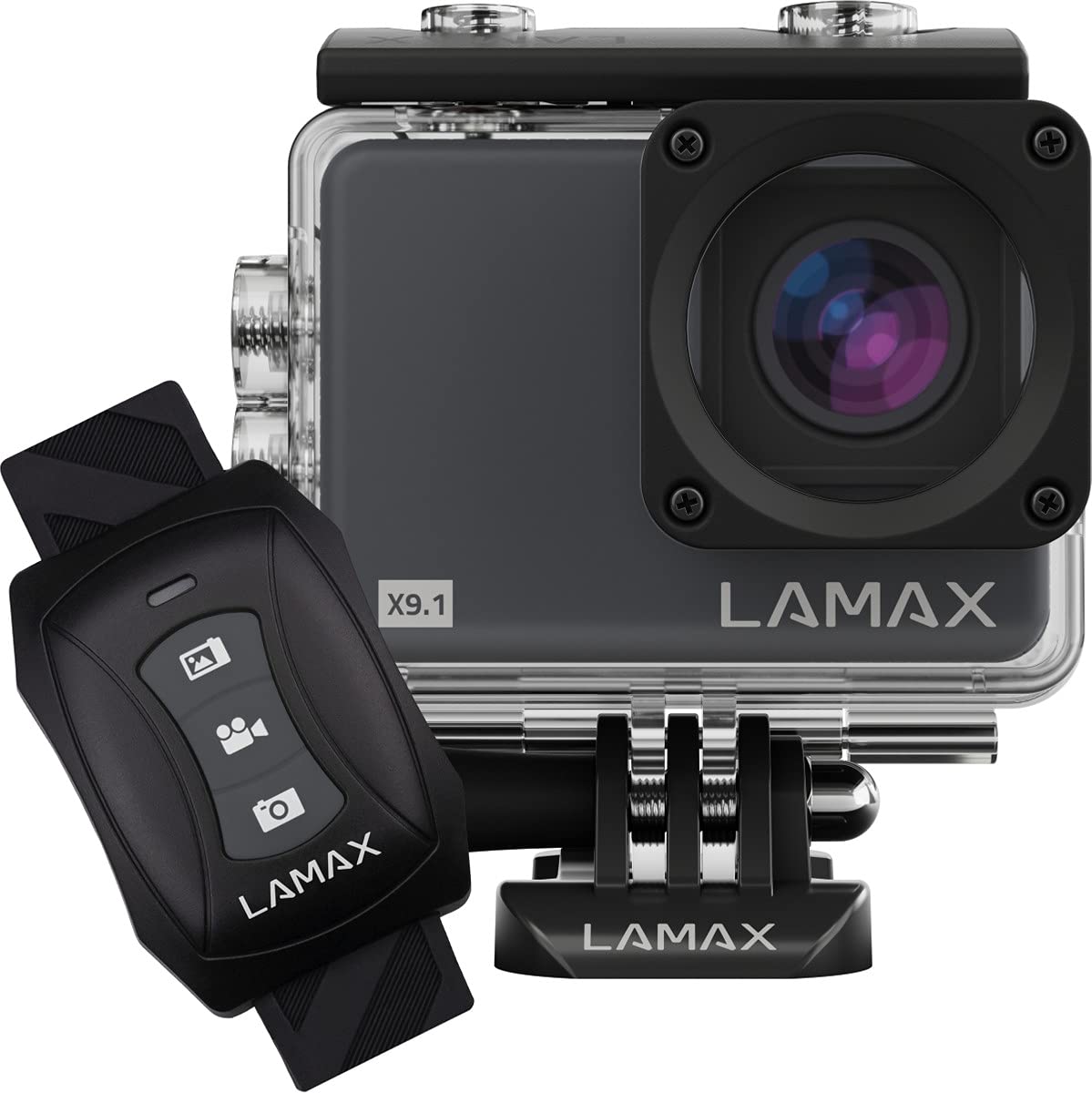
Image: The Lamax X9.1 Action Camera shown alongside its remote control, illustrating the main components.
Camera Overview
Familiarize yourself with the camera's physical components:
- Lens: Front-facing optical component for capturing images and videos.
- LCD Screen: 2-inch display on the rear for live view, menu navigation, and playback.
- Power/Mode Button: Typically located on the front or top, used to power on/off and switch modes.
- Shutter/Record Button: Located on the top, used to start/stop recording or take photos.
- Navigation Buttons: Used for menu navigation (Up/Down).
- Micro-USB Port: For charging and data transfer.
- HDMI Port: For connecting to an external display.
- MicroSD Card Slot: For memory card insertion.

Image: Front view of the Lamax X9.1 Action Camera, clearly showing the lens and model number.

Image: Side view of the Lamax X9.1 Action Camera, highlighting the Micro-USB and HDMI ports.

Image: Rear view of the Lamax X9.1 Action Camera, displaying the LCD screen and control buttons.
Setup
1. Battery Installation and Charging
- Open the battery compartment cover, usually located on the bottom or side of the camera.
- Insert the Lithium-Ion (Li-Ion) battery (1050 mAh) with the contacts facing the correct direction.
- Close the battery compartment securely.
- Connect the camera to a power source using the provided Micro-USB cable. The charging indicator will illuminate. A full charge takes approximately 1.84 hours.
2. MicroSD Card Installation
- Locate the MicroSD card slot, typically on the side of the camera.
- Insert a compatible MicroSDHC or MicroSDXC card (up to 64 GB, Class 10 or higher recommended) with the contacts facing down. Push until it clicks into place.
- To remove, push the card in again until it springs out.
3. Powering On/Off
- To Power On: Press and hold the Power/Mode button for a few seconds until the screen illuminates.
- To Power Off: Press and hold the Power/Mode button again until the screen turns off.
4. Waterproof Case Usage
The Lamax X9.1 is waterproof up to 40 meters when enclosed in its waterproof case. Ensure the case is properly sealed before submerging the camera.
- Open the waterproof case latch.
- Carefully place the camera inside the case, ensuring it fits snugly.
- Close the latch firmly, making sure the rubber seal is clean and free of debris.
- Always test the waterproof case without the camera first to ensure no leaks.

Image: The Lamax X9.1 Action Camera securely placed inside its waterproof housing, shown with the remote control.
Operating the Camera
1. Basic Controls
- Power/Mode Button: Short press to cycle through video, photo, playback, and settings modes.
- Shutter/Record Button: Press to start/stop video recording or take a photo in the respective modes.
- Up/Down Buttons: Used to navigate menu options or zoom (if applicable).
2. Video Recording
In video mode, press the Shutter/Record button to begin recording. Press again to stop.
- Resolutions: Supports 4K Ultra HD (3840 x 2160 pixels), 1080p, 720p.
- Frame Rates: Up to 120 frames per second (fps) for smooth slow-motion capture.
- Formats: H.264, H.265, MP4.
3. Photo Capture
In photo mode, press the Shutter/Record button to take a picture.
- Resolution: 12 Megapixels (3840 x 2160 pixels).
- Format: JPG.
4. Special Modes
- Time-lapse: Capture a series of photos at set intervals to create a time-lapse video.
- Super Slow Motion: Record high frame rate video for dramatic slow-motion effects.
5. Wi-Fi Connectivity
The Lamax X9.1 features Wi-Fi for remote control and file transfer via a smartphone application.
- Enable Wi-Fi on your camera through the settings menu.
- Download the official Lamax app (check your camera's packaging or the Lamax website for the correct app name) on your smartphone.
- Connect your smartphone to the camera's Wi-Fi network (SSID and password will be displayed on the camera screen).
- Use the app to control the camera, view live footage, and download files.
6. Remote Control
The included remote control allows for convenient operation without directly touching the camera.
- Ensure the remote is paired with the camera (refer to the camera's settings menu for pairing instructions).
- Use the dedicated buttons on the remote to start/stop recording or take photos.
Settings Menu
Access the settings menu by cycling through modes using the Power/Mode button until you reach the settings icon, or by pressing a dedicated menu button if available. Use the navigation buttons to scroll and the Shutter/Record button to select options.
Common settings include:
- Video Resolution and Frame Rate
- Photo Resolution
- Exposure Compensation (EV)
- White Balance (WB)
- Date and Time
- Loop Recording
- Screen Saver/Auto Power Off
- Wi-Fi Settings
- Format SD Card
Maintenance
1. Cleaning
- Lens: Use a soft, lint-free cloth specifically designed for optical lenses. Avoid harsh chemicals.
- Screen: Wipe gently with a microfiber cloth.
- Camera Body: Use a soft, damp cloth to clean the exterior. Ensure all ports are closed before cleaning with moisture.
- Waterproof Case: After use in saltwater, rinse the case with fresh water and let it air dry. Check the rubber seal for any debris or damage.
2. Battery Care
- Avoid fully discharging the battery frequently.
- Store the camera with the battery partially charged (around 50%) if not used for extended periods.
- Do not expose batteries to extreme temperatures.
3. Storage
Store the camera in a cool, dry place away from direct sunlight and excessive humidity. Remove the battery if storing for a long time.
Troubleshooting
If you encounter issues with your Lamax X9.1, refer to the following common problems and solutions:
| Problem | Possible Cause / Solution |
|---|---|
| Camera does not turn on. | Battery is depleted. Charge the battery fully. Ensure the battery is inserted correctly. |
| SD card error message. | SD card is not inserted correctly, is full, or is corrupted. Reinsert the card, try a different card, or format the card (this will erase all data). Ensure the card is MicroSDHC/XC, up to 64GB, Class 10 or higher. |
| Poor battery life. | High-resolution video recording (4K) and Wi-Fi use consume more power. Ensure the battery is fully charged. Consider carrying spare batteries for extended use. |
| Water leakage into the case. | Waterproof case was not sealed properly, or the rubber seal is damaged/dirty. Always check the seal and latch before submerging. |
| Camera not recognized by computer. | Ensure the USB cable is connected securely. Try a different USB port or cable. The camera might need to be in a specific mode (e.g., Mass Storage) to be recognized. |
| Wi-Fi connection issues. | Ensure Wi-Fi is enabled on the camera and your smartphone. Check the Wi-Fi password. Move closer to the camera to improve signal strength. |
If the problem persists, perform a factory reset (if available in settings) or contact Lamax customer support.
Specifications
| Feature | Specification |
|---|---|
| Model Number | X9.1 |
| Video Resolution | Up to 4K Ultra HD (3840 x 2160 pixels) |
| Max Frame Rate | 120 fps |
| Photo Resolution | 12 Megapixels (3840 x 2160 pixels) |
| Display | 2-inch (5.08 cm) LCD |
| Storage Media | MicroSDHC, MicroSDXC (up to 64 GB) |
| Battery Type | Lithium-Ion (Li-Ion), 1050 mAh |
| Charging Time | Approx. 1.84 hours |
| Connectivity | Wi-Fi, Micro-USB, HDMI |
| Weight | 72 grams |
| Dimensions (L x W x H) | 60 x 44 x 33 mm |
| Waterproof Rating | Up to 40 meters (with waterproof case) |
| Special Features | Time-lapse, Super Slow Motion, Image Stabilization |
Warranty and Support
For warranty information and technical support, please refer to the documentation included with your product or visit the official Lamax website. Keep your proof of purchase for any warranty claims.


