
1. Introduction
The Modecom Oberon Pro Midi Tower is a computer case designed for users seeking a functional and spacious interior with a modern aesthetic. This manual provides essential information for the proper installation, operation, and maintenance of your computer case, ensuring optimal performance and longevity of your components.
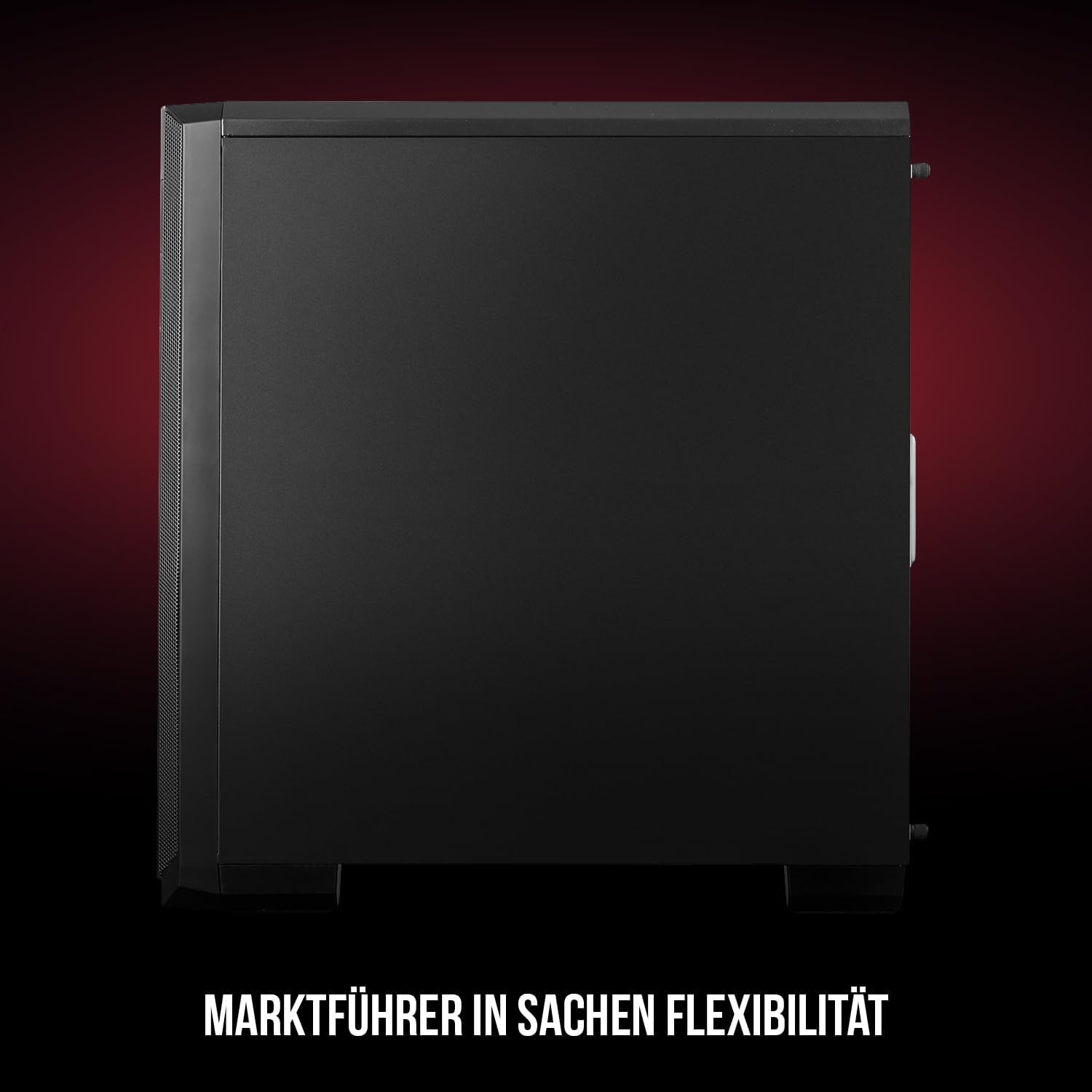
Figure 1: Front and side view of the Modecom Oberon Pro Midi Tower computer case.
2. Safety Information
- Always disconnect the power supply from the wall outlet before installing or removing any components.
- Handle components with care to avoid electrostatic discharge. Consider using an anti-static wrist strap.
- Keep small parts and tools away from children.
- Ensure proper ventilation around the case to prevent overheating.
- Do not attempt to modify the case structure, as this may void your warranty and pose safety risks.
3. Package Contents
Verify that all the following items are present in your package:
- Modecom Oberon Pro Midi Tower Computer Case
- Accessory box (screws, standoffs, cable ties)
- User Manual (this document)
4. Key Features
- Spacious Interior: Designed to accommodate high-end components and facilitate good airflow.
- Efficient Cooling: Includes two pre-mounted 120mm fans (front and rear) to prevent component overheating.
- Tool-Free Installation: Supports tool-free mounting for SSD/HDD drives and expansion cards.
- Dust Filtration: Features easily dismountable magnetic filters on the top, front, and bottom (under the power supply unit) to keep the interior clean.
- Optimized Cable Management: Provides a system for convenient wiring organization.
- Long PSU Tunnel: Offers a 240mm space for power supplies, simplifying installation and cable arrangement.
5. Setup and Installation
5.1. Preparing the Case
Before installation, remove the side panels of the case. The Oberon Pro features sound-dampening mats on the side panels to reduce noise.

Figure 2: Interior view showing sound-dampening mats on the side panel.
5.2. Motherboard Installation
Install the necessary standoffs for your motherboard form factor (ATX, Micro ATX, ITX). Carefully place your motherboard into the case, aligning it with the standoffs, and secure it with screws.

Figure 3: Interior layout with pre-installed rear fan and motherboard tray.
5.3. Drive Installation (SSD/HDD)
The Oberon Pro supports tool-free installation for three 2.5" SSDs and two 3.5" HDDs. The 3.5" HDD bays are located in the power supply tunnel at the bottom of the case. 2.5" SSDs can be mounted on both sides of the motherboard tray.

Figure 4: Dedicated bays for HDD and SSD storage devices.
5.4. Power Supply Installation
The case features a long PSU tunnel (240mm) at the bottom. Install your power supply unit into this tunnel and secure it. This design aids in cable management and airflow.
5.5. Expansion Card Installation (PCI/PCIe)
Install your graphics card or other expansion cards into the PCI/PCIe slots. The case supports tool-free mounting for these cards, allowing for easy installation and removal.
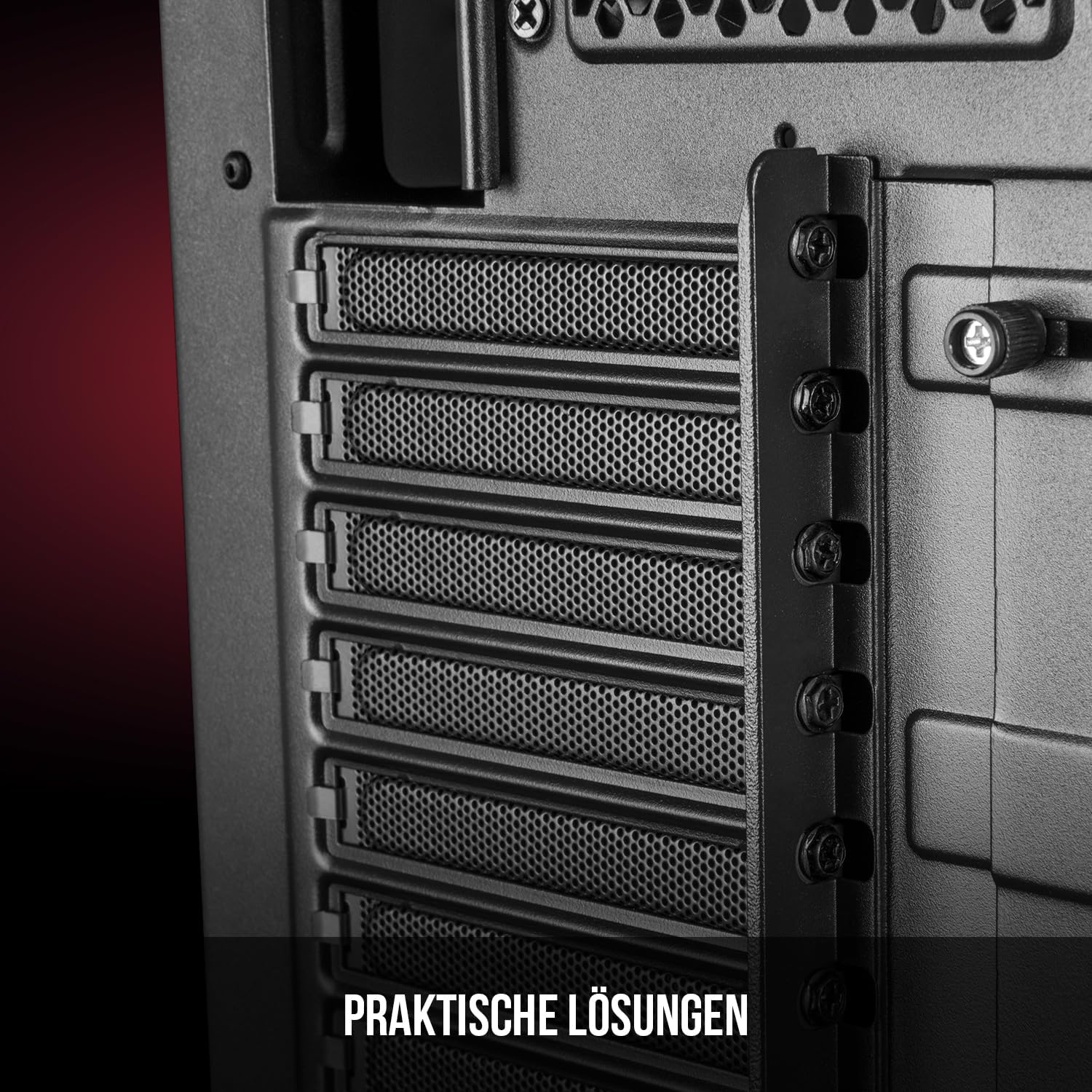
Figure 5: Rear interior view highlighting the expansion card slots.
5.6. Cable Management
Utilize the provided cable routing options and tie-down points behind the motherboard tray to organize cables. This improves airflow and maintains a tidy interior.
6. Cooling System
The Oberon Pro comes with two pre-installed 120mm fans, one at the front and one at the rear, to ensure adequate airflow. The maximum height for a CPU cooler is 163mm, and the maximum length for a video card is 395mm, allowing for compatibility with a wide range of components.
7. Maintenance
To maintain optimal performance and prevent dust buildup, regularly clean the dust filters. The magnetic filters on the top, front, and bottom of the case are easily dismountable for cleaning. Use compressed air or a soft brush to remove accumulated dust.
8. Troubleshooting
- No Power: Ensure all power cables are securely connected to the motherboard, power supply, and wall outlet. Check the power button connection to the motherboard.
- Overheating: Verify that all fans are spinning correctly and that dust filters are clean. Ensure proper cable management to avoid obstructing airflow.
- Front Panel Ports Not Working: Check that the front panel connectors (USB, audio) are correctly plugged into the motherboard headers.
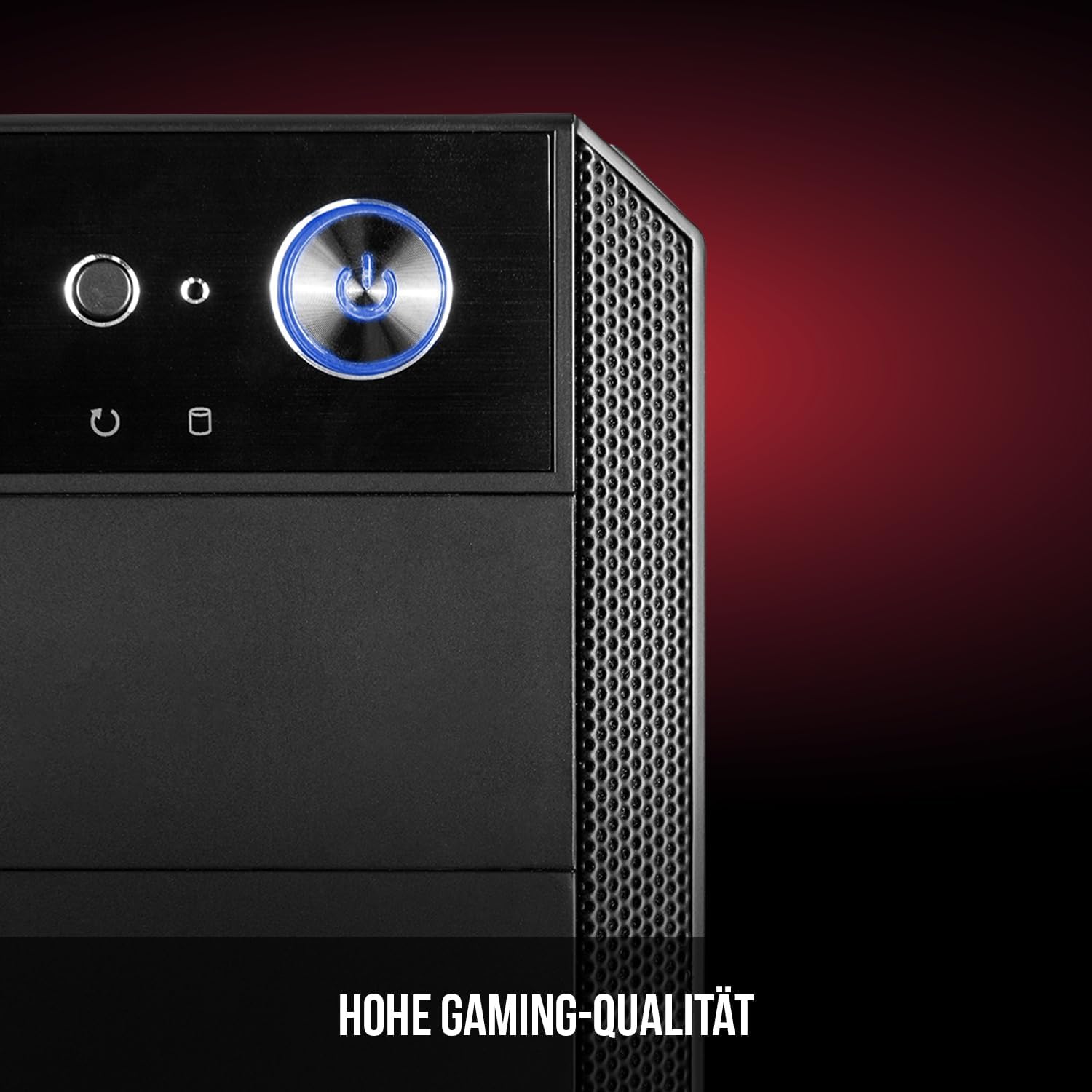
Figure 6: Front panel I/O ports for connectivity.
9. Specifications
| Feature | Specification |
|---|---|
| Brand | Modecom |
| Model Name | Oberon Pro |
| Model Number | AT-OBERON-PS-10-000000-0002 |
| Color | Black |
| Case Type | Midi Tower |
| Motherboard Compatibility | ATX, Micro ATX, ITX |
| Material | Alloy Steel |
| Cooling Method | Air |
| Pre-installed Fans | 2 x 120mm (Front, Rear) |
| Max CPU Cooler Height | 163 mm |
| Max GPU Length | 395 mm |
| Drive Bays | 3 x 2.5" SSD, 2 x 3.5" HDD |
| Total USB Ports | 4 |
| Special Features | Reset Button, Dust Filter, LED Indicators, Side Window |
| Item Weight | 5270 Grams |

Figure 7: Rear exterior view of the computer case.
10. Warranty and Support
For warranty information and technical support, please refer to the official Modecom website or contact your retailer. Keep your proof of purchase for any warranty claims.