
Introduction
This manual provides detailed instructions for the operation and maintenance of your GAN XIN GX-IR05 Remote Controller. This remote is specifically designed for use with GAN XIN interval timers, digital clocks, race timers, and LED scoreboards. Please read this manual thoroughly before use to ensure proper functionality and to maximize your product experience.
Important Note: This remote controller is not compatible with other brands of timers. Ensure that the model and appearance of your original remote controller match the GX-IR05.

Figure 1: Compatibility check for GX-IR05 Remote Controller.
Setup
1. Battery Installation (Remote Controller)
The GX-IR05 remote controller requires two AAA batteries (not included). To install batteries:
- Locate the battery compartment on the back of the remote controller.
- Slide open the battery compartment cover.
- Insert two AAA batteries, ensuring correct polarity (+ and - ends match the markings inside the compartment).
- Close the battery compartment cover securely.

Figure 2: GX-IR05 Remote Controller showing battery compartment.
2. Powering the Timer Display
The timer display unit (sold separately) typically connects to a power outlet using the provided adapter. Ensure the display unit is powered on before attempting to control it with the remote.
3. Mounting Options (Timer Display)
The timer display unit can be mounted on a wall or placed on a flat surface. Refer to the timer display's specific manual for detailed mounting instructions. The remote operates within a valid distance of approximately 10 meters with direct line of sight.
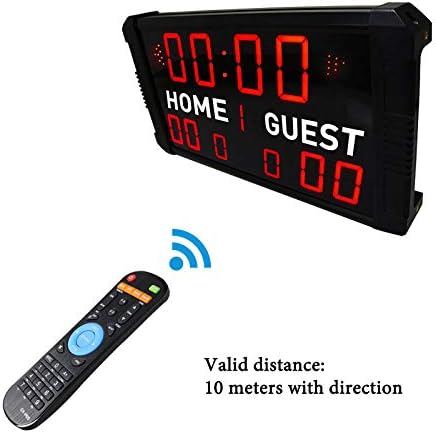
Figure 3: Remote control operating distance with a digital scoreboard.
Operating Instructions
The GX-IR05 remote controller allows you to access various functions of your GAN XIN timer display. Point the remote directly at the IR sensor of the timer display for optimal response.

Figure 4: GX-IR05 Remote Controller Button Functions.
Key Functions:
- Power Button (RED): Turns the timer display on or off.
- EDIT / SET: Enters or exits edit mode for setting time or program parameters.
- UP / DOWN: Adjusts values (e.g., time, rounds) in edit mode.
- RESET: Resets the current timer or program to its initial value.
- EMOM (Every Minute On the Minute): Activates the EMOM workout mode.
- TABATA: Activates the Tabata workout mode.
- CLOCK: Switches the display to real-time clock mode.
- START / OK: Starts the selected timer/program or confirms settings.
- STOP: Stops or pauses the current timer/program.
- FGB (Fight Gone Bad): Activates the FGB workout mode.
- 10SEC: Quick access to a 10-second countdown.
- MUTE: Toggles the buzzer sound on/off.
- Numeric Keypad (0-9): Used to input data for custom programs or time settings.
- 12/24 Hour: Toggles between 12-hour and 24-hour clock display formats.
Setting the Real-Time Clock:
- Press the CLOCK button to enter clock mode.
- Press SET or EDIT to enter edit mode. The hour digits will blink.
- Use the UP or DOWN buttons to adjust the hour.
- Press OK to confirm the hour and move to minute adjustment.
- Use the UP or DOWN buttons to adjust the minutes.
- Press OK to save the time.
- Use the 12/24 Hour button to switch between 12-hour and 24-hour display.
Using Workout Modes (EMOM, Tabata, FGB):
These modes have preset intervals. To activate:
- Press the desired mode button (e.g., EMOM, TABATA, or FGB).
- The display will show the default settings for that mode.
- Press START to begin the countdown.
- Press STOP to pause or end the workout.
Some buttons on the remote control may not work on all models of GAN XIN devices. Please refer to your specific timer display's manual for full compatibility details.
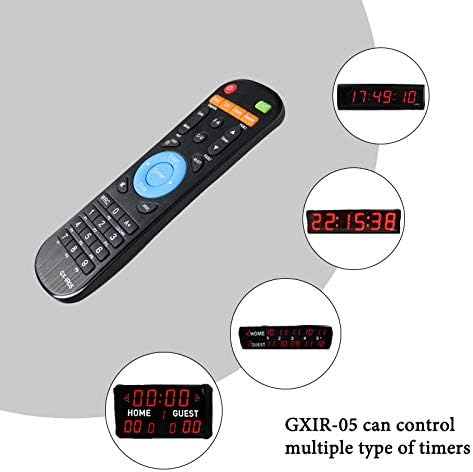
Figure 5: GX-IR05 controlling multiple timer types.
Product in Action
Small Gym Timer Clock Overview
Video 1: A seller-provided overview of a small gym timer clock, demonstrating its features and portability.
Large Digital Gym Timer - Workout Timer for Home
Video 2: A seller-provided demonstration of a large digital gym timer, highlighting its display and various workout modes.
Maintenance
Cleaning:
Wipe the remote controller and timer display with a soft, dry cloth. Do not use abrasive cleaners or solvents, as these may damage the surfaces.
Battery Replacement:
Replace the AAA batteries in the remote controller when its operational range decreases or buttons become unresponsive. Always use fresh batteries and dispose of old batteries responsibly.
Troubleshooting
- Remote not responding:
- Ensure the remote has fresh AAA batteries and they are inserted with correct polarity.
- Check that there are no obstructions between the remote and the timer display's IR sensor.
- Verify you are within the 10-meter operating range.
- Timer display not powering on:
- Ensure the timer display unit is properly plugged into a working power outlet.
- Check the power adapter and cable for any damage.
- Some remote buttons do not work:
- As noted in the product features, some buttons on the remote may not be functional with all GAN XIN timer models. This is expected behavior for certain device variations.
- Consult the specific user manual for your GAN XIN timer display to confirm compatible functions.
Specifications
| Feature | Detail |
|---|---|
| Brand | GAN XIN |
| Model Name | 8541987192 |
| Style | GX-IR05 |
| Item Package Dimensions L x W x H | 6.77 x 4.61 x 1.06 inches |
| Item Dimensions L x W x H | 6.3 x 1.57 x 0.39 inches |
| Item Weight | 2.08 ounces |
| Package Weight | 0.06 Kilograms |
| Color | Black |
| Material | Plastic |
| Max Number of Supported Devices | 1 |
| Compatible Devices | Interval Timer, Digital Clock, Race Timer, LED Scoreboard |
| Battery Type (Remote) | 2*AAA batteries (NOT INCLUDED) |
Warranty and Support
This Remote Controller comes with a 1-month warranty.
For any questions, technical assistance, or to request a user manual for your specific GAN XIN device, please contact the seller's customer service. When contacting support, please provide your device's model number for quicker assistance.