
Introduction
This document serves as a comprehensive user manual for the Dell Latitude 7280 laptop. It provides essential information regarding the setup, operation, maintenance, and troubleshooting of your device. Please read this manual thoroughly to ensure proper use and to maximize the lifespan of your laptop.
Setup
1. Unboxing and Initial Inspection
Carefully remove the laptop and all accessories from the packaging. Verify that all components listed in the 'What's in the Box' section are present and undamaged.
- Laptop
- AC adapter
- Battery (may be pre-installed)
2. Connecting the Power Adapter
Connect the AC adapter to the power port on your laptop and then plug the power cord into a wall outlet. It is recommended to fully charge the battery before initial use.

Image: Dell Latitude 7280 laptop with its side ports visible, including the power input. This view shows the laptop from an angle with the screen displaying the Windows desktop.
3. Initial Power On and Operating System Setup
Press the power button located on the top right of the keyboard to turn on the laptop. Follow the on-screen instructions to complete the Windows 10 operating system setup, including language selection, network connection, and user account creation.

Image: Top-down view of the Dell Latitude 7280 laptop with the screen displaying the Windows 10 desktop interface and the keyboard visible.
Operating Your Laptop
1. Power Management
- Power On: Press the power button.
- Sleep Mode: Close the lid or select 'Sleep' from the Windows Start menu.
- Shut Down: Select 'Shut down' from the Windows Start menu.
2. Keyboard and Touchpad
The Dell Latitude 7280 features a standard QWERTY keyboard and a touchpad for navigation. The touchpad supports multi-touch gestures for enhanced control.
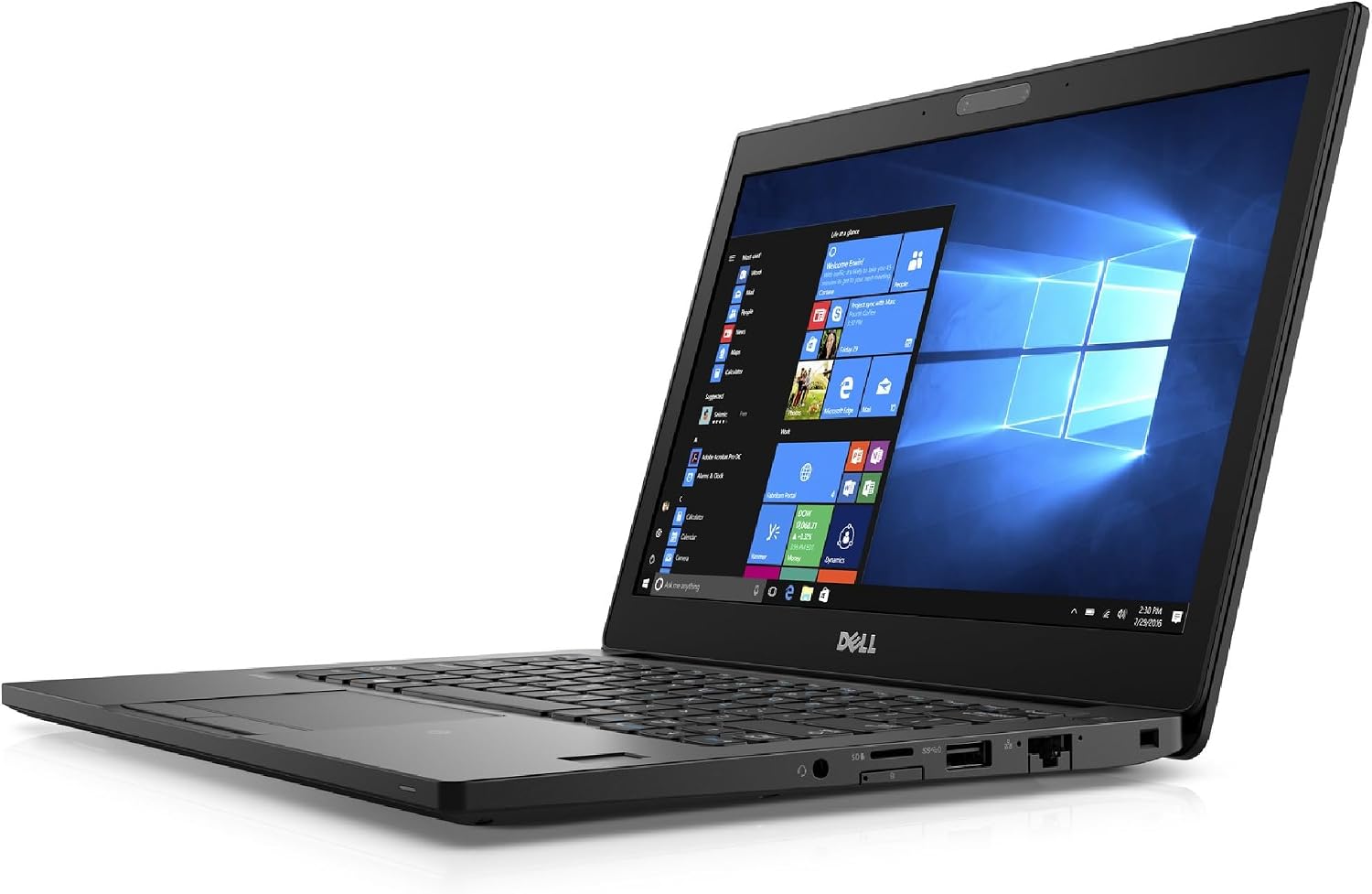
Image: Close-up view of the Dell Latitude 7280 laptop's keyboard and touchpad, showing the layout and design.
3. Connecting to Networks
- Wi-Fi: Click the Wi-Fi icon in the taskbar, select your network, and enter the password.
- Bluetooth: Enable Bluetooth in Windows settings to pair with compatible devices.
- Ethernet: Connect an Ethernet cable to the RJ-45 port for a wired network connection.
4. Using External Ports
The laptop is equipped with various ports for connecting peripherals:
- USB Ports: For connecting USB devices like external drives, mice, or keyboards.
- HDMI Port: For connecting to external displays or projectors.
- Audio Jack: For headphones or external speakers.

Image: Side view of the Dell Latitude 7280 laptop, highlighting the various connectivity ports such as HDMI, USB, and Ethernet.
Maintenance
1. Cleaning Your Laptop
- Use a soft, lint-free cloth dampened with water or a screen cleaner to clean the display.
- Use compressed air to clear dust from keyboard keys and ventilation openings.
- Avoid using harsh chemicals or abrasive materials.
2. Battery Care
- Avoid extreme temperatures.
- Do not fully discharge the battery frequently.
- For long-term storage, charge the battery to about 50-60%.
3. Software Updates
Regularly update your Windows operating system and drivers to ensure optimal performance and security. Access Windows Update through the Settings menu.
Troubleshooting
Common Issues and Solutions
| Issue | Possible Solution |
|---|---|
| Laptop does not power on | Ensure the AC adapter is securely connected and the power outlet is functional. Try a different outlet. |
| Cannot connect to Wi-Fi | Check if Wi-Fi is enabled in Windows settings. Restart your router and laptop. Verify network password. |
| Screen is blank or black | Connect an external monitor to check if the display output is working. Adjust brightness settings. Restart the laptop. |
| Laptop is slow or unresponsive | Close unnecessary applications. Check for malware. Ensure sufficient free disk space. Restart the laptop. |
| Cannot get past sign-in screen | Ensure correct password/PIN is entered. If forgotten, use password reset options provided by Windows or your organization. If it's a corporate device, contact your IT department. |
Specifications
The following table outlines the key technical specifications for the Dell Latitude 7280 laptop:
| Feature | Detail |
|---|---|
| Brand | Dell |
| Model Name | Dell Latitude 7280 |
| Screen Size | 12.5 Inches |
| Display Resolution | 1920 x 1080 pixels (Full HD) |
| Processor | Intel Core i5-6300U (2.4 GHz) |
| RAM Memory | 8 GB DDR4 SDRAM |
| Storage | 256 GB SSD |
| Graphics | Intel HD Graphics (Integrated) |
| Operating System | Windows 10 Professional |
| Connectivity | Wi-Fi (802.11AC), Bluetooth 4.2, Ethernet, USB, HDMI |
| Battery Life (Average) | 8 Hours |
| Weight | 2.6 Pounds |
| Webcam | Yes |
| Color | Black |
| UPC | 748926427401 |
Warranty and Support
Warranty Information
This Dell Latitude 7280 laptop comes with a 90-day limited warranty. Please refer to your purchase documentation for specific terms and conditions regarding warranty claims and coverage.
Technical Support
For further technical assistance, driver downloads, or service inquiries, please visit the official Dell support website. You will typically need your laptop's service tag or express service code to access specific support resources.


