
Introduction
The Logitech G512 Carbon RGB Mechanical Gaming Keyboard is a high-performance peripheral designed for gaming and productivity. It features advanced technologies, including customizable full-spectrum RGB lighting with LIGHTSYNC technology, durable mechanical switches, and a convenient USB pass-through port. Constructed with aircraft-grade aluminum, the G512 offers both a sleek design and robust durability.

Image: The Logitech G512 Carbon RGB Mechanical Gaming Keyboard, showcasing its full layout with vibrant RGB backlighting.
Setup
Connect the Keyboard: Plug the USB 2.0 cable from the G512 keyboard into an available USB port on your computer. The keyboard requires a single USB connection for basic functionality and power.

Image: A close-up view of the Logitech G512 keyboard's integrated USB pass-through port, located on the top right side of the keyboard.
Install Logitech G HUB Software: For full customization of RGB lighting, key assignments, and advanced features, download and install the Logitech G HUB software from the official Logitech G website. This software allows you to personalize your keyboard experience.
Visit Logitech G HUB for download.
Initial Configuration: Once the software is installed, launch it to detect your G512 keyboard. You can then begin customizing lighting profiles, assigning macros to function keys, and configuring game mode settings.
Operating the Keyboard
Key Features and Functions:
LIGHTSYNC RGB: The G512 features per-key RGB lighting. Use the Logitech G HUB software to personalize lighting for each individual key, create custom lighting effects, and enable in-game integrations from a spectrum of 16.8 million colors.

Image: A close-up of the keyboard's keys, highlighting the customizable RGB lighting and the clear keycap legends.
Romer-G Tactile Mechanical Switches: This keyboard is equipped with Romer-G Tactile switches, which provide a discernible tactile bump during actuation. This design is ideal for competitive and FPS gaming, offering confidence and precision without excessive noise.

Image: An exploded diagram illustrating the internal components of Romer-G mechanical key switches, showing the tactile mechanism.
USB Pass-Through: An integrated USB pass-through port allows you to conveniently plug in a mouse, flash drive, or phone directly into the keyboard, simplifying cable management and connectivity.
Aircraft-Grade Aluminum Construction: The top case is made from anodized and brushed 5052 aluminum, providing a slim, premium design and rigid durability.
Full Function Keys: Access media and lighting controls directly from your fingertips. Use the FN key in combination with F-keys to control volume, play/pause, mute, toggle game mode, change lighting effects, and more.
Gaming and Productivity:
The G512 is optimized for both gaming and general use. Its responsive mechanical switches ensure quick and accurate input during intense gaming sessions, while the full-size layout and dedicated media controls enhance productivity for everyday tasks.

Image: The Logitech G512 keyboard integrated into a complete gaming setup, surrounded by other Logitech G peripherals like a headset, mouse, and speakers, demonstrating its role in a cohesive gaming ecosystem.
Maintenance
Cleaning: To clean the keyboard, use a soft, lint-free cloth. For deeper cleaning, you may use a can of compressed air to remove dust and debris from between the keys. Avoid using harsh chemicals or abrasive materials.
Storage: When not in use for extended periods, store the keyboard in a dry, cool place away from direct sunlight and extreme temperatures.
Troubleshooting
Keyboard Not Responding:
- Ensure the USB cable is securely connected to both the keyboard and the computer.
- Try plugging the keyboard into a different USB port.
- Restart your computer.
- If using a USB hub, try connecting directly to the computer.
RGB Lighting Issues:
- Verify that Logitech G HUB software is installed and up to date.
- Check lighting settings within G HUB to ensure a profile is active and brightness is not set to zero.
- Ensure the keyboard's firmware is updated via G HUB.
Keys Not Registering or Double-Typing:
- Clean around and under the affected keycaps using compressed air.
- Ensure the keyboard's firmware is updated.
- If the issue persists, contact Logitech G support.
Specifications
| Feature | Detail |
|---|---|
| Brand | Logitech G |
| Model Number | G512 |
| Connectivity Technology | USB 2.0 |
| Keyboard Description | Gaming |
| Key Switches | Romer-G Tactile |
| Number of Keys | 104 |
| RGB Lighting | LIGHTSYNC RGB (16.8M colors) |
| Material | Aircraft-grade 5052 Aluminum (top case) |
| USB Pass-Through | 1x USB 2.0 Port |
| Dimensions (LxWxH) | 17.52 x 5.2 x 1.4 inches |
| Item Weight | 2.43 pounds |
| Compatible Operating Systems | Windows, Mac OS, Android |
What's in the Box
- G512 LIGHTSYNC RGB Mechanical Gaming Keyboard
- User Documentation
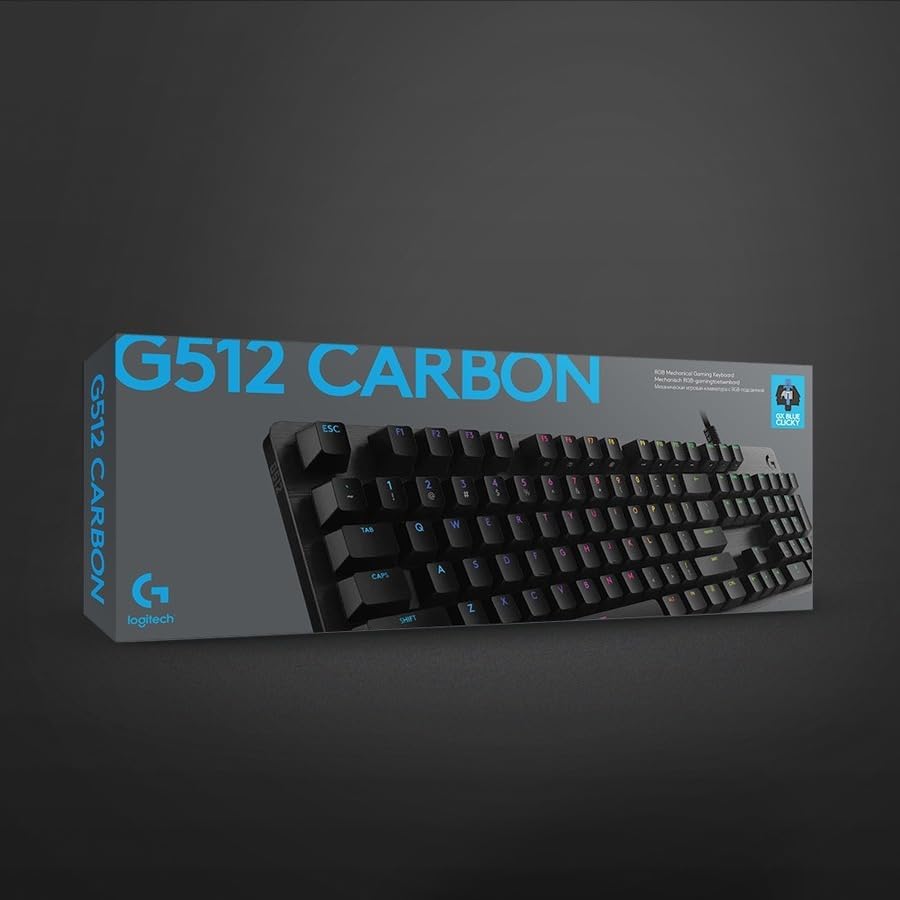
Image: The Logitech G512 keyboard displayed alongside its braided USB cable and a set of extra keycaps, illustrating the contents typically found in the product packaging.
Warranty and Support
Logitech G products typically come with a limited hardware warranty. For specific warranty details, please refer to the warranty information included with your product or visit the official Logitech G support website.
For technical support, troubleshooting guides, and driver downloads, please visit the Logitech G Support Page.


