
1. Introduction and Overview
This manual provides detailed instructions for the FOSA Bluetooth Keyboard with Portfolio Flip Leather Case Cover. This 2-in-1 accessory is designed to enhance your mobile typing experience, offering a detachable Bluetooth keyboard and a protective case with a built-in stand for smartphones ranging from 4.5 to 6.8 inches. It is compatible with iOS, Android, and Windows operating systems.
Please read this manual thoroughly before using the product to ensure proper operation and longevity.
2. Package Contents
- 1 x FOSA Bluetooth Keyboard & Case
- 1 x Micro USB Data Cable

Image: The FOSA Bluetooth Keyboard and its accompanying Micro USB data cable.
3. Product Features
- 2-in-1 Design: Combines a stylish folio stand case cover with a detachable Bluetooth 3.0 keyboard.
- Wide Compatibility: Supports 4.5''-6.8'' Bluetooth-enabled cell phones (width of 6-9.5cm), including Android, iOS, and Windows Phones.
- Detachable Magnetic Keyboard: Allows the keyboard to be separated from the case, transforming it into a classic portfolio case.
- Integrated Phone Holder: Built-in stand securely holds your cellphone at an optimal angle for typing or media viewing.
- Durable Construction: Premium PU leather exterior provides rugged, shockproof protection, while the plastic keyboard is scratch-resistant.
- Power Indicator Light: Alerts you to low battery status, reminding you to charge.

Image: The FOSA Bluetooth Keyboard integrated into its folio case, holding a smartphone.

Image: Visual representation of the keyboard's compatibility with 4.5''-6.8'' phones, including Android, Windows, and iOS devices.

Image: Close-up of the magnetic buckle feature on the FOSA keyboard case, ensuring secure closure.
4. Setup Instructions
4.1 Charging the Keyboard
Before first use, fully charge the keyboard for 1-2 hours. A low battery may affect functionality. Connect the provided Micro USB cable to the keyboard's charging port and a USB power source.

Image: The Micro USB charging port on the FOSA Bluetooth Keyboard, with a cable inserted for charging.
4.2 Pairing with Your Device
- Turn on the keyboard using the ON/OFF switch.
- Press the 'CONNECT' button on the keyboard. The Bluetooth indicator light will blink.
- On your smartphone or tablet, go to Bluetooth settings and enable Bluetooth.
- Search for available devices. The keyboard will appear as 'Bluetooth 3.0 Keyboard'.
- Select 'Bluetooth 3.0 Keyboard' to connect. Your device will indicate a successful connection.

Image: Step-by-step visual guide for initiating Bluetooth pairing on the FOSA keyboard.
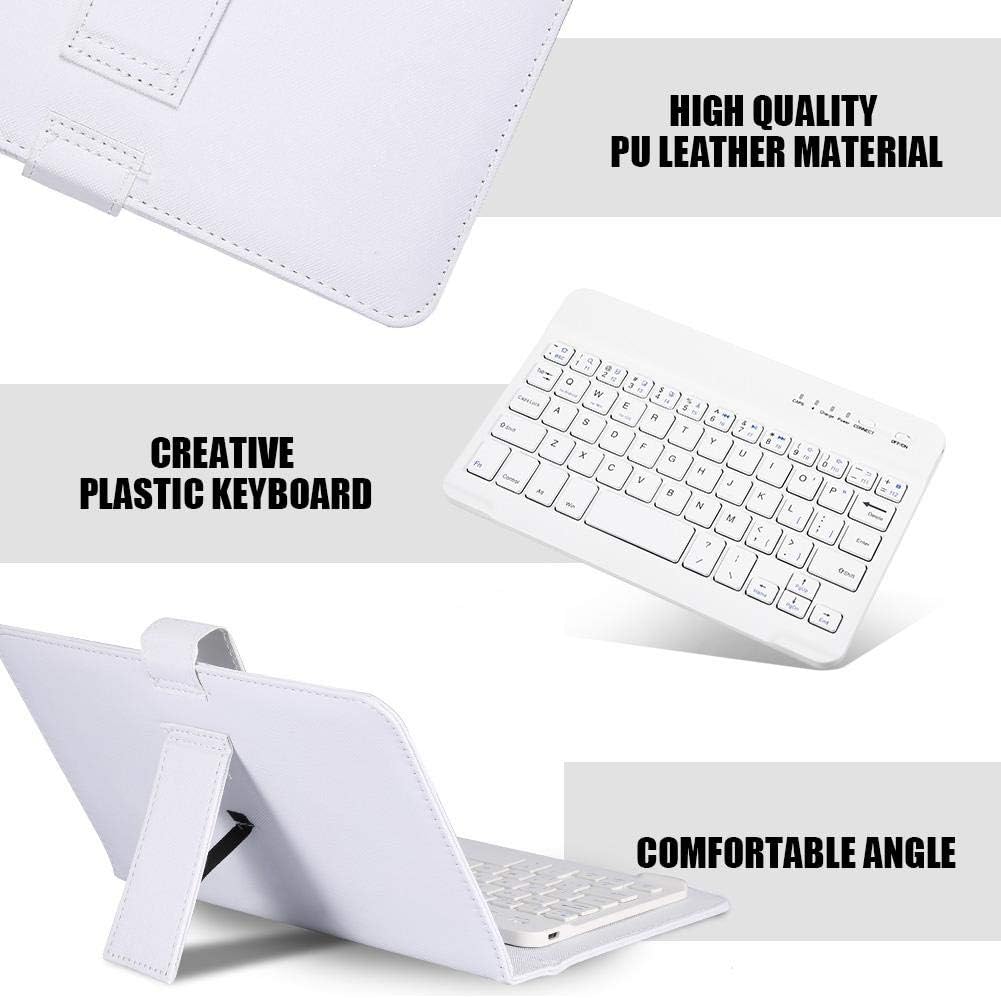
Image: A smartphone screen displaying Bluetooth settings, with 'Bluetooth 3.0 Keyboard' listed as an available device for connection.
Video: A quick step-by-step guide on how to pair a Bluetooth keyboard with a device.
Video: A review demonstrating the wireless Bluetooth keyboard with flip leather case, including pairing and usage.
5. Operating Instructions
5.1 Using the Keyboard and Case
The keyboard can be used while attached to the case or detached. The case features a magnetic buckle for secure closure and a kickstand to prop up your phone for comfortable viewing and typing.
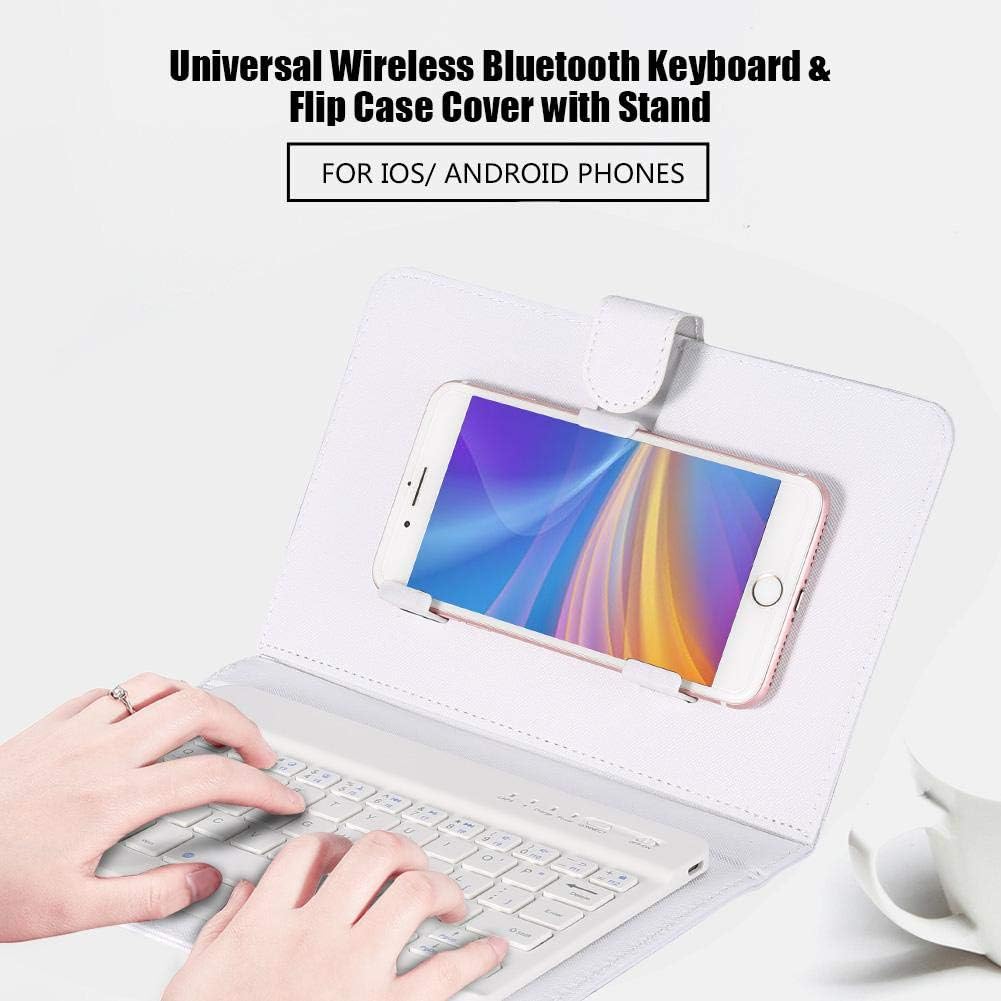
Image: A user typing on the FOSA Bluetooth Keyboard, with a smartphone securely positioned in the case's stand.
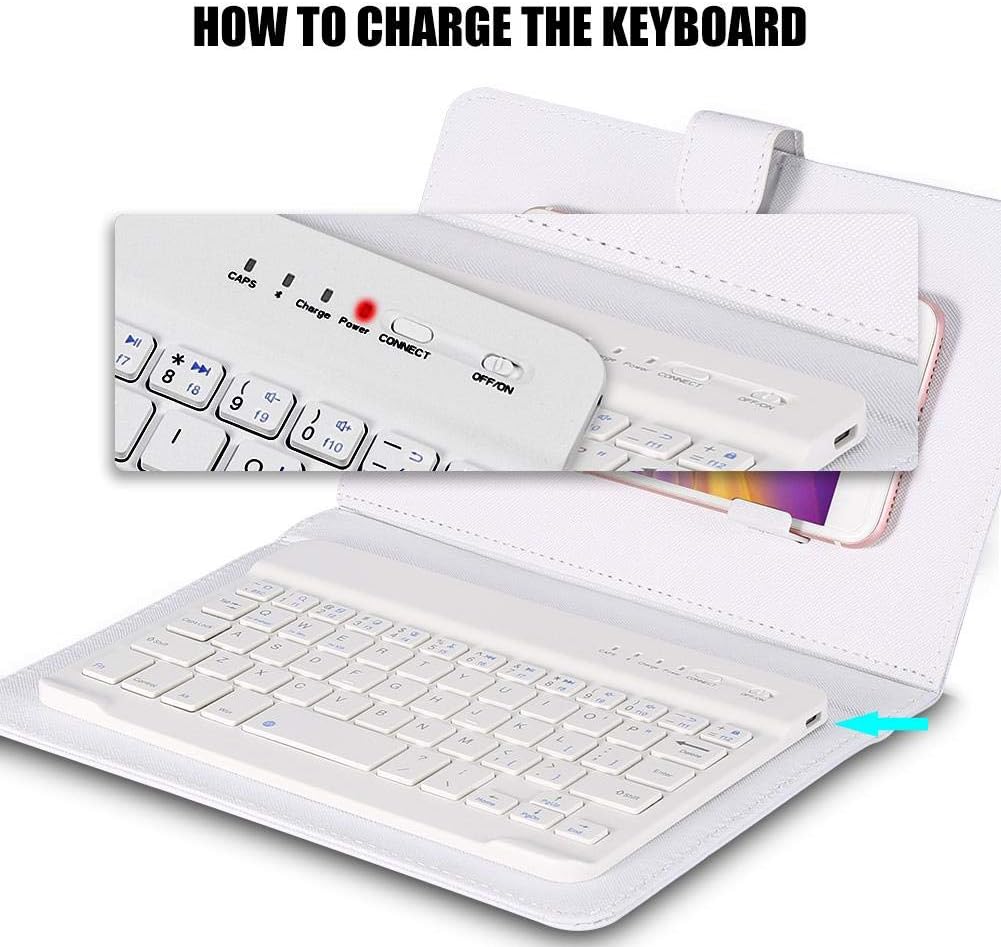
Image: The FOSA Bluetooth Keyboard detached from its case, highlighting its creative plastic design and comfortable typing angle.
5.2 Special Keys and Functions
The keyboard includes function keys (Fn) that, when pressed in combination with other keys, activate special features such as media controls, volume adjustment, and screen brightness. Refer to the key labels for specific functions.
6. Maintenance
- Keep the keyboard and case clean by wiping with a soft, dry cloth.
- Avoid exposing the product to extreme temperatures, moisture, or direct sunlight.
- Do not use harsh chemicals or abrasive cleaners.
7. Troubleshooting
- Keyboard not pairing: Ensure the keyboard is charged and the 'CONNECT' button has been pressed. On your device, try forgetting previously paired Bluetooth keyboards and re-attempt pairing.
- Keys not responding: Check battery level and recharge if necessary. Ensure the keyboard is properly connected via Bluetooth.
- Intermittent connection: Move the keyboard closer to your device. Avoid obstacles that may interfere with the Bluetooth signal.
8. Specifications
| Model Number | fosakna0z4bt7s-01 |
| Connectivity Technology | Bluetooth 3.0 + HS standards |
| Effective Distance | Up to 10M (Open space) |
| Working Voltage | 3.0-5V |
| Working Current | <4.0MA |
| Standby Current | 20UA |
| Sleep Current | <2μA |
| Standby Time | 100 days |
| Key Life | Up to 5 million times |
| Operating Temperature | 10℃ to +55℃ |
| Humidity | 20% to 50% |
| Interface | Micro USB port |
| Language | English |
| Product Dimensions | 9.06 x 5.91 x 1.18 inches |
| Item Weight | 11.6 ounces |
| Material | PU Leather, Plastic |
9. Warranty and Support
For warranty information or technical support, please refer to the product packaging or contact FOSA customer service directly. Keep your purchase receipt for warranty claims.