
1. Introduction
The ViewSonic VG2455-2K monitor is designed for modern office environments, offering an efficient and streamlined user experience. This 24-inch QHD (2560x1440p) IPS monitor features USB 3.1 Type-C connectivity, providing power, video, and audio transmission through a single cable, which helps reduce cable clutter. Its SuperClear IPS panel technology ensures wide-angle viewing and vibrant colors, complemented by a 3-sided thin bezel design for seamless multi-monitor setups. The monitor also boasts advanced ergonomic adjustments for user comfort and productivity.
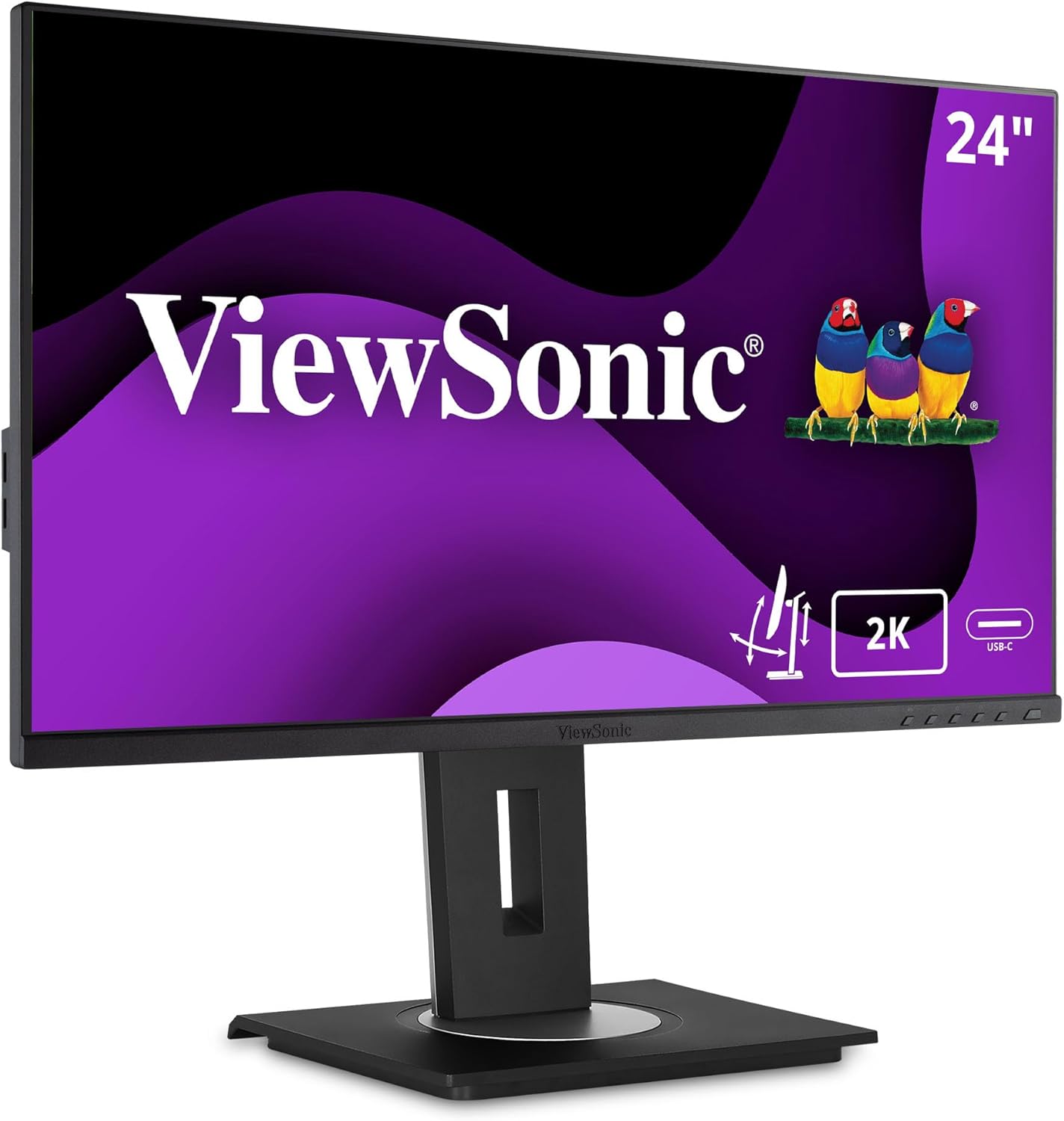
Image 1.1: Front view of the ViewSonic VG2455-2K monitor.
2. Package Contents
Verify that all items listed below are included in your product package:
- LCD Display
- Power Cable
- USB Type-C Cable
- HDMI Cable
- USB Upstream Cable
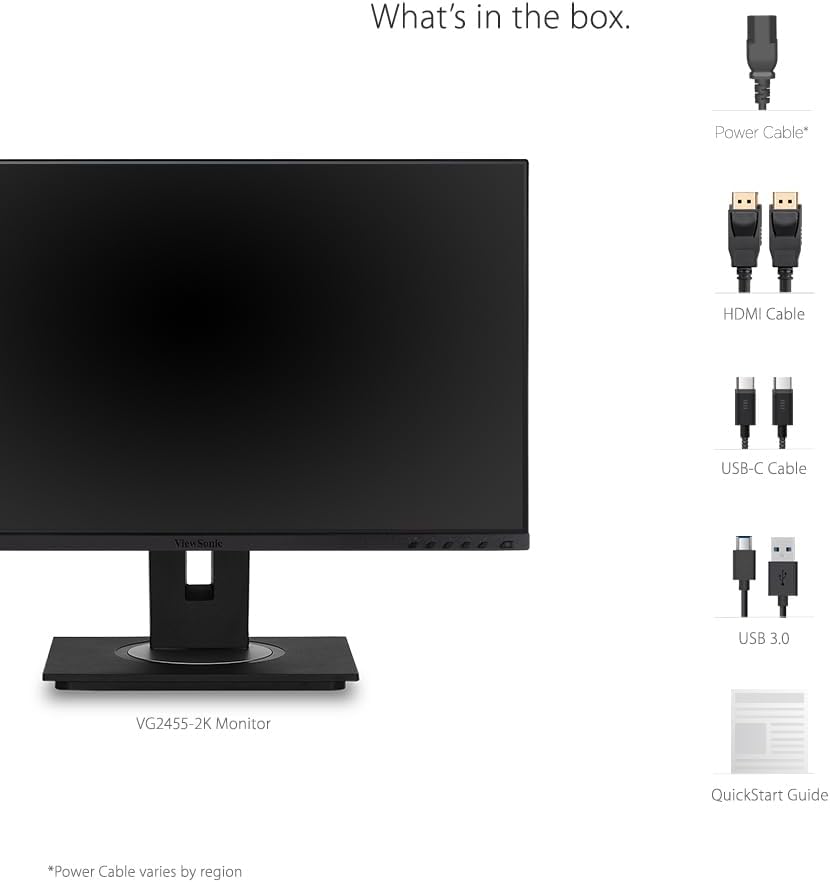
Image 2.1: Illustration of the items included in the ViewSonic VG2455-2K monitor package.
3. Setup & Assembly
3.1 Attaching the Stand
The monitor comes with an easy-to-install quick-release stand. Align the stand with the mounting points on the back of the monitor and push until it clicks into place. The base then attaches to the stand column, typically secured with a thumb screw.

Image 3.1: Visual guide for attaching the monitor stand.
3.2 VESA Mount Compatibility
The monitor is VESA mount compatible (100x100mm), allowing for alternative mounting solutions such as wall mounts or monitor arms. Ensure the stand is removed before attaching a VESA mount.

Image 3.2: The monitor is VESA mount compatible for flexible setup options.
4. Connectivity
The VG2455-2K monitor offers a variety of input and output ports for versatile connectivity:
- USB 3.1 Type-C: Provides charging power (up to 60W), video, and audio over a single connector.
- HDMI 1.4: For digital video and audio input.
- DisplayPort: For high-resolution digital video and audio input.
- USB 3.0 Hub: Includes multiple USB 3.0 ports (3 downstream, 1 upstream) for connecting peripherals.
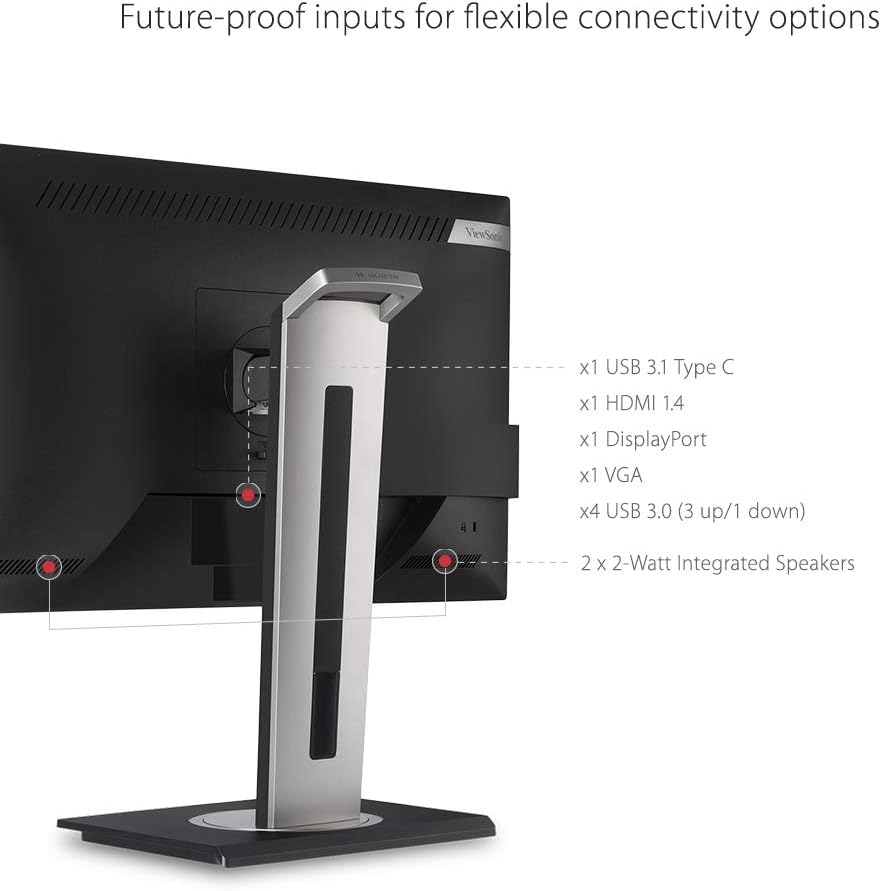
Image 4.1: Rear view of the monitor showing available connectivity ports.
4.1 USB Type-C Functionality
The USB Type-C port simplifies your workspace by allowing a single cable to handle video, audio, data transfer, and power delivery to compatible devices like laptops.
Video 4.1: Demonstrates the single-cable USB Type-C connectivity of ViewSonic monitors.
Video 4.2: Highlights the benefits of USB-C connectivity across ViewSonic USB-C monitors.
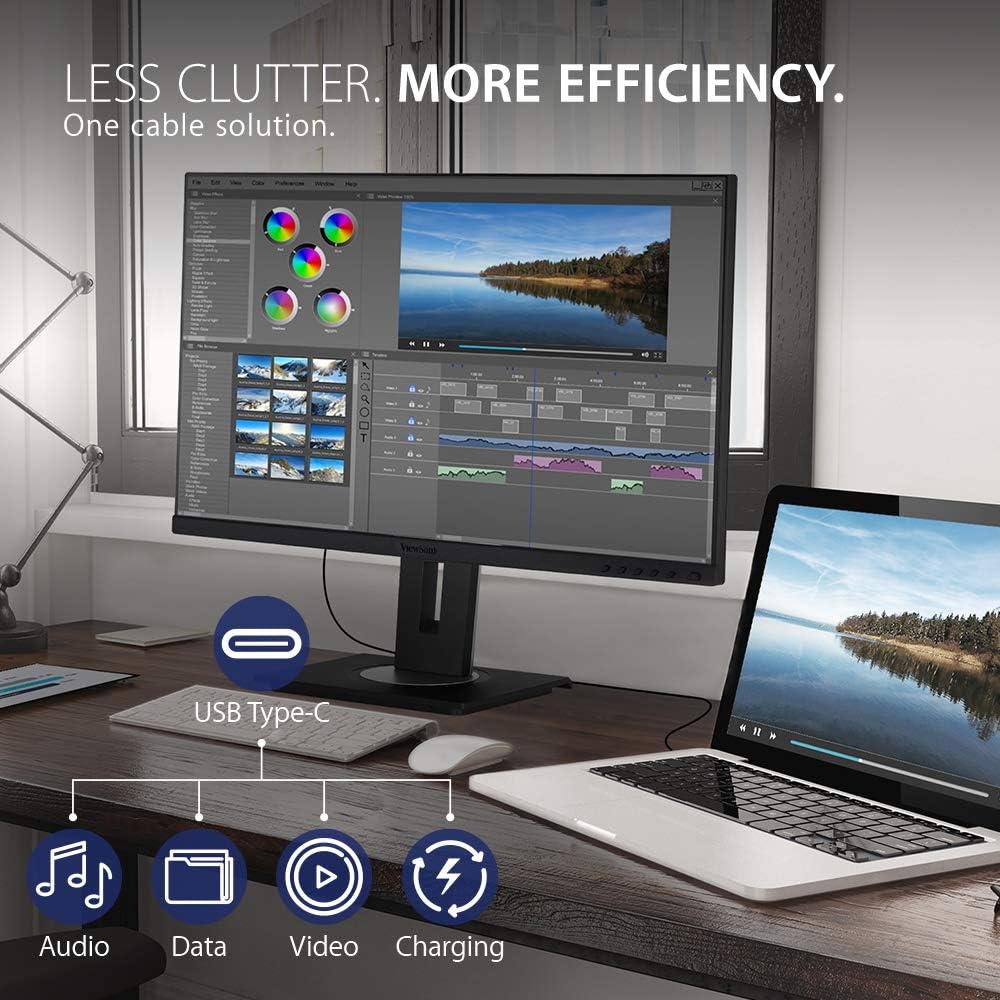
Image 4.2: USB-C connectivity reduces cable clutter and enhances efficiency.
5. Ergonomic Features
The VG2455-2K monitor is designed with advanced ergonomics to provide maximum comfort and productivity throughout the day. The stand allows for a wide range of adjustments:
- Height Adjustment: Customize the monitor's height to eye level.
- Pivot: Rotate the screen 90 degrees for portrait mode viewing, ideal for coding or long documents.
- Swivel: Adjust the screen horizontally to share content or change viewing angles.
- Tilt: Tilt the screen up to 40 degrees, suitable for standing work or group discussions.
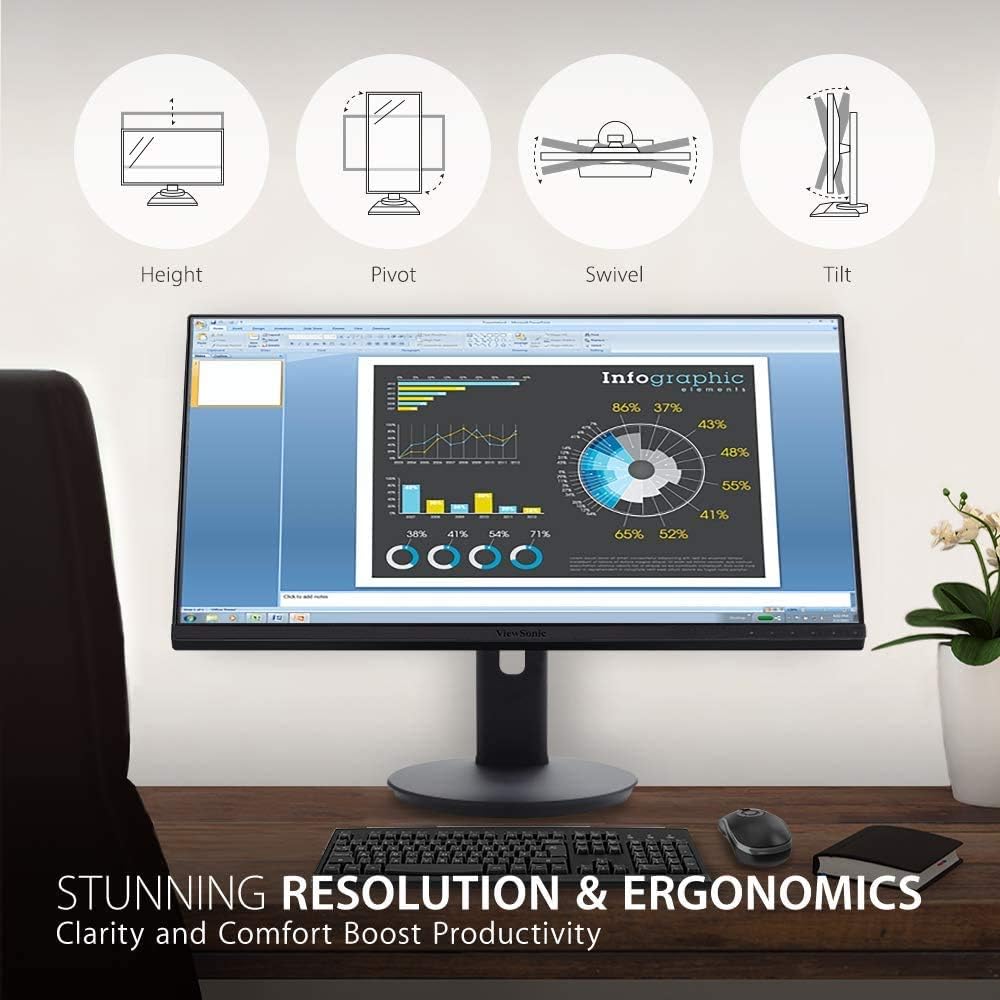
Image 5.1: Diagram illustrating the monitor's ergonomic adjustments.
6. Display Features
Experience superior visual performance with the VG2455-2K monitor:
- QHD (2560x1440p) Resolution: Delivers sharp, detailed images with 1.7 times more pixels than Full HD.
- SuperClear IPS Panel: Provides consistent and accurate colors with wide viewing angles (178 degrees).
- Flicker-Free Technology: Eliminates screen flickering to reduce eye strain during prolonged use.
- Blue Light Filter: Minimizes blue light emission to further enhance viewing comfort and reduce eye fatigue.
- ViewMode: Offers intuitive presets for various applications (e.g., 'Text', 'Movie', 'Game', 'Mac', 'Mono') to optimize screen performance.
Video 6.1: Overview of the ViewSonic VG2455-2K monitor's display and features.
7. Operating the Monitor
7.1 On-Screen Display (OSD) Menu
The monitor features an intuitive On-Screen Display (OSD) menu for adjusting various settings. Use the physical buttons located on the bottom right bezel of the monitor to navigate the menu.
- Input Select: Choose between HDMI, DisplayPort, or Type-C inputs.
- Audio Adjust: Control volume or mute the integrated speakers.
- ViewMode: Select pre-calibrated display settings for different content types.
- Color Adjust: Fine-tune brightness, contrast, color space, and color range.
- Manual Image Adjust: Adjust sharpness, aspect ratio, and overdrive.
- Setup Menu: Access language settings, resolution notice, OSD timeout, power indicator, and ECO mode.
8. Maintenance
To ensure the longevity and optimal performance of your ViewSonic VG2455-2K monitor, follow these maintenance guidelines:
- Cleaning the Screen: Gently wipe the screen with a soft, lint-free cloth. For stubborn marks, use a screen-cleaning solution specifically designed for LCD/LED displays, applied to the cloth, not directly to the screen.
- Cleaning the Casing: Use a soft, dry cloth to wipe the monitor's casing. Avoid using abrasive cleaners or solvents.
- Ventilation: Ensure the monitor's ventilation openings are not blocked to prevent overheating.
- Power Off: Always turn off the monitor when not in use for extended periods.
9. Troubleshooting
If you encounter issues with your monitor, refer to the following common troubleshooting steps:
- No Power: Check if the power cable is securely connected to both the monitor and a power outlet. Ensure the power outlet is functional.
- No Image/Signal: Verify that the video cable (USB-C, HDMI, or DisplayPort) is correctly connected to both the monitor and your computer. Select the correct input source via the OSD menu.
- Fuzzy or Unclear Image: Adjust the resolution settings on your computer to match the monitor's native QHD (2560x1440p) resolution. Check the video cable for damage.
- No Audio: Ensure the audio cable (if separate from video) is connected, or that audio is being transmitted via HDMI/DisplayPort/USB-C. Adjust the volume settings on both the monitor and your computer.
- Buttons Not Responding: Power cycle the monitor by unplugging and replugging the power cable.
10. Specifications
| Feature | Specification |
|---|---|
| Standing screen display size | 24 Inches |
| Screen Resolution | QHD (2560x1440) |
| Max Screen Resolution | 2560 x 1440 Pixels |
| Series | VG2455-2K |
| Item model number | VG2455-2K |
| Item Weight | 14.08 pounds |
| Product Dimensions | 16 x 8 x 21.2 inches |
| Color | blue |
| Screen Size | 24 Inches |
| Resolution | QHD Wide 1440p |
| Aspect Ratio | 16:9 |
| Screen Surface Description | Matte |
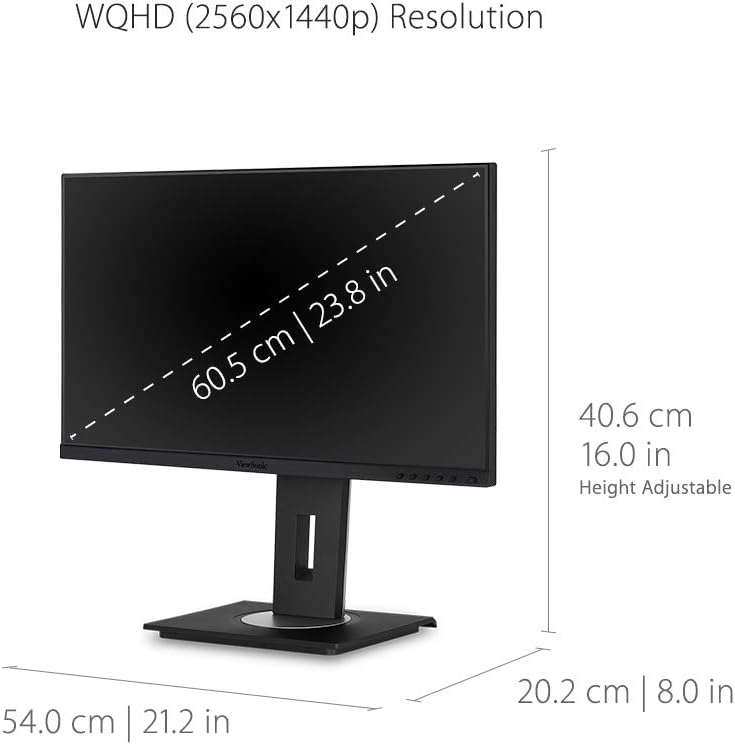
Image 10.1: Detailed dimensions of the ViewSonic VG2455-2K monitor.
11. Warranty & Support
The ViewSonic VG2455-2K monitor typically comes with a 3-Year Limited Warranty, covering parts, labor, and backlight. For detailed warranty information, technical support, or service inquiries, please visit the official ViewSonic website or contact their customer support.

Image 11.1: ViewSonic offers a 3-year warranty and customer support.


