
Introduction
This manual provides detailed instructions for the installation, operation, and maintenance of your MekedeTech Android Car Stereo GPS. This unit is designed to upgrade your vehicle's infotainment system with advanced features including GPS navigation, wireless CarPlay/Android Auto, 4G LTE connectivity, and a high-resolution touch screen. Please read this manual thoroughly before installation and use to ensure proper function and safety.
Compatibility
This Android car stereo is compatible with the following Mercedes-Benz and Volkswagen models:
- Mercedes-Benz Sprinter W906/W209/W311/W315/W318 (2006-2012)
- Mercedes-Benz B200/B150/B170/A180/A160
- Mercedes-Benz Viano (2006-2012)
- Mercedes-Benz Vito W639 (2006-2012)
- Mercedes-Benz A-class W169 (2004-2012)
- Mercedes-Benz B-class W245 (2004-2012)
- Volkswagen Crafter (2006-2012)
- Volkswagen LT3 (2006-2011)
Package Contents
Verify that all items listed below are included in your package:
- MekedeTech Android Car Stereo Unit
- Dash Kit
- Power Cable
- RCA Cable
- Reversing Camera Cable
- USB Cables
- Car Dash Cam
Setup and Installation
The MekedeTech Android Car Stereo is designed for plug-and-play installation. However, professional installation is recommended. Ensure the vehicle's power is disconnected before beginning installation.
- Preparation: Carefully remove your existing car stereo unit and dashboard trim. Refer to your vehicle's specific service manual for detailed removal instructions.
- Wiring: Connect the provided power cable, RCA cable, reversing camera cable, and USB cables to the corresponding ports on the new Android stereo and your vehicle's wiring harness. Ensure all connections are secure.
- Optical Fiber Box (if applicable): If your car has an amplifier sound system, an additional Optical Fiber Box is required for audio functionality. This box is not included and must be purchased separately. Connect it according to its specific instructions.
- Mounting: Install the new Android stereo unit into the dashboard using the provided dash kit. Ensure it is securely fitted and aligned.
- Testing: Reconnect the vehicle's power. Turn on the ignition and test all functions of the stereo, including audio, touch screen response, GPS, and connectivity features.
- Final Assembly: Once all functions are verified, reassemble the dashboard trim.
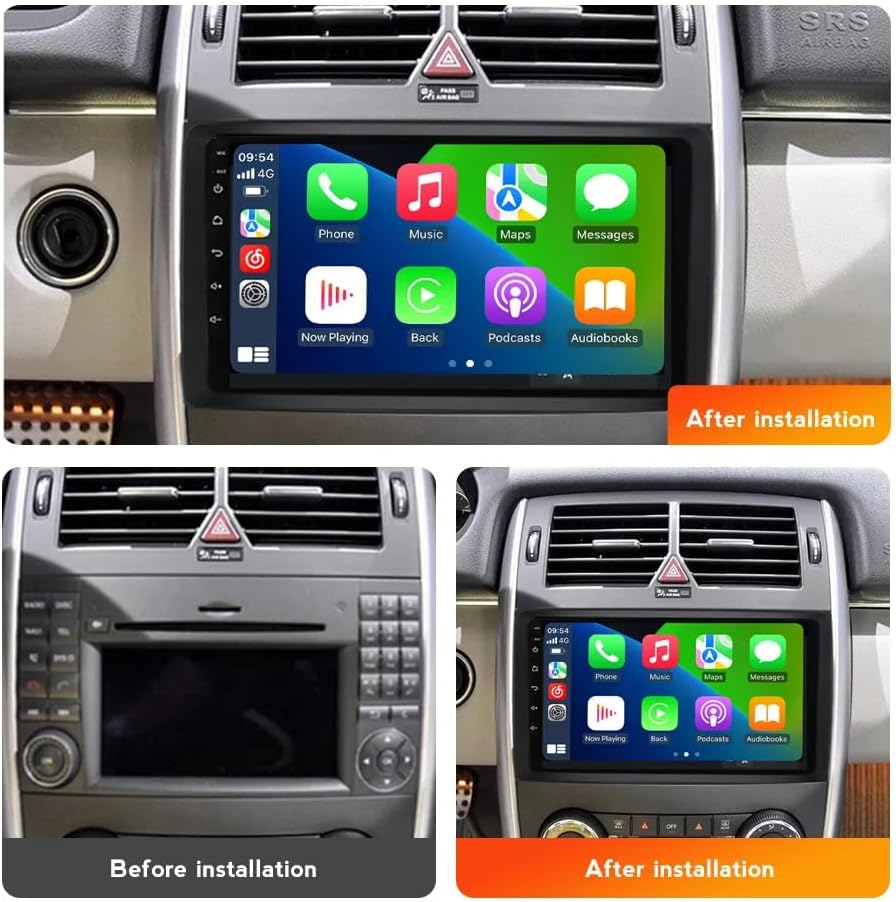
Image: Comparison of the dashboard before and after installing the MekedeTech Android Car Stereo, showcasing the new CarPlay interface.

Image: Comparison of the dashboard before and after installing the MekedeTech Android Car Stereo, displaying the radio interface.

Image: Technical drawing showing the dimensions of the MekedeTech Android Car Stereo unit (244mm x 130mm x 240mm).
Operating Instructions
1. Power On/Off
Press and hold the power button (usually located on the front panel) to turn the unit on or off. A short press typically mutes or unmutes the audio.
2. Touch Screen Interface
The unit features a 9-inch IPS touch screen with a resolution of 1280*720. Navigate through menus and applications by tapping, swiping, and pinching gestures, similar to a smartphone.
3. Wireless CarPlay and Wired Android Auto
Connect your iPhone wirelessly via Bluetooth and Wi-Fi for CarPlay, or your Android phone via USB for wired Android Auto. This allows you to access navigation, music, messages, and other apps directly from the stereo's screen.
- For Wireless CarPlay: Ensure Bluetooth and Wi-Fi are enabled on your iPhone. Pair your iPhone with the stereo via Bluetooth. Once paired, the stereo will prompt you to enable CarPlay.
- For Wired Android Auto: Connect your Android phone to the stereo using a USB cable. Follow the on-screen prompts to initiate Android Auto.
4. 4G LTE and Wi-Fi Connectivity
The unit supports 4G LTE connectivity. Insert a 4G SIM card into the designated slot to access the internet directly. Alternatively, you can connect to a Wi-Fi hotspot for internet access.
- 4G LTE: Insert a compatible 4G SIM card into the SIM card slot. The unit will automatically detect the network.
- Wi-Fi: Go to the 'Settings' menu, select 'Wi-Fi', and choose your desired network. Enter the password if required.
5. GPS Navigation
The stereo has built-in GPS navigation with pre-installed maps. Access the navigation application from the main menu. Ensure the GPS antenna is properly installed for optimal signal reception.
6. Bluetooth 5.0
Pair your mobile device via Bluetooth for hands-free calling and audio streaming. Go to 'Settings' > 'Bluetooth' to search for and connect to your device.
7. Steering Wheel Control
The unit retains original steering wheel control functions, allowing you to switch songs, change channels, and adjust volume without removing your hands from the steering wheel. This feature is pre-configured.
8. DSP Sound System
The built-in Digital Signal Processor (DSP) enhances audio quality. Access the sound settings in the menu to customize equalizer presets and audio preferences.
Maintenance
To ensure the longevity and optimal performance of your MekedeTech Android Car Stereo, follow these maintenance guidelines:
- Cleaning: Use a soft, dry cloth to clean the screen and exterior. For stubborn smudges, a slightly damp cloth with a mild, non-abrasive cleaner can be used. Avoid harsh chemicals.
- Software Updates: Periodically check for software updates provided by MekedeTech to ensure you have the latest features and bug fixes. Updates can typically be found in the system settings or on the manufacturer's website.
- Temperature: Avoid exposing the unit to extreme temperatures, both hot and cold, for extended periods.
- Connections: Periodically check all cable connections to ensure they are secure and free from corrosion.
Troubleshooting
If you encounter issues with your car stereo, refer to the following common troubleshooting steps:
- No Power: Check all power cable connections. Ensure the vehicle's ignition is on. Verify the fuse in the power cable is intact.
- No Audio: Confirm speaker connections. If your vehicle has an amplifier sound system, ensure the Optical Fiber Box is correctly installed and functioning. Check volume levels and mute settings.
- Touch Screen Unresponsive: Try restarting the unit. If the issue persists, perform a factory reset (note: this will erase all user data).
- GPS Signal Loss: Ensure the GPS antenna is properly installed and has a clear view of the sky. Move the vehicle to an open area if necessary.
- Bluetooth/Wi-Fi Connection Issues: Ensure Bluetooth/Wi-Fi is enabled on both the stereo and your mobile device. Try unpairing and re-pairing devices. Restart both devices.
- CarPlay/Android Auto Not Connecting: For CarPlay, ensure Wi-Fi is also enabled on your iPhone after Bluetooth pairing. For Android Auto, try a different USB cable. Ensure the Android Auto app is updated on your phone.
If these steps do not resolve the issue, please contact MekedeTech customer support.
Specifications
| Brand | MekedeTech |
| Operating System | Android 12 OS |
| CPU | 8-Core A53 1.8GHz |
| Memory | 2GB RAM, 32GB ROM |
| Screen Size | 9 Inches |
| Screen Resolution | 1280 x 720 IPS Touch Screen |
| Power Output | 4*50W |
| Connectivity | 4G LTE, Wi-Fi, Bluetooth 5.0 |
| Navigation | Built-in GPS, Worldwide Maps |
| Special Features | Wireless CarPlay, Wired Android Auto, DSP Sound System, Steering Wheel Control Support |
| Audio Formats | APE/FLAC/WAV/MP3/WMA etc. |
| Video Formats | MKV/RMVB/AVI/MP4/MDV etc. |
| Image Formats | PNG/JPEG/JPG/GIF/WBMP/BNP etc. |
Warranty and Support
Warranty Information
This MekedeTech Android Car Stereo comes with a 1-Year Warranty from the date of purchase. This warranty covers manufacturing defects and malfunctions under normal use. It does not cover damage caused by improper installation, misuse, accidents, or unauthorized modifications.
Customer Support
For technical assistance, warranty claims, or any questions regarding your product, please contact MekedeTech customer support. Refer to the contact information provided with your purchase or visit the official MekedeTech website for support resources.