
1. Introduction
Thank you for choosing Lighting EVER Smart WiFi Light Bulbs. These LED color-changing lights offer advanced control and customization, working seamlessly with popular voice assistants like Alexa and Google Assistant. Enjoy a wide spectrum of colors and tunable white light, all controllable via a dedicated app or voice commands. This manual provides essential information for setup, operation, and maintenance to ensure optimal performance and longevity of your smart bulbs.
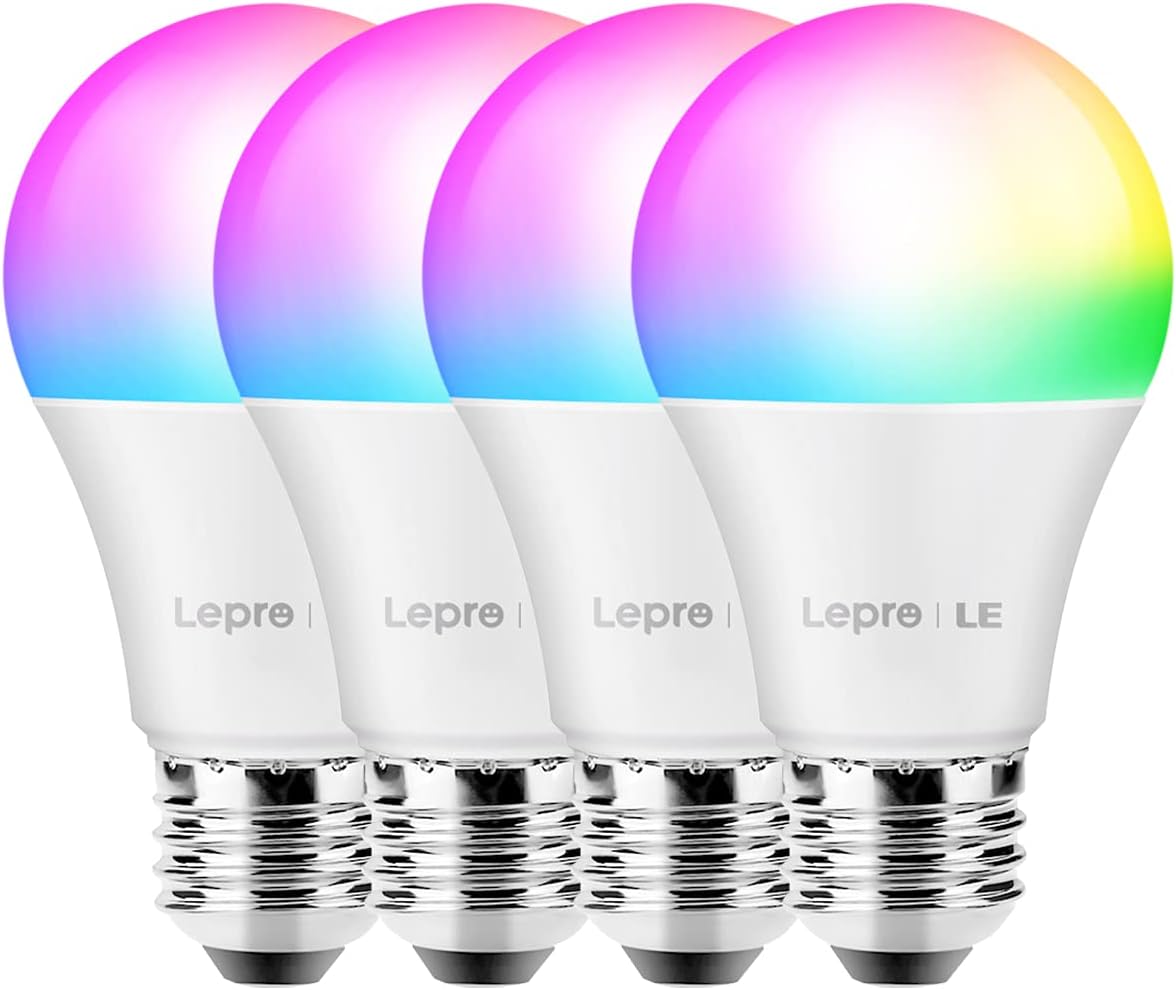
Image: A pack of four Lighting EVER Smart WiFi Light Bulbs, showcasing their design and packaging.
2. Key Features
- Tunable White Light: Adjust white light from warm to cool (2700K-6500K) to suit any mood or activity.
- 16 Million Colors: Explore a vast spectrum of 16 million color choices for personalized ambiance.
- Voice Control: Seamlessly integrate with Alexa and Google Assistant for hands-free control (turn on/off, dim/brighten, change color).
- Remote Control: Control your lights from anywhere using the free "Lepro LampUX" App, as long as the bulbs are connected to Wi-Fi.
- Timers and Scene Modes: Set up multiple schedules for this smart light to turn on/off according to your daily routines. For different light effects, there are four default scenes and four scenes for you to DIY.
- Easy Setup: No hub or bridge required. Simply screw into E26 sockets, download the app, and connect to 2.4GHz Wi-Fi.
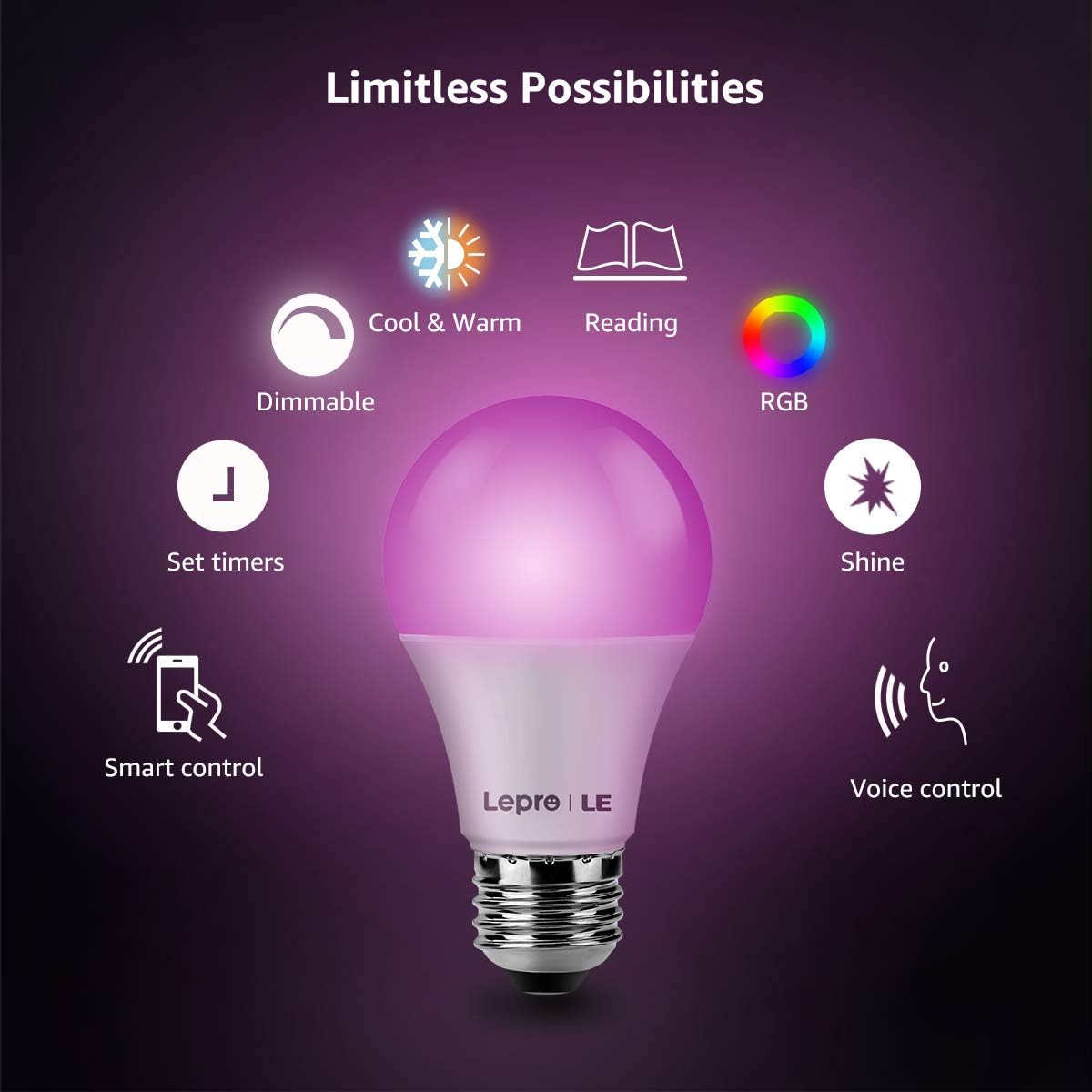
Image: Visual representation of the smart bulb's capabilities, including dimming, color temperature adjustment, RGB color options, and smart control features.
3. Specifications
| Specification | Value |
|---|---|
| Brand | Lighting EVER |
| Light Type | LED |
| Special Feature | Instant On, Dimmable, Shatter Resistant |
| Wattage | 9 watts |
| Bulb Shape Size | A19 |
| Bulb Base | E26 |
| Incandescent Equivalent Wattage | 60 Watts |
| Light Color | RGB+CCT (2700K-6500K) |
| Voltage | 120 Volts |
| Brightness | 806 Lumen |
| Connectivity Technology | Wi-Fi (2.4GHz only) |
| Control Method | Voice (Alexa, Google Assistant), App |
| Average Life | 15000 Hours |
| Product Dimensions | 2.36"W x 4.33"H |
| Item Weight | 7.4 ounces |

Image: Detailed specifications and dimensions of the smart light bulb, including its wattage, color capabilities, and dimmable function.
4. What's in the Box
- Smart WiFi Light Bulb(s) (Quantity as per package)
- User Manual (this document)
5. Setup Guide
5.1 Initial Setup with Lepro LampUX App
- Download the App: Search for "Lepro LampUX" in your mobile app store (App Store for iOS or Google Play for Android) and download it.
- Register Account: Open the app and register a new account. If you already have an account, simply log in.
- Install Bulb: Screw the smart light bulb into a standard E26 socket.
- Power Cycle for Pairing Mode:
- Switch on the light and keep it on for at least 10 seconds.
- Turn off the light for 5 seconds.
- Then, turn the light ON-OFF-ON-OFF-ON. Leave 1-2 seconds between each OFF & ON position.
- Wait for 2-3 seconds until the light blinks rapidly. This indicates it's in pairing mode.
- Add Device in App: In the Lepro LampUX app, tap the "+" icon or "Add Device". Select "Lighting" then "Light Source (Wi-Fi)".
- Connect to Wi-Fi: Ensure your mobile device is connected to a 2.4GHz Wi-Fi network. Enter your Wi-Fi password in the app. Note: These bulbs only support 2.4GHz Wi-Fi.
- Confirm Blinking: Confirm in the app that the light is blinking rapidly.
- Pairing: The app will begin searching for and adding the device. Once added, you can rename the bulb for easy identification (e.g., "Bedroom Light").
Video: Step-by-step guide on how to connect your smart light bulbs to the Lepro LampUX App and Amazon Alexa.
5.2 Connecting to Voice Assistants (Alexa & Google Assistant)
After successfully setting up your bulbs with the Lepro LampUX app, you can link them to your voice assistant for convenient control.
- Open Voice Assistant App: Open the Amazon Alexa app or Google Home app on your mobile device.
- Enable Skill/Link Account:
- For Alexa: Go to "Skills & Games", search for "LE Lampux", and enable the skill. You will be prompted to link your Lepro LampUX account.
- For Google Assistant: Go to "Set up device" > "Works with Google", search for "LE Lampux", and link your account.
- Discover Devices: Once linked, ask your voice assistant to "Discover devices" or use the "Discover Devices" option in the app.
- Assign to Rooms (Optional): For better organization, assign your newly discovered bulbs to specific rooms (e.g., "Bedroom", "Living Room") within the voice assistant app.

Image: Demonstrates voice control functionality with smart speakers, allowing users to easily adjust lighting settings.
6. Operating Instructions
6.1 App Control
The Lepro LampUX app provides comprehensive control over your smart bulbs.
- On/Off: Tap the power icon next to the bulb's name to turn it on or off.
- Brightness Adjustment: Tap on the bulb's name to enter its control interface. Use the slider to adjust brightness from 1% to 100%.
- Color Temperature: In the control interface, select the "CCT" tab to adjust the white light from warm (2700K) to cool (6500K).
- Color Selection: Select the "Color" tab to choose from 16 million RGB colors using the color wheel.
- Scene Modes: The app offers various preset scene modes (e.g., Reading, Party, Relax). You can also create custom scenes.
- Scheduling: Set timers to automatically turn lights on or off at specific times, ideal for daily routines or security when away.
- Grouping: Group multiple bulbs together to control them simultaneously, even if they are in different rooms.
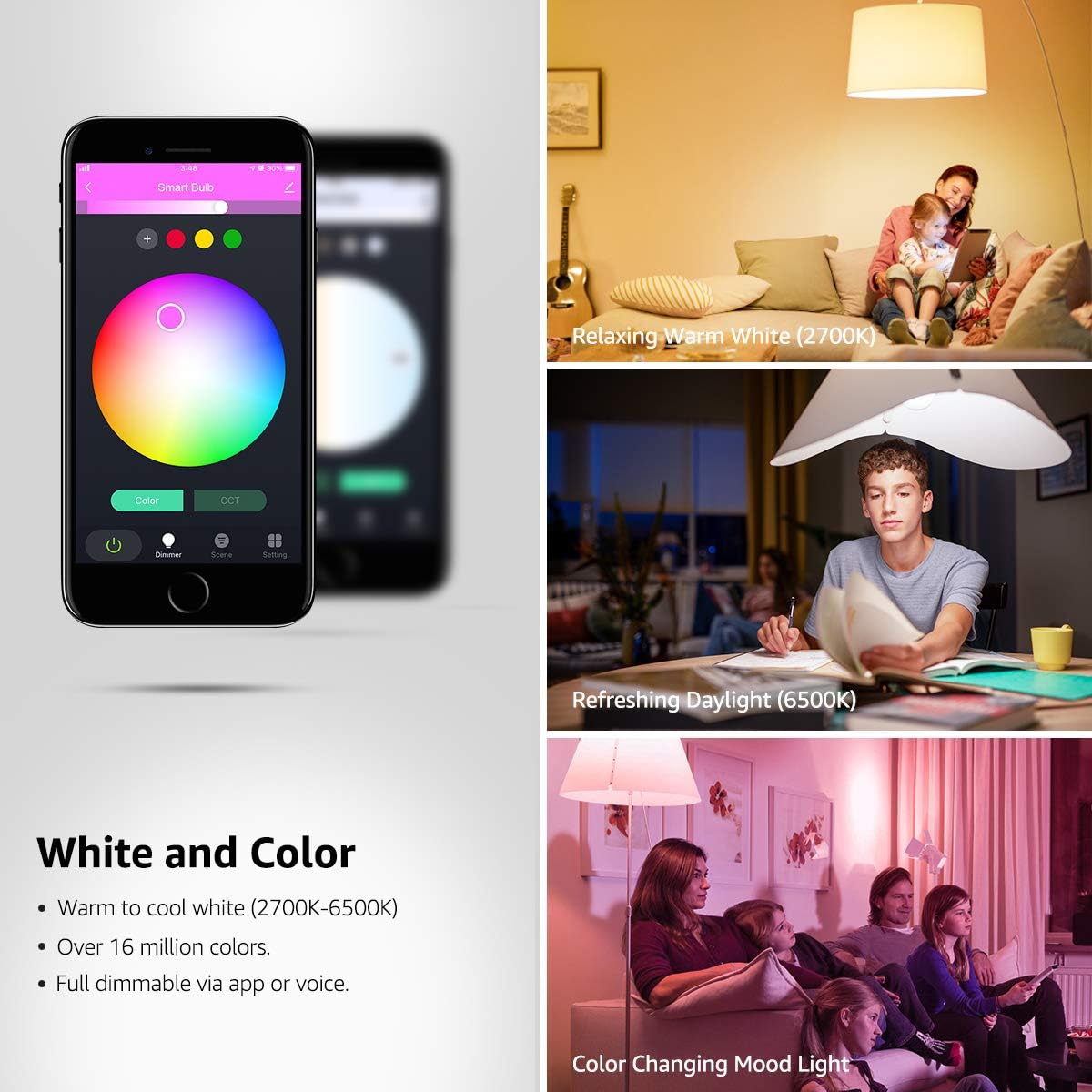
Image: Illustrates the app's interface for selecting white light temperatures and a wide range of colors, along with examples of different lighting moods.
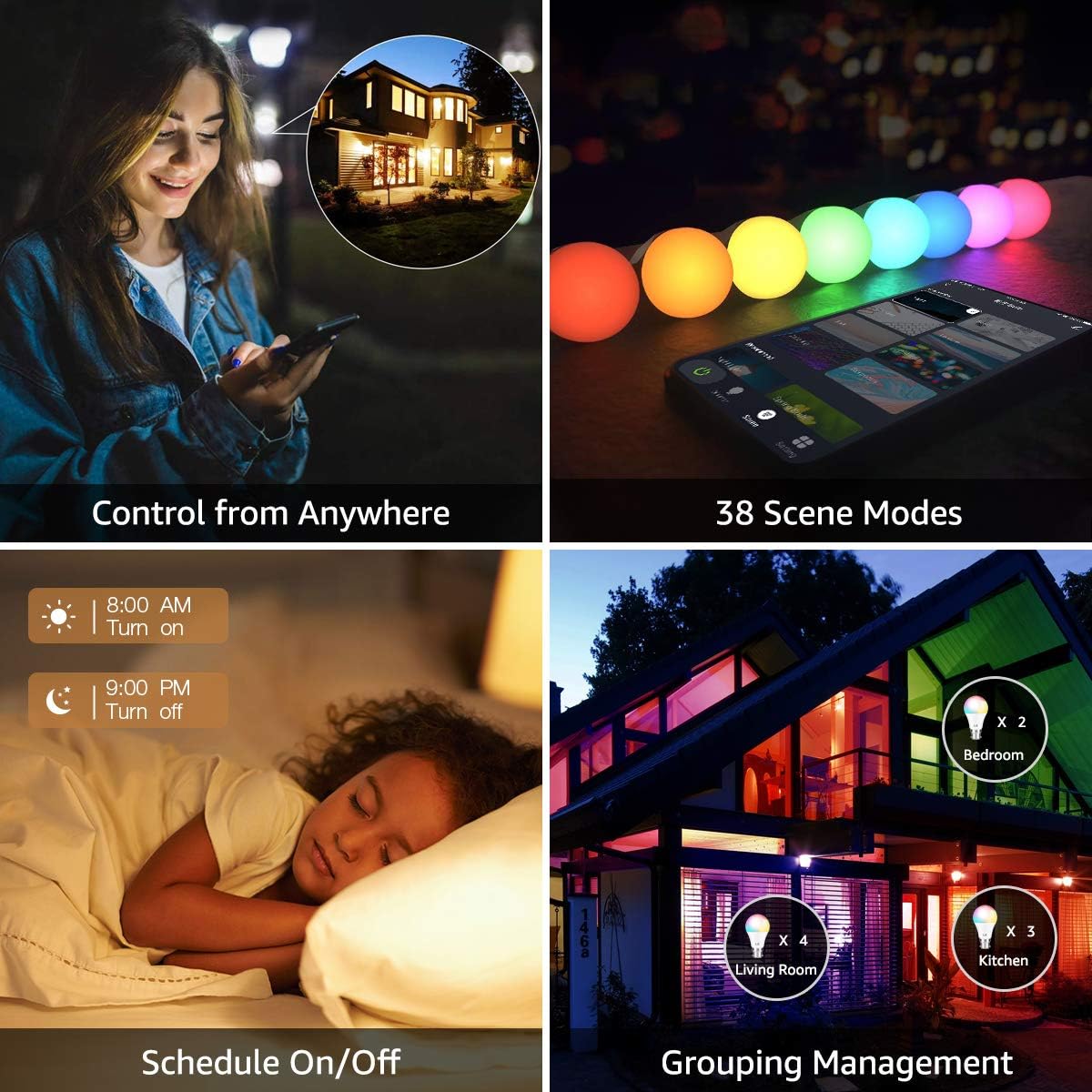
Image: Overview of advanced app features including remote control, various scene modes, scheduling, and the ability to group lights for unified control.
6.2 Voice Control
Once linked to Alexa or Google Assistant, use simple voice commands:
- "Alexa, turn on [Light Name]."
- "Hey Google, dim [Light Name] to 50%."
- "Alexa, change [Light Name] to blue."
- "Hey Google, set [Light Name] to warm white."
Video: Demonstrates the various color and brightness options of the smart RGB light bulbs, controllable via app and voice commands.
7. Maintenance
- Cleaning: Ensure the bulb is off and cool before cleaning. Wipe with a soft, dry cloth. Do not use liquid cleaners or abrasive materials.
- Storage: If storing the bulbs for an extended period, keep them in a cool, dry place away from direct sunlight and extreme temperatures.
- Handling: Handle bulbs with care to avoid damage. Avoid dropping or subjecting them to strong impacts.
8. Troubleshooting
| Problem | Possible Solution |
|---|---|
| Bulb not connecting to Wi-Fi. |
|
| Voice control not working. |
|
| Bulb is unresponsive. |
|
9. Warranty and Support
For detailed warranty information and customer support, please refer to the official Lighting EVER website or contact their customer service directly. You can also find additional resources and a downloadable PDF version of the user manual via the following link: User Manual (PDF).


