
Supereyes S003
Supereyes S003 Smartphone Microscope Adapter User Manual
Model: S003 | Brand: Supereyes
1. Product Overview
The Supereyes S003 is a compact smartphone microscope adapter designed to provide 75x optical magnification for detailed observation and photography using your mobile device. It features a digital and optical combination for clear imaging without manual focusing, and an integrated LED light for optimal illumination. The adapter is universally compatible with most smartphones and tablets.
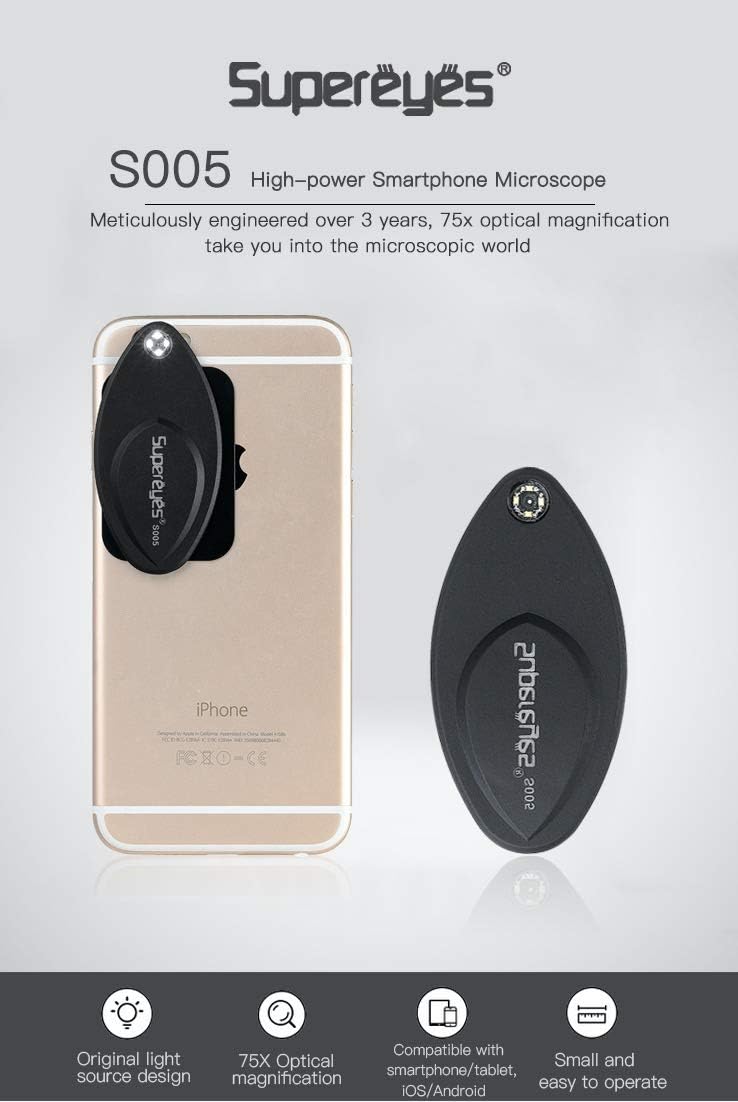
Image 1.1: The Supereyes S003 microscope adapter attached to a smartphone, highlighting its compact form factor and integrated LED light.
Key Features:
- 75x Optical Magnification: Explore the microscopic world with enhanced detail.
- Digital and Optical Combination: Achieves clear images without the need for manual focusing.
- Universal Compatibility: Designed to work with most mainstream smartphones and tablets.
- Magnetic Attachment: Securely connects to your device via a metal plate with 3M adhesive.
- Automatic LED Illumination: The integrated light turns on automatically when the microscope is attached.
- Portable Design: Thin and lightweight for easy transport.
2. Package Contents
Please ensure all items are present in your package:
- Supereyes S003 Microscope Adapter
- Metal Plate with 3M Adhesive
- CR2016 Battery (pre-installed or included separately)
3. Setup Instructions
Follow these steps to prepare your Supereyes S003 for use:
3.1 Attaching the Metal Plate to Your Smartphone
- Clean the back surface of your smartphone or tablet where the camera lens is located. Ensure it is free of dust and grease.
- Peel off the protective film from the 3M adhesive on the back of the metal plate.
- Carefully align the metal plate on the back of your phone, ensuring it is positioned near your phone's camera lens. The microscope will attach to this plate. Press firmly for a few seconds to secure it.
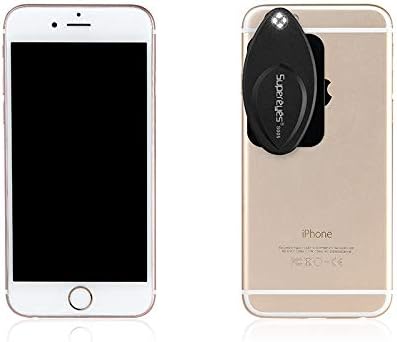
Image 3.1: The Supereyes S003 microscope and its magnetic metal plate.
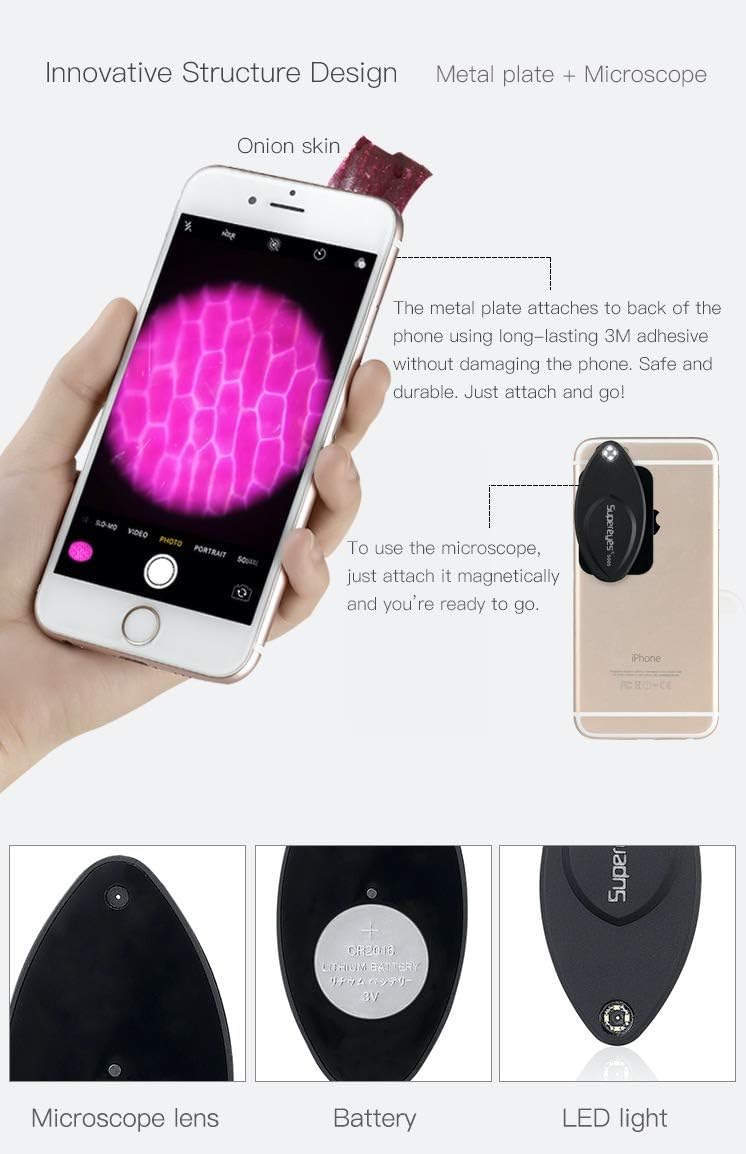
Image 3.2: Step-by-step illustration of attaching the metal plate and then the microscope to a smartphone.
3.2 Attaching the Microscope Adapter
- Once the metal plate is securely attached to your phone, simply place the Supereyes S003 microscope adapter onto the metal plate. It will magnetically snap into place.
- Ensure the microscope's lens is aligned with your phone's camera lens. The integrated LED light will automatically turn on when properly attached.
3.3 Battery Installation/Replacement
The Supereyes S003 uses a CR2016 battery. If the LED light does not turn on, the battery may need to be installed or replaced.
- Gently pry open the back cover of the microscope adapter to access the battery compartment.
- Insert or replace the CR2016 battery, ensuring the positive (+) side is facing up.
- Close the back cover securely.
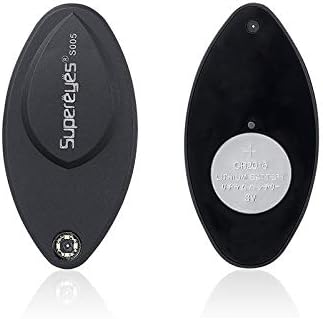
Image 3.3: Front and back views of the microscope, illustrating the battery placement.
4. Operating Instructions
Using your Supereyes S003 microscope adapter is straightforward:
- Ensure the microscope adapter is securely attached to your smartphone with the LED light on.
- Open your smartphone's default camera application.
- Place the object you wish to observe directly onto the microscope's lens. For best results, gently press the object against the lens.
- Observe the magnified image on your phone's screen. The S003 is designed for no-focusing operation, providing clear images automatically.
- Use your phone's camera features to capture photos or videos of the magnified view.
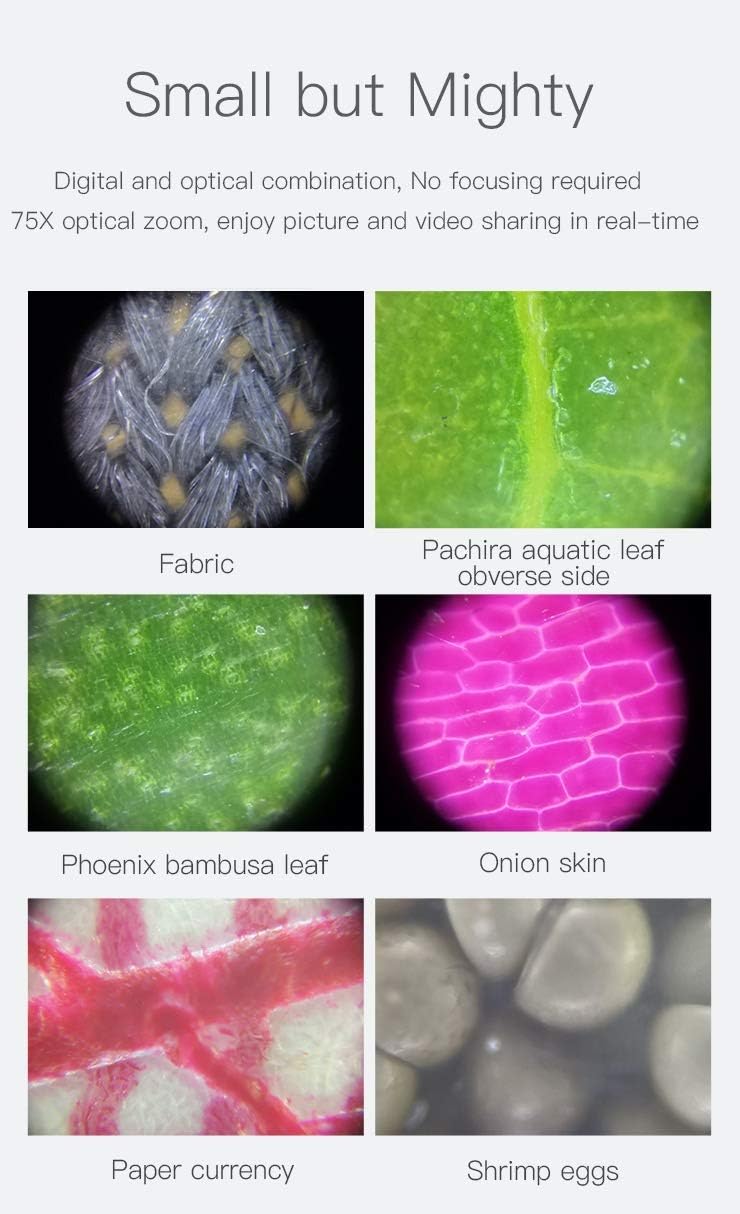
Image 4.1: Examples of magnified images captured using the Supereyes S003, demonstrating its clarity and magnification capabilities.
5. Maintenance
To ensure the longevity and optimal performance of your Supereyes S003 microscope adapter:
- Cleaning the Lens: Use a soft, lint-free cloth specifically designed for optical lenses to gently wipe the microscope lens. Avoid abrasive materials or harsh chemicals.
- Storage: When not in use, detach the microscope from your phone and store it in a clean, dry place, away from direct sunlight and extreme temperatures.
- Battery Care: If the microscope will not be used for an extended period, remove the CR2016 battery to prevent leakage.
- Avoid Impact: Handle the device with care to prevent drops or impacts that could damage the lens or internal components.
6. Troubleshooting
If you encounter issues with your Supereyes S003, refer to the following common solutions:
| Problem | Possible Cause | Solution |
|---|---|---|
| LED light does not turn on. | Battery is dead or incorrectly installed. | Check battery orientation or replace the CR2016 battery. Ensure the microscope is properly attached to the metal plate. |
| Image is blurry or unclear. | Object not in direct contact with the lens; lens is dirty. | Ensure the object is gently pressed against the microscope lens. Clean the lens with a soft, lint-free cloth. |
| Microscope does not attach securely. | Metal plate not properly adhered or misaligned. | Ensure the metal plate is clean and firmly attached to your phone. Re-align the microscope with the metal plate. |
7. Specifications
| Feature | Detail |
|---|---|
| Brand | Supereyes |
| Model Number | S003 |
| Magnification | 75x Optical |
| Compatible Devices | Smartphones, Tablets |
| Illumination | Integrated LED Light (Automatic On/Off) |
| Power Source | CR2016 Battery |
| Material | Metal |
| Item Weight | 0.06 Kilograms |

Image 7.1: Dimensions of the Supereyes S003 microscope and its accompanying metal plate.

Image 7.2: The compact size of the Supereyes S003, comparable to a credit card.
8. Warranty Information
The Supereyes S003 Smartphone Microscope Adapter comes with a 2-year warranty from the date of purchase. This warranty covers manufacturing defects and material flaws under normal use. Please retain your proof of purchase for warranty claims. The warranty does not cover damage caused by misuse, accidents, unauthorized modifications, or normal wear and tear.
9. Customer Support
For further assistance, technical support, or warranty inquiries, please contact Supereyes customer service through the retailer where you purchased the product or visit the official Supereyes website for contact information.
Ask a question about this manual
Ask about setup, troubleshooting, compatibility, parts, safety, or missing instructions. Manuals+ will review the question and use this page’s manual context to help answer it.