
1. Introduction
The AAXA P2-A is a compact, portable pico projector featuring Android OS, Wi-Fi, and Bluetooth connectivity. Designed for versatility, it supports Full HD 1080P resolution, making it suitable for various applications including home cinema, presentations, and mobile entertainment. This manual provides essential information for setting up, operating, maintaining, and troubleshooting your P2-A projector.
2. What's in the Box
Please verify that all items are present in the package:
- AAXA P2-A Android Smart LED Pico Projector
- mini-HDMI Cable
- AV Cable
- USB Cable
- microSD Card
- Remote Control
- Power Adapter
3. Product Overview
Familiarize yourself with the physical features and connection ports of your AAXA P2-A projector.
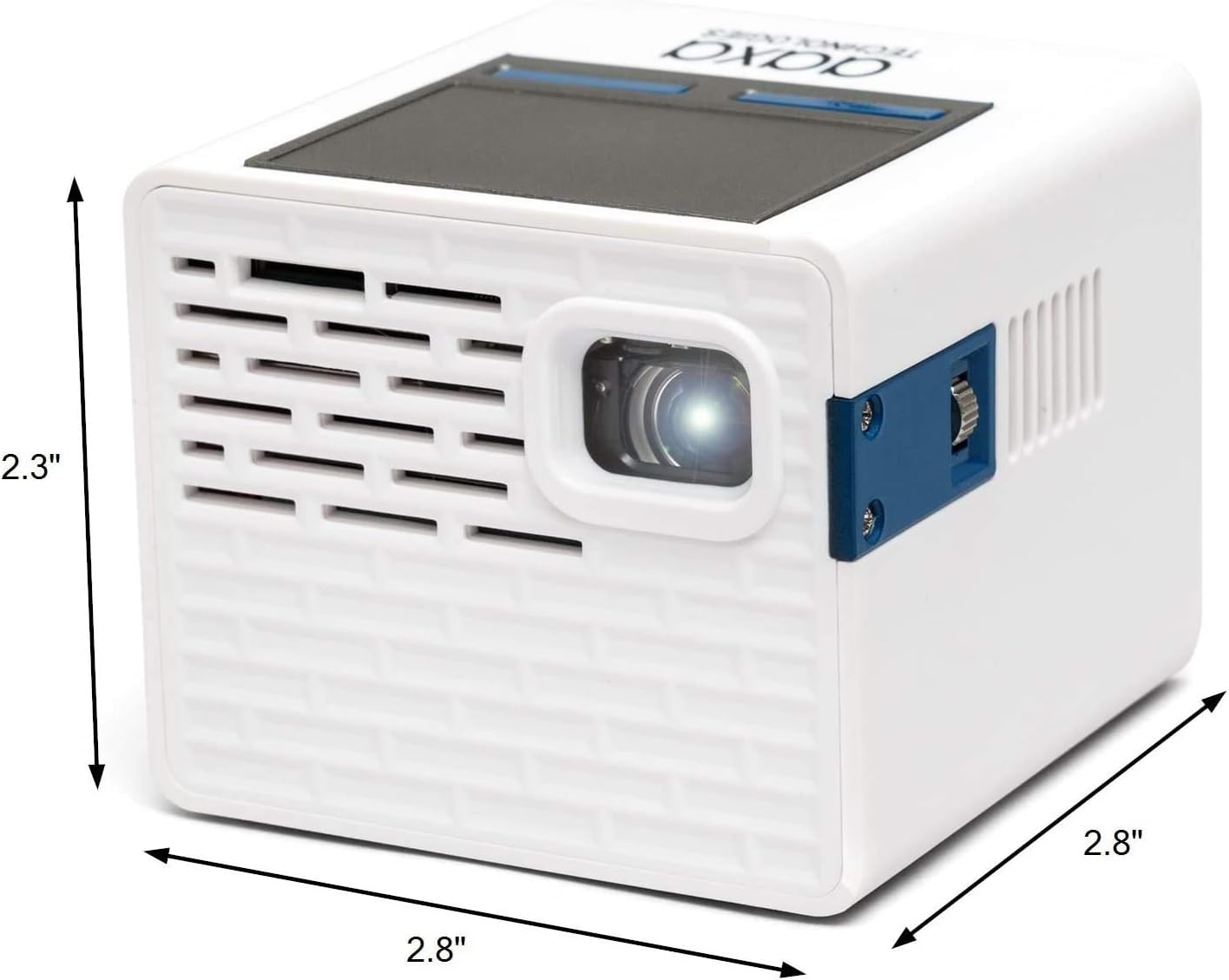
Figure 3.1: AAXA P2-A Pico Projector dimensions. The projector measures approximately 2.8 inches in width, 2.8 inches in depth, and 2.3 inches in height, highlighting its compact design.

Figure 3.2: Overview of the AAXA P2-A Pico Projector's ports and controls. This image displays the Trackpad, MicroSD slot, Focus Wheel, Bluetooth/WiFi (built-in), IR Remote Sensor, HDMI port, Video In, AV port, MicroUSB (for firmware reflash only), 3.5mm Audio Out, Composite A/V, Speakers, USB port, DC Power input, and Power Button.
4. Setup
4.1 Initial Placement
Place the projector on a stable, flat surface. For optimal image quality, position the projector perpendicular to the projection surface (wall or screen). Ensure there are no obstructions blocking the lens or ventilation ports.

Figure 4.1: The AAXA P2-A Pico Projector shown mounted on a small tripod, demonstrating a common setup for stable projection and adjustable positioning.
4.2 Powering On/Off
- Connect Power: Plug the included power adapter into the DC Power port on the projector and then into a wall outlet.
- Power On: Press and hold the Power Button on the projector or the remote control until the device powers on.
- Power Off: Press and hold the Power Button again until the shutdown prompt appears, then confirm. Alternatively, use the power option in the Android interface.
4.3 Focus Adjustment
Locate the Focus Wheel on the side of the projector. Rotate the wheel until the projected image appears sharp and clear on your screen or wall.
5. Operating Instructions
5.1 Navigation
The P2-A can be navigated using the integrated touchpad on top of the unit or the included remote control. For enhanced control, a USB mouse and keyboard can be connected.
5.2 Android OS and Apps
The projector runs on an Android operating system, allowing you to download and use various applications. Connect to a Wi-Fi network to access online content and app stores.

Figure 5.1: The AAXA P2-A Pico Projector displaying the Netflix application interface, demonstrating its capability to run streaming apps directly via its Android OS.
5.3 Smartphone Mirroring
The P2-A supports smartphone mirroring. This feature typically requires Airplay for iOS devices or a compatible third-party Android app. Refer to the projector's settings or AAXA's official website for specific instructions and recommended applications.
6. Connectivity
The AAXA P2-A offers multiple connectivity options for various devices:
- HDMI: Connect laptops, gaming consoles, Blu-ray players, and other HDMI-enabled devices using the mini-HDMI port.
- USB: Plug in USB drives for media playback or connect a USB mouse/keyboard for easier navigation.
- MicroSD: Insert a microSD card to access stored media files directly.
- AV: Use the included AV cable to connect older devices with composite video and stereo audio outputs.
- Bluetooth: Pair with Bluetooth speakers or headphones for external audio output.
- Wi-Fi: Connect to a wireless network for internet access, app downloads, and online streaming.
- 3.5mm Audio Out: Connect external speakers or headphones via the 3.5mm audio jack.
7. Maintenance
Proper maintenance ensures the longevity and optimal performance of your projector.
- Cleaning the Lens: Use a soft, lint-free cloth specifically designed for optical lenses. Do not use abrasive cleaners or cloths that could scratch the lens.
- Cleaning the Exterior: Wipe the projector's exterior with a soft, dry cloth. For stubborn dirt, slightly dampen the cloth with water. Avoid harsh chemicals.
- Ventilation: Ensure the ventilation ports are clear of dust and debris to prevent overheating. Do not block the vents during operation.
- Storage: When not in use, store the projector in a cool, dry place, away from direct sunlight and extreme temperatures.
8. Troubleshooting
Refer to the table below for common issues and their solutions.
| Problem | Possible Cause | Solution |
|---|---|---|
| No image projected | Power cable disconnected, projector off, input source not selected, lens cap on. | Check power connection, turn on projector, select correct input source, remove lens cap. |
| Image is blurry | Focus not adjusted, projector too close/far from screen. | Adjust the Focus Wheel. Reposition the projector for optimal distance. |
| No sound | Volume too low, external audio device not connected, incorrect audio output selected. | Increase volume. Ensure external speakers/headphones are connected and selected as output. |
| Remote control not working | Batteries depleted, IR sensor blocked, remote not pointed correctly. | Replace batteries. Ensure clear line of sight to the projector's IR sensor. |
| Wi-Fi/Bluetooth connectivity issues | Network issues, device not in pairing mode, interference. | Restart projector and router. Ensure devices are in pairing mode. Reduce interference. |
9. Specifications
Detailed technical specifications for the AAXA P2-A Pico Projector.
| Feature | Specification |
|---|---|
| Brand | AAXA Technologies |
| Model Name | P2-A |
| Display Type | LED |
| Native Resolution | 1920 x 1080 (Full HD 1080P support) |
| Display Resolution Maximum | 1080p (1920x1080) |
| Brightness | 130 Lumen |
| Connectivity Technology | Bluetooth, HDMI, USB |
| Special Feature | Pico, Built-in Speakers |
| Form Factor | Portable |
| Mounting Type | Tabletop Mount |
| Controller Type | App Control |
| Compatible Devices | Gaming Console, Laptop, Smartphone, Tablet |
| Hardware Connectivity | USB, mini HDMI |
| Control Method | App |
| Item Weight | 0.25 Kilograms |
10. Warranty and Support
10.1 Warranty Information
The AAXA P2-A Pico Projector comes with a 90-day limited warranty. This warranty covers manufacturing defects under normal use. Please retain your proof of purchase for warranty claims. The warranty does not cover damage caused by misuse, accidents, unauthorized modifications, or normal wear and tear.
10.2 Customer Support
For technical assistance, troubleshooting beyond this manual, or warranty inquiries, please contact AAXA Technologies customer support. Refer to the official AAXA Technologies website for the most current contact information and support resources.


