
cimetech 8541646127
cimetech Wireless Bluetooth Mouse User Manual
Model: 8541646127
Introduction
Thank you for choosing the cimetech Wireless Bluetooth Mouse. This dual-mode mouse offers versatile connectivity via Bluetooth 4.0 and 2.4G wireless, providing a seamless experience across various devices. Its slim, ergonomic design ensures comfort during extended use, and the built-in rechargeable battery offers long-lasting performance. This manual will guide you through the setup, operation, and maintenance of your new mouse.

Image: The cimetech Wireless Bluetooth Mouse, showcasing its sleek black design and ergonomic shape.
Setup
Charging the Mouse
Before first use, or when the battery is low, charge the mouse using the provided USB cable. The built-in 480mAh rechargeable battery provides approximately 2 months of use on a 1-hour charge. The indicator light will be red while charging and turn off when fully charged.

Image: An illustration showing the mouse being charged via USB, highlighting its 480mAh battery and long usage time.
2.4G Wireless Mode Connection
- Locate the USB nano receiver stored in the bottom of the mouse.
- Plug the USB receiver into an available USB port on your laptop or desktop computer.
- Turn the mouse switch to "ON".
- A red LED light on the scroll wheel will blink once, indicating successful 2.4G wireless connection.

Image: A laptop with the USB nano receiver plugged in, demonstrating the 2.4G wireless connection with a 10-meter range.
Bluetooth Mode Connection
- Ensure the mouse is turned "ON".
- If the mouse is currently in 2.4G mode, short-press the "Pairing Button" at the bottom of the mouse to switch to Bluetooth mode. The LED on the scroll wheel will slow flash blue.
- Long-press (for 3 seconds) the "Pairing Button" at the bottom of the mouse to enter pairing mode. The blue LED on the scroll wheel will flash quickly, indicating it is searching for a Bluetooth signal.
- On your device (Windows, Mac, Android OS Tablet), open Bluetooth settings and search for new devices.
- Select "BT4.0.+2.4G Mouse" from the list of available devices.
- For the first-time Bluetooth connection, you may need to click "Pair" or "Connect" using another available mouse or your device's touchscreen.
- Once connected, the blue LED will stop flashing.

Image: An illustration demonstrating the dual-mode capability, showing the red light for 2.4G mode and blue light for Bluetooth mode, with two laptops connected to each mode.
Operating Instructions
Switching Between Modes
After the initial setup for both 2.4G and Bluetooth modes, you can easily switch between them by simply short-pressing the "Pairing Button" at the bottom of the mouse. The LED on the scroll wheel will indicate the active mode (red for 2.4G, blue for Bluetooth).
Adjusting DPI Sensitivity
The mouse features 3 adjustable DPI levels: 1000, 1600, and 2400. To change the sensitivity, press the DPI button located behind the scroll wheel. Each press will cycle through the available DPI settings, allowing you to adjust the cursor speed to your preference for various tasks, from precise work to faster navigation.
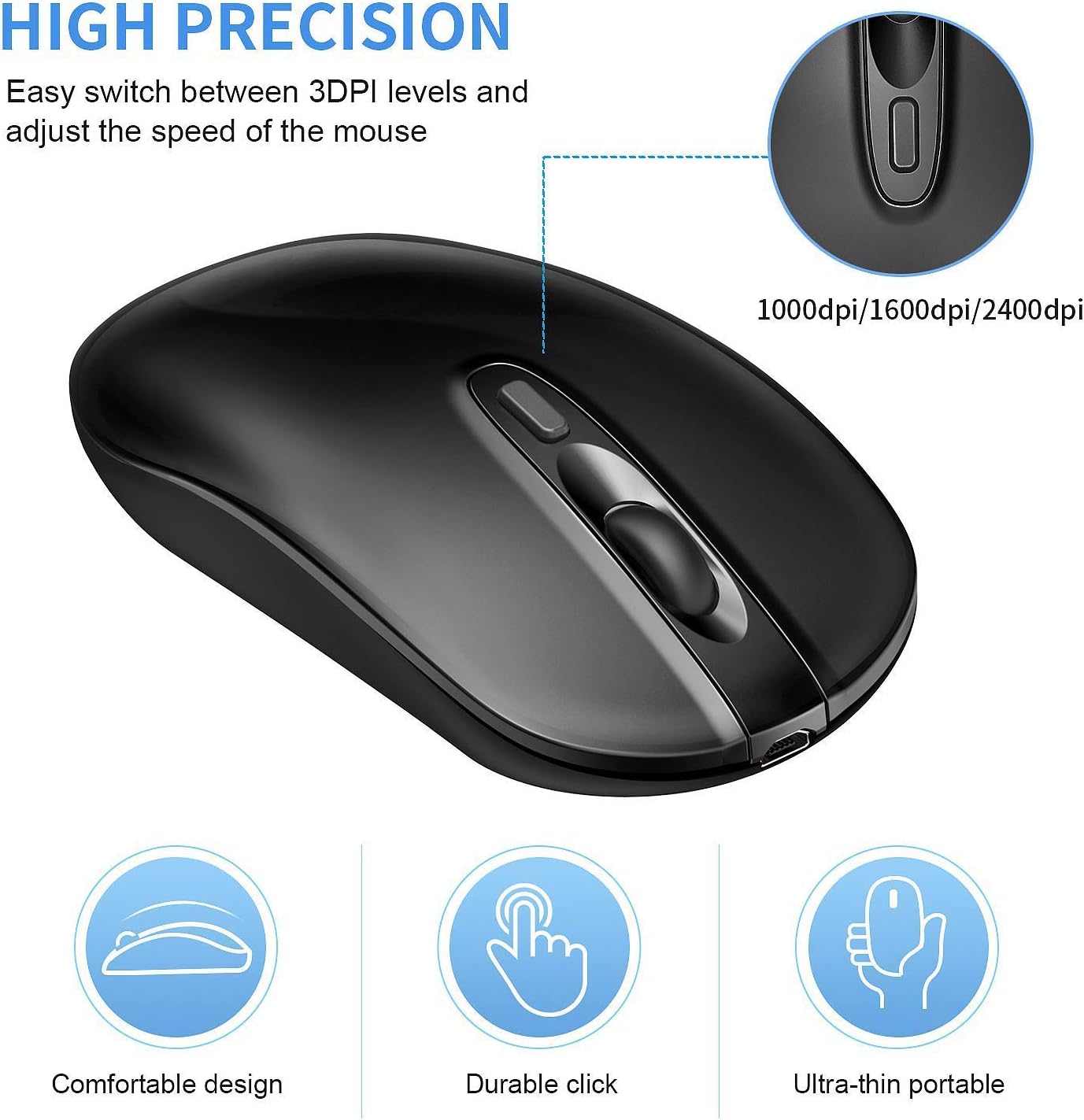
Image: A close-up of the mouse highlighting the DPI button and illustrating the three adjustable DPI levels (1000, 1600, 2400) for high precision.
Silent Clicking
The cimetech mouse is designed with silent click buttons, significantly reducing clicking noise. This feature is ideal for quiet environments, ensuring you can work or study without disturbing others.

Image: The mouse positioned near a sleeping baby, illustrating the silent clicking feature that prevents disturbance.
Maintenance
Cleaning
To clean your mouse, gently wipe its surface with a soft, damp cloth. Avoid using harsh chemicals or abrasive materials, as these can damage the finish. Ensure no liquid enters the mouse.
Battery Care
To maximize battery life, avoid fully discharging the mouse frequently. Recharge it when the low battery indicator appears. If the mouse will not be used for an extended period, turn it off using the ON/OFF switch at the bottom.
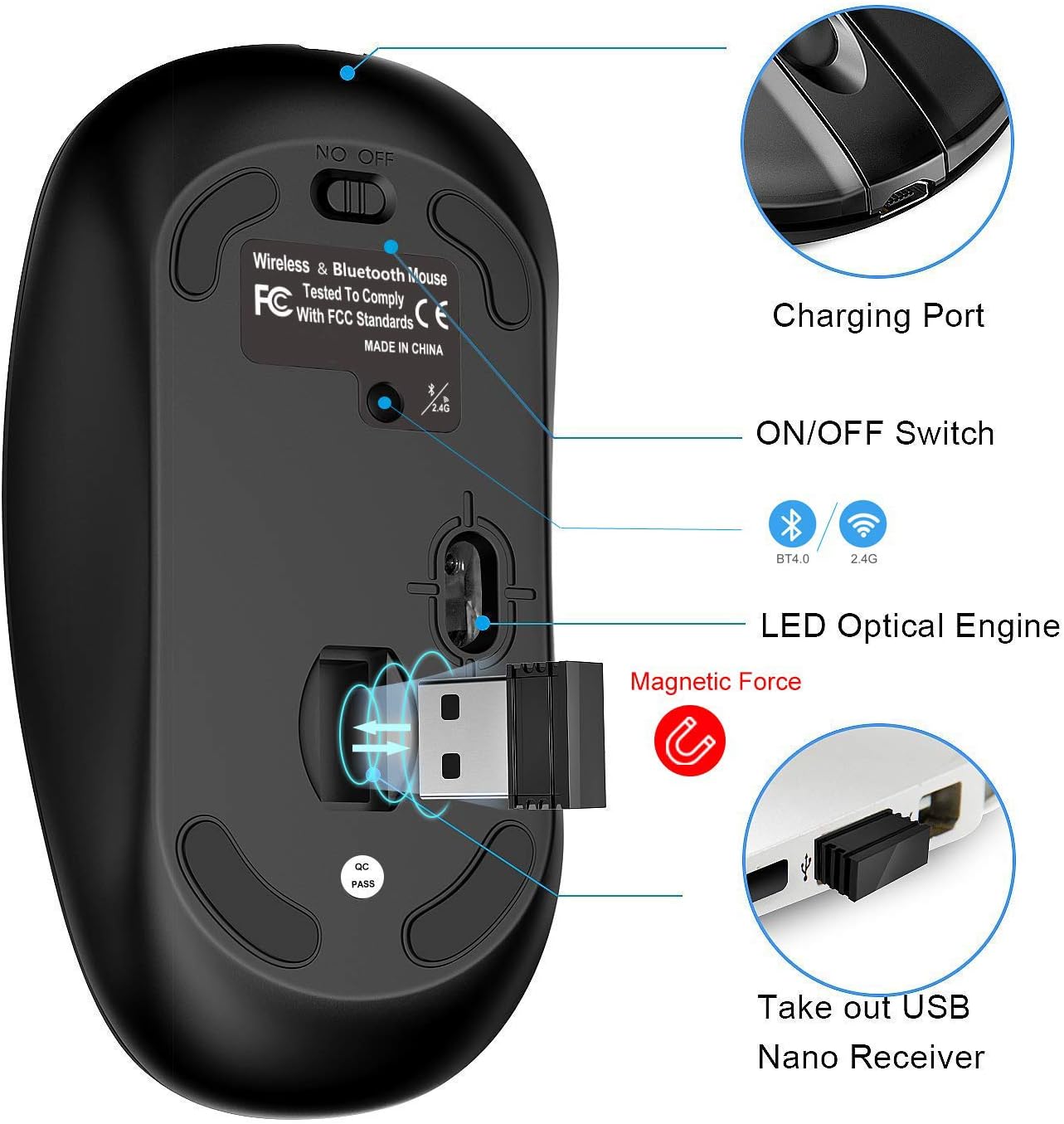
Image: The underside of the mouse, showing the charging port, ON/OFF switch, LED optical engine, and the magnetic compartment for the USB nano receiver.
Troubleshooting
| Problem | Possible Cause | Solution |
|---|---|---|
| Mouse not responding (2.4G mode) | USB receiver not properly connected; Mouse is off or in Bluetooth mode; Low battery. | Ensure USB receiver is fully inserted. Turn mouse ON. Short-press pairing button to switch to 2.4G mode (red LED). Charge the mouse. |
| Mouse not responding (Bluetooth mode) | Not paired; Mouse is off or in 2.4G mode; Device Bluetooth is off; Low battery. | Turn mouse ON. Long-press pairing button to enter pairing mode (blue LED flashes quickly). Ensure device Bluetooth is enabled. Re-pair the mouse. Charge the mouse. |
| Cursor movement is erratic or slow | Low battery; Dirty optical sensor; DPI setting is too low; Uneven surface. | Charge the mouse. Clean the optical sensor at the bottom. Press DPI button to increase sensitivity. Use on a smooth, opaque surface. |
| Connection drops frequently | Interference; Distance from receiver/device; Low battery. | Move closer to your device. Remove obstacles. Ensure no other wireless devices are causing interference. Charge the mouse. |
Specifications
- Model: 8541646127
- Connectivity: Bluetooth 4.0, 2.4G Wireless
- DPI Levels: 1000, 1600, 2400
- Battery: Built-in 480mAh Lithium-ion rechargeable battery
- Charging Time: Approximately 1 hour
- Battery Life: Up to 2 months on a full charge
- Keystroke Lifespan: Over 5 million times
- Operating System Compatibility: Windows (8.0 and above recommended), Mac OS (10.10 and above recommended), Android (4.3 and above recommended), Chrome OS, DOS, Linux.
- Compatible Devices: Laptop, PC, Tablet, Smartphone
- Special Features: Ergonomic Design, Lightweight, Portable, Rechargeable, Silent Click
- Dimensions: 11.7 x 9.7 x 4.1 cm (Parcel Dimensions)
- Weight: 72 g (Parcel Weight)
- Material: Plastic
- Hand Orientation: Ambidextrous
Ask a question about this manual
Ask about setup, troubleshooting, compatibility, parts, safety, or missing instructions. Manuals+ will review the question and use this page’s manual context to help answer it.