
CKL CKL-944HUA
CKL HDMI KVM Switch 4 Port Dual Monitor Extended Display User Manual
Model: CKL-944HUA
1. Product Overview
The CKL HDMI KVM Switch allows you to control up to four computers or laptops from a single set of keyboard, mouse, and two monitors. It supports dual monitor extended display or duplicated display, requiring each connected computer to have two video output interfaces that support extended display. This KVM switch is compatible with various operating systems including Windows, Mac, and Linux, and supports HDMI devices such as webcams, hard disk players, game consoles, and DVRs/NVRs. It also features an additional USB 2.0 port for sharing peripherals like printers and scanners.

Figure 1: CKL HDMI KVM Switch (Front View)
2. Package Contents
Please verify that all items listed below are included in your package:
- 1 x CKL HDMI KVM Switch (CKL-944HUA)
- 1 x DC 5V Power Adapter (US Plug)
- 4 x KVM Cables (Cable A: USB, Audio, HDMI combined) - 4.92 ft.
- 4 x HDMI Cables (Cable B: HDMI only) - 4.92 ft.
- 1 x User Manual

Figure 2: Included Accessories and Cables
3. Product Features and Ports
3.1 Front Panel
The front panel provides convenient access to selection buttons, status indicators, and additional peripheral ports.
- SELECT Buttons (1-4): Push buttons to manually switch between connected computers.
- ONLINE Indicators: LEDs indicating which computer port is currently active.
- Hot Key ON/OFF Switch: Toggles hotkey switching functionality.
- 2.0 HUB (USB 2.0 Port): For connecting USB peripherals like printers, scanners, or USB drives.
- Speaker Output: 3.5mm audio jack for connecting speakers.
- Microphone Input: 3.5mm audio jack for connecting a microphone.
- Wired Remote Port: For connecting the included wired remote switch.
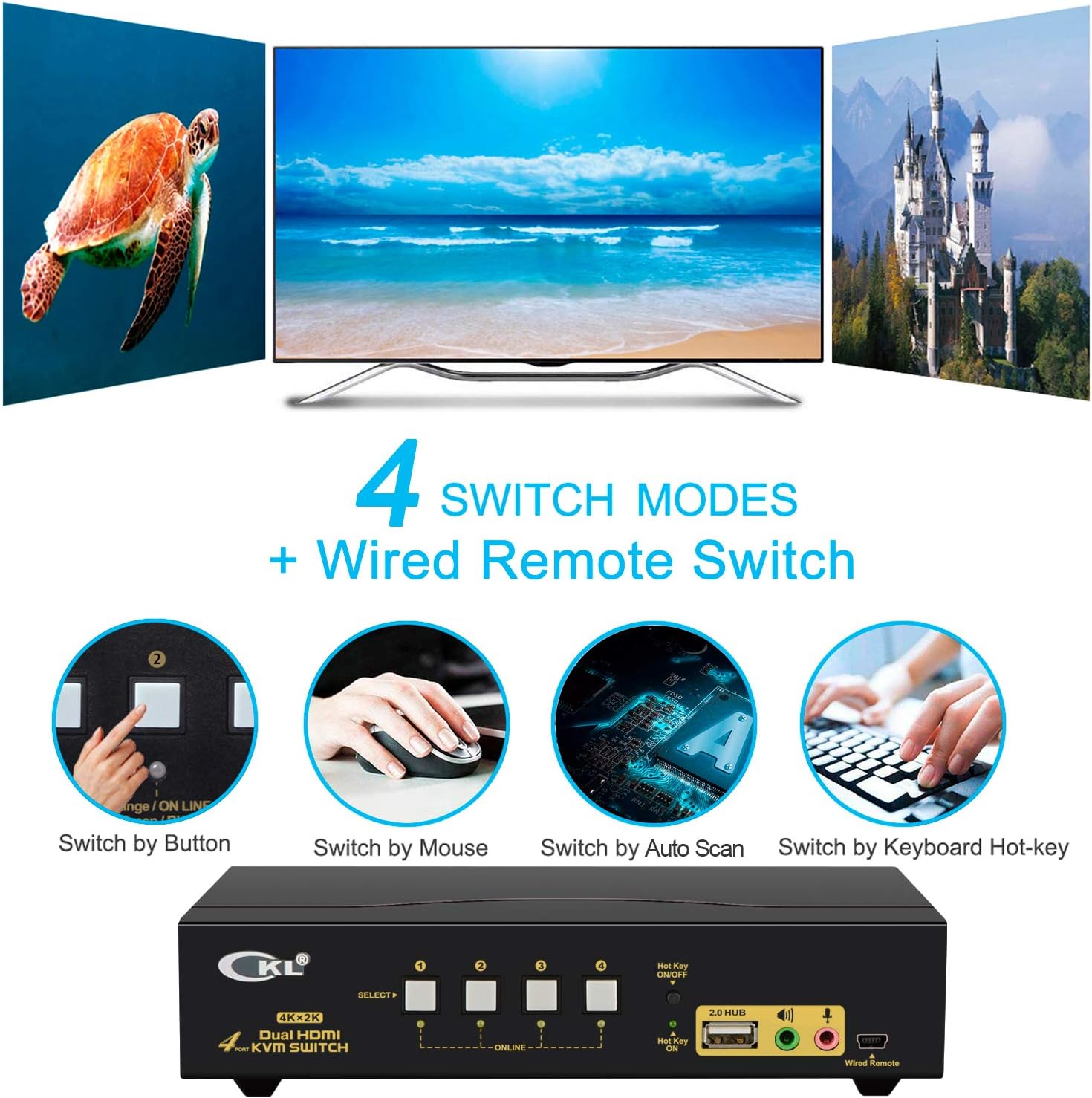
Figure 3: Front Panel Layout
3.2 Rear Panel
The rear panel houses all the input and output connections for your computers and monitors.
- ON/OFF Switch: Main power switch for the KVM unit.
- DC 5V Power Input: Connect the provided power adapter here.
- USB Keyboard Port: Dedicated USB port for your keyboard, supports hotkey switching.
- USB Mouse Port: Dedicated USB port for your mouse, supports mouse click switching.
- HDMI Out A & B: Connect your two monitors to these ports.
- HDMI Input (IN A & IN B) for PC 1-4: Each computer requires two HDMI inputs (IN A and IN B) for dual monitor extended display. The IN A port also carries the USB and audio signals from the KVM cable.

Figure 4: Rear Panel Layout and Dimensions
4. Setup and Installation
Follow these steps to properly set up your CKL HDMI KVM Switch. Ensure all computers have two video output interfaces that support extended display. If your computer does not have two HDMI outputs, reliable adapters (e.g., DVI to HDMI, VGA to HDMI, DisplayPort to HDMI, USB-C to HDMI) may be required (not included). Avoid using adapters on both the computer and monitor sides; use them on one side only.
4.1 Connecting Computers to the KVM Switch
- Connect the end of KVM Cable A (with USB, Audio, and HDMI connectors) to your PC's corresponding ports.
- Connect the single HDMI end of KVM Cable A to the IN A port for the respective PC on the KVM Switch.
- Connect one end of HDMI Cable B (HDMI only) from your PC's second video output to the IN B port for the same PC on the KVM Switch.
- Repeat steps 1-3 for all additional computers you wish to connect (up to 4).

Figure 5: Computer Connection Diagram
Important Note: For computers with non-HDMI video outputs (e.g., VGA, DVI, DisplayPort), you will need appropriate adapters to convert the signal to HDMI before connecting to the KVM switch. Ensure these adapters are reliable for optimal performance.

Figure 6: Adapter Usage for Mixed Video Outputs
4.2 Connecting Monitors, Keyboard, Mouse, and Power
- Connect your two monitors to the HDMI Out A and HDMI Out B ports on the rear panel of the KVM Switch.
- Plug your keyboard into the USB Keyboard Port and your mouse into the USB Mouse Port on the rear panel. For wireless keyboard/mouse sets with a single USB dongle, plug the dongle into the USB Keyboard Port.
- If using external speakers or a microphone, connect them to the respective 3.5mm audio jacks on the front panel.
- Connect the DC 5V Power Adapter to the DC 5V input on the rear panel and plug it into a power outlet.
- Ensure the KVM's ON/OFF switch on the rear panel is in the 'ON' position.
- Power on all connected computers.
- Set your computer display modes to 'Extended Display' in your operating system settings to utilize both monitors.
4.3 Installation Demonstration Videos
For a visual guide on the unboxing and installation process, please refer to the videos below:
Video 1: How to Hook up CKL-922HUA - Unboxing and Video Demo. This video demonstrates the unboxing of the KVM switch and initial setup steps, including connecting cables to the computers and the KVM unit.
Video 2: CKL Dual Monitor KVM Installation Demo. This video provides a detailed demonstration of the installation process for the CKL Dual Monitor KVM switch, showing various connection scenarios.
5. Operating Instructions
The CKL KVM Switch offers multiple convenient ways to switch between connected computers:
5.1 Switching Modes
- Front Panel Button Switch: Simply press the corresponding SELECT button (1-4) on the front panel to switch to the desired computer. The ONLINE LED will illuminate for the selected port.
- Keyboard Hotkey Switch:
- Double-click the Right Ctrl key.
- Press the Port Number (1, 2, 3, or 4) corresponding to the desired computer.
- Press Enter.
Note: Ensure the Hot Key ON/OFF switch on the front panel is in the 'ON' position for hotkey functionality.
- Mouse Click Switch: Double-click the middle scroll wheel of your mouse, then click the left or right mouse button to switch between computers.
- Wired Remote Switch: Press the button on the wired remote control to cycle through the connected computers. This is useful if the KVM unit is out of reach.
- Auto Scan Switch: The KVM can be configured to automatically cycle through connected computers at set intervals. Refer to the full user manual for detailed instructions on enabling and configuring auto scan.
Figure 7: Available Switching Modes

Figure 8: Operating System Compatibility
6. Troubleshooting
If you encounter issues with your CKL HDMI KVM Switch, please refer to the following common troubleshooting tips:
- No Display on Monitors:
- Ensure all HDMI cables (Cable A and Cable B) are securely connected to both the computers and the KVM switch.
- Verify that the KVM switch is powered on and the power adapter is properly connected.
- Confirm that your computers have two active video outputs and are configured for extended display.
- If using adapters (DVI, VGA, DisplayPort to HDMI), ensure they are functional and correctly connected.
- Try restarting the KVM switch and the connected computers.
- Keyboard or Mouse Not Responding:
- Ensure the keyboard and mouse are plugged into the dedicated USB Keyboard and USB Mouse ports on the KVM's rear panel.
- For wireless keyboard/mouse sets, ensure the USB dongle is plugged into the dedicated USB Keyboard port. If issues persist, try plugging it into the front USB 2.0 hub port (note: hotkey and mouse click switching may not be supported from this connection).
- If hotkey switching is enabled and causing issues with special keyboards (e.g., gaming, optical, mechanical), try turning off the Hot Key ON/OFF switch on the front panel. This will convert the dedicated keyboard/mouse ports into standard USB 2.0 hub ports.
- If a computer goes to sleep and you switch away, then switch back, the keyboard/mouse may not wake it up. Unplugging and re-plugging the keyboard/mouse dongle might help, or try waking the computer directly.
- No Audio or Poor Audio Quality:
- Ensure speakers/microphone are correctly connected to the front panel audio jacks.
- Check your computer's sound settings. This model supports decoded HDMI audio; set HDMI audio or Monitor A audio as default in your sound settings.
- Switching Delay:
- A slight delay (a few seconds) when switching between computers is normal as the KVM re-establishes connections.
7. Specifications
| Feature | Specification |
|---|---|
| Brand | CKL |
| Model Number | CKL-944HUA |
| Color | Dual HDMI KVM 4 Port 4K 30Hz |
| Operation Mode | Manual |
| Operating Voltage | 5 Volts |
| Connector Type | HDMI, USB, Wireless |
| Hardware Platform | PC, Server, Windows, Mac, Linux |
| Product Dimensions (LxWxH) | 8.3 x 3.2 x 2 inches |
| Item Weight | 1.37 pounds |
| International Protection Rating | IP54 |
8. Warranty and Support
CKL is committed to providing high-quality products and excellent customer service. For any technical support, troubleshooting assistance, or warranty inquiries, please contact CKL customer care. We are dedicated to ensuring your satisfaction with our products.
Please refer to the official CKL website or your purchase documentation for specific warranty terms and contact information.
Related documentsCKL-944HUA


Ask a question about this manual
Ask about setup, troubleshooting, compatibility, parts, safety, or missing instructions. Manuals+ will review the question and use this page’s manual context to help answer it.