
1. Introduction
This manual provides detailed instructions for the installation, setup, and operation of the Sonew RFID 125KHz Standalone Access Control Keypad. This device is designed to provide secure access control for various applications, supporting multiple entry methods and user management.
2. Safety Information
- Ensure all wiring is performed by a qualified professional to prevent electrical hazards.
- Do not expose the device to extreme temperatures, humidity, or direct water contact.
- Use only the specified DC 12V power supply.
- Keep the device away from strong electromagnetic fields.
- Do not attempt to disassemble or repair the unit yourself. Contact support for assistance.
3. Package Contents
Verify that all items are present in the package:
- 1 x Sonew Metal Door Access Control Keypad
- 1 x English User Manual
- Mounting Screws and Wall Plugs (may vary)
4. Product Overview
The Sonew RFID 125KHz Standalone Access Control Keypad features a durable metallic case and a blue backlit keypad for enhanced visibility. It integrates a 125KHz proximity card reader and supports various access modes.
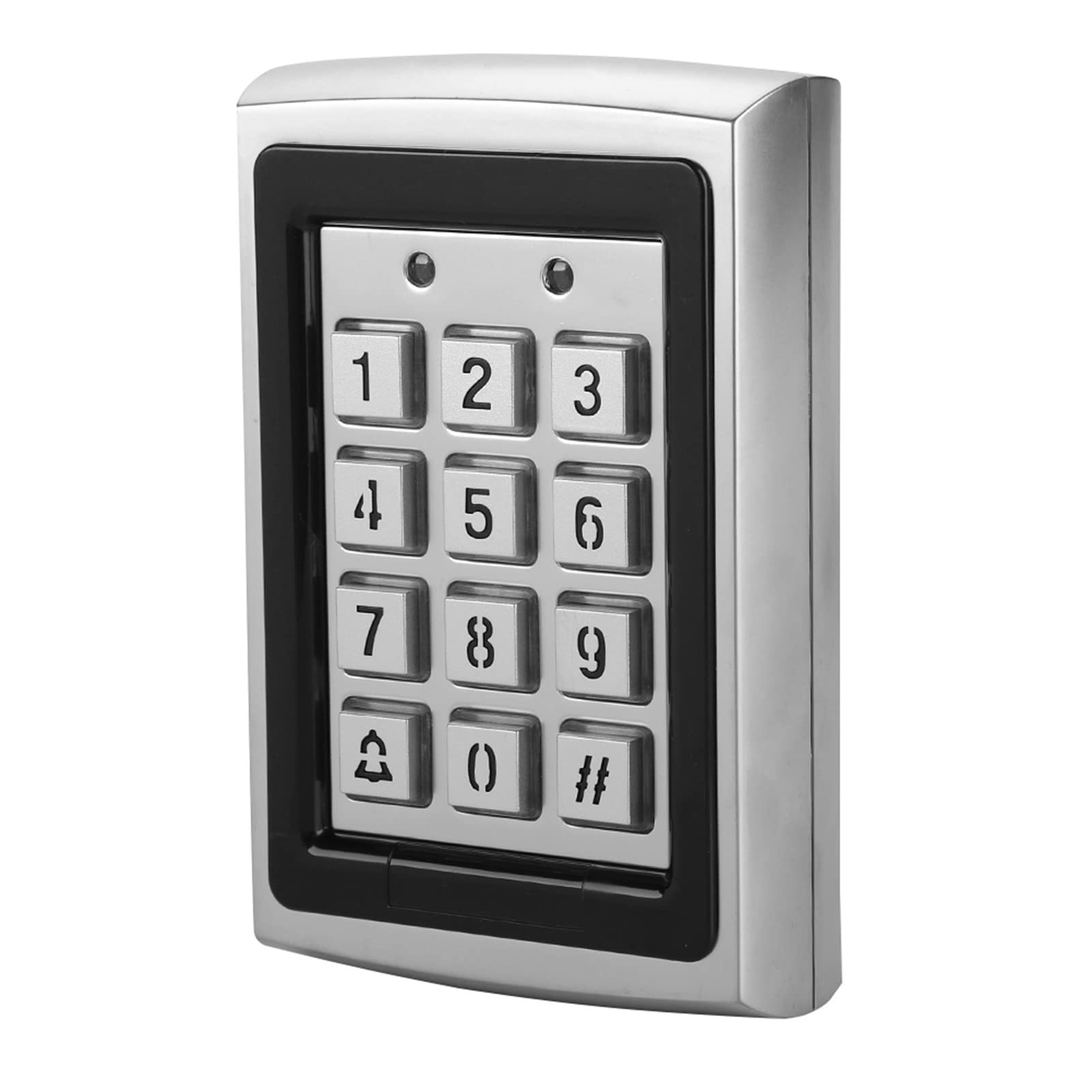
Figure 4.1: Front view of the Sonew RFID Access Control Keypad installed.

Figure 4.2: Rear view of the keypad with wiring terminals and serial number. The serial number is 2018071083840.
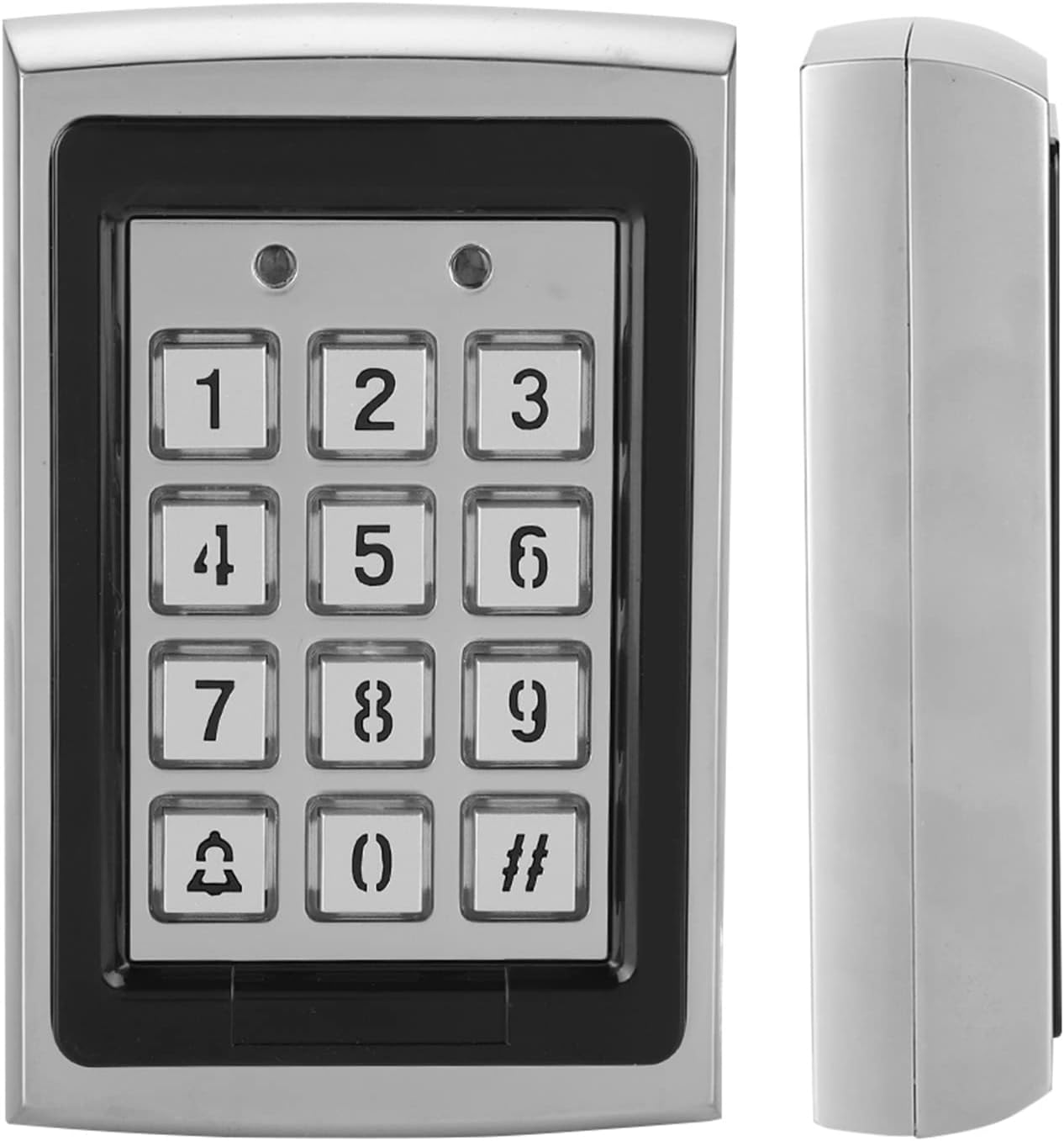
Figure 4.3: Front and side profile of the access control keypad.
Key Features:
- Metallic case for durability.
- Blue backlit keypad for low-light conditions.
- Built-in 125KHz proximity card reader.
- Supports 1000 standard users.
- Multiple entry modes: Password Only, ID Card Only, Password + ID Card.
- Lock relay output (NO/NC).
- Alarm function with internal buzzer.
- 8 Auxiliary Modes (door ajar, forced door, shunt, door monitor, normal/secure).
- 3 User Levels: Normal User, Secure User, Master User.
5. Specifications
| Brand | Sonew |
| Model Number | Sonewyfevd4kmx9 |
| Color | Silver |
| Working Voltage | DC 12V |
| Support Card Frequency | 125KHz |
| Support Card Type | ID Card |
| User Capacity | 1000 Users |
| Entry Modes | Card, Password, Card + Password |
| Material | Metal Case |
| Item Dimensions (L x W x H) | 3.0 x 4.7 x 1.1 inches (approx. 7.7 x 12 x 2.8 cm) |
| Item Weight | 0.41 Kilograms (approx. 14.4 ounces) |
| Connectivity Technology | Wired |
| Control Method | Touch |
6. Installation
Proper installation is crucial for the functionality and security of the access control system. It is recommended that installation be performed by a qualified technician.
6.1 Mounting the Keypad
- Choose Location: Select a suitable indoor location near the door to be controlled. Ensure the surface is flat and stable.
- Mark Drilling Points: Use the back plate of the keypad as a template to mark the drilling points for mounting screws.
- Drill Holes: Drill holes at the marked points. Insert wall plugs if mounting on masonry or drywall.
- Secure Keypad: Attach the keypad to the wall using the provided screws. Ensure it is firmly secured.
6.2 Wiring Diagram (General Guidance)
The keypad requires connection to a DC 12V power supply, an electric lock (NO/NC), and optionally an exit button or door sensor. Refer to the specific wiring diagram included in your package for precise connections. A general wiring setup involves:
- Power Input: Connect DC 12V power to the designated terminals.
- Lock Output: Connect the electric lock to the NO (Normally Open) or NC (Normally Closed) terminals, depending on your lock type and desired security state.
- Exit Button: Connect an exit button to allow egress from the secured area.
- Door Sensor: (Optional) Connect a door sensor to monitor door status (ajar, forced open).
- Alarm Output: (Optional) Connect to an external alarm system if desired.
Note: Incorrect wiring can damage the device or connected components. Always double-check connections before applying power.
7. Setup & Programming
The keypad requires initial programming to set up the master password and add users. The default master password is typically 123456 (or similar, check your specific manual). It is highly recommended to change this immediately after installation.
7.1 Entering Programming Mode
- Press # then enter the 6-digit Master Password (default: 123456).
- Press # again. The indicator light will change, indicating entry into programming mode.
7.2 Changing the Master Password
- Enter Programming Mode (Section 7.1).
- Press 0.
- Enter your new 6-digit Master Password.
- Enter the new Master Password again to confirm.
- Press # to save and exit this setting.
7.3 Adding Users (ID Cards / Passwords)
The system supports up to 1000 users. Each user can be assigned an ID card, a password, or both.
- Enter Programming Mode.
- Press 1 to add a user.
- For ID Card User: Present the ID card to the reader. The system will beep to confirm.
- For Password User: Enter a 4-6 digit user password, then press #. Enter the password again, then press #.
- For Card + Password User: Present the ID card, then enter a 4-6 digit user password, then press #. Enter the password again, then press #.
- To add more users, repeat steps 3-5. Press # to exit user adding mode.
7.4 Deleting Users
- Enter Programming Mode.
- Press 2 to delete a user.
- To delete by ID Card: Present the ID card to the reader.
- To delete by User ID Number: Enter the User ID Number (e.g., 001, 002), then press #.
- To delete more users, repeat steps 3-4. Press # to exit user deleting mode.
7.5 Exiting Programming Mode
Press * to exit programming mode at any time.
8. Operation
Once programmed, users can gain access using their assigned credentials.
8.1 Accessing with ID Card
- Present your registered ID card to the RFID reader area on the keypad.
- A successful read will trigger the lock to open for a preset duration.
8.2 Accessing with Password
- Enter your registered user password.
- Press #.
- If the password is correct, the lock will open.
8.3 Accessing with ID Card + Password
- Present your registered ID card to the RFID reader.
- Immediately enter your registered user password.
- Press #.
- If both credentials are correct, the lock will open.
8.4 Alarm Function
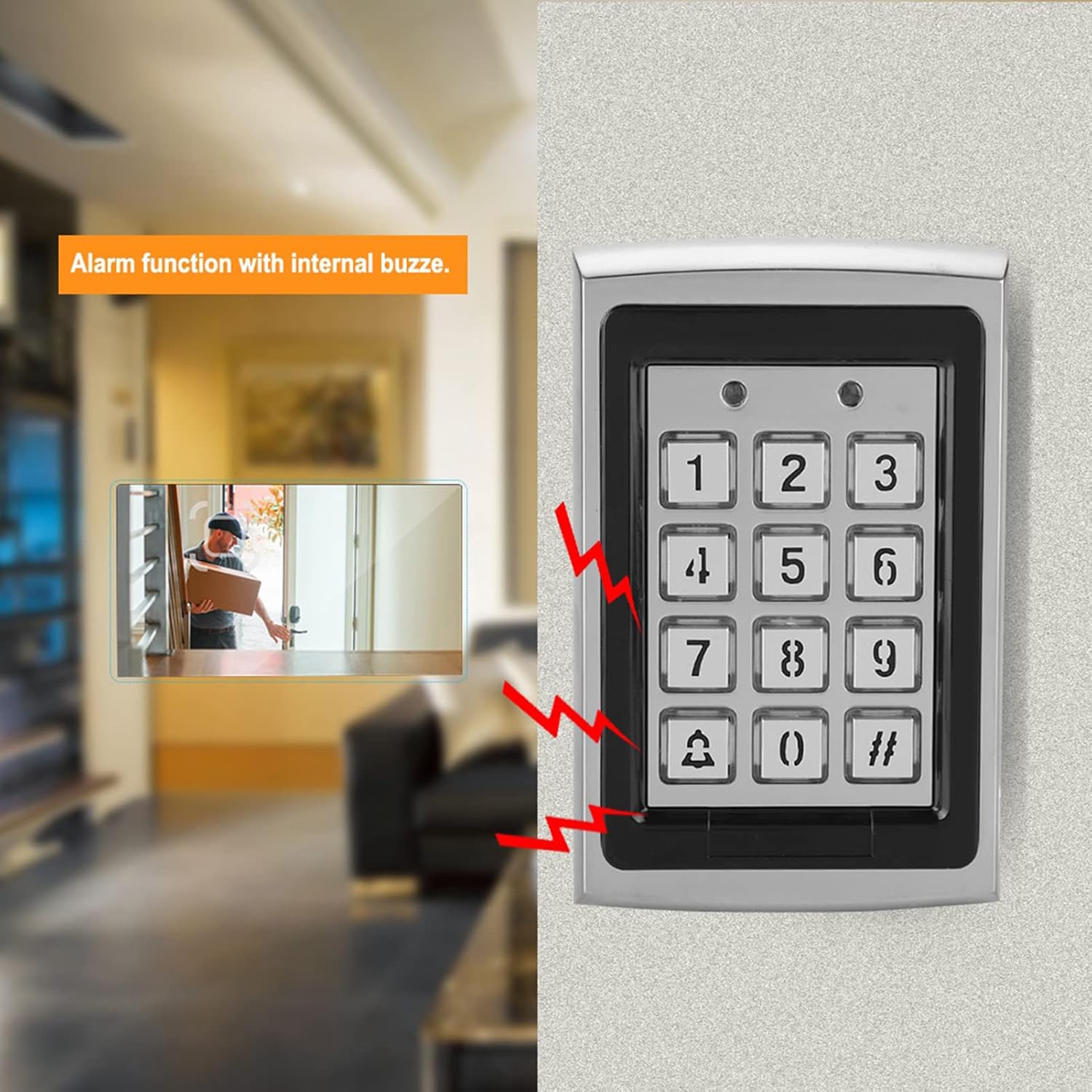
Figure 8.1: Visual representation of the alarm function with internal buzzer.
The keypad features an internal buzzer for alarm functions. This can be triggered by events such as forced entry, door ajar for too long, or multiple incorrect password attempts. Refer to your specific manual for programming auxiliary modes related to the alarm.
9. Maintenance
- Cleaning: Wipe the keypad surface with a soft, dry cloth. Do not use abrasive cleaners or solvents.
- Regular Checks: Periodically check wiring connections for looseness or damage.
- Software Updates: (If applicable) Check the manufacturer's website for any firmware updates.
- Backup User Data: For critical installations, keep a record of user IDs and passwords.
10. Troubleshooting
| Problem | Possible Cause | Solution |
|---|---|---|
| Keypad does not power on. | No power supply; incorrect wiring; faulty power adapter. | Check DC 12V power connection. Verify wiring according to the diagram. Test power adapter. |
| Door does not unlock. | Incorrect ID card/password; card not registered; lock wiring issue; lock malfunction. | Ensure correct credentials. Verify user is registered. Check lock wiring (NO/NC). Test the electric lock independently. |
| Cannot enter programming mode. | Incorrect Master Password; keypad malfunction. | Ensure the correct Master Password is used. If forgotten, a factory reset might be necessary (refer to your specific manual for reset procedures, as this may delete all user data). |
| Alarm sounds unexpectedly. | Door left ajar; forced entry attempt; tamper alarm triggered. | Check door status. Inspect for tampering. Review auxiliary mode settings. |
11. Support & Warranty
For technical assistance, warranty claims, or further inquiries, please contact Sonew customer support through your purchase platform or the official Sonew website. Please have your model number (Sonewyfevd4kmx9) and serial number (if applicable, e.g., 2018071083840) ready when contacting support.
Sonew is committed to providing quality products and support. If you encounter any issues with the product itself, please reach out to us for assistance.