
1. Introduction
This manual provides comprehensive instructions for the operation and maintenance of your Amkov CDC3 Digital Video Camera. Please read this manual thoroughly before using the camera to ensure proper function and to maximize your user experience. Keep this manual for future reference.
The Amkov CDC3 is a compact digital video camera featuring an 18.0 MP maximum image resolution, a 5.0MP CMOS sensor, and 8x digital zoom. It is equipped with a 2.7-inch TFT display for clear image viewing and supports various functions including anti-shake, self-timer, face tracking, and smile capture.
2. Product Features
- Maximum 18.0 Megapixel still image capture.
- 5.0 Megapixel CMOS sensor for clear imaging.
- 8x Digital Zoom for capturing distant subjects.
- 2.7-inch TFT display for live view and playback.
- Anti-shake function to reduce blur from camera movement.
- Supports SD cards up to 32GB (not included).
- Built-in flash for low-light conditions.
- Self-timer with 2s, 5s, and 10s options.
- Advanced features: Face Detection, Smile Capture, Picture Stabilization.
- Continue Shot (burst mode) for capturing sequences of images.
- Direct printing function support.
- Multiple language support: English, French, Spanish, Portuguese, Russian, German, Chinese.

Figure 2.1: Front and back view of the Amkov CDC3 Digital Camera, showcasing its compact design and 2.7-inch TFT screen.
3. Package Contents
Verify that all items listed below are included in your package. If any items are missing or damaged, please contact your retailer.
- Amkov CDC3 Digital Video Camera
- Lithium-ion Battery (550 mAh)
- USB Cable
- Power Adapter
- Driver Disk (CD)
- Wrist Strap
- User Manual (this document)
- Soft Pouch/Cleaning Cloth
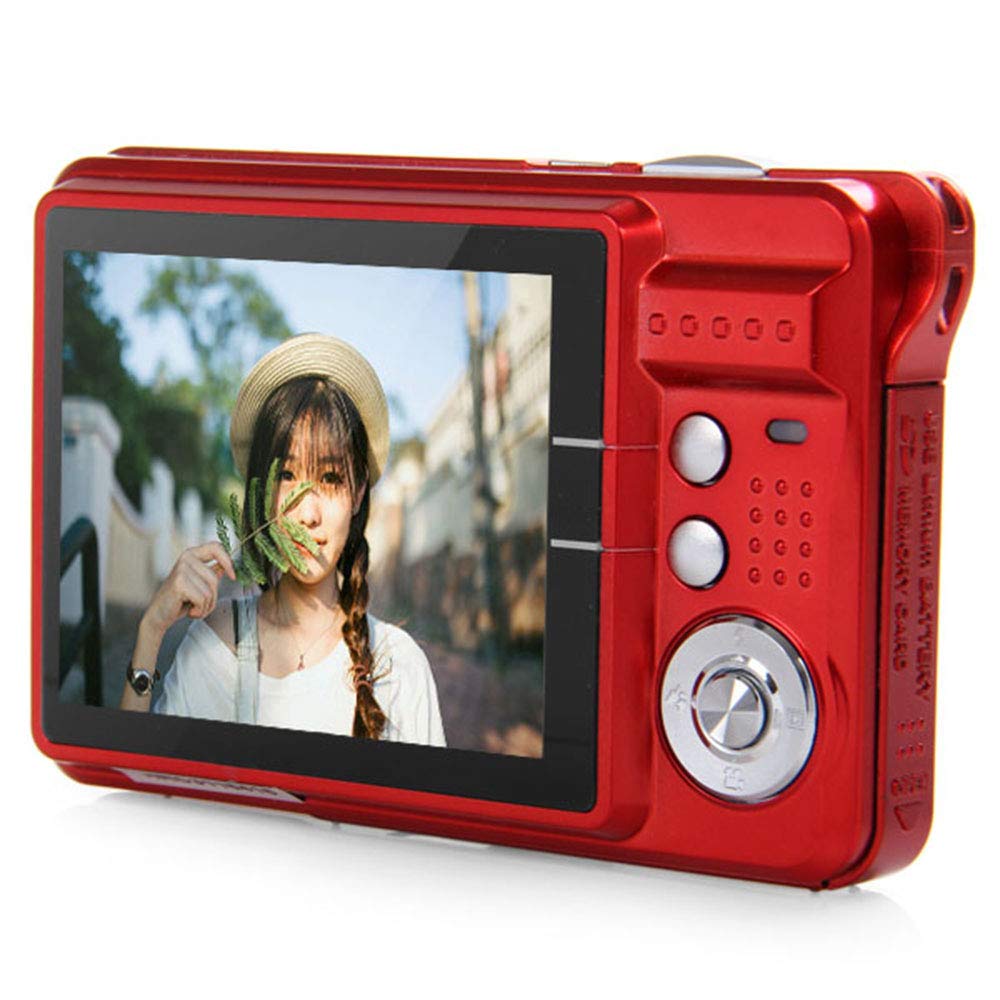
Figure 3.1: All items included in the Amkov CDC3 Digital Camera package, laid out for inspection.
4. Setup
4.1 Installing the Battery
- Locate the battery compartment cover on the side of the camera.
- Slide the cover latch to open the compartment.
- Insert the Lithium-ion battery into the compartment, ensuring the contacts align correctly.
- Close the battery compartment cover until it clicks securely into place.

Figure 4.1: The Amkov CDC3 camera with its battery compartment open, showing the correct orientation for battery insertion.
4.2 Inserting an SD Card
The camera requires an SD card (up to 32GB, not included) to store photos and videos.
- Open the battery compartment cover as described in Section 4.1.
- Locate the SD card slot next to the battery.
- Insert the SD card with the metal contacts facing down, pushing gently until it clicks into place.
- To remove the SD card, push it in slightly until it springs out, then pull it out.
- Close the battery compartment cover.

Figure 4.2: A side view of the Amkov CDC3 camera with the battery and SD card compartment open, illustrating the slot for memory card insertion.
4.3 Charging the Battery
Before first use, fully charge the battery. A full charge typically takes approximately 2-3 hours.
- Connect the small end of the USB cable to the camera's USB port (located on the side).
- Connect the large end of the USB cable to the provided power adapter.
- Plug the power adapter into a wall outlet.
- The charging indicator light on the camera will illuminate during charging and turn off when charging is complete.

Figure 4.3: A close-up view of the Amkov CDC3 camera's USB port, used for charging and data transfer.
5. Operating Instructions
5.1 Power On/Off
- To power on the camera, press and hold the Power button located on the top of the camera.
- To power off the camera, press and hold the Power button again until the screen turns off.
5.2 Taking Photos
- Turn on the camera. It will typically start in photo mode.
- Frame your shot using the 2.7-inch TFT display.
- Press the Shutter button halfway down to focus. The focus indicator will appear on the screen.
- Press the Shutter button fully down to capture the image.
5.3 Recording Videos
- From photo mode, press the Mode button (if available, or navigate through menu) to switch to video recording mode.
- Press the Shutter button to start recording. A recording indicator (e.g., red dot or timer) will appear on the screen.
- Press the Shutter button again to stop recording.
5.4 Playback Mode
- Press the Playback button (often indicated by a triangle icon) to enter playback mode.
- Use the navigation buttons (up/down/left/right) to browse through your photos and videos.
- To view a video, select it and press the OK/Play button.
- Press the Playback button again to exit playback mode.

Figure 5.1: The back of the Amkov CDC3 camera, showing the 2.7-inch TFT screen displaying a captured image, along with control buttons.
5.5 Zoom Function
Use the Zoom In and Zoom Out buttons (often labeled 'W' for Wide and 'T' for Telephoto, or +/-) to adjust the 8x digital zoom.
5.6 Flash Settings
In photo mode, press the Flash button (if dedicated) or navigate through the menu to select flash modes: Auto Flash, Fill-in Flash, Red-eye Reduction, or Flash Off.
5.7 Self-Timer
To activate the self-timer, access the menu and select the self-timer option. Choose from 2 seconds, 5 seconds, or 10 seconds. Once set, pressing the shutter button will initiate the countdown before taking the photo.
5.8 Connecting to a Computer
To transfer photos and videos to your computer:
- Ensure the camera is powered off.
- Connect the camera to your computer using the supplied USB cable.
- Power on the camera. It should be recognized as a removable disk or mass storage device.
- Access the camera's storage to copy files to your computer.
- Safely eject the device from your computer before disconnecting the USB cable.
6. Maintenance
- Cleaning the Camera Body: Use a soft, dry cloth to wipe the camera body. For stubborn dirt, slightly dampen the cloth with water. Avoid using strong cleaning agents or solvents.
- Cleaning the Lens and Screen: Use a lens cleaning cloth or a soft, lint-free cloth specifically designed for optical surfaces. Gently wipe the lens and screen. Do not apply excessive pressure.
- Battery Care:
- Store the battery in a cool, dry place when not in use.
- Avoid exposing the battery to extreme temperatures.
- If the camera will not be used for an extended period, remove the battery.
- Storage: Store the camera in a dry, dust-free environment, away from direct sunlight and extreme temperatures. Use the provided soft pouch for protection.
7. Troubleshooting
| Problem | Possible Cause | Solution |
|---|---|---|
| Camera does not power on. | Battery is depleted or incorrectly inserted. | Charge the battery fully. Ensure the battery is inserted with correct polarity. |
| Cannot take photos/videos. | SD card is full, not inserted, or corrupted. | Insert an SD card. Delete unnecessary files. Format the SD card (this will erase all data). Try a different SD card. |
| Images are blurry. | Lens is dirty. Camera shake. Subject too close/far. | Clean the lens. Hold the camera steady or use anti-shake function. Ensure subject is within focus range. |
| Flash does not fire. | Flash mode is set to "Off" or battery is low. | Change flash mode to Auto or Fill-in. Charge the battery. |
| Camera not recognized by computer. | USB cable issue. Camera not in correct mode. Driver not installed. | Try a different USB port/cable. Ensure camera is powered on after connecting. Install drivers from the provided CD if necessary. |
8. Specifications
| Feature | Detail |
|---|---|
| Brand | Amkov |
| Model | CDC3 |
| Sensor | 5.0MP CMOS |
| Effective Pixel | 18.0 Megapixels (Max) |
| Digital Zoom | 8X |
| Display Screen | 2.7-inch TFT HD Screen |
| Lens | F3.0 f=7.45mm |
| Image Resolutions | Up to 4896 x 3672 (18M) |
| Video Resolutions | 1280 x 720 (HD), 640 x 480 (VGA), 320 x 240 |
| File Format | JPEG (Image), AVI (Video) |
| Storage Media | SD Card (up to 32GB, not included) |
| Battery Type | Lithium Battery, 550 mAh |
| Interface | USB 2.0, SD Card Slot |
| Special Features | Anti-Shake, Face Detection, Smile Capture, Microphone, Loudspeaker, Continue Shot |
| System Requirements | Windows XP, Vista, Win7, Mac |
9. Warranty and Support
This product is covered by a warranty policy. For details regarding warranty terms and conditions, please refer to the warranty card included in your product package or contact the retailer where you purchased the camera. Keep your proof of purchase for warranty claims.
For technical support, troubleshooting assistance beyond this manual, or service inquiries, please contact the manufacturer or your local distributor. Contact information may be found on the product packaging or the manufacturer's official website.
Important: Do not attempt to repair the camera yourself. Unauthorized repairs may void your warranty and could cause further damage to the device.