
Introduction
The iCarsoft JP V2.0 is a professional multi-system diagnostic scan tool designed specifically for Japanese vehicles, including Toyota, Lexus, Scion, Isuzu, Nissan, Infiniti, Mitsubishi, Honda (Acura), Mazda, and Subaru. This tool enables comprehensive diagnostics, allowing users to read and clear trouble codes, view live data, and perform various special functions across multiple vehicle systems such as engine, transmission, ABS, and airbag. It is equipped with a 4.0-inch TFT LCD display for clear data presentation and supports multiple languages.
Product Contents
Upon opening the package, verify that all the following items are included:

Image: The iCarsoft JP V2.0 diagnostic tool and its accessories laid out, including the main unit, cables, and user manual.
- iCarsoft JP V2.0 Main Unit
- TF Card (pre-installed in the main unit)
- Main OBDII Cable
- PC Connecting Cable (USB)
- Nylon Carry Case
- User Manual
Device Overview
Familiarize yourself with the buttons and connectors on the iCarsoft JP V2.0 diagnostic tool.
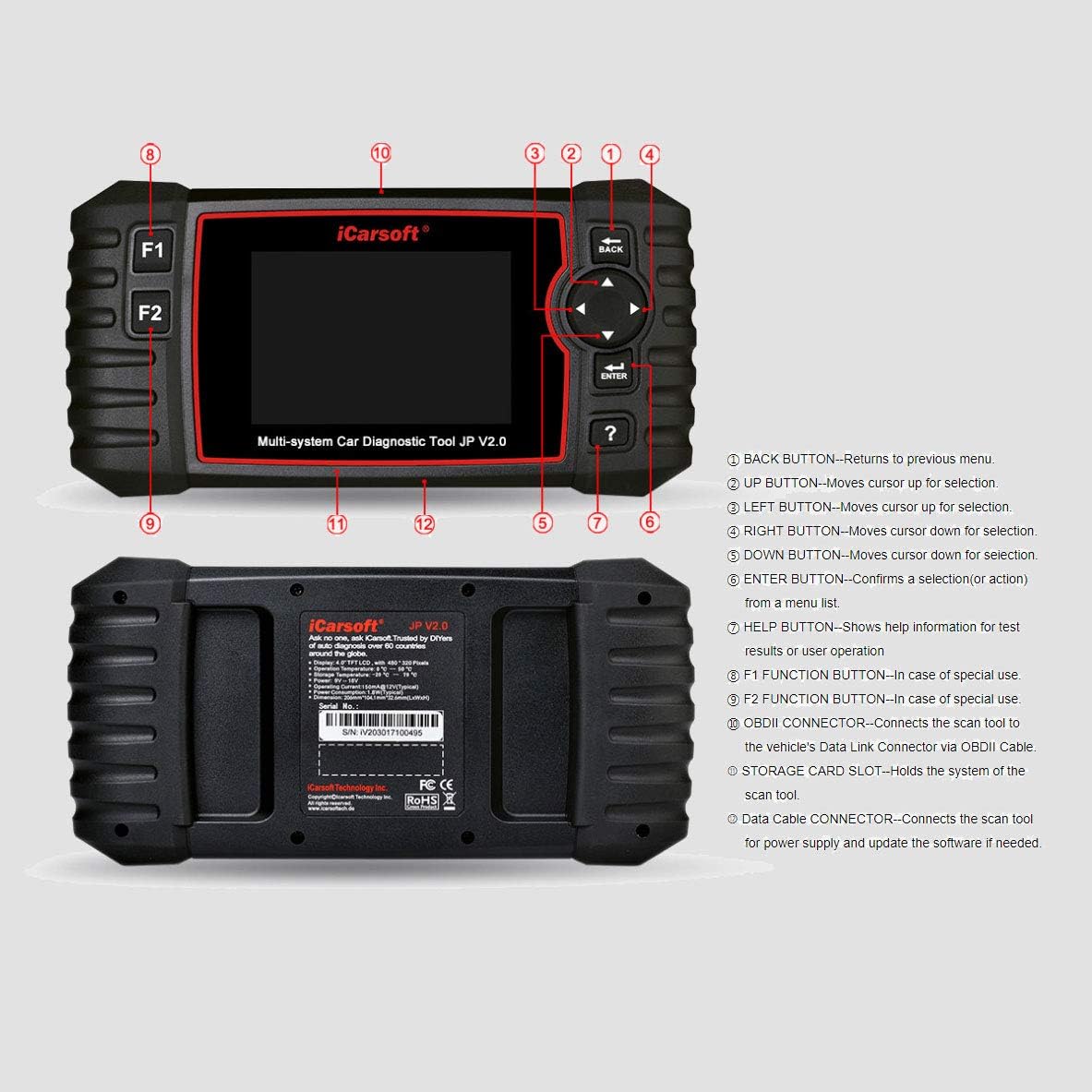
Image: A detailed diagram of the iCarsoft JP V2.0 scanner, highlighting its various buttons and connection ports with corresponding numbers.
- BACK Button: Returns to the previous menu.
- UP Button: Moves the cursor up for selection.
- LEFT Button: Moves the cursor for selection.
- RIGHT Button: Moves the cursor for selection.
- DOWN Button: Moves the cursor down for selection.
- ENTER Button: Confirms a selection or action from a menu list.
- HELP Button: Displays help information for test results or user operation.
- F1 Function Button: Used for special functions.
- F2 Function Button: Used for special functions.
- OBDII Connector: Connects the scan tool to the vehicle’s Data Link Connector via the OBDII Cable.
- STORAGE CARD SLOT: Holds the system’s TF card.
- Data Cable Connector: Connects the scan tool for power supply and software updates via PC.

Image: The iCarsoft JP V2.0 diagnostic tool, showing its screen and main control buttons.
Getting Started
- Connect to Vehicle: Locate the vehicle's OBDII port, typically under the dashboard on the driver's side. Plug the main OBDII cable into the vehicle's port and then connect the other end to the iCarsoft JP V2.0 tool's OBDII connector.
- Power On: The tool will automatically power on once connected to the vehicle's OBDII port. If not, ensure the vehicle's ignition is in the 'ON' position (engine off).
- Initial Setup: Follow the on-screen prompts to select your language and confirm basic settings.
Operating Instructions

Image: The iCarsoft JP V2.0 displaying its main menu, showing options like 'Diagnosis', 'Service', 'Voltage', 'OBDII/EOBD', 'Review', 'DTC LibMap', 'Setup', 'Help', and 'About'.
Navigation
Use the UP, DOWN, LEFT, and RIGHT arrow buttons to navigate through menus and select options. Press the ENTER button to confirm a selection. The BACK button will return you to the previous screen.
Reading and Clearing Diagnostic Trouble Codes (DTCs)
- From the main menu, select 'Diagnosis' or 'OBDII/EOBD'.
- Choose the vehicle make and model if prompted.
- Select 'Read Codes' to view current, pending, or historic DTCs.
- After addressing the vehicle issue, select 'Clear Codes' to erase the DTCs from the vehicle's computer. Confirm the action when prompted.
Viewing Live Data
Live data allows you to monitor various sensor readings and system parameters in real-time. This can be crucial for diagnosing intermittent issues.
- From the diagnosis menu, select 'Live Data'.
- Choose the parameters you wish to monitor. The tool will display the data in numerical or graphical format.
Advanced Diagnostic Functions
The iCarsoft JP V2.0 supports a range of special functions for specific vehicle maintenance and service tasks:
- Oil Service Reset: Resets the oil service light after an oil change.
- Electronic Parking Brake (EPB) System Maintenance: Allows for safe replacement of brake pads by disengaging and re-engaging the EPB system.
- Battery Management System (BMS): Registers new batteries to the vehicle's ECU.
- Diesel Particulate Filter (DPF) Regeneration Control System: Initiates DPF regeneration to clear blockages.
- Electronic Throttle Control System (ETC): Performs throttle body relearn procedures.
- Steering Angle Sensor (SAS) Calibration: Calibrates the steering angle sensor after repairs or replacements.
- Battery Test: Checks the health and charge status of the vehicle's battery.
- Data Review and Print: Allows reviewing saved diagnostic data and printing reports via PC.
Software Updates
To ensure your iCarsoft JP V2.0 tool has the latest vehicle coverage and diagnostic capabilities, regular software updates are recommended. Updates are performed via a PC connection.
- Visit the official iCarsoft website to download the update client software for your PC.
- Install the update client on your computer.
- Connect the iCarsoft JP V2.0 tool to your PC using the provided USB data cable.
- Launch the update client and follow the on-screen instructions to download and install the latest software onto your device.
Technical Specifications

Image: A technical diagram illustrating the physical dimensions and key specifications of the iCarsoft JP V2.0 device.
| Display | 4.0" TFT LCD, 480*320 Pixels |
| Operation Temperature | 0°C ~ 50°C (32°F ~ 122°F) |
| Storage Temperature | -20°C ~ 70°C (-4°F ~ 158°F) |
| Operating Voltage | 9 ~ 18V |
| Operating Current | 150mA@12V (Typical) |
| Power Consumption | 1.8W (Typical) |
| Dimensions (L x W x H) | 206mm x 104.1mm x 32.6mm |
| Weight | 500 g |
Maintenance
To ensure the longevity and optimal performance of your iCarsoft JP V2.0 diagnostic tool, follow these maintenance guidelines:
- Cleaning: Use a soft, damp cloth to clean the exterior of the tool. Do not use abrasive cleaners or solvents.
- Storage: Store the tool in its nylon carry case in a dry, cool environment, away from direct sunlight and extreme temperatures.
- Cable Care: Avoid bending or twisting the cables excessively. Always grasp the connector when unplugging, not the cable itself.
- Software Updates: Regularly update the software to maintain compatibility and access to new features.
Troubleshooting Guide
If you encounter issues while using your iCarsoft JP V2.0 tool, refer to the following common problems and solutions:
- Tool Does Not Power On:
- Ensure the OBDII cable is securely connected to both the vehicle's port and the tool.
- Verify the vehicle's ignition is in the 'ON' position (engine off).
- Check the vehicle's battery voltage; the tool requires a minimum operating voltage.
- Communication Error with Vehicle:
- Confirm the vehicle's ignition is on.
- Check for any damage to the OBDII cable.
- Ensure the correct vehicle make and model are selected in the tool's menu.
- Try connecting to a different vehicle to rule out a vehicle-specific issue.
- Special Function Not Working:
- Verify that the specific function is supported for your vehicle's year, make, and model.
- Ensure the tool's software is up to date.
- Follow all on-screen instructions carefully for the specific function.
- Screen Freezes or Responds Slowly:
- Restart the tool by disconnecting and reconnecting it from the vehicle.
- Ensure the TF card is properly inserted.
Warranty and Customer Support
iCarsoft is committed to providing high-quality products and excellent customer service.
- Warranty: The iCarsoft JP V2.0 comes with a 1-year warranty covering manufacturing defects.
- Lifetime Free Updates: Enjoy lifetime free software updates to keep your tool current with the latest vehicle models and diagnostic protocols.
- Lifetime Free Hardware Repair: iCarsoft offers lifetime free hardware repair services.
- Customer Support: For technical assistance, troubleshooting, or warranty claims, please contact iCarsoft customer support. Professional engineers are available for prompt replies. Refer to the official iCarsoft website for contact details.


