
iCarsoft CR Pro
iCarsoft CR Pro Multi-Systems Diagnostic Scan Tool User Manual
Model: CR Pro | Brand: iCarsoft
1. Introduction
The iCarsoft CR Pro is a professional, universal all-in-one diagnostic device designed for error analysis and troubleshooting across a wide range of vehicle brands. This manual provides essential information for setting up, operating, maintaining, and troubleshooting your CR Pro diagnostic tool.
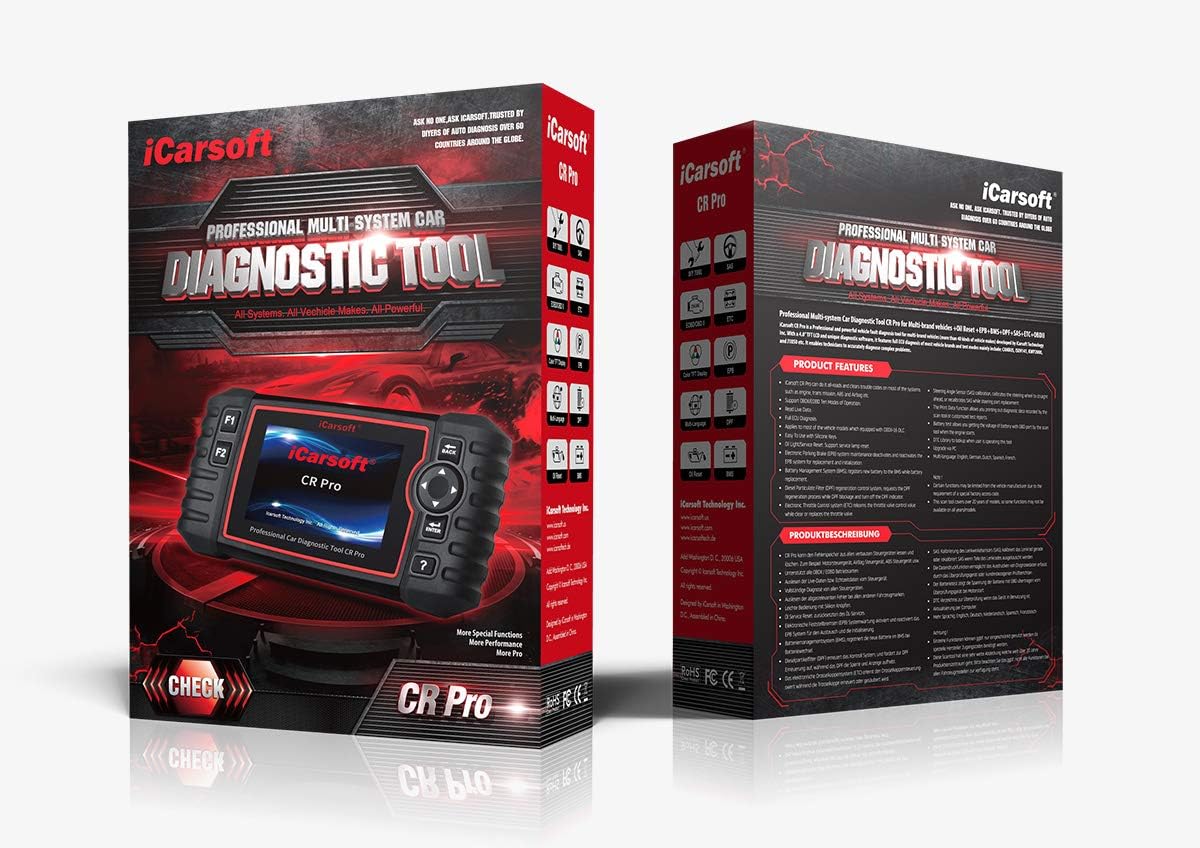
Figure 1.1: The iCarsoft CR Pro diagnostic tool and its retail packaging.
2. Key Features
The iCarsoft CR Pro offers comprehensive diagnostic capabilities and special functions:
- Full System Diagnosis: Reads and clears trouble codes on most vehicle systems, including Engine, Transmission, ABS, Airbag, Central Locking, and more.
- OBD II/EOBD Support: Supports all ten modes of OBD II/EOBD operation for full ECU diagnosis.
- Oil Light/Service Reset: Resets the oil service light after maintenance.
- Electronic Parking Brake (EPB) Maintenance: Services the electronic parking brake system.
- Steering Angle Sensor (SAS) Calibration: Calibrates the steering angle sensor.
- Diesel Particulate Filter (DPF) Regeneration Control System: Manages DPF regeneration.
- Electronic Throttle Control (ETC) Reset: Resets the electronic throttle control system.
- Battery Management System (BMS) Reset: Resets the BMS (functionality may vary by vehicle).
- ABS Bleeding: Releases air to restore ABS brake sensitivity or relearns after ABS replacement.
- Injector Coding: Relearns injector control parameters when injectors are renewed or replaced.
- Live Data Reading: Displays real-time data streams from vehicle sensors.
- Battery Test: Supports testing of the vehicle's battery.
- Data Checking and Printing: Allows review and printing of diagnostic data.
- Multi-Language Support: Includes English, French, Spanish, Dutch, and German.
- Free Updates: Regular free updates available via computer.
3. Package Contents
Upon opening the package, verify that all the following items are included:
- iCarsoft CR Pro Diagnostic Device (Main Unit)
- User Manual
- Main Cable (OBD II connection cable)
- USB Cable
- Memory Card (pre-installed or separate)
- Nylon Carrying Case
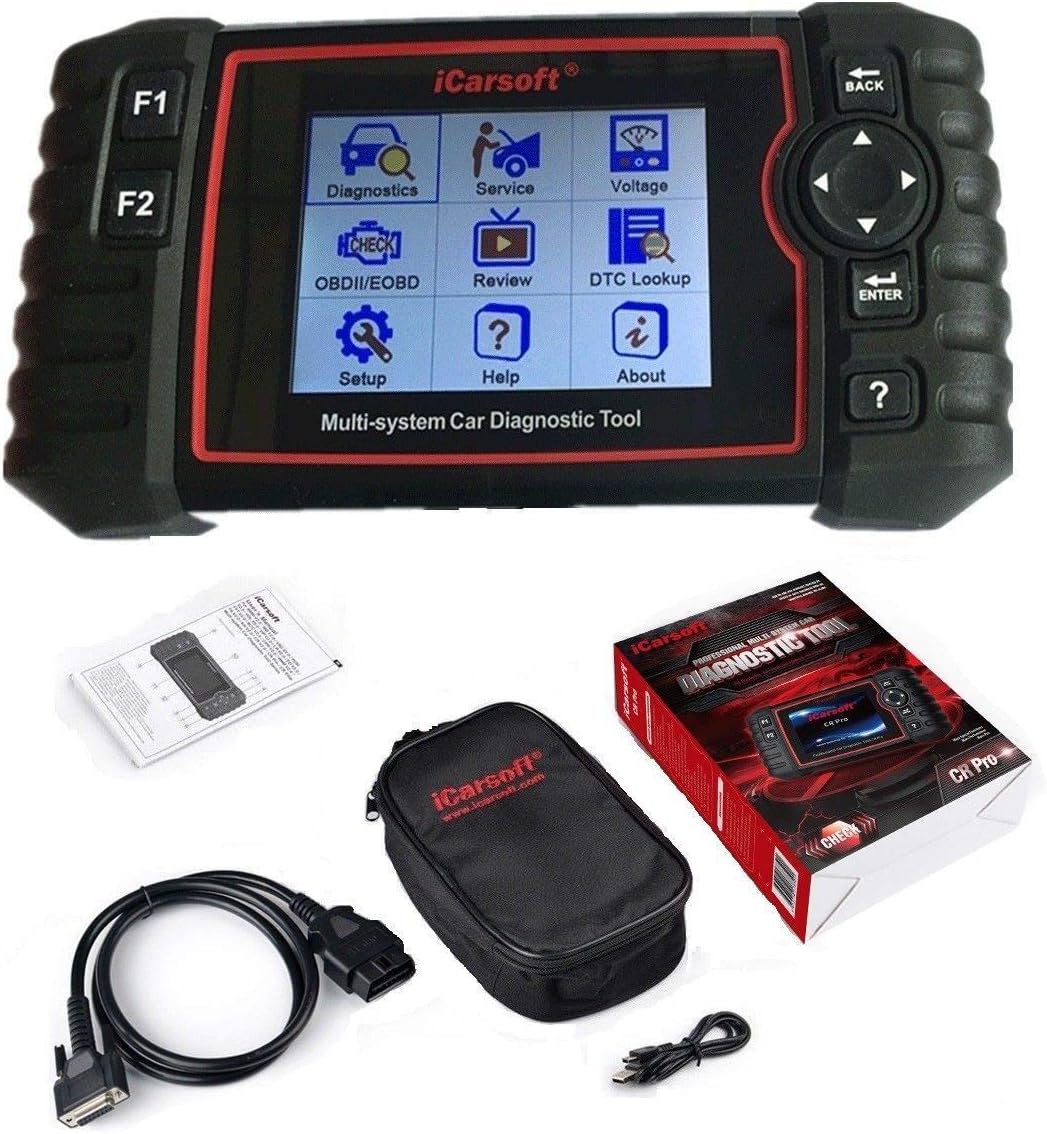
Figure 3.1: The iCarsoft CR Pro device along with its included accessories: main cable, USB cable, and carrying case.
4. Setup
Follow these steps to set up your iCarsoft CR Pro diagnostic tool:
- Locate the OBD II Port: The OBD II (On-Board Diagnostics II) port is typically located under the dashboard on the driver's side of the vehicle. Refer to your vehicle's owner's manual if you cannot find it.
- Connect the Main Cable: Plug one end of the main cable into the OBD II port of your vehicle and the other end into the diagnostic port on the iCarsoft CR Pro device.
- Power On: The device will typically power on automatically once connected to the vehicle's OBD II port, drawing power directly from the vehicle (9V - 18V operating voltage). No external power source is required.
- Initial Boot-up: Allow the device to complete its initial boot-up sequence. The main menu will appear on the 4.0-inch TFT LCD screen.

Figure 4.1: Side view of the iCarsoft CR Pro, highlighting the diagnostic port for cable connection.
5. Operating Instructions
Navigating and using the iCarsoft CR Pro is intuitive. Here are the basic operating procedures:
5.1. Device Navigation
- Directional Buttons: Use the arrow buttons (Up, Down, Left, Right) to navigate through menu options.
- ENTER Button: Press the 'ENTER' button to confirm a selection or enter a submenu.
- BACK Button: Press the 'BACK' button to return to the previous screen or menu.
- F1/F2 Buttons: These are function keys, their purpose will be displayed on the screen depending on the current menu.
- Question Mark Button (?): Provides help or information related to the current screen or function.

Figure 5.1: The main menu interface of the iCarsoft CR Pro, showing various diagnostic and service options.
5.2. Performing a Diagnostic Scan
- From the main menu, select 'Diagnostics' or 'OBDII/EOBD' depending on your desired scan type.
- Select your vehicle's make, model, and year as prompted.
- Choose the system you wish to scan (e.g., Engine, ABS, Airbag) or select 'Full System Scan' if available.
- The device will communicate with the vehicle's ECU and display any detected Diagnostic Trouble Codes (DTCs).
- You can then choose to 'Read DTCs' to view detailed descriptions or 'Clear DTCs' to erase them (ensure the underlying issue is resolved before clearing codes).
5.3. Using Special Functions
Access special functions like Oil Reset, EPB, BMS, SAS, DPF, ETC, ABS Bleeding, and Injector Coding from the 'Service' menu. Follow the on-screen prompts for each specific function.
6. Maintenance
Proper care and maintenance will extend the lifespan of your iCarsoft CR Pro:
- Cleaning: Use a soft, dry cloth to clean the device. Do not use abrasive cleaners or solvents.
- Storage: Store the device in its nylon carrying case in a clean, dry environment when not in use. Avoid extreme temperatures.
- Cable Care: Do not bend or crimp the diagnostic cables excessively. Store them neatly to prevent damage.
- Software Updates: Regularly check the iCarsoft official website for free software updates to ensure optimal performance and compatibility with new vehicle models. Use the provided USB cable to connect the device to a computer for updates.
7. Troubleshooting
If you encounter issues with your iCarsoft CR Pro, refer to the following common problems and solutions:
| Problem | Possible Cause | Solution |
|---|---|---|
| Device does not power on. | Loose connection; Vehicle OBD II port issue; Vehicle battery low. | Ensure the main cable is securely connected to both the device and the vehicle's OBD II port. Check vehicle battery voltage. Try on another vehicle if possible. |
| Communication error with vehicle. | Incorrect vehicle selection; Faulty cable; Vehicle ECU issue. | Verify vehicle make, model, and year are correctly selected. Check cable for damage. Ensure vehicle ignition is on. |
| Screen freezes or device is unresponsive. | Software glitch; Temporary error. | Disconnect the device from the vehicle, wait a few seconds, then reconnect. If the issue persists, perform a software update. |
| Cannot clear DTCs. | Underlying vehicle fault still present; Incorrect procedure. | Ensure the vehicle's fault has been physically repaired or addressed. Follow the on-screen instructions precisely for clearing codes. Some codes may require multiple drive cycles to clear. |
8. Technical Specifications
Below are the technical specifications for the iCarsoft CR Pro diagnostic tool:
- Display: 10.16 cm (4.0 inch) TFT LCD, 480 x 320 pixels
- Operating Temperature: 0°C to 50°C (32°F to 122°F)
- Storage Temperature: -20°C to 70°C (-4°F to 158°F)
- Operating Voltage: 9 V - 18 V
- Operating Current: 150 mA @ 12 V
- Power Consumption: 1.8 W
- Dimensions (L x W x H): 205 mm x 110 mm x 32.6 mm (8.07 x 4.33 x 1.28 inches)
- Item Weight: Approximately 1.6 pounds
- Operating System: Linux
- Supported Protocols: OBDII/EOBD (ISO9141, KWP2000, J1850 VPW, J1850 PWM, CAN)

Figure 8.1: Rear view of the iCarsoft CR Pro, displaying the product label with serial number and basic specifications.
9. Warranty and Support
iCarsoft is committed to providing high-quality products and customer service:
- Warranty: The iCarsoft CR Pro comes with a 1-year warranty.
- Free Updates: Enjoy lifetime free software updates to ensure your device remains current with the latest vehicle models and diagnostic capabilities.
- Hardware Repair: Lifetime free hardware repair service is provided.
- Technical Support: Prompt 24/7 reply from professional engineers is available for technical assistance. For support, please visit the official iCarsoft website or contact their customer service directly.
Related documentsCR Pro


Ask a question about this manual
Ask about setup, troubleshooting, compatibility, parts, safety, or missing instructions. Manuals+ will review the question and use this page’s manual context to help answer it.