
1. Introduction
Welcome to the user manual for your Navitel MS700 Navigation Device. This manual provides detailed instructions on how to set up, operate, and maintain your device to ensure optimal performance and longevity. Please read this manual thoroughly before using the device.
2. Product Overview
The Navitel MS700 is a 7-inch TFT touchscreen navigation device designed for various vehicle types including cars, trucks, and motorcycles. It features a capacitive touchscreen for intuitive control and USB connectivity for data transfer and charging.

Figure 2.1: Front view of the Navitel MS700, showing the main lens and control buttons (MENU, Up/Down arrows, OK/Record) on the right side.

Figure 2.2: Side view of the Navitel MS700, highlighting the USB port and the recessed Reset button.

Figure 2.3: The 7-inch touchscreen display of the Navitel MS700, showing a typical navigation interface with map, recording indicator, resolution, date, time, and battery status.

Figure 2.4: A direct frontal view of the Navitel MS700, emphasizing the large lens and compact design.

Figure 2.5: Side profile of the Navitel MS700, showing the depth of the device and the arrangement of the control buttons.

Figure 2.6: Top view of the Navitel MS700, revealing the mini USB port located on the top mounting bracket.
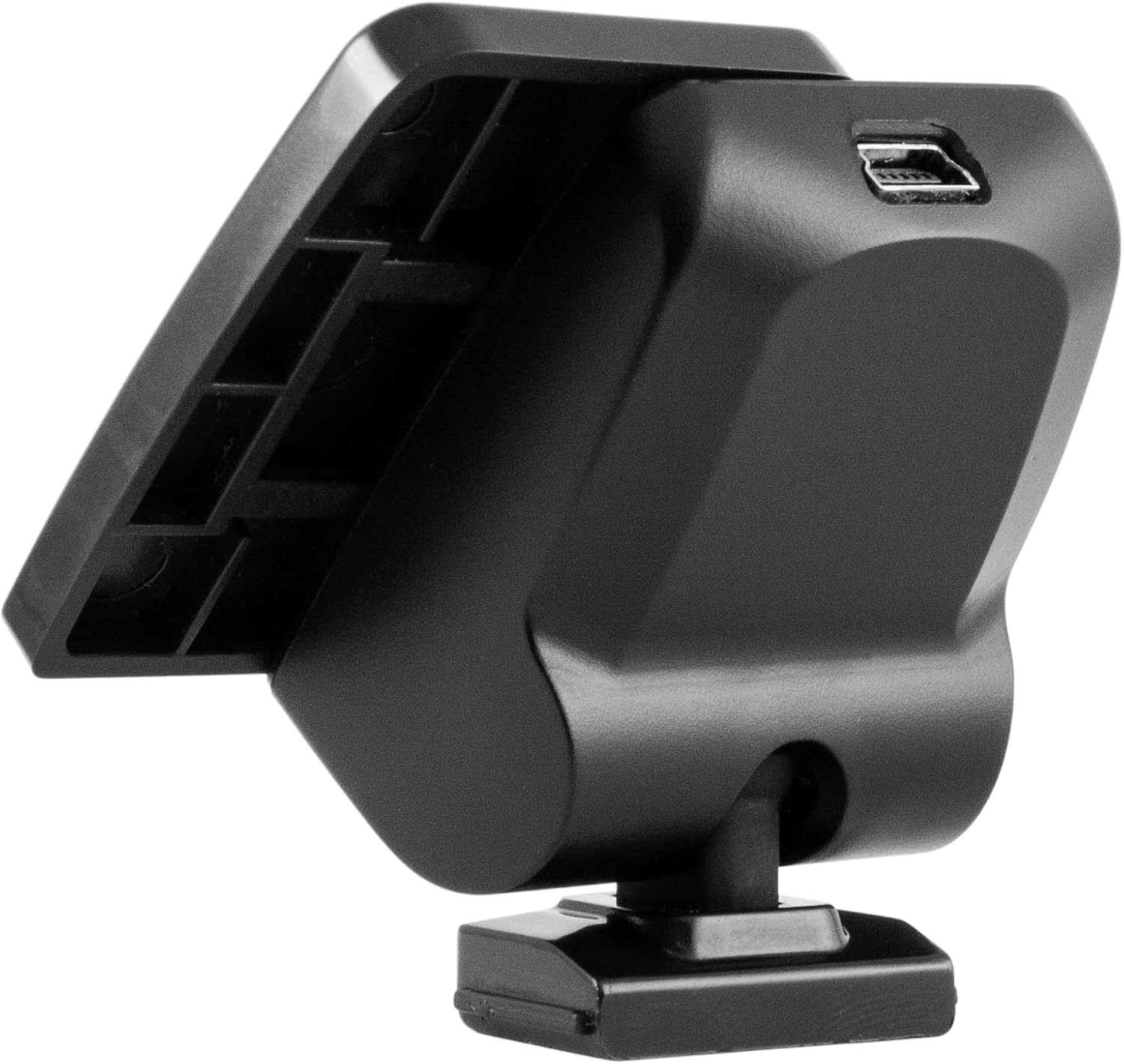
Figure 2.7: Another top view of the Navitel MS700, showing the grooves and slots on the mounting bracket for secure attachment.

Figure 2.8: The included mounting bracket for the Navitel MS700, alongside a 3M adhesive pad for secure dashboard or windshield attachment.

Figure 2.9: The car charger accessory for the Navitel MS700, featuring a standard cigarette lighter plug and a mini USB cable for device power.
3. Setup
3.1. Mounting the Device
- Choose a Location: Select a suitable location on your vehicle's windshield or dashboard that does not obstruct your view of the road or interfere with airbags.
- Clean the Surface: Ensure the chosen surface is clean and dry before attaching the mounting bracket.
- Attach the Mount: Peel the protective film from the adhesive pad (if using) and firmly press the mounting bracket onto the desired surface. Hold for at least 30 seconds to ensure a strong bond.
- Attach the Device: Slide the Navitel MS700 device onto the mounting bracket until it clicks securely into place.
3.2. Powering On
- Connect Power: Insert the mini USB end of the car charger cable into the USB port on the top of the device's mounting bracket.
- Plug into Vehicle: Plug the other end of the car charger into your vehicle's 12V power outlet (cigarette lighter socket).
- Automatic Power On: The device should automatically power on when the vehicle's ignition is turned on. If not, press and hold the power button (usually the OK/Record button) for a few seconds.
- Initial Setup: Follow the on-screen prompts to select your language, time zone, and other initial settings.
4. Operating Instructions
4.1. Basic Navigation
- Touchscreen Control: The device features a capacitive touchscreen. Tap icons and buttons to select options. Swipe to scroll through menus or maps.
- Main Menu: From the main screen, you can access various functions such as Navigation, Settings, Media Player, and File Browser.
- Entering Destination:
- Tap "Navigation" on the main menu.
- Select "Find Address" or "Point of Interest (POI)".
- Enter the address details (country, city, street, house number) using the on-screen keyboard.
- Confirm your selection to start route calculation.
- Map View: While navigating, the map displays your current location, route, and points of interest. You can zoom in/out using pinch gestures or dedicated on-screen buttons.
4.2. System Settings
Access the "Settings" menu from the main screen to configure various aspects of your device:
- Language: Change the device's display language.
- Volume: Adjust navigation voice prompts and media playback volume.
- Display: Configure brightness, screen timeout, and day/night mode.
- Date & Time: Set the current date and time, or enable automatic synchronization.
- GPS Info: View satellite signal strength and GPS coordinates.
- System Info: Check firmware version and available storage.
5. Maintenance
- Cleaning the Screen: Use a soft, lint-free cloth to gently wipe the touchscreen. For stubborn smudges, slightly dampen the cloth with water or a screen-specific cleaning solution. Avoid harsh chemicals or abrasive materials.
- Device Casing: Clean the device casing with a soft, dry cloth. Do not use liquid cleaners directly on the device.
- Temperature: Avoid exposing the device to extreme temperatures (hot or cold) for prolonged periods, as this can damage internal components and the battery.
- Storage: When not in use for extended periods, store the device in a cool, dry place away from direct sunlight.
6. Troubleshooting
| Problem | Possible Cause | Solution |
|---|---|---|
| Device does not power on. | No power connection; low battery; device frozen. | Ensure car charger is properly connected and vehicle's 12V outlet is active. Charge the device for at least 30 minutes. Press the Reset button with a thin object (e.g., paperclip). |
| GPS signal lost or weak. | Obstructed view of sky; device indoors; faulty GPS antenna. | Move to an open area with clear view of the sky. Ensure device is mounted correctly. If problem persists, contact support. |
| Touchscreen unresponsive. | Software glitch; screen damage. | Perform a soft reset using the Reset button. Clean the screen. If physical damage is apparent, contact support. |
| Device freezes or crashes. | Software error; insufficient memory. | Perform a soft reset. Ensure firmware is up to date. Avoid running too many applications simultaneously if applicable. |
7. Specifications
- Brand: Navitel
- Model: MS700
- Screen Size: 7 Inches
- Display Type: TFT Touchscreen
- Touchscreen Type: Capacitive
- Connectivity Technology: USB
- Control Method: Touch
- Human Interface Input: Touchscreen
- Vehicle Service Type: Car, Truck, Motorcycle
- Map Type: Street
- Model Year: 2018
- Special Feature: Touchscreen
8. Warranty and Support
Your Navitel MS700 device comes with a standard manufacturer's warranty. Please refer to the warranty card included in your product packaging for specific terms and conditions, including warranty period and coverage details.
For technical support, troubleshooting assistance, or warranty claims, please contact Navitel customer service through their official website or the contact information provided in your product documentation.
Important: Keep your purchase receipt as proof of purchase for warranty purposes.


