
HyperX HX-HSCAM-GM
HyperX Cloud MIX Gaming Headset User Manual
Model: HX-HSCAM-GM
Brand: HyperX
Introduction
The HyperX Cloud MIX is a versatile gaming headset designed for both wired gaming and wireless Bluetooth connectivity. It features Hi-Res Audio certification, dual-chamber drivers for clear sound, and a detachable microphone, offering comfort and durability across multiple platforms.
What's in the Box
- HyperX Cloud MIX Headset
- Detachable Boom Microphone
- Detachable Braided Cable with In-Line Audio Control
- USB Charging Cable
- Carry Bag

Image: The HyperX Cloud MIX headset packaging, illustrating the included components.
Product Overview

Image: Front view of the HyperX Cloud MIX headset with the boom microphone attached.
Key Features
- Hi-Res Audio Certified: Delivers rich audio with a frequency response from 10Hz to 40kHz in wired mode.
- Bluetooth Wireless Technology: Seamlessly switch to wireless mode for on-the-go use with intuitive onboard controls.
- HyperX Dual Chamber Drivers: Custom-designed 40mm drivers separate bass from mids and highs, reducing distortion for enhanced clarity.
- Detachable Boom Microphone: Provides clear communication for gaming and can be removed for casual listening.
- Built-in Microphone: Available for use in Bluetooth mode when the boom mic is detached.
- Signature HyperX Comfort: Designed for extended wear with comfortable earcups and headband.
- Multi-Platform Compatibility: Works with PC and console platforms via 3.5mm ports, and Bluetooth-ready media devices.
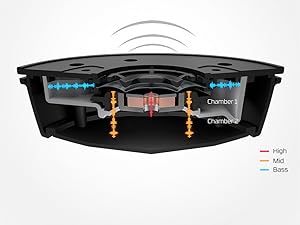
Image: An internal diagram illustrating the HyperX dual chamber driver technology, showing how bass, mid, and high frequencies are separated.
Setup
Wired Connection
- Connect the detachable braided cable to the 3.5mm port on the headset.
- Ensure the cable is inserted correctly, with the 'Headset-side' clearly marked.
- Plug the other end of the cable into the 3.5mm audio jack of your PC, console controller, or other compatible device.
- For PCs with separate audio and microphone jacks, use the included TRRS to TRS Headphone + Mic adapter cable.

Image: The HyperX Cloud MIX headset shown with its wired connection, including the detachable boom microphone and the in-line audio control unit.
Bluetooth Pairing
- Ensure the headset is charged. Connect the USB charging cable to the headset and a power source if needed.
- Press and hold the power button on the headset for approximately 4 seconds until you hear a voice prompt indicating "Pairing mode" and the LED indicator blinks blue.
- On your Bluetooth-enabled device (smartphone, tablet, laptop), go to the Bluetooth settings.
- Search for available devices and select "HyperX Cloud MIX" from the list.
- Once connected, the LED indicator will show a solid blue light.

Image: A top-down view of the HyperX Cloud MIX headset, highlighting the control buttons and ports on the earcups, including the power button and charging port.
Operating Instructions
Audio Controls (Bluetooth Mode)
- Power Button: Press and hold to power on/off. Short press to play/pause audio or answer/end calls. Double press for next track, triple press for previous track.
- Volume Up/Down Buttons: Adjust audio volume.

Image: A hand demonstrating the adjustment of controls on the earcup of the HyperX Cloud MIX headset, showing the volume and power buttons.
Microphone Usage
- Detachable Boom Microphone: For optimal voice clarity during gaming or calls, attach the boom microphone to the dedicated port on the headset. Ensure it is securely inserted.
- In-Line Audio Control (Wired Mode): Use the slider on the in-line control to mute/unmute the microphone. The volume wheel adjusts the audio level.
- Built-in Microphone (Bluetooth Mode): When the boom microphone is detached, the headset automatically switches to the built-in microphone for calls and voice commands.

Image: The detachable boom microphone for the HyperX Cloud MIX headset, ready to be plugged into the earcup.
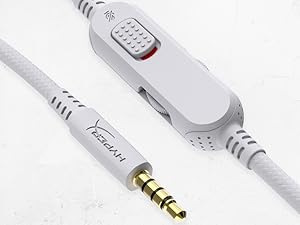
Image: A close-up of the in-line audio control unit on the wired cable, showing the volume wheel and microphone mute switch.
Maintenance
- Cleaning: Use a soft, dry cloth to clean the headset. Do not use harsh chemicals or abrasive materials.
- Storage: Store the headset in the included carry bag when not in use to protect it from dust and scratches. Avoid extreme temperatures.
- Cable Care: Avoid sharp bends or excessive pulling on the cables to prevent damage.
Troubleshooting
| Problem | Possible Solution |
|---|---|
| No audio in wired mode. | Ensure the 3.5mm cable is fully inserted into both the headset and the device. Check device audio settings. Verify the in-line mute switch is not engaged. |
| Cannot pair via Bluetooth. | Ensure the headset is in pairing mode (blinking blue LED). Turn off and on Bluetooth on your device. Move closer to the device. Ensure no other devices are actively connected to the headset. |
| Microphone not working. | Ensure the boom microphone is securely attached (if using). Check the in-line mute switch. Verify microphone input settings on your device. If in Bluetooth mode, ensure the boom mic is detached to use the built-in mic. |
| Low audio volume. | Adjust volume using headset controls and device volume settings. Ensure earbud tips fit snugly if applicable (though this is an over-ear headset, general fit can affect sound). |
| Headset not charging. | Ensure the USB charging cable is properly connected to both the headset and a working power source. Try a different USB port or charger. |


