Introduction
The Corsair Harpoon RGB Wireless Gaming Mouse offers versatile connectivity options including hyper-fast, sub 1ms Slipstream Corsair Wireless Technology, low-latency Bluetooth, or a traditional USB wired connection. Designed for comfort and durability, its contoured shape and rubber side grips ensure a confident hold during extended use. This mouse features up to 60 hours of battery life and is compatible with Corsair iCUE software for advanced customization of sensitivity, DPI settings, battery monitoring, and dynamic RGB lighting synchronization across compatible Corsair devices.
Package Contents
- HARPOON RGB WIRELESS Gaming Mouse
- USB charging and data cable
- Wireless USB transceiver (dongle)
- Quick Start Guide
- Safety Leaflet
- Warranty Card
Setup
1. Wireless (Slipstream) Connection
- Locate the wireless USB transceiver (dongle) included in the package.
- Plug the wireless USB transceiver into an available USB port on your PC, Mac, PS5, or PS4.
- Turn on the Corsair Harpoon mouse using the power switch located on the underside of the mouse.
- The mouse should automatically connect to the transceiver. The LED indicator on the mouse will confirm connection.

Image: The underside of the Corsair Harpoon mouse, illustrating the storage compartment for the USB wireless transceiver and the power switch. A separate image shows the USB dongle plugged into a laptop.
2. Bluetooth Connection
- Ensure your device (PC, Mac, PS5, PS4, Xbox) has Bluetooth enabled.
- Turn on the Corsair Harpoon mouse.
- On your device, navigate to Bluetooth settings and search for new devices.
- Select "Corsair Harpoon Wireless" from the list of available devices to pair.
- The mouse LED indicator will confirm successful pairing.
3. Wired Connection
- Connect the provided USB charging and data cable to the mouse.
- Plug the other end of the USB cable into an available USB port on your PC or console.
- The mouse will function as a wired mouse and will charge its internal battery simultaneously.
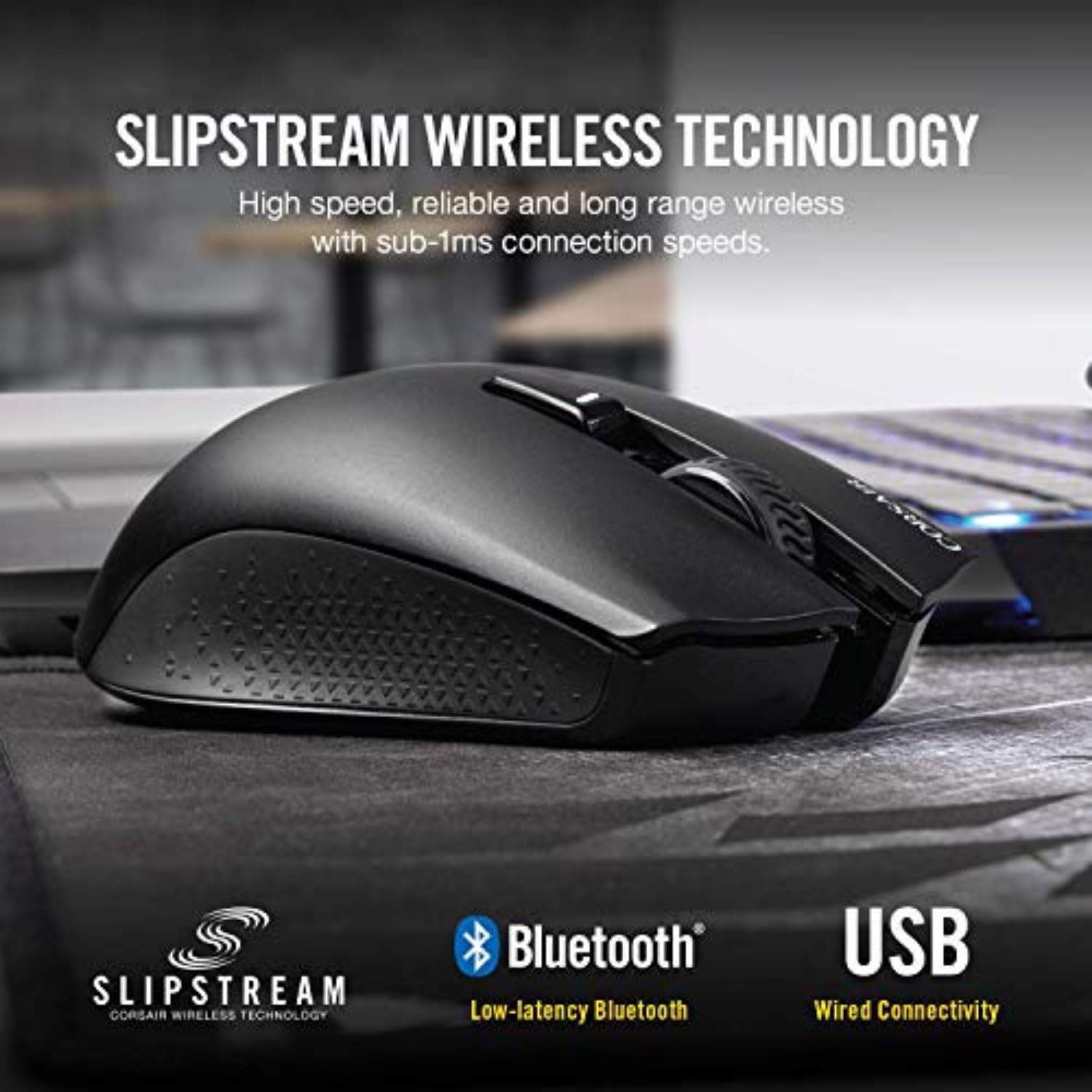
Image: A visual representation of the Corsair Harpoon mouse emphasizing its versatile connectivity options: Slipstream Wireless, Bluetooth, and USB Wired.
Operation
1. Buttons and Controls
The Corsair Harpoon Wireless mouse features 6 programmable buttons for enhanced control and customization. These include the left-click, right-click, scroll wheel click, DPI cycle button, and two side buttons.

Image: A detailed diagram of the Corsair Harpoon mouse, clearly labeling its six programmable buttons for user reference.
2. DPI Adjustment
The mouse offers a 10,000 DPI optical sensor. You can cycle through preset DPI stages using the dedicated DPI button, typically located behind the scroll wheel. For fine-tuning and creating custom DPI profiles, use the Corsair iCUE software.
3. Corsair iCUE Software
Download and install the Corsair iCUE software from the official Corsair website. This software allows you to:
- Customize DPI settings and create multiple profiles.
- Program the 6 buttons with macros or remapped functions.
- Adjust and synchronize the dynamic RGB lighting effects.
- Monitor battery life and other performance metrics.
4. Charging and Battery Life
The Corsair Harpoon Wireless mouse features an internal rechargeable Lithium Polymer battery, offering up to 60 hours of battery life depending on usage and lighting settings. To charge, connect the mouse using the provided USB charging and data cable to a USB port on your computer or a USB wall adapter. The mouse can be used in wired mode while charging.

Image: The Corsair Harpoon mouse from a top-down perspective, highlighting its lightweight construction (99g) and ergonomic design for comfortable, long-term use.
Maintenance
- Cleaning: Use a soft, dry cloth to clean the mouse. Avoid using harsh chemicals or abrasive materials.
- Sensor Care: Keep the optical sensor on the underside of the mouse clean and free from dust or debris to ensure accurate tracking.
- Battery Longevity: For optimal battery life, avoid fully discharging the mouse frequently. Charge it when the battery indicator is low.
- Storage: When not in use for extended periods, store the mouse in a cool, dry place.
Troubleshooting
- Mouse Not Responding:
- Ensure the mouse is powered on.
- Check battery level and charge if necessary.
- Verify the USB wireless transceiver is securely plugged into a working USB port.
- If using Bluetooth, ensure Bluetooth is enabled on your device and the mouse is paired.
- Try connecting the mouse via the USB wired cable.
- Inaccurate Tracking:
- Clean the optical sensor on the underside of the mouse.
- Ensure you are using the mouse on a suitable surface (e.g., a mouse pad).
- Adjust DPI settings via the mouse button or iCUE software.
- iCUE Software Not Detecting Mouse:
- Ensure the mouse is connected to your PC (wired or wireless).
- Restart the iCUE software.
- Update iCUE software to the latest version.
- Try reinstalling the iCUE software.
Specifications
| Model Number | CH-9311011-NA |
| Connectivity | Slipstream Wireless (2.4GHz), Bluetooth, USB Wired |
| Sensor Type | Optical |
| Max DPI | 10,000 DPI |
| Programmable Buttons | 6 |
| Battery Life | Up to 60 hours (depending on usage) |
| Weight | 99 grams (3.52 ounces) |
| Dimensions (LxWxH) | 4.55 x 2.69 x 1.59 inches |
| Supported OS | Windows 10, Windows 8, Windows 7 |
| Compatible Devices | PC, Mac, PS5, PS4, Xbox |
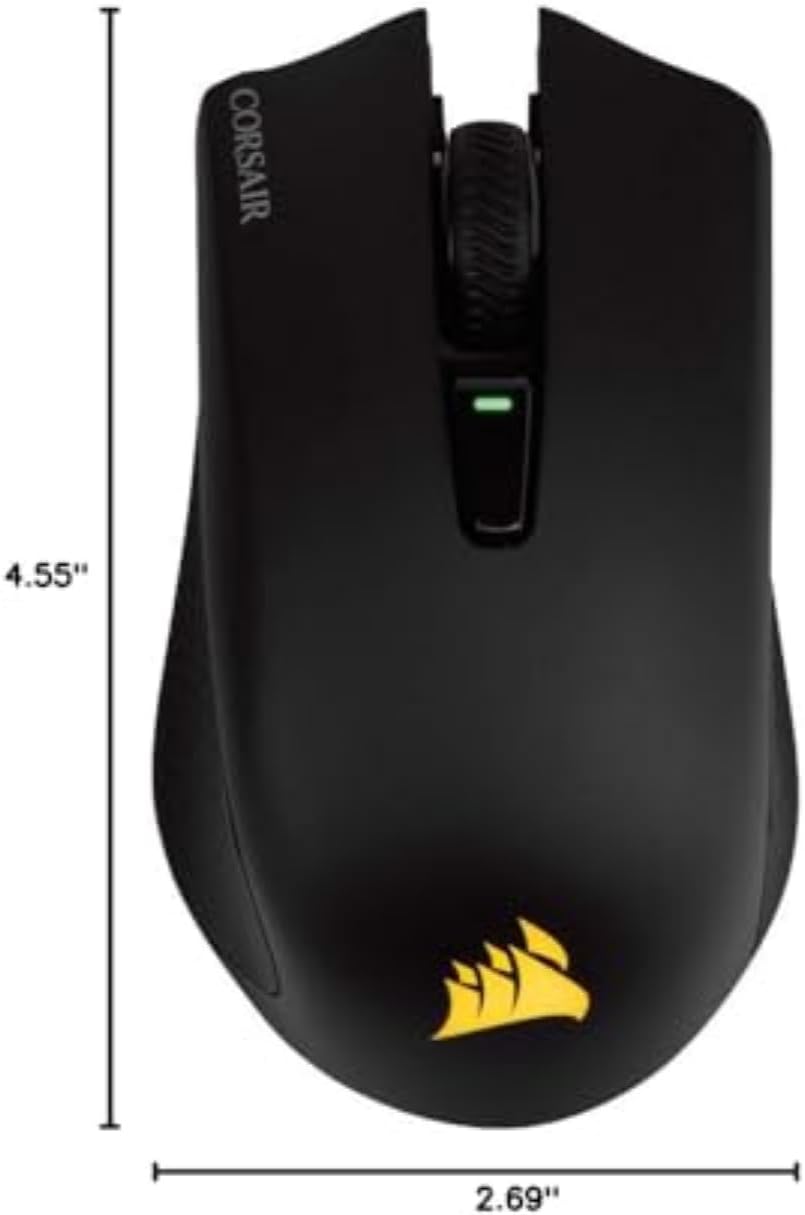
Image: A top-down view of the Corsair Harpoon mouse with its length (4.55") and width (2.69") clearly marked.
Warranty and Support
The Corsair Harpoon RGB Wireless Gaming Mouse comes with a manufacturer's warranty. Please refer to the included Warranty Card in your package for specific terms and conditions. For technical support, driver downloads, and further assistance, visit the official Corsair support website: www.corsair.com/support.


