
1. Product Overview
The Vonets WiFi Extender Release AC1200 (Model VAP11AC) is a versatile dual-band WiFi device designed to enhance and extend your wireless network. It functions as a WiFi bridge, WiFi repeater, WiFi AP hotspot, and router, offering broad compatibility and stable signal boosting. This updated 2023 version includes an integrated cooling fan for improved stability and extended service life.
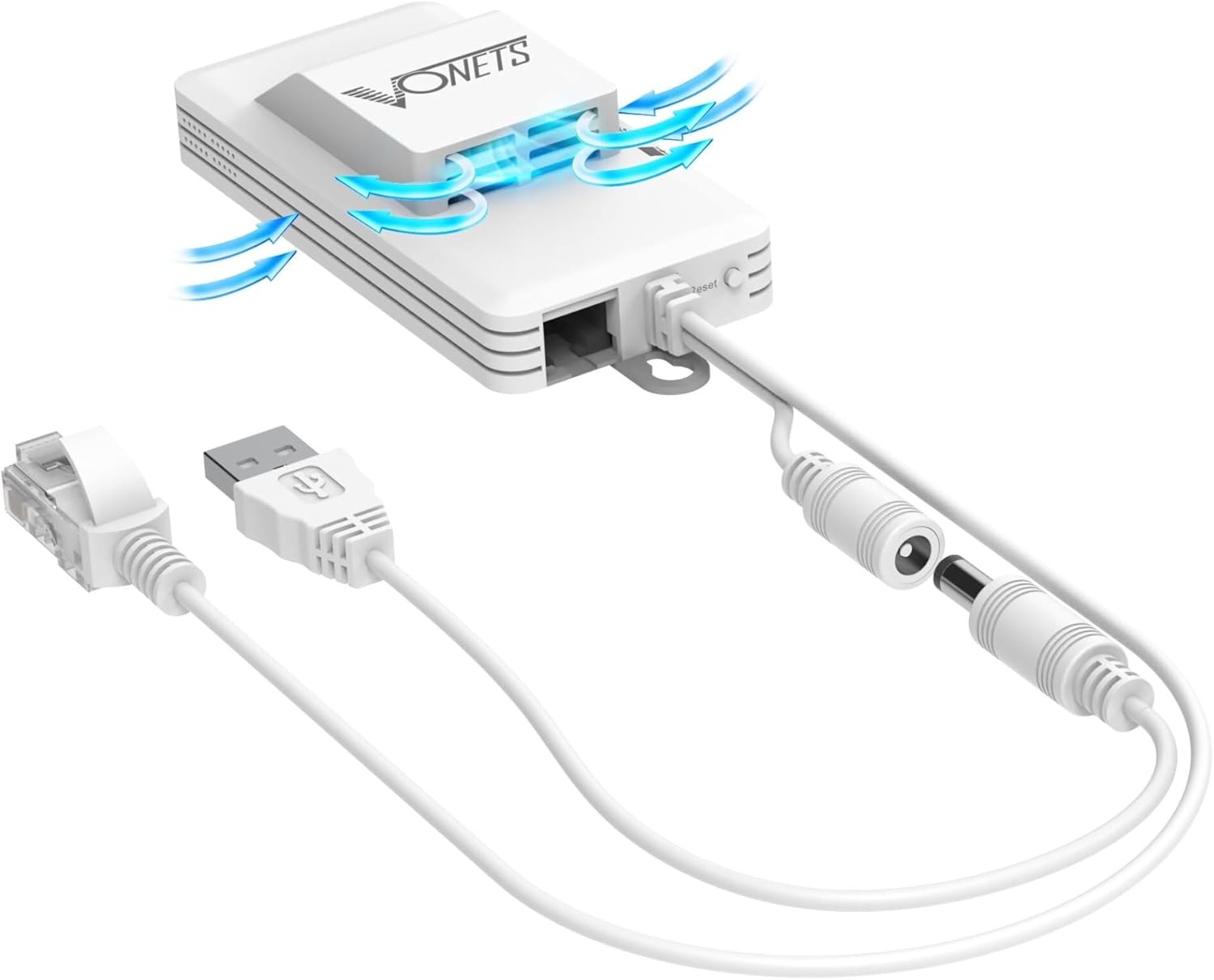
Figure 1: Vonets WiFi Extender VAP11AC with power and Ethernet cables, highlighting the cooling fan.
2. Setup and Configuration
This section provides instructions for setting up your Vonets VAP11AC device. The configuration can be performed via a PC or a smartphone.
2.1. Initial Setup Steps
- Unboxing and Identification: Carefully unbox the device. Locate the MAC address, configured domain (http://vonets.cfg), IP address (192.168.254.254), and default login credentials (User ID: admin, Password: admin) typically found on a label on the device or in the quick setting guide.
- Power Supply: The VAP11AC supports two power supply methods: DC5V-15V or USB (5V/2A). Connect the appropriate power cable to the device.
- Connect to PC (for initial configuration): Connect the VAP11AC to your computer's Ethernet port using an Ethernet cable. Ensure your computer's Wi-Fi is temporarily disabled to prevent conflicts.
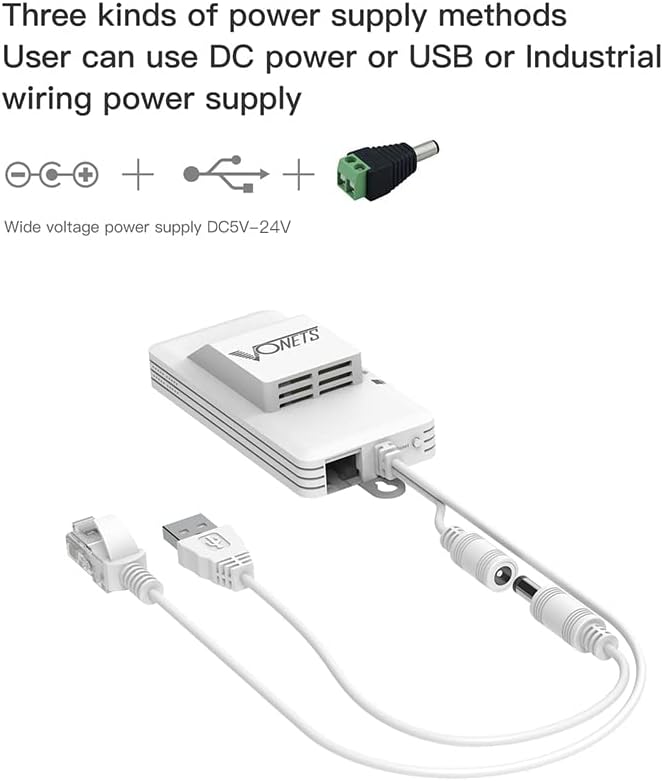
Figure 2: The device supports multiple power input methods, including USB and DC power.
2.2. Configuration via PC
- Access Configuration Page: Open a web browser on your connected PC. Enter
http://vonets.cfgor192.168.254.254in the address bar and press Enter. - Login: When prompted, enter the User ID 'admin' and Password 'admin'. Click 'Login'.
- Scan for Hotspots: Navigate to the 'WiFi Hotspots' section and click 'Scan Hotspots'. Wait for the device to search for available Wi-Fi networks.
- Select and Connect: Choose your desired Wi-Fi network (SSID) from the list and click 'Next'. Enter the password for your chosen Wi-Fi network.
- Apply Settings and Reboot: Click 'Apply' to save the settings. Then, click 'Reboot' or power off and on the device to apply the changes.
- Verify Connection: Once the device reboots, your computer should now have internet access through the VAP11AC.
2.3. Configuration via Smartphone
- Connect to Device's Wi-Fi: On your smartphone, go to Wi-Fi settings. Connect to the VAP11AC's default Wi-Fi SSID (e.g., VONETS_2.4G_****). The default password is '12345678'.
- Access Configuration Page: Open a web browser on your smartphone. Enter
http://vonets.cfgor192.168.254.254in the address bar and press Enter. - Login: Enter the User ID 'admin' and Password 'admin'. Click 'Login'.
- Scan for Hotspots: Navigate to the 'WiFi Hotspots' section and click 'Scan Hotspots'.
- Select and Connect: Choose your desired Wi-Fi network (SSID) from the list. Enter the password for your chosen Wi-Fi network.
- Apply Settings and Reboot: Click 'Apply' to save the settings. Then, click 'Reboot' or power off and on the device.
- Verify Connection: After reboot, connect your smartphone to the newly configured Wi-Fi SSID (which will be based on your source Wi-Fi network, e.g., SOURCE_WIFI_2.4G_**). The password will be the same as your source Wi-Fi network's password. You should now have internet access.
2.4. Configuration Video Guide
For a visual walkthrough of the configuration process, please refer to the official video below:
Video 1: VAP11AC WiFi Bridge/WiFi Repeater/Router Configuration Video. This video demonstrates the step-by-step process for setting up the device using both PC and smartphone interfaces.
3. Operating Modes and Applications
The Vonets VAP11AC offers multiple operating modes to suit various networking needs:
- WiFi Repeater: Extends the coverage of an existing Wi-Fi network, ideal for eliminating dead zones and providing full house Wi-Fi coverage.
- WiFi Bridge: Converts a Wi-Fi signal into a wired Ethernet signal, allowing wired devices (like network printers, DVRs, IP cameras, or gaming consoles) to connect to a wireless network.
- WiFi AP Hotspot: Functions as a wireless access point, providing Wi-Fi connectivity from a wired network connection.
- Router Mode: Provides routing functionality, suitable for dial-up access scenarios.

Figure 3: Visual representation of the VAP11AC's various application modes.

Figure 4: Examples of how the VAP11AC can extend Wi-Fi coverage as a repeater or provide wired access as an AP.
The device is suitable for a wide range of network applications, including connecting network printers, PLCs, robots, monitors, DVRs, IP cameras, medical equipment, IoT devices, video transmission, POS cash registers, and gaming consoles like PS3.

Figure 5: Detailed diagram for wireless monitoring applications, showcasing point-to-point or multipoint wireless connectivity for video surveillance systems.
4. Maintenance
The VAP11AC features a newly added cooling fan function. This fan automatically starts and stops to effectively reduce the device's temperature, improving its stability, reliability, and extending its service life. This is particularly important for continuous operation.

Figure 6: The integrated cooling fan ensures stable operation by dissipating heat.
To ensure optimal performance and longevity:
- Ensure the device is placed in a well-ventilated area.
- Avoid placing the device near heat sources or in direct sunlight.
- Keep the device clean and free from dust accumulation, which can impede airflow to the fan.
5. Troubleshooting
If you encounter issues with your Vonets VAP11AC, consider the following common problems and solutions:
- Poor Signal or Limited Range:
- Ensure the extender is placed optimally, typically 10-40 feet away from your main router. Avoid placing it too close (signal overlap) or too far (weak signal reception).
- Thick walls, floors, and other electronic devices can weaken Wi-Fi signals. Try repositioning the extender.
- Device Overheating:
- The VAP11AC has a cooling fan. Ensure the fan vents are not obstructed.
- If the device feels excessively hot, ensure it is in a well-ventilated area and not exposed to direct heat sources.
- 2.4GHz IP Assignment Issues (AP Mode):
- Some users have reported issues with 2.4GHz not auto-assigning an IP in Wireless Access Point mode. If this occurs, try disabling the 2.4GHz band if only 5GHz is needed, or ensure your network's DHCP server is properly configured.
- Setup Difficulties:
- Double-check all connections and ensure the correct IP address or domain is used to access the configuration page.
- Verify the Wi-Fi password entered during configuration is correct.
- If issues persist, perform a factory reset (refer to the quick setting guide for the reset button location and procedure) and re-attempt the setup. Ensure the device is powered for at least 60 seconds before attempting a hard reset.
- Firmware Updates:
- Always obtain firmware updates from official Vonets sources. Follow the provided instructions carefully.
6. Specifications
| Feature | Description |
|---|---|
| Model Number | VAP11AC |
| Wireless Type | 5.8 GHz Radio Frequency, 802.11a, 2.4 GHz Radio Frequency |
| Data Transfer Rate | 1200 Mbps (300Mbps 2.4GHz + 900Mbps 5GHz) |
| Frequency Band Class | Dual-Band |
| LAN Ports | Two 10/100Mbps LAN ports |
| Power Supply | Wide voltage DC5-24V (with two-stage automatic overvoltage protection up to 29V), USB/DC Powered |
| Antennas | Intelligent omnidirectional 2 x 2.4GHz and 2 x 5GHz antennas |
| WiFi Tx Power | 15dBm (2.4GHz), 18dBm/23dBm optional (5GHz) |
| Max Range (Outdoor) | Up to 250 meters (without obstacles, small data by 802.11a) |
| Video Transmission Range | Less than 100 meters |
| Operating System Compatibility | Linux, Windows, iOS, Android |
| Dimensions (LxWxH) | 3.7 x 1.77 x 0.59 inches |
| Item Weight | 4.1 ounces |
7. Support
For further assistance or inquiries, please contact Vonets support at: support@vonets.com


