
1. Introduction
Thank you for choosing the ONIKUMA K8 Gaming Headset. This manual provides detailed instructions for setting up, operating, and maintaining your headset to ensure the best possible gaming and audio experience. Please read this manual carefully before use.
2. Package Contents
- ONIKUMA K8 Gaming Headset
- 3.5mm Audio Cable
- USB Cable (for RGB lighting)
- User Manual
3. Product Overview
The ONIKUMA K8 is a wired over-ear gaming headset designed for immersive audio. It features a built-in microphone, volume control, and vibrant RGB LED lighting. The headset is compatible with multiple gaming platforms and devices.
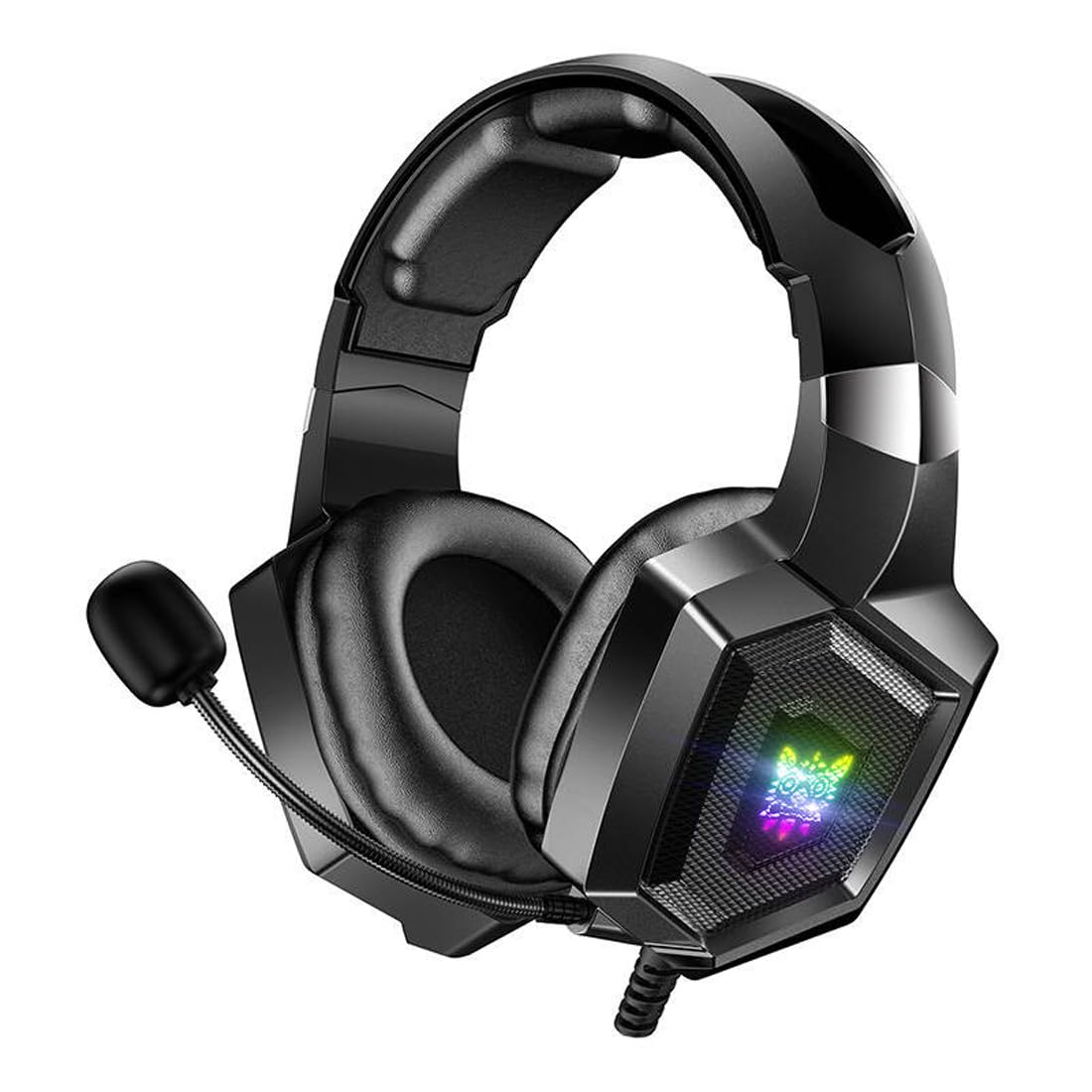
Image 1: The ONIKUMA K8 Gaming Headset, showcasing its design, detachable cables, and retail packaging.

Image 2: An exploded view illustrating the internal components of a headset driver, highlighting the precision audio engineering.
4. Setup Instructions
- Connect Audio: Plug the 3.5mm audio jack into the corresponding audio port on your device (PC, console controller, etc.). Ensure it is fully inserted for proper sound and microphone function.
- Connect USB for Lighting: Plug the USB connector into an available USB port on your device. This powers the RGB LED lighting on the earcups. The headset will function for audio even without the USB connected, but the lighting will not activate.
- Adjust Headset: Place the headset on your head and adjust the headband for a comfortable fit. The earcups are designed to fit over your ears.
- Position Microphone: Adjust the flexible microphone boom to a position near your mouth for clear voice capture.
5. Operating Instructions
5.1 Volume Control
The headset features an inline control unit on the cable. Use the scroll wheel or dedicated buttons on this unit to adjust the audio volume up or down.
5.2 Microphone Mute
Locate the microphone mute switch on the inline control unit. Flip the switch to mute or unmute the microphone as needed during gameplay or communication.
5.3 RGB LED Lighting
The RGB LED lighting on the earcups will automatically activate when the USB cable is connected to a powered USB port. There are no user-adjustable settings for the lighting patterns or colors on the headset itself.
6. Maintenance
- Cleaning: Use a soft, dry cloth to wipe down the earcups and headband. Do not use liquid cleaners or abrasive materials.
- Storage: Store the headset in a cool, dry place away from direct sunlight and extreme temperatures. Avoid placing heavy objects on the headset.
- Cable Care: Avoid sharply bending or twisting the cables. Always grasp the plug, not the cable, when disconnecting.
7. Troubleshooting
| Problem | Possible Solution |
|---|---|
| No sound from headset |
|
| Microphone not working |
|
| RGB lighting not working |
|
8. Specifications
| Brand | ONIKUMA |
| Model Name | K8 |
| Connectivity Technology | Wired |
| Headphone Jack | 3.5mm Jack |
| Form Factor | Over-Ear |
| Noise Control | Active Noise Cancellation |
| Sensitivity | 102 dB |
| Color | Black |
| Item Weight | 329 grams |
| Product Dimensions | 10 x 5 x 1.27 cm |
| Materials | Plastic |
| Recommended Uses | Gaming |
| Compatible Devices | Multiple |
| Control Type | Volume Control, Inline Controls |
| Water Resistance Level | Not Water Resistant |
9. Warranty Information
This ONIKUMA K8 Gaming Headset comes with a standard manufacturer's warranty. Please refer to the warranty card included in your package or contact your retailer for specific terms and conditions regarding warranty coverage and duration. Keep your proof of purchase for warranty claims.
10. Support
For technical assistance, troubleshooting, or further inquiries about your ONIKUMA K8 Gaming Headset, please contact the retailer where you purchased the product or visit the official ONIKUMA website for support resources. Ensure you have your product model number (K8) and proof of purchase ready when seeking support.


