
Introduction
The Xfinity HD 720p Wireless Indoor/Outdoor Home Security Camera allows you to monitor your home environment with live video accessible from anywhere. Designed for both indoor and outdoor use, this camera provides essential security features to keep you informed.
What's in the Box
- Xfinity HD 720p Wireless Security Camera (Model: SCHC2AEW)
- Power Adapter
- USB Cable
- Mounting Hardware (screws and anchors)

Image: Xfinity Home Security Camera and accessories neatly packaged in its box.
Setup Guide
- Power Connection: Connect the camera to the power adapter using the provided USB cable, then plug the adapter into a standard electrical outlet.
- App Download: Download the official Xfinity Home app from your smartphone's app store (iOS App Store or Android Google Play).
- Device Pairing: Open the Xfinity Home app and follow the on-screen instructions to add a new device. You will typically need to scan a QR code on the camera or manually enter its details to pair it with your home Wi-Fi network. Ensure your Wi-Fi network is 2.4 GHz for compatibility.

Image: The Xfinity Home Security Camera placed on a surface, ready for setup.
Operating Instructions
Live View and Basic Controls
Once paired, access the live video feed through the Xfinity Home app. The app provides controls for:
- Live Streaming: View real-time footage from your camera.
- Recording: Manually record video clips.
- Screenshot: Capture still images from the live feed.
- Two-Way Audio: Speak through the camera's speaker and hear audio from its microphone.
Night Vision
The camera features night vision capabilities for clear monitoring in low-light conditions. This feature automatically activates when ambient light is insufficient, providing a black-and-white image. Some models may offer color night vision depending on ambient light and settings.
Motion Detection and Alerts
Configure motion detection settings within the Xfinity Home app to receive alerts on your smartphone when activity is detected. You can customize sensitivity levels and notification preferences.
Storage Options
The camera supports local storage via a MicroSD card (not included). Insert a compatible MicroSD card into the designated slot to store recorded video clips directly on the device. Cloud storage options may also be available through your Xfinity Home service subscription.
Installation and Mounting
The Xfinity Home Security Camera can be placed on a flat surface or mounted to a wall. Use the included mounting hardware for secure wall installation. Ensure the camera is positioned to cover the desired monitoring area.
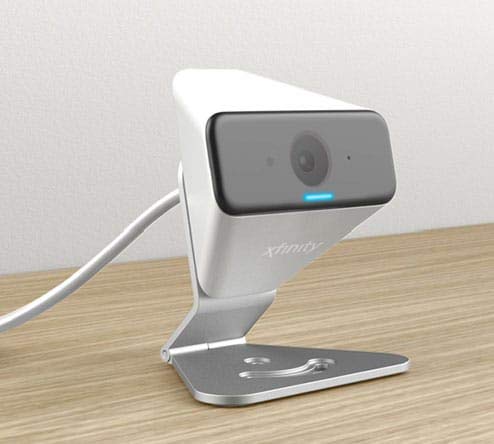
Image: The Xfinity Home Security Camera positioned on a desk, demonstrating its compact design.
Product Specifications
| Feature | Detail |
|---|---|
| Model Number | SCHC2AEW |
| Video Capture Resolution | 720p |
| Connectivity Technology | Wireless (Wi-Fi) |
| Connectivity Protocol | Wi-Fi (2.4 GHz compatible) |
| Indoor/Outdoor Usage | Indoor, Outdoor |
| Special Features | Motion Sensor, Night Vision |
| Power Source | DC (12 Volts, 1 Watt) |
| Dimensions (L x W x H) | 3 x 3 x 2 inches |
| Item Weight | 1.57 pounds |
| International Protection Rating | IP65 |
Troubleshooting
- No Power: Ensure the power adapter is securely connected to both the camera and a working electrical outlet.
- Connectivity Issues: Verify your Wi-Fi network is 2.4 GHz. Restart your router and the camera. Ensure the camera is within range of your Wi-Fi signal.
- App Not Responding: Close and reopen the Xfinity Home app. If the issue persists, try reinstalling the app.
- Poor Video Quality: Check your Wi-Fi signal strength. Ensure the camera lens is clean and free from obstructions.
Warranty and Customer Support
For warranty information, please refer to the documentation included with your purchase or visit the official Xfinity support website. For technical assistance or customer service, please contact Xfinity customer support directly.


