
Introduction
Thank you for choosing the MARVO KG925G Mechanical Gaming Keyboard. This manual provides essential information for setting up, operating, maintaining, and troubleshooting your new keyboard. Please read this manual carefully before use to ensure optimal performance and longevity of your device.
Package Contents
Verify that all items are present in the package:
- MARVO KG925G Mechanical Gaming Keyboard
- User Manual (this document)
Setup
System Requirements
- Operating System: Windows 8 or later
- Available USB 2.0 port
Connecting the Keyboard
- Locate an available USB 2.0 port on your computer.
- Plug the USB connector of the MARVO KG925G keyboard into the USB port.
- The operating system will automatically detect and install the necessary drivers. This process may take a few moments.
- Once the drivers are installed, the keyboard's backlighting will illuminate, indicating it is ready for use.
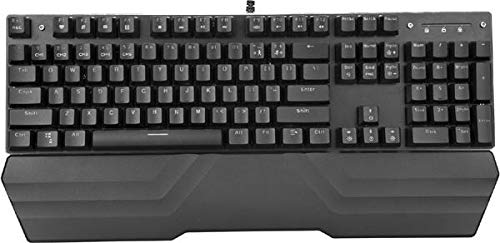
Image: The MARVO KG925G Mechanical Gaming Keyboard with its USB cable connected, ready for use. The keyboard features a wrist rest and illuminated keys.
Operating Instructions
Basic Keyboard Functions
The MARVO KG925G functions as a standard QWERTY keyboard for typing and general computer use.
Multimedia Keys
The keyboard includes dedicated multimedia functions, typically accessed via the Fn key combined with the F-keys (F1-F12). Refer to the keycap legends for specific functions such as volume control, media playback, and launching applications.
- Fn + F1-F12: Access various multimedia and system functions.
Backlighting Control
The MARVO KG925G features customizable backlighting. Specific key combinations are used to change lighting modes, brightness, and speed. Consult the keyboard's keycap legends or the manufacturer's website for detailed instructions on advanced lighting customization.
- Lighting Modes: Typically cycled using a dedicated key or Fn + a specific key (e.g., Scroll Lock, Pause Break, or a dedicated lighting key).
- Brightness Adjustment: Often controlled by Fn + Up/Down arrow keys.
Maintenance and Care
Proper maintenance ensures the longevity and performance of your keyboard.
- Cleaning: Use a soft, dry cloth to wipe the keyboard surface. For deeper cleaning, use a can of compressed air to remove dust and debris from between the keycaps. Avoid using harsh chemicals or abrasive materials.
- Spills: In case of liquid spills, immediately unplug the keyboard from your computer. Turn it upside down to drain any liquid and allow it to dry completely for at least 24-48 hours before reconnecting. Do not attempt to use the keyboard while it is wet.
- Storage: Store the keyboard in a cool, dry place away from direct sunlight and extreme temperatures.
Troubleshooting
If you encounter issues with your MARVO KG925G keyboard, refer to the following common solutions:
| Problem | Possible Solution |
|---|---|
| Keyboard is not responding. |
|
| Backlighting is not working. |
|
| Keys are not registering correctly. |
|
Specifications
- Model: KG925G
- Brand: MARVO
- Connectivity: USB 2.0
- Keyboard Type: Mechanical Gaming Keyboard
- Features: Illumination, Wrist Rest, Multimedia Keys
- Compatible OS: Windows 8 and above
- Dimensions: Approximately 47.5 x 18.7 x 8.4 cm (18.7 x 7.4 x 3.3 inches)
Warranty and Support
For warranty information and technical support, please refer to the warranty card included with your product or visit the official MARVO website. Keep your proof of purchase for warranty claims.


