
1. Introduction
This manual provides essential information for the proper use and maintenance of your Speedlink Competition Pro Extra USB Joystick (Model SL-650212-BKRD). This joystick is designed for use with PCs and Android devices, offering a retro arcade gaming experience. Please read these instructions carefully before using the product.
2. Important Safety Instructions
Failure to observe these instructions can cause product damage, explosion, fire, and/or electric shock.
- Use this device only as indicated in the user guide. Do not open or repair it.
- Do not expose the device to liquids, heat, or cold.
- Do not use the device in a damp environment.
- Clean the device with a dry cloth.
- Keep the device and all loose parts away from children, pets, and unauthorized persons.
- Use only with the appropriate provided accessories/cables.
- Disconnect the charging cable from the device if it will not be used for a long time. When disconnecting the cable, don't pull on the cable but on the plug.
- Don't use the cables in any way other than mentioned in the user guide; don't bend, cut, extend, or knot up them.
- Do not insert any foreign objects into the openings of the device.
- If the device is damaged in any way or gets too hot, stop using it immediately.
- Take caution when using the device if you have a pacemaker or are dependent on other sensitive electronic aids, as the device emits radio signals.
Safety instructions in further languages can be found at www.speedlink.com.
3. Package Contents
The Speedlink Competition Pro Extra USB Joystick package includes:
- Speedlink Competition Pro Extra USB Joystick (Model SL-650212-BKRD)
- Integrated USB cable
- Information on how to download the included 20 retro games
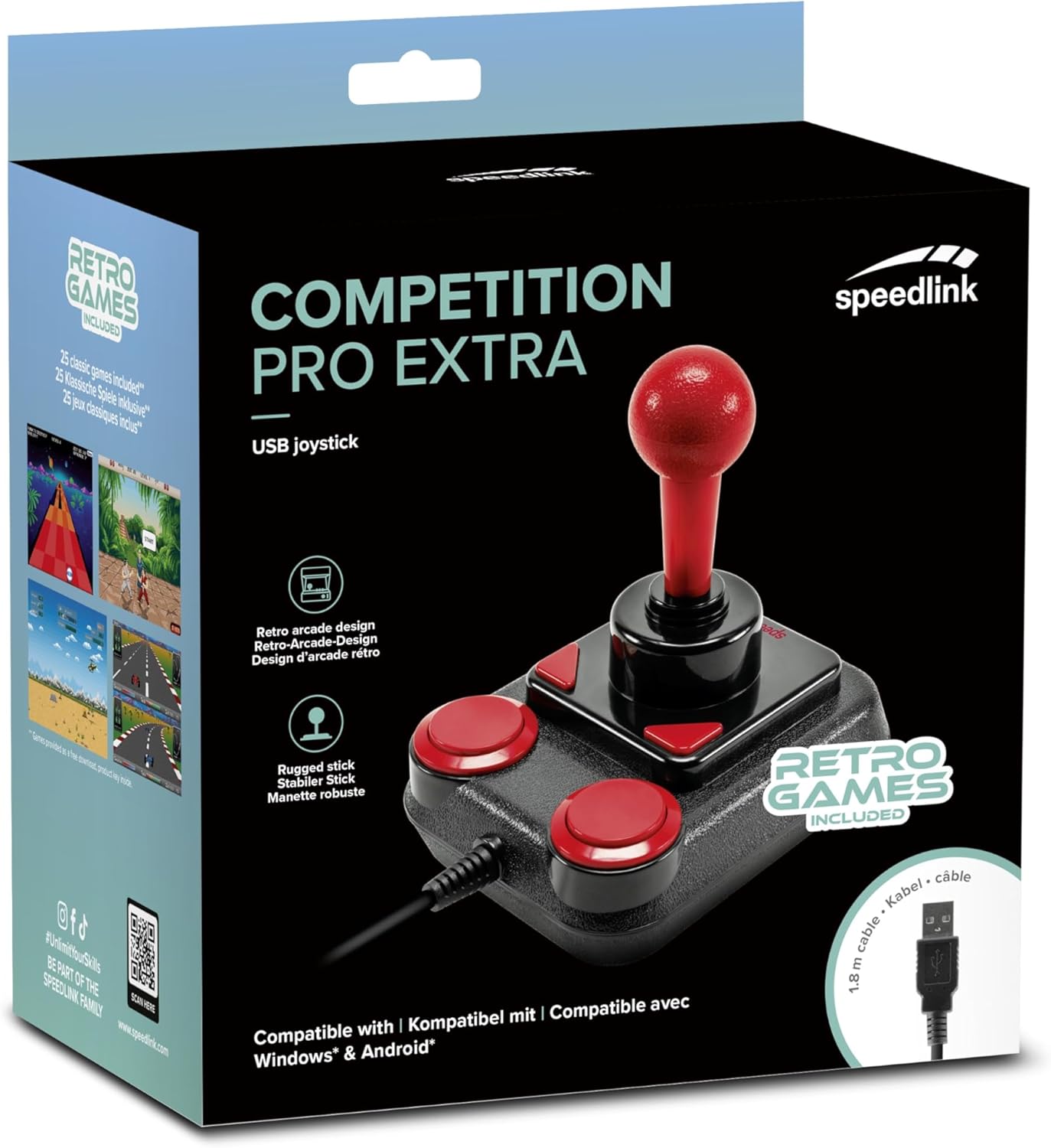
Image: Retail packaging for the Speedlink Competition Pro Extra USB Joystick, showing the product and "Retro Games Included" label.
4. Product Overview
The Competition Pro Extra USB Joystick features a classic arcade design with a robust stick and responsive buttons.

Image: Top-down view of the joystick, highlighting the red ball-top stick and red circular fire buttons.

Image: Angled view showing the joystick's main stick, two circular fire buttons, and two triangular fire buttons.
The joystick includes:
- Arcade Stick: A classic red ball-top joystick for directional control.
- Fire Buttons: Two large circular red buttons and two smaller triangular red buttons for in-game actions.
- Rapid-Fire Switch: A switch located on the underside of the joystick to enable or disable rapid-fire functionality for the main fire buttons.

Image: Underside of the joystick, showing the "ON" and "OFF" positions for the rapid-fire switch.
5. Setup
5.1 Connecting to a PC
- Locate an available USB port on your computer.
- Plug the USB connector of the Competition Pro Extra joystick into the USB port.
- The operating system (Windows 7 or later) will automatically detect and install the necessary drivers. No manual driver installation is typically required.
- Once installed, the joystick is ready for use with compatible games and emulators. You may need to configure joystick settings within individual game or emulator software.
5.2 Connecting to an Android Device
For Android devices, an OTG (On-The-Go) adapter is required (not included).
- Connect the USB connector of the joystick to an OTG adapter.
- Plug the OTG adapter into the USB port of your Android device.
- The Android device should recognize the joystick. Compatibility may vary depending on the Android device and game/application.
6. Operating Instructions
6.1 Basic Control
- Joystick: Use the main stick for directional movement (up, down, left, right, and diagonals).
- Fire Buttons: Press any of the four red buttons to perform in-game actions such as firing, jumping, or selecting.
6.2 Rapid-Fire Mode
The joystick features a rapid-fire function for enhanced gameplay in certain titles.
- To activate rapid-fire, locate the switch on the underside of the joystick and slide it to the "ON" position.
- To deactivate rapid-fire, slide the switch to the "OFF" position.
6.3 Included Games
The Anniversary Edition includes a collection of 20 retro games available for download. Refer to the instructions provided with your product for details on how to access and download these games.

Image: Screenshot of the game launcher interface, displaying a list of classic games such as Bomberwarrior, Summer Games, and River Attack.
7. Maintenance
- Cleaning: Use a soft, dry cloth to clean the surface of the joystick. Do not use liquid cleaners or abrasive materials.
- Storage: Store the joystick in a dry place away from direct sunlight and extreme temperatures.
- Cable Care: Avoid bending or twisting the USB cable excessively. Do not pull on the cable to disconnect it; always grasp the plug.
8. Troubleshooting
- Joystick not recognized by PC:
- Ensure the USB cable is securely plugged into a working USB port.
- Try a different USB port.
- Restart your computer.
- Check Device Manager (Windows) to see if the device is listed and if there are any driver issues.
- Joystick not recognized by Android device:
- Ensure your Android device supports USB OTG functionality.
- Verify the OTG adapter is functioning correctly.
- Try a different OTG adapter or Android device if possible.
- Buttons or stick unresponsive:
- Ensure the joystick is properly connected.
- Test the joystick in a different game or application to rule out software-specific issues.
- Calibrate the joystick through your operating system's game controller settings if available.
- Rapid-fire not working:
- Check that the rapid-fire switch on the underside of the joystick is set to "ON".
9. Specifications
| Feature | Detail |
|---|---|
| Model Name | SL-650212-BKRD |
| Brand | Speedlink |
| Connectivity Technology | USB |
| Compatible Devices | PC (Windows 7 or later), Android (via OTG adapter) |
| Controller Type | Joystick |
| Color | Black, Red |
| Item Weight | 3.53 ounces (approx. 100g) |
| Product Dimensions (LxWxH) | 4.65 x 3.78 x 5.12 inches (approx. 11.8 x 9.6 x 13 cm) |
| Power Source | Corded Electric (USB powered) |
| Voltage | 5 Volts |
10. Compliance Information
10.1 FCC Statement
This device complies with Part 15 of the FCC Rules. Operation is subject to the following two conditions: (1) This device may not cause harmful interference, and (2) this device must accept any interference received, including interference that may cause undesired operation.
This equipment has been tested and found to comply with the limits for a Class B digital device, pursuant to part 15 of the FCC Rules. These limits are designed to provide reasonable protection against harmful interference in a residential installation. This equipment generates, uses and can radiate radio frequency energy and, if not installed and used in accordance with the instructions, may cause harmful interference to radio communications. However, there is no guarantee that interference will not occur in a particular installation. If this equipment does cause harmful interference to radio or television reception, which can be determined by turning the equipment off and on, the user is encouraged to try to correct the interference by one or more of the following measures:
- Reorient or relocate the receiving antenna.
- Increase the separation between the equipment and receiver.
- Connect the equipment to an outlet on a circuit different from that to which the receiver is connected.
- Consult the dealer or an experienced radio/TV technician for help.
Note: Modifications to this product will void the user's authority to operate this equipment.
10.2 CE, UKCA, EAC Compliance
The product complies with the following directives:
- EMC: 2014/30/EU
- RoHS: 2011/65/EU
For a full declaration of conformity, the latest user guide, FAQ, or further information, please visit www.speedlink.com.

Image: Excerpt from the product manual showing safety instructions, warnings, FCC statement, and conformity information in multiple languages.
11. Warranty and Support
For warranty information, technical support, and frequently asked questions, please visit the official Speedlink website:
Please retain this information for future reference.


