
GGMM E3
GGMM E3 Smart Speaker User Manual
Model: E3
Introduction
This manual provides detailed instructions for setting up, operating, and maintaining your GGMM E3 Smart Speaker. The GGMM E3 is a versatile speaker featuring built-in Alexa voice control, Wi-Fi and Bluetooth connectivity, multi-room audio capabilities, an LED clock, and a convenient USB charging port.
Safety Information
- Do not expose the speaker to water or excessive moisture.
- Avoid placing the speaker near heat sources or in direct sunlight.
- Use only the provided power adapter.
- Do not attempt to disassemble or repair the speaker yourself. Contact qualified service personnel.
- Keep out of reach of children.
Package Contents
Verify that all items are present in the package:
- GGMM E3 Speaker x 1
- AUX Cable x 1
- Power Adapter x 1
- User Manual x 1 (This document)
- Warranty Card x 1
- Things to try Card x 1

Image: Contents of the GGMM E3 speaker package, showing the speaker, power adapter, AUX cable, and documentation.
Product Overview
The GGMM E3 speaker combines multiple functionalities for a comprehensive audio experience.
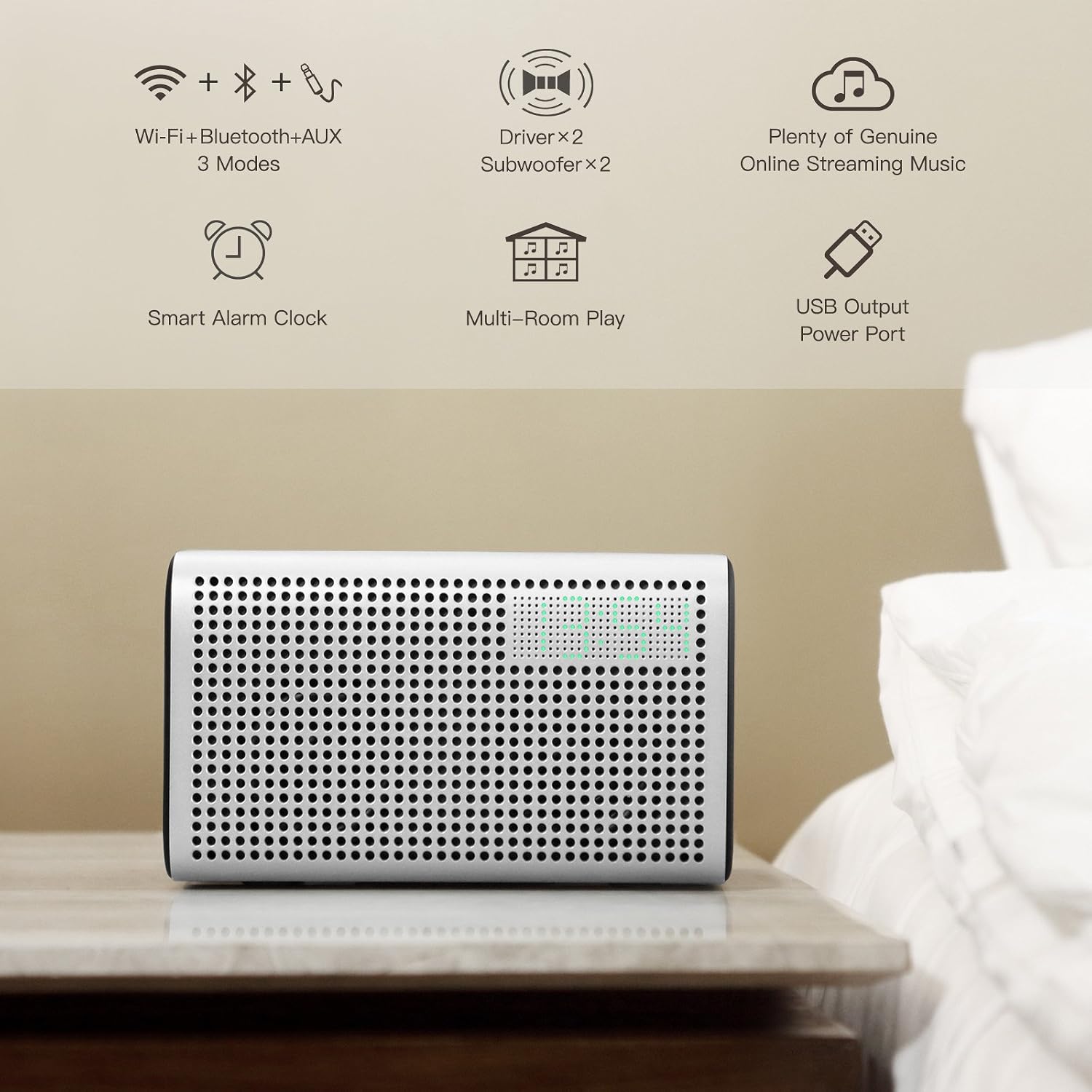
Image: Overview of GGMM E3 speaker features, highlighting Wi-Fi, Bluetooth, AUX modes, dual drivers and subwoofers, online music streaming, smart alarm clock, multi-room play, and USB output.
Key Features:
- Built-in Alexa Voice Control: Access music, news, and information hands-free.
- Multiple Connectivity Options: Supports Wi-Fi (2.4G only), Bluetooth, and AUX input.
- Multi-Room Play: Connect up to 16 GGMM E-series speakers for synchronized audio.
- High-Quality Audio: Equipped with 2x2.5" full frequency speaker drivers (20W) and 2x3" bass reinforce passive radiators.
- LED Clock and Alarm: Integrated digital clock with alarm functionality.
- USB Charging Port: Conveniently charge your mobile devices.

Image: The GGMM E3 speaker displaying the "Amazon Alexa Enabled" logo, indicating its voice control capabilities, along with various music service icons.
Setup
1. Power Connection
- Connect the provided power adapter to the DC IN port on the back of the GGMM E3 speaker.
- Plug the power adapter into a wall outlet. The speaker will power on automatically.
- Note: The speaker requires continuous power for full functionality, especially when using Alexa.
2. Download the GGMM-E Series App
- Search for "GGMM-E Series" in the Apple App Store (for iOS devices) or Google Play Store (for Android devices).
- Download and install the app on your smartphone or tablet. This app is essential for initial setup and advanced features.
3. Wi-Fi Connection
- Open the GGMM-E Series app.
- Follow the on-screen instructions to add your GGMM E3 speaker.
- Select your 2.4G Wi-Fi network and enter the password. (The speaker does not support 5G Wi-Fi networks.)
- Once connected, the Wi-Fi indicator on the speaker will illuminate steadily.

Image: The GGMM E3 speaker on a table, highlighting its Wi-Fi connectivity mode.
4. Alexa Setup
- After connecting to Wi-Fi through the GGMM-E Series app, you will be prompted to link your Amazon account for Alexa functionality.
- Follow the instructions to log in with your Amazon credentials.
- Once linked, you can use voice commands by pressing the Alexa button on the speaker and speaking your request.
5. Bluetooth Pairing
- Press the Bluetooth button on the speaker. The Bluetooth indicator will flash, indicating pairing mode.
- On your mobile device, go to Bluetooth settings and select "GGMM E3" from the list of available devices.
- Once paired, the Bluetooth indicator on the speaker will illuminate steadily.
6. AirPlay Setup (for Apple devices)
- Ensure your Apple device and the GGMM E3 speaker are connected to the same Wi-Fi network.
- On your Apple device, open the Control Center (swipe down from the top-right corner on newer iPhones/iPads, or swipe up from the bottom on older models).
- Tap the AirPlay icon (a triangle with circles).
- Select "GGMM E3" from the list of AirPlay speakers to stream audio.
Operating Instructions
Speaker Controls
The top panel of the GGMM E3 speaker features several control buttons:
- Power Button: Press to turn on/off.
- Volume Up/Down: Adjust the speaker volume.
- Play/Pause: Control media playback.
- Mode Button: Switch between Wi-Fi, Bluetooth, and AUX input modes.
- Alexa Button: Press to activate Alexa voice control.
- Hour (hr) / Minute (min) Buttons: Used for setting the LED clock and alarm.
Using Alexa Voice Control
Once Alexa is set up, press the Alexa button on the speaker and speak your command. Examples:
- "Alexa, play music."
- "Alexa, what's the weather?"
- "Alexa, set a timer for 10 minutes."
- "Alexa, turn up the volume."
Note: Some music services may not be fully supported via Alexa voice commands on this device. You may need to stream directly from the service's app via Wi-Fi, Bluetooth, or AirPlay.
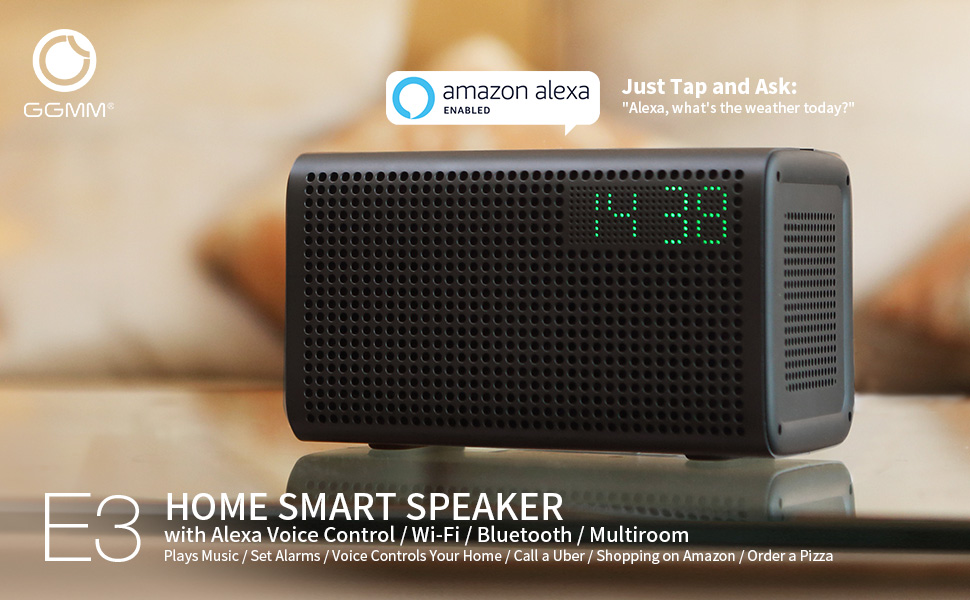
Image: A person interacting with the GGMM E3 speaker, demonstrating the use of Alexa voice commands.
Multi-Room Play
The GGMM-E Series app allows you to connect multiple GGMM E-series speakers for a synchronized audio experience throughout your home.
- Ensure all GGMM E-series speakers are connected to the same Wi-Fi network via the app.
- Open the GGMM-E Series app.
- Use the app to group speakers to play the same song in multiple rooms or assign different songs to individual speakers. Up to 16 speakers can be connected.
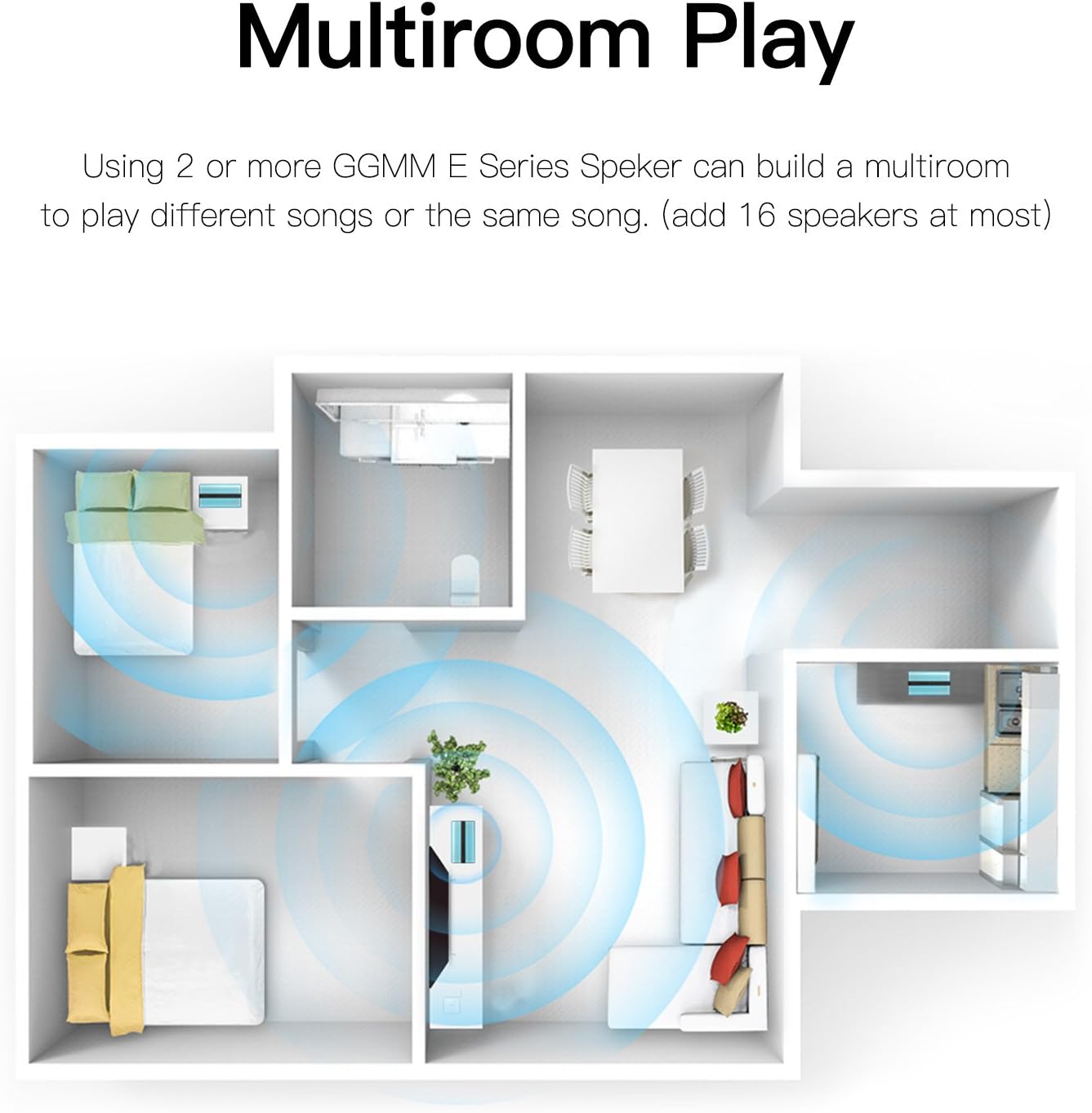
Image: A diagram illustrating the multi-room play feature, showing GGMM E3 speakers placed in various rooms of a house, all connected wirelessly.
LED Clock and Alarm Settings
The speaker features an LED display for time and alarm functions.
- Setting Time: Use the "hr" and "min" buttons on the speaker to adjust the time. The time can be displayed in 12-hour or 24-hour format.
- Setting Alarm: Refer to the GGMM-E Series app for detailed instructions on setting and managing alarms.
USB Charging Port
A USB charging port is located on the back of the speaker. Connect your mobile device's USB charging cable to this port to charge your device.
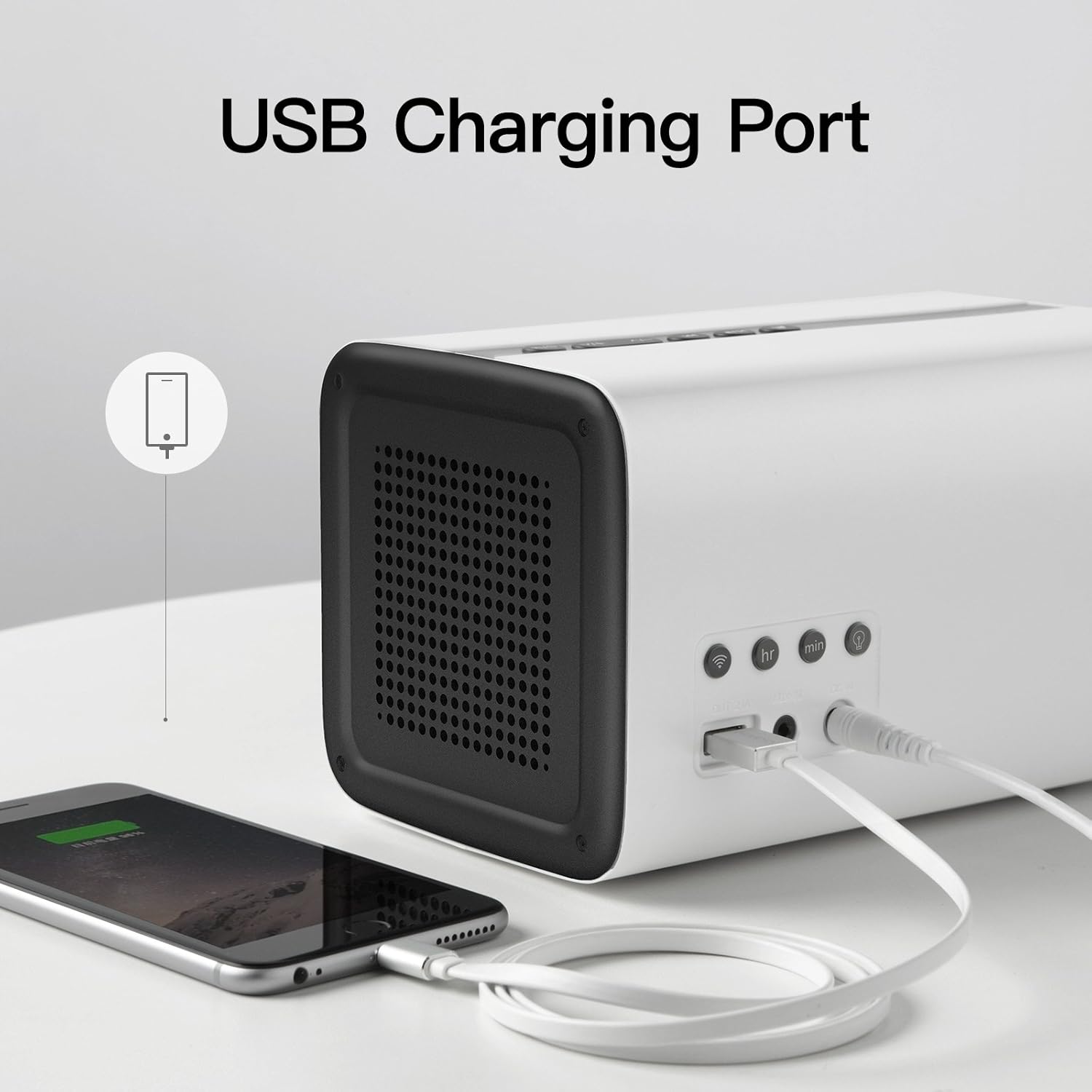
Image: The GGMM E3 speaker with a smartphone connected to its rear USB port for charging.
Audio Modes (Wi-Fi, Bluetooth, AUX)
The GGMM E3 supports three audio input modes:
- Wi-Fi Mode: For streaming music via your home network, including AirPlay and Alexa services.
- Bluetooth Mode: For direct connection to Bluetooth-enabled devices.
- AUX Mode: For connecting external audio sources using the provided 3.5mm AUX cable.
Use the Mode Button on the speaker to cycle through these options.
Maintenance
- Cleaning: Wipe the speaker with a soft, dry cloth. Do not use liquid cleaners or abrasive materials.
- Storage: When not in use for extended periods, store the speaker in a cool, dry place.
- Power: Always disconnect the power adapter before cleaning or moving the speaker.
Troubleshooting
| Problem | Possible Cause | Solution |
|---|---|---|
| Speaker does not power on. | Power adapter not connected or faulty outlet. | Ensure the power adapter is securely connected and the outlet is functional. |
| Cannot connect to Wi-Fi. | Incorrect Wi-Fi password, 5G network, or speaker too far from router. | Verify password, ensure you are connecting to a 2.4G network, and move the speaker closer to the router. Perform a factory reset if necessary. |
| Alexa not responding or playing specific services (e.g., Spotify). | Amazon account not linked, internet connectivity issues, or service not fully supported. | Check Amazon account linking in the GGMM-E Series app. Ensure stable Wi-Fi. For unsupported services, stream directly via Bluetooth or AirPlay. |
| Bluetooth pairing fails. | Speaker not in pairing mode, device too far, or already connected to another device. | Press the Bluetooth button to enter pairing mode. Ensure your device is within range. Disconnect from other Bluetooth devices. |
| GGMM-E Series app crashes or is unresponsive. | App software issue or compatibility problem. | Close and restart the app. Ensure your app and device operating system are up to date. Reinstall the app if the issue persists. |
| No sound. | Volume too low, incorrect input mode, or audio source issue. | Increase speaker volume. Check the selected input mode (Wi-Fi, Bluetooth, AUX). Verify the audio source is playing. |
Specifications
| Feature | Detail |
|---|---|
| Brand | GGMM |
| Model Name | GGMM E3 |
| Model Number | E3-WHITE-ALEXA |
| Connectivity Technology | Bluetooth, USB, Wi-Fi |
| Connectivity Protocol | Bluetooth, Wi-Fi (2.4G only) |
| Speaker Type | Stereo Sound with 2x2.5" full frequency drivers (20W) and 2x3" bass passive radiators |
| Control Method | App Control, Voice Control (Alexa) |
| Additional Features | LED Clock, Alarm Setting, USB Charging Port, Multi-Room Play, AirPlay |
| Mounting Type | Tabletop Mount |
| Power Source | Battery Powered (requires charging when in use for full functionality) |
| UPC | 889086012752 |
Warranty Information
Your GGMM E3 Smart Speaker comes with a limited warranty. Please refer to the included Warranty Card in your package for specific terms, conditions, and duration of coverage. Keep your proof of purchase for warranty claims.
Customer Support
For technical assistance, troubleshooting not covered in this manual, or warranty inquiries, please contact GGMM customer support. Contact details can typically be found on the GGMM official website or on the Warranty Card included with your product.
Please have your model number (E3) and proof of purchase ready when contacting support.
Related documentsE3


Ask a question about this manual
Ask about setup, troubleshooting, compatibility, parts, safety, or missing instructions. Manuals+ will review the question and use this page’s manual context to help answer it.