
1. Introduction
This manual provides comprehensive instructions for the setup, operation, and maintenance of your Audio Pro A10 Portable Bluetooth Speaker. The A10 is a high-fidelity wireless speaker designed for versatile use, offering Bluetooth, Wi-Fi, Spotify Connect, and MultiRoom capabilities. Please read this manual thoroughly before using the product to ensure proper and safe operation.
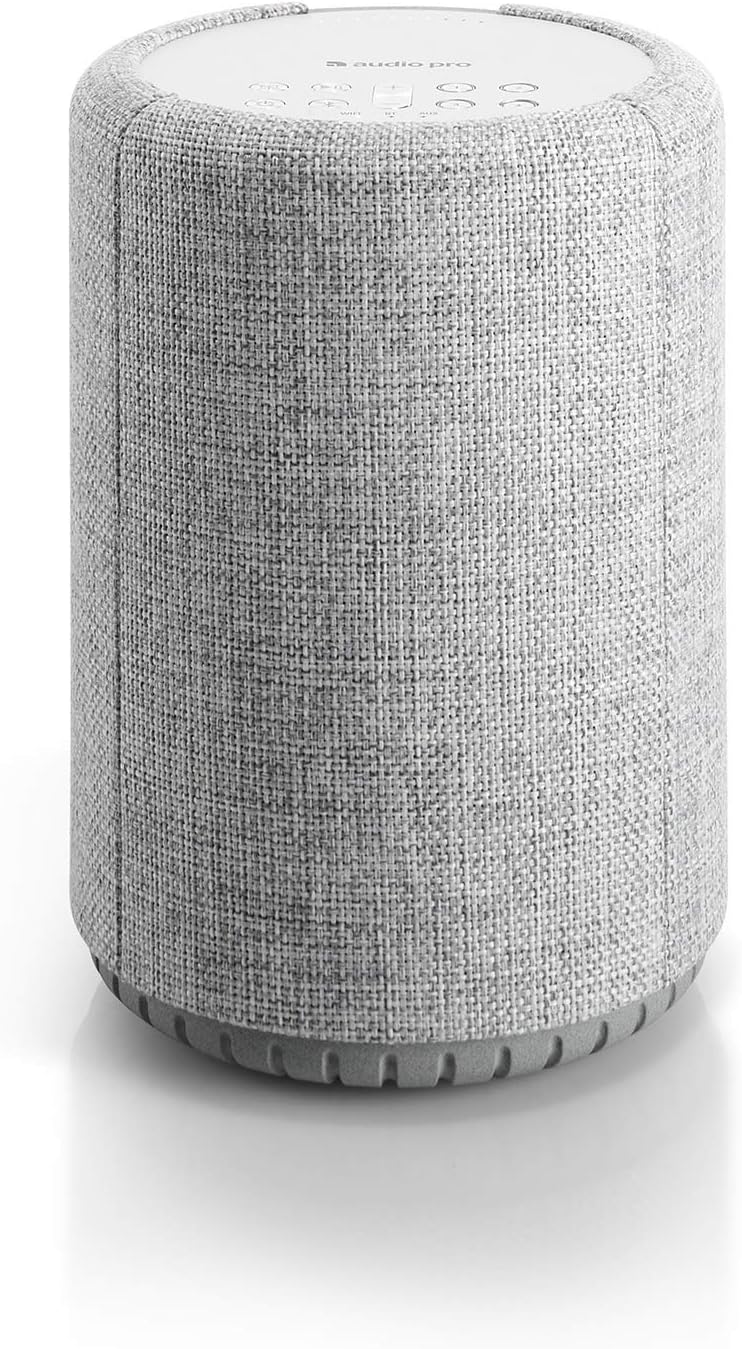
Image 1.1: The Audio Pro A10 Portable Bluetooth Speaker in Light Grey, showcasing its cylindrical design and fabric finish.
2. Safety Information
To reduce the risk of electric shock, fire, or injury, always follow basic safety precautions when using electrical appliances.
- Do not expose the speaker to rain or moisture.
- Do not place objects filled with liquids, such as vases, on the speaker.
- Do not block any ventilation openings. Install in accordance with the manufacturer's instructions.
- Do not install near any heat sources such as radiators, heat registers, stoves, or other apparatus (including amplifiers) that produce heat.
- Protect the power cord from being walked on or pinched, particularly at plugs, convenience receptacles, and the point where they exit from the apparatus.
- Only use attachments/accessories specified by the manufacturer.
- Unplug this apparatus during lightning storms or when unused for long periods of time.
- Refer all servicing to qualified service personnel. Servicing is required when the apparatus has been damaged in any way, such as power-supply cord or plug is damaged, liquid has been spilled or objects have fallen into the apparatus, the apparatus has been exposed to rain or moisture, does not operate normally, or has been dropped.
3. Package Contents
Verify that all items are present and in good condition upon unpacking.
- Audio Pro A10 Speaker
- Power Cable
- Instruction Manual (this document)
4. Product Overview and Controls
The Audio Pro A10 features a minimalist design with intuitive controls located on the top panel.

Image 4.1: Diagram of the Audio Pro A10 top panel, illustrating the LED indicator, source selection, On/Off, Bluetooth pairing, Play/Pause, Volume control, and Wi-Fi Presets.
4.1. Control Panel Functions
- LED Indicator: Displays connection status and operational modes.
- Select Source: Cycles through available input sources (Wi-Fi, Bluetooth, Aux).
- On/Off: Powers the speaker on or off.
- Pair Bluetooth: Initiates Bluetooth pairing mode.
- Play/Pause: Controls media playback.
- Volume Control (+/-): Adjusts the speaker's output volume.
- Wi-Fi Presets (1-4): Customizable buttons for quick access to saved playlists or radio stations.

Image 4.2: The Audio Pro A10 highlighting its "Easy to Use Presets" for quick access to music and "Audio Pro Multiroom" for synchronized audio across multiple speakers.
5. Setup
5.1. Power Connection
- Connect the provided power cable to the power input on the back of the A10 speaker.
- Plug the other end of the power cable into a wall outlet.
- Press the On/Off button on the top panel to power on the speaker. The LED indicator will illuminate.
5.2. Initial Wi-Fi Setup (Audio Pro App)
For full functionality, including Wi-Fi streaming and MultiRoom, download the Audio Pro Control app on your smartphone or tablet.
- Download the "Audio Pro Control" app from your device's app store (iOS App Store or Google Play Store).
- Ensure your mobile device is connected to the Wi-Fi network you wish to connect the speaker to.
- Open the Audio Pro Control app and follow the on-screen instructions to add your A10 speaker to your Wi-Fi network. This typically involves selecting the speaker from a list and entering your Wi-Fi password.
5.3. Bluetooth Pairing
To connect a Bluetooth device:
- Press the "Pair Bluetooth" button on the top panel of the A10. The LED indicator will flash blue, indicating pairing mode.
- On your mobile device, go to Bluetooth settings and select "Audio Pro A10" from the list of available devices.
- Once connected, the LED indicator on the speaker will turn solid blue.
6. Operation
6.1. Playing Music
- Wi-Fi Streaming: Use the Audio Pro Control app to stream music from various services (e.g., Spotify Connect, AirPlay) or your local network.
- Bluetooth: Once paired, play audio from your Bluetooth-connected device.
- Auxiliary Input: Connect an external audio source using a 3.5mm audio cable to the AUX port on the speaker. Select the AUX source using the "Select Source" button.
6.2. Using Presets
The A10 features four Wi-Fi preset buttons (1-4) on the top panel.
- Saving a Preset: While playing music via Wi-Fi (e.g., a Spotify playlist or internet radio station), press and hold one of the preset buttons (1-4) until you hear a confirmation tone. The current audio source will be saved to that preset.
- Recalling a Preset: Briefly press a preset button (1-4) to instantly start playing the saved audio source.
6.3. MultiRoom Functionality
The Audio Pro MultiRoom system allows you to connect multiple Audio Pro speakers to create a synchronized audio experience throughout your home.
- Use the Audio Pro Control app to group multiple speakers together.
- Play the same music on all grouped speakers or different music on individual speakers.

Image 6.1: Visual representation of the Audio Pro MultiRoom concept, emphasizing playing music everywhere and liberating all rooms with sound.
7. Maintenance
To maintain the appearance and performance of your Audio Pro A10 speaker:
- Wipe the speaker with a soft, dry cloth. Do not use liquid cleaners or aerosol cleaners.
- Avoid exposing the speaker to extreme temperatures or direct sunlight.
- Ensure the speaker is placed on a stable surface to prevent accidental falls.
8. Troubleshooting
| Problem | Possible Cause | Solution |
|---|---|---|
| No power | Power cable not connected or outlet not active. | Ensure power cable is securely connected and the wall outlet is functioning. |
| No sound | Volume too low, incorrect source selected, or device not connected. | Increase volume, select correct input source (Wi-Fi, BT, Aux), or re-pair Bluetooth device. |
| Cannot connect to Wi-Fi | Incorrect Wi-Fi password, speaker out of range, or network issues. | Verify Wi-Fi password, move speaker closer to router, restart router, or try setup again via the app. |
| Bluetooth pairing fails | Speaker not in pairing mode, device already connected, or interference. | Ensure speaker is in pairing mode (flashing blue LED), disconnect from other devices, or move closer to the speaker. |
| Sound distortion | Volume too high, poor audio source quality, or speaker placement. | Reduce volume, try a different audio source, or adjust speaker placement. |
9. Specifications
| Feature | Detail |
|---|---|
| Model Name | Pro A10 |
| Speaker Type | Woofer |
| Recommended Uses | Personal |
| Compatible Devices | Desktop, Laptop, MP3 Player, Projector, Smartphone, Tablet, Television |
| Color | Light Grey |
| Item Weight | 1 Kilograms (2.2 pounds) |
| Waterproof | No |
| Control Method | Voice (via Alexa integration), Buttons |
| Wireless Communication | Bluetooth, Wi-Fi |
| Speaker Size | 19.3 Centimeters (height) |
| Power Source | Corded Electric |
| Audio Driver Type | Dynamic Driver (1 x 1.25" BMR Driver, 1 x 3" long throw Woofer) |
| Subwoofer Connectivity | Wireless (for multiroom systems with external subwoofer) |
| Speaker Maximum Output Power | 52 Watts |
| Connectivity Technology | Auxiliary, Bluetooth, Wi-Fi |
| Audio Output Mode | Stereo |
| Mounting Type | Wall Mount (optional accessory) |
| Product Dimensions | 5.51 x 5.51 x 7.6 inches |
| First Available Date | November 20, 2018 |

Image 9.1: The Audio Pro A10 speaker, detailing its internal components including a 1.25" BMR Driver tweeter and a 3" long throw woofer, along with Wi-Fi, Spotify, Bluetooth 4.0, and Apple AirPlay compatibility.

Image 9.2: The Audio Pro A10 speaker shown mounted on a wall, demonstrating its versatile placement options.
10. Warranty and Support
Audio Pro products come with a limited warranty. For detailed warranty information, product support, or service inquiries, please visit the official Audio Pro website or contact their customer support.
Official Website: www.audiopro.com


