
1. Product Overview
The SilverStone Strider Gold S Series SST-ST75F-GS-V3 is a 750W fully modular ATX power supply designed for desktop computers. It features 80 PLUS Gold certification for high efficiency, a compact 140mm depth for easy integration, and a class-leading single +12V rail for stable power delivery. This power supply is built to provide reliable and continuous power output under various operating conditions.
- 750 Watt Maximum DC Output: Provides ample power for high-performance systems.
- Compact Design: With a depth of 140mm, it allows for easy installation in various PC cases.
- 100% Modular Cables: Enhances cable management and airflow within the system.
- 80 PLUS Gold Certification: Ensures high power efficiency, reducing heat and operating costs.
- Class-Leading Single +12V Rail: Delivers stable and consistent power to critical components.
- Strict 3% Voltage Regulation and Low Ripple & Noise: Guarantees clean and reliable power.
- 24/7 Continuous Power Output: Operates reliably with 40℃ operating temperature.
- Silent Running 120mm Fan: Features an 18dBA minimum noise level for quiet operation.

Image: The SilverStone Strider Gold S 750W power supply shown alongside its retail packaging.
2. Safety Information
Please read and understand all safety instructions before installing or operating this power supply. Failure to follow these instructions may result in electric shock, fire, or damage to the product and connected components.
- Hazardous Area: This device is not designed to be user serviceable and contains high voltage inside that can be dangerous when opened. In the event of malfunction, please notify your dealer or local distributor for service.
- Professional Installation: Installation should be performed by qualified personnel to prevent damage or injury.
- Ventilation: Ensure adequate ventilation around the power supply. Do not block any ventilation openings.
- Moisture: Do not expose the power supply to water or excessive humidity.
- Power Source: Connect the power supply only to a grounded power outlet.
- Overloading: Do not overload the power supply beyond its specified wattage.
- Cable Management: Ensure all cables are properly routed and secured to prevent damage or interference.

Image: Top view of the power supply showing the product label, including electrical specifications and safety warnings in multiple languages.
3. Package Contents
Verify that all items listed below are included in your product package:
- SilverStone Strider Gold S 750W Power Supply (SST-ST75F-GS-V3)
- Modular Cable Set (various types for motherboard, CPU, PCIe, SATA, Peripherals)
- AC Power Cord
- Mounting Screws
- User Manual / Warranty Information Booklet
- Cable Ties / Velcro Straps (for cable management)

Image: A complete set of modular cables, mounting screws, cable ties, and documentation included with the power supply.
4. Setup and Installation
Follow these steps to properly install your SilverStone Strider Gold S 750W power supply into your computer system.
4.1 Pre-Installation Checklist
- Ensure your computer system is completely powered off and unplugged from the wall outlet.
- Open your computer case to access the power supply mounting area.
- If replacing an existing power supply, carefully disconnect all cables and remove it.
4.2 Physical Installation
- Position the SilverStone SST-ST75F-GS-V3 power supply into the designated PSU bay in your computer case. Ensure the fan is oriented correctly for optimal airflow (typically facing downwards if there's a bottom vent, or upwards if not).
- Secure the power supply to the case using the provided mounting screws.
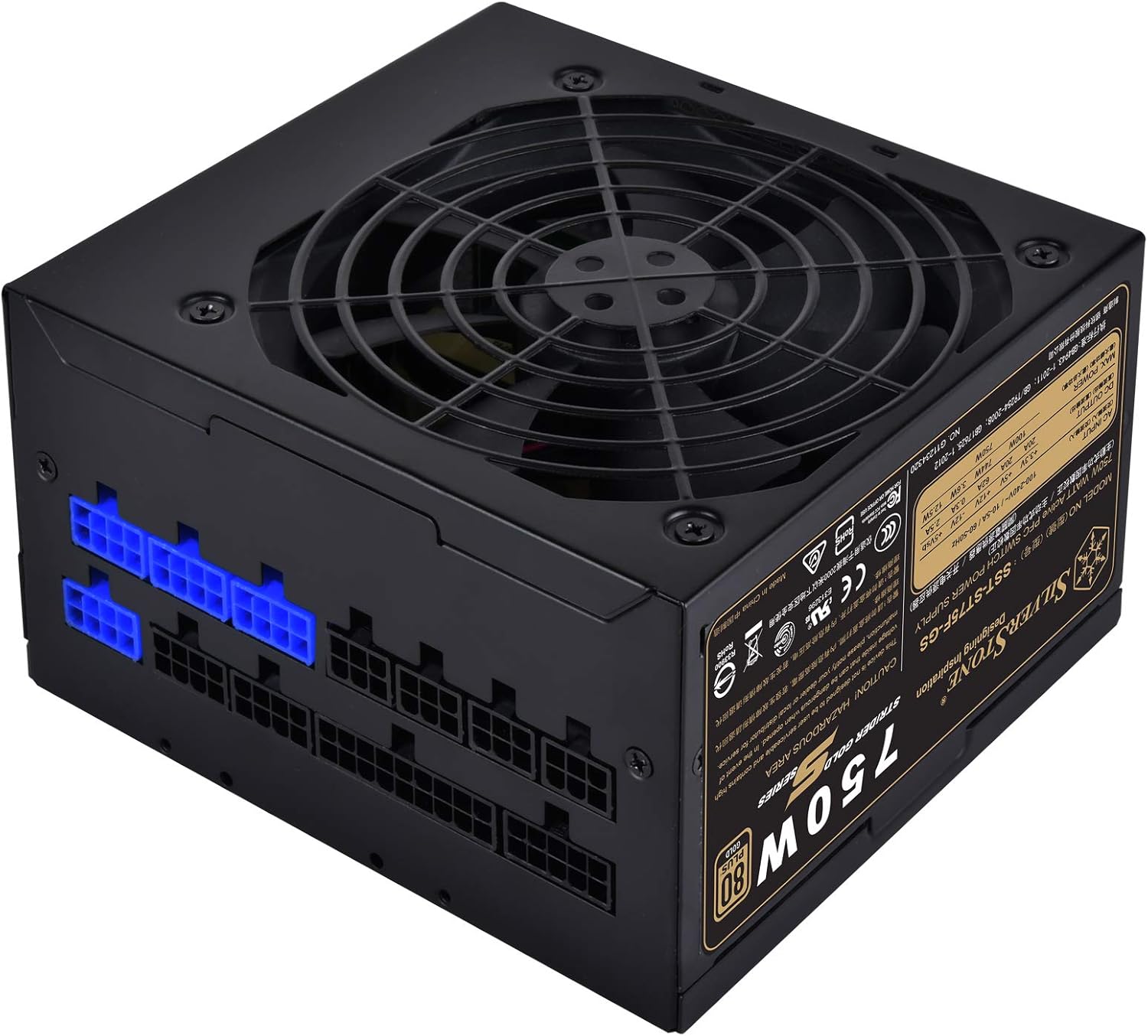
Image: An angled view of the power supply, highlighting the modular cable connection ports on one side.
4.3 Cable Connection Guide
As a fully modular power supply, you only need to connect the cables required for your system components. This improves cable management and airflow.
- 24-pin ATX Motherboard Cable: Connect the large 24-pin cable from the PSU to the corresponding port on your motherboard.
- 8-pin (4+4) EPS/ATX 12V CPU Cable: Connect the 8-pin or split 4+4-pin cable to the CPU power connector on your motherboard. Some motherboards may require two such connectors.
- PCI-E Cables: For graphics cards, connect the appropriate 6-pin or 8-pin (6+2) PCI-E power cables from the PSU to your graphics card(s). Use separate cables for each connector on the GPU if possible for better power delivery.
- SATA Power Cables: Connect SATA power cables to your SSDs, HDDs, and optical drives.
- Peripheral (Molex) Cables: Connect Molex cables for any other components requiring this type of power, such as case fans or older peripherals.

Image: A detailed view of the modular cable connection panel, showing various types of ports for different cables.
Ensure all connections are firm and secure. After connecting all necessary cables, organize them using the provided cable ties or Velcro straps to improve airflow and aesthetics.
5. Operation
Once the power supply is installed and all components are connected, you can power on your system.
- Connect the AC power cord to the power supply's inlet and then to a grounded wall outlet.
- Flip the power switch on the back of the power supply to the 'ON' (I) position.
- Press the power button on your computer case to start the system.
5.1 Fan Operation
The 120mm fan in the SST-ST75F-GS-V3 is designed for silent operation, with a minimum noise level of 18dBA. The fan speed will adjust automatically based on the power supply's load and temperature to maintain optimal cooling while minimizing noise.

Image: A close-up view of the 120mm cooling fan integrated into the power supply unit.
6. Maintenance
Proper maintenance can extend the lifespan of your power supply and ensure stable operation.
- Cleaning: Periodically clean the exterior of the power supply and its fan grille to prevent dust buildup. Use compressed air to gently clear dust from the fan blades and vents. Ensure the system is powered off and unplugged before cleaning.
- Environment: Operate the power supply in a clean, dry, and well-ventilventilated environment. Avoid extreme temperatures.
- Cable Checks: Occasionally check all modular cable connections to ensure they remain secure.
7. Troubleshooting
If you encounter issues with your power supply, try the following basic troubleshooting steps:
- No Power:
- Ensure the AC power cord is securely connected to both the power supply and the wall outlet.
- Check that the power switch on the back of the PSU is in the 'ON' (I) position.
- Verify the wall outlet is functioning by plugging in another device.
- Ensure all modular cables are correctly and firmly seated in both the PSU and the components.
- System Instability/Random Shutdowns:
- Check for loose cable connections.
- Ensure adequate ventilation within the PC case to prevent overheating.
- Confirm that your system's power requirements do not exceed the 750W capacity of the PSU.
- Loud Fan Noise:
- Clean any dust buildup from the fan and vents.
- Ensure the PSU is not operating under excessive load for prolonged periods.
If issues persist after performing these steps, please refer to the warranty information or contact SilverStone customer support.
8. Specifications
Detailed technical specifications for the SilverStone Strider Gold S 750W Power Supply (SST-ST75F-GS-V3).
| Feature | Specification |
|---|---|
| Model Number | SST-ST75F-GS-V3 |
| Maximum DC Output | 750W |
| 80 PLUS Certification | Gold |
| Form Factor | ATX |
| Power Supply Design | Fully Modular |
| Dimensions (LxWxH) | 140mm x 150mm x 86mm (5.51 x 5.91 x 3.39 inches) |
| Weight | 1.31 kg (2.89 pounds) |
| Cooling Method | Air (120mm fan) |
| Minimum Fan Noise | 18dBA |
| Operating Temperature | 0℃ ~ 40℃ |
| Voltage Regulation | ±3% |
| Ripple & Noise | ±3% |
8.1 Electrical Output Specifications
| Rail | +3.3V | +5V | +12V | -12V | +5Vsb |
|---|---|---|---|---|---|
| Max. Output Current | 20A | 20A | 62A | 0.3A | 2.5A |
| Max. Combined Power | 100W | 744W | 3.6W | 12.5W | |
| Total Max. Power | 750W | ||||
9. Warranty and Support
SilverStone Technology provides a limited warranty for its products. The specific terms and duration of the warranty may vary by region and product. Please refer to the warranty information booklet included with your product for detailed terms and conditions.
For technical support, warranty claims, or further assistance, please visit the official SilverStone Technology website or contact your local dealer or distributor. You can find contact information and support resources on their website.
Online Resources: www.silverstonetek.com


