
Introduction
This manual provides comprehensive instructions for the setup, operation, maintenance, and troubleshooting of your Denver NBW-11614G Full HD 11.6" Laptop. Please read this manual carefully before using your device to ensure proper functionality and to extend its lifespan.
Key Features:
- 11.6" Full HD IPS Display (29.46 cm)
- Quad-core Processor up to 1.83 GHz
- 32 GB Internal Storage (expandable with micro SD card) and 4 GB RAM
- Wi-Fi and Bluetooth Connectivity
- Windows 10 Operating System
Setup
1. Unboxing and Initial Inspection
Carefully remove the laptop and all accessories from the packaging. Check for any visible damage. The package should contain the laptop, power adapter, and this user manual.

Figure 1: Front view of the Denver NBW-11614G Laptop. This image shows the laptop open, displaying the screen, keyboard, and touchpad, providing an overview of the device's appearance.
2. Connecting the Power Adapter
Connect the power adapter to the charging port on the laptop (usually on the side) and then plug it into a wall outlet. The battery indicator light will illuminate, indicating that the laptop is charging.

Figure 2: Left side of the laptop. This view highlights the various ports available on the left side, including the power input, USB ports, and possibly an HDMI port, crucial for connecting peripherals and charging.
3. First Boot and Windows Setup
Press the power button to turn on the laptop. Follow the on-screen instructions to complete the initial Windows 10 setup, including language selection, network connection, and user account creation.
Operating Instructions
Power On/Off and Sleep Mode
- Power On: Press the power button located on the top right of the keyboard.
- Power Off: Click the Start button in Windows, then select Power > Shut down.
- Sleep Mode: Close the laptop lid or click the Start button, then select Power > Sleep.
Using the Keyboard and Touchpad
The laptop features a standard keyboard layout and a multi-touch touchpad for navigation. Refer to the image below for a visual representation of the keyboard and touchpad area.

Figure 3: Angled view of the laptop. This perspective provides a clear view of the keyboard layout and the integrated touchpad, essential for user interaction and input.
Connecting Peripherals
The laptop is equipped with various ports for connecting external devices.
- USB Ports: Connect USB devices such as mice, keyboards, or external storage drives. (Total 2 USB ports)
- HDMI Port: Connect to an external monitor or TV for a larger display.
- Micro SD Card Slot: Expand storage capacity using a micro SD card.
- Audio Jack: Connect headphones or external speakers.
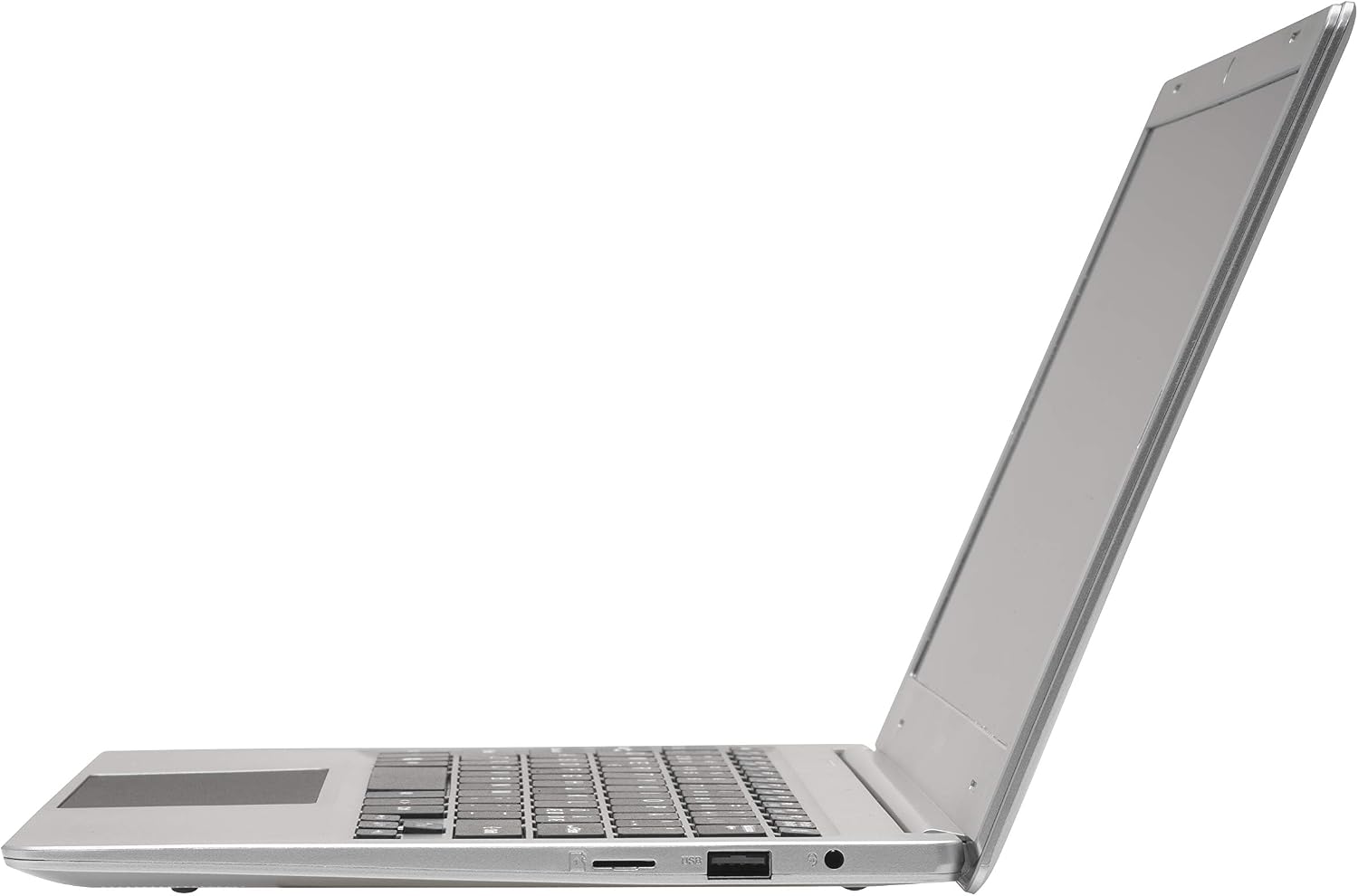
Figure 4: Right side of the laptop. This image details the ports on the right side, which typically include additional USB ports and the micro SD card slot, offering more connectivity options.
Wi-Fi and Bluetooth Connectivity
- Wi-Fi: To connect to a wireless network, click the Wi-Fi icon in the taskbar, select your network, and enter the password.
- Bluetooth: To pair Bluetooth devices, go to Windows Settings > Devices > Bluetooth & other devices, and follow the pairing instructions.
Maintenance
- Cleaning: Use a soft, lint-free cloth to clean the screen and exterior. For stubborn marks, slightly dampen the cloth with water or a screen cleaner. Avoid harsh chemicals.
- Battery Care: To prolong battery life, avoid fully discharging the battery frequently. It is recommended to keep the battery charged between 20% and 80% when possible. Unplug the charger once the battery is full if not using the laptop for extended periods.
- Software Updates: Regularly check for and install Windows updates to ensure system stability, security, and performance. Go to Windows Settings > Update & Security > Windows Update.
- Storage Management: Periodically clear unnecessary files and applications to free up storage space and maintain optimal performance.
Troubleshooting
This section addresses common issues you might encounter with your laptop. If the problem persists, please contact customer support.
| Problem | Possible Cause / Solution |
|---|---|
| Laptop does not turn on. | Ensure the power adapter is securely connected and the outlet is working. The battery might be completely drained; allow it to charge for at least 30 minutes before attempting to power on. |
| Wi-Fi connection issues. | Check if Wi-Fi is enabled in Windows settings. Restart your router and the laptop. Ensure you are within range of the Wi-Fi signal. |
| Slow performance. | Close unnecessary applications. Check for and install Windows updates. Run a disk cleanup to free up storage space. Consider reducing the number of startup programs. |
| Screen is blank or flickering. | Try adjusting the screen brightness. Restart the laptop. If connected to an external monitor, disconnect it to see if the issue is with the laptop's display or the external connection. |
Specifications
| Feature | Detail |
|---|---|
| Brand | Denver |
| Model Number | NBW-11614G |
| Operating System | Windows 10 Home |
| Display Size | 11.6 Inches |
| Display Resolution | 1920 x 1080 pixels (Full HD) |
| Display Technology | LCD with IPS Technology |
| Processor Brand | Intel |
| Number of Cores | 4 |
| RAM | 4 GB |
| Storage Type | 32 GB SSD Storage Device |
| Graphics Card Description | Integrated |
| Connectivity Type | Bluetooth, WLAN |
| Battery Life | 6 hours |
| Total USB Ports | 2 |
| Special Features | Portable, Bluetooth |
Warranty and Support
This product comes with a manufacturer's warranty. Please refer to the warranty card included in your product packaging for specific terms and conditions. For technical support, service, or inquiries about spare parts, please contact Denver customer service through their official website or the contact information provided with your purchase documentation.
Please note that information regarding software updates and spare parts availability may vary and is subject to manufacturer's policies.


