
TMEZON MZ-WF430BA/00-CA
TMEZON 8CH Wireless Security Camera System User Manual
Model: MZ-WF430BA/00-CA
Product Overview
The TMEZON 8CH Wireless Security Camera System provides comprehensive surveillance for your home or business. This system includes an 8-channel 2K WiFi NVR and four 3.0MP HD wireless indoor/outdoor IP cameras, offering clear video footage and reliable monitoring. Designed for ease of installation, it features P2P connectivity and 65FT night vision capabilities.
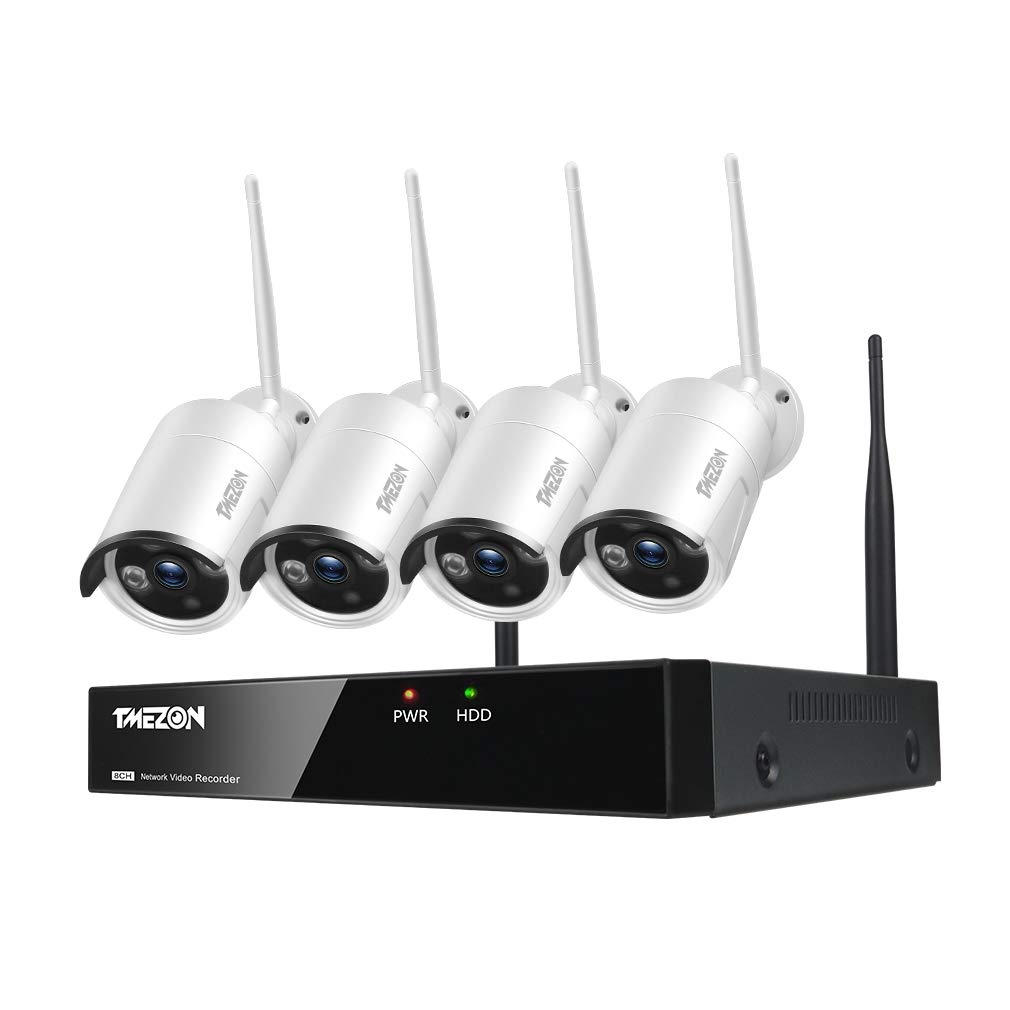
Image: The TMEZON 8-channel NVR unit with four wireless security cameras, illustrating the complete system.
Package Contents
Before beginning installation, please verify that all components are present in your package:
- 1 x 8-Channel NVR (Network Video Recorder)
- 4 x Wireless 3.0MP HD IP Cameras
- 4 x Camera Power Adapters (10FT)
- 1 x NVR Power Supply
- 4 x Camera Antennas
- 1 x Extend Antenna (for NVR)
- 1 x USB Mouse
- 1 x Network Cable
- 1 x User Manual
- Screws for mounting

Image: A visual representation of all items included in the product package, such as the NVR, cameras, power adapters, cables, and accessories.
Setup Guide
1. NVR and Camera Power Connection
Connect the provided power adapters to the NVR and each camera. Ensure all devices are powered on. The system is designed for true plug-and-play functionality, automatically pairing the cameras with the NVR upon power-up.
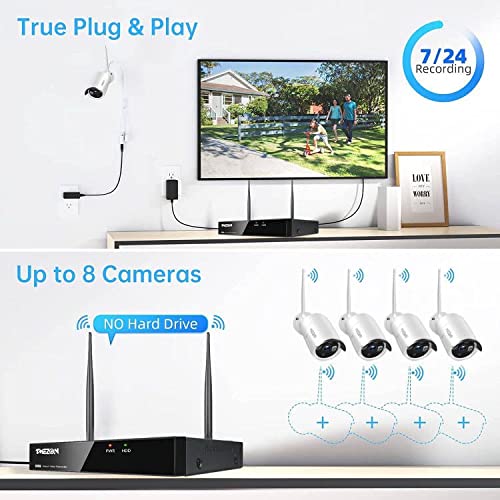
Image: Illustration of the simple plug-and-play setup, showing cameras and NVR connected to power outlets and the NVR connected to a monitor.
2. NVR to Monitor Connection
Connect the NVR to a monitor using an HDMI or VGA cable (not included) to view the camera feeds and access system settings. Connect the USB mouse to the NVR for navigation.
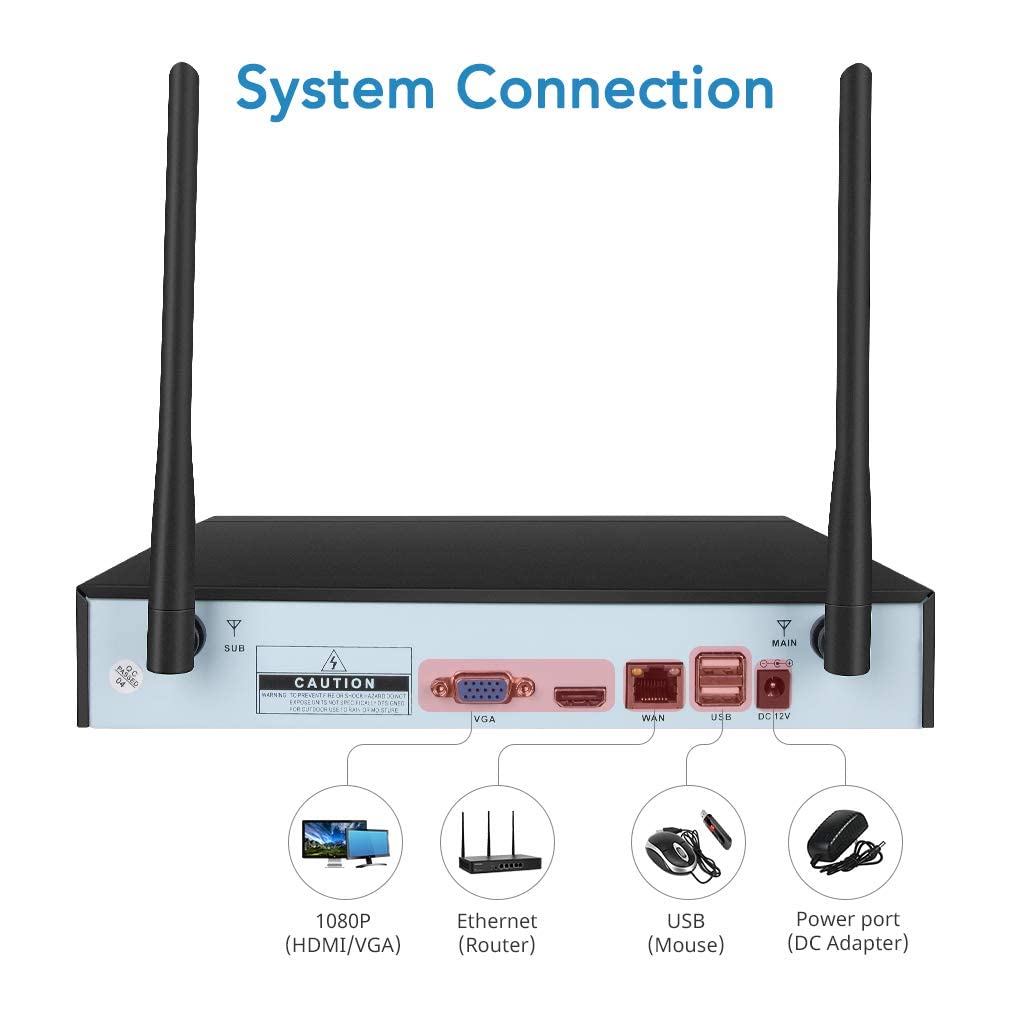
Image: A detailed view of the NVR's rear panel, highlighting ports for HDMI/VGA output, Ethernet, USB, and DC 12V power input.
3. Network Connection (Optional for Remote Viewing)
For remote viewing via smartphone or PC, connect the NVR to your router using the provided Ethernet cable. This enables internet access for the system.
4. Smartphone App Download and Setup
Download the free "IP Pro" app from your smartphone's app store (available for iPhone and Android). Follow the in-app instructions to add your NVR system for live viewing and playback from anywhere.
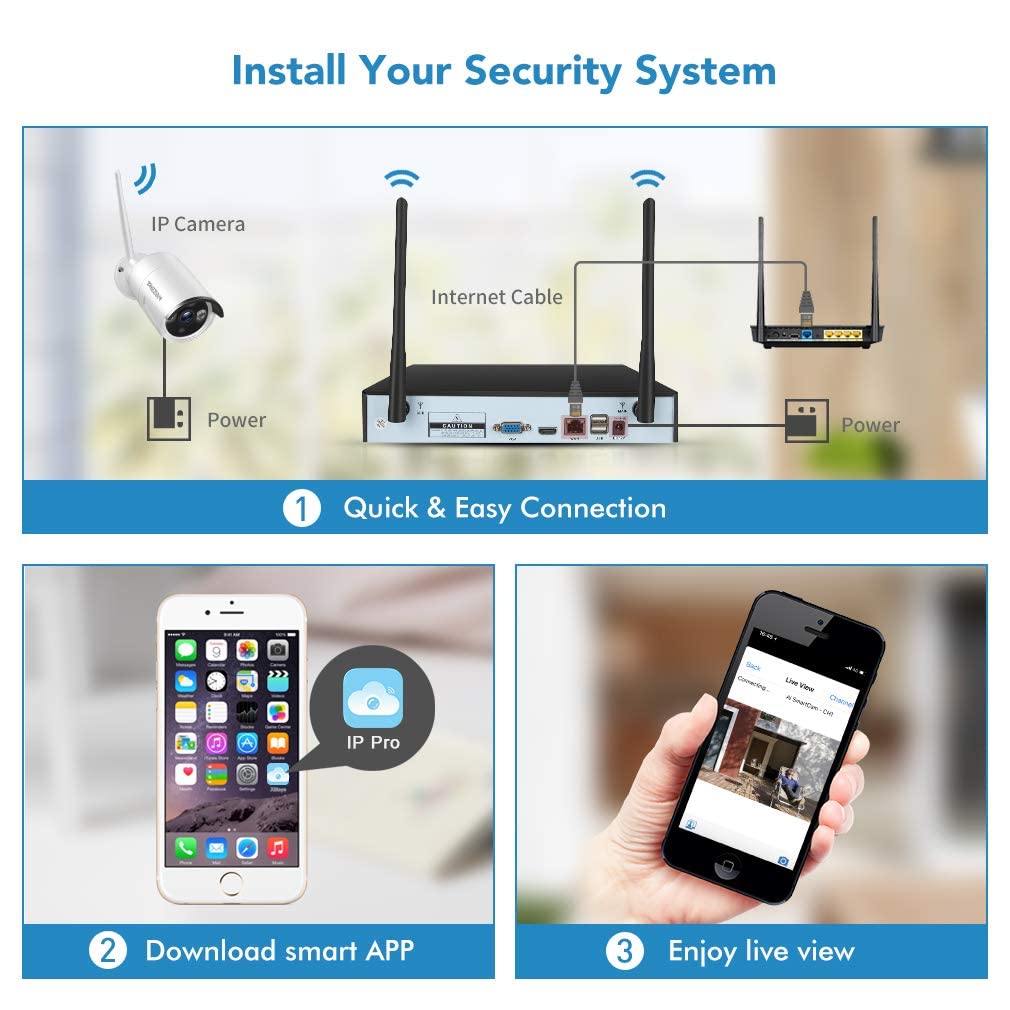
Image: A three-step guide illustrating quick and easy connection of the IP camera and NVR, downloading the smart app, and enjoying live view on a smartphone.
5. Hard Drive Installation (Optional)
This system does not include a hard drive. For continuous recording and video storage, you will need to install a compatible 2.5-inch or 3.5-inch SATA hard drive (up to 1TB supported). Refer to the NVR's internal diagram for hard drive bay location and connection instructions.
Operating Instructions
Live View
Once the NVR is connected to a monitor, the live feeds from all connected cameras will be displayed. Use the USB mouse to navigate the on-screen menu.
Recording
If a hard drive is installed, the system can be configured for continuous, scheduled, or motion-triggered recording. Access the recording settings through the NVR's main menu.
Motion Detection and Alerts
The system features customizable motion detection. When motion is detected, the system can trigger recording, send email alerts, or push notifications to your smartphone app. You can define specific detection zones to minimize false alarms.
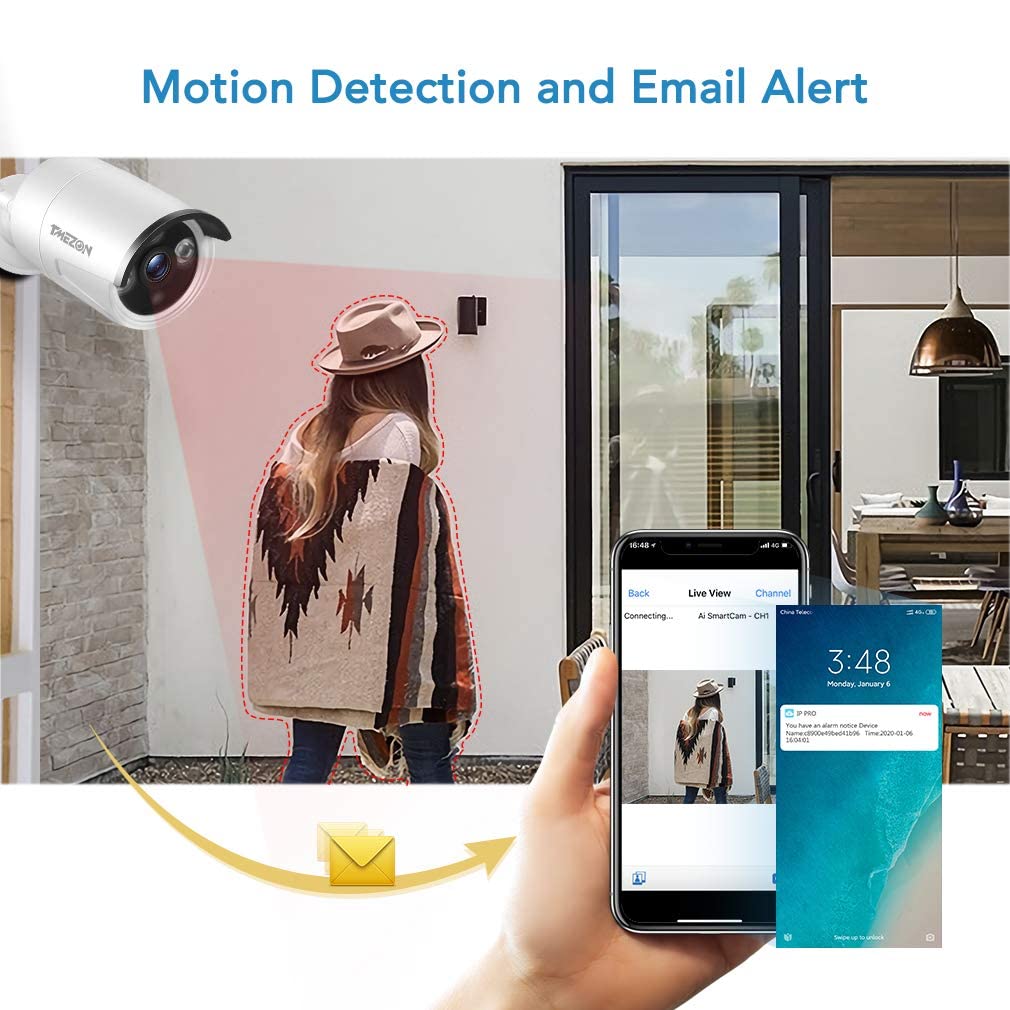
Image: An illustration demonstrating the motion detection capability, showing a person triggering an alert and a smartphone displaying an email notification.
Remote Access
With the NVR connected to the internet and the "IP Pro" app configured, you can view live feeds, play back recorded footage, and receive alerts from anywhere with an internet connection.

Image: Icons and images depicting compatibility with various devices including tablets, Android phones, iOS phones, and personal computers, along with app store logos.

Image: An image showing a family and friends sharing access to the security system's live view on their smartphones, indicating multi-user support.
Installation Considerations
Camera Placement
Cameras can be mounted on walls or ceilings. Ensure the camera's field of view covers the desired area. Consider potential obstacles that might block the wireless signal.

Image: Demonstrates the camera's 90-degree and 360-degree adjustability, showing both ceiling and wall mountable options. Also displays various application scenarios like house, school, warehouse, supermarket, garage, and office.
Weatherproofing
The cameras are IP66 weatherproof, suitable for outdoor use in various weather conditions including rain, sun, and clouds.

Image: A close-up of an outdoor camera, emphasizing its IP66 weatherproof rating and showing it in a rainy environment, with icons for rain, sun, and clouds.
Wireless Range
The system offers a strong and stable WiFi connection for up to 1000ft in open areas and up to 200ft with obstacles. Optimal placement of the NVR and cameras will maximize wireless performance.
Maintenance
- Cleaning: Regularly wipe the camera lenses with a soft, dry cloth to ensure clear image quality.
- Firmware Updates: Check the TMEZON official website periodically for firmware updates for the NVR and cameras to ensure optimal performance and security.
- Power Supply: Ensure all power adapters are securely connected and free from damage.
- Hard Drive Management: If a hard drive is installed, monitor its storage capacity and configure overwriting settings as needed.
Troubleshooting
| Problem | Possible Cause | Solution |
|---|---|---|
| No image on monitor | NVR not powered on; HDMI/VGA cable loose; Monitor input incorrect. | Check NVR power adapter; Secure video cable connections; Select correct input on monitor. |
| Cameras not connecting to NVR | Camera not powered; Out of wireless range; Interference. | Ensure cameras are powered; Relocate camera closer to NVR; Reduce wireless interference (e.g., move router). |
| Remote viewing not working | NVR not connected to internet; App not configured correctly; Network issues. | Verify NVR Ethernet connection to router; Reconfigure app settings; Check internet connection. |
| Poor night vision | Infrared LEDs obstructed; Ambient light too high. | Clear any obstructions from camera lens; Ensure sufficient darkness for IR to activate. |
| Motion detection false alarms | Environmental factors (e.g., moving branches, shadows); Detection sensitivity too high. | Adjust detection zone to exclude problematic areas; Lower sensitivity settings in NVR menu. |
Specifications
- Brand: TMEZON
- Model Number: MZ-WF430BA/00-CA
- NVR Channels: 8-Channel (supports up to 8 cameras)
- Included Cameras: 4 x 3.0 Megapixel HD Wireless IP Cameras
- Video Resolution: 2K (NVR), 3.0MP (Cameras)
- Connectivity: Wireless (WiFi), Ethernet
- Night Vision: Up to 65FT
- Weatherproof Rating: IP66 (Cameras)
- Power Source: Corded Electric
- Storage: Supports 2.5"/3.5" SATA HDD up to 1TB (Hard Drive NOT included)
- Compatible Devices: Smartphones (iPhone, Android), Tablets, PC
- Product Dimensions: NVR: Approximately 1 x 1 x 1 cm (Note: This dimension from source data appears to be a placeholder and may not reflect actual size.)
- Item Weight: 3.28 kg (Total system weight)
Warranty and Support
TMEZON provides a 1-year warranty for this product. Additionally, lifetime technical support is available to assist with any questions or issues you may encounter.
For technical assistance or warranty claims, please contact TMEZON customer support through their official website or the contact information provided in your product packaging.
Related documentsMZ-WF430BA/00-CA

Ask a question about this manual
Ask about setup, troubleshooting, compatibility, parts, safety, or missing instructions. Manuals+ will review the question and use this page’s manual context to help answer it.