
1. Product Overview
The Dell Latitude Extreme Rugged 7414 is a robust workstation designed for demanding environments. This laptop features a 14-inch touch screen, Intel Core i7-6600U processor, 32GB RAM, 1TB SSD, HDMI connectivity, and an AMD Radeon R7 M360 graphics coprocessor. It is built to withstand challenging conditions while providing high performance for business and specialized applications.

Image: Dell Latitude Extreme Rugged 7414 Workstation in a closed position, showcasing its robust design.
2. Setup Instructions
2.1 Initial Power-On
- Connect the Power Adapter: Plug the power adapter into the laptop's power port and then into a wall outlet.
- Open the Laptop: Carefully open the display lid.
- Power On: Press the power button, typically located on the keyboard deck, to start the system.
- Initial Configuration: Follow the on-screen prompts to complete the Windows 10 Home operating system setup, including language, region, network connection, and user account creation.

Image: The power adapter for the Dell Latitude Extreme Rugged 7414, used for charging and powering the laptop.
2.2 Connecting Peripherals
The Latitude 7414 offers various ports for connecting external devices:
- USB Ports: Connect USB devices such as mice, keyboards, external storage, or printers to the available USB ports.
- HDMI Port: Use an HDMI cable to connect to an external monitor or projector for extended display options.
- Audio Jack: Connect headphones or external speakers to the audio jack.
- Ethernet Port: For wired network connectivity, connect an Ethernet cable to the RJ-45 port.

Image: Multiple views of the Dell Latitude Extreme Rugged 7414, highlighting its various input/output ports including USB, HDMI, and Ethernet.
3. Operating Your Workstation
3.1 Using the Touch Screen
The 14-inch display supports touch input. You can interact with the operating system and applications directly using your fingers or a compatible stylus. Common gestures include tapping, swiping, pinching to zoom, and rotating.
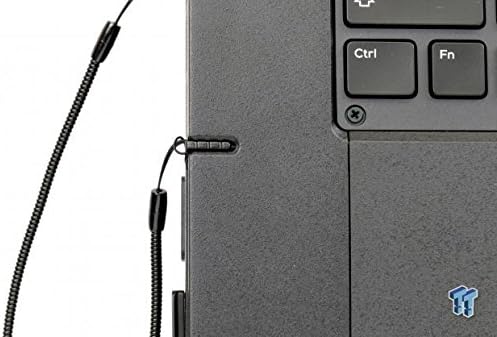
Image: A stylus tethered to the side of the Dell Latitude Extreme Rugged 7414, indicating touch screen functionality.
3.2 Keyboard and Touchpad
The laptop features a full-size keyboard for typing and a touchpad for cursor control. The touchpad supports multi-touch gestures for navigation.

Image: The Dell Latitude Extreme Rugged 7414 Workstation shown open, displaying its keyboard and screen.
3.3 Wireless Connectivity
To connect to a wireless network:
- Click the Wi-Fi icon in the system tray (bottom right of the screen).
- Select your desired network from the list.
- Enter the network password if prompted and click Connect.
Bluetooth devices can be paired through the Windows Settings menu under 'Devices' -> 'Bluetooth & other devices'.
4. Maintenance
4.1 Cleaning
- Screen: Use a soft, lint-free cloth lightly dampened with water or a screen cleaner. Avoid harsh chemicals.
- Chassis: Wipe the exterior with a soft, damp cloth. For stubborn dirt, a mild soap solution can be used, ensuring no liquid enters ports.
- Ports: Keep ports free of dust and debris. Use compressed air if necessary, holding the can upright.
4.2 Battery Care
- Avoid fully discharging the battery frequently.
- Store the laptop in a cool, dry place when not in use for extended periods.
- For optimal battery life, avoid exposing the laptop to extreme temperatures.
5. Troubleshooting
This section addresses common issues you might encounter with your Dell Latitude Extreme Rugged 7414 Workstation.
5.1 Power Issues
- Laptop does not turn on: Ensure the power adapter is securely connected to both the laptop and a working power outlet. Check if the power adapter's indicator light is on. Try a different outlet.
- Battery not charging: Verify the power adapter connection. Check battery health in Windows settings.
5.2 Display Issues
- No display: Connect an external monitor via HDMI to check if the issue is with the laptop's internal display. If the external monitor works, the internal display or its connection may be faulty.
- Touch screen unresponsive: Restart the laptop. Ensure display drivers are up to date.
5.3 Connectivity Issues
- Wi-Fi not connecting: Ensure Wi-Fi is enabled in Windows settings. Restart your router and the laptop. Check for updated wireless drivers.
- USB devices not recognized: Try connecting the device to a different USB port. Restart the laptop.
For more complex issues or persistent problems, refer to the Dell support website or contact their technical support.
6. Specifications
| Feature | Detail |
|---|---|
| Brand | Dell |
| Model Name | Dell Latitude Extreme Rugged 7414 |
| Screen Size | 14 Inches |
| Display Type | Touchscreen, LED |
| Native Resolution | 1366 x 768 pixels |
| Maximum Display Resolution | 1920x1080 |
| CPU Model | Intel Core i7-6600U |
| Processor Speed | 3.4 GHz (Max 3.5 GHz) |
| RAM Memory Installed Size | 32 GB SDRAM |
| Hard Disk Size | 1 TB SSD |
| Graphics Coprocessor | AMD Radeon R7 M360 (Dedicated) |
| Operating System | Windows 10 Home |
| Connectivity Technology | HDMI, USB, Wi-Fi, Bluetooth |
| Wireless Compatibility | 802.11ab, 802.11abg, 802.11bgn |
| Total USB Ports | 3 |
| Webcam Capability | Yes |
| Item Weight | 6.3 Pounds |
7. Warranty and Support
7.1 Warranty Information
This Dell Latitude Extreme Rugged 7414 Workstation comes with a 90-day limited warranty. Please refer to your purchase documentation for specific terms and conditions regarding warranty claims and coverage.
7.2 Technical Support
For further assistance, technical support, or to download updated drivers and software, please visit the official Dell support website. You will typically need your product's service tag or express service code to access specific support resources.
Dell Support Website: www.dell.com/support


