
1. Introduction
This manual provides detailed instructions for the installation, operation, and maintenance of your MSI Gaming GeForce GTX 1050 Ti 4GB GDDR5 graphics card. Designed for enhanced gaming and multimedia experiences, this card features NVIDIA GeForce GTX 1050 Ti chipset, 4GB GDDR5 memory, and MSI's TORX 2.0 fan technology for efficient cooling. Please read this manual thoroughly before installation and use to ensure optimal performance and safety.
2. Safety Information
Observe the following safety guidelines to prevent damage to the graphics card, your computer, and to ensure personal safety:
- Always disconnect the computer from the power outlet before installing or removing any hardware components.
- Wear an anti-static wrist strap or frequently touch a grounded metal object (like the computer chassis) to discharge static electricity before handling the graphics card. Static electricity can damage sensitive electronic components.
- Handle the graphics card by its edges. Avoid touching the gold-plated connector pins or other components on the circuit board.
- Ensure proper ventilation around your computer to prevent overheating.
- Do not expose the graphics card to moisture or extreme temperatures.
3. Package Contents
Verify that your package contains the following items:
- MSI Gaming GeForce GTX 1050 Ti 4GB GDDR5 Graphics Card
- Documentation (Quick Start Guide, User Manual - this document)
- Driver CD (may not be included with newer versions; drivers are available online)

Image: The retail box for the MSI Gaming GeForce GTX 1050 Ti graphics card, showing the product branding and model.
4. Setup and Installation
4.1 Pre-installation
- Power Off: Turn off your computer and disconnect the power cord from the wall outlet.
- Open Case: Open your computer case by removing the side panel. Refer to your computer's manual for specific instructions.
- Static Discharge: Ground yourself by touching a metal part of the computer chassis to discharge any static electricity.
4.2 Physical Installation
- Locate PCIe Slot: Identify an available PCI Express x16 slot on your motherboard. This is typically the longest slot.
- Remove Slot Cover: Remove the metal slot cover(s) from the back of your computer case corresponding to the chosen PCIe slot.
- Insert Graphics Card: Carefully align the graphics card with the PCIe slot and press it down firmly until it is securely seated. You should hear a click from the slot's retention clip.
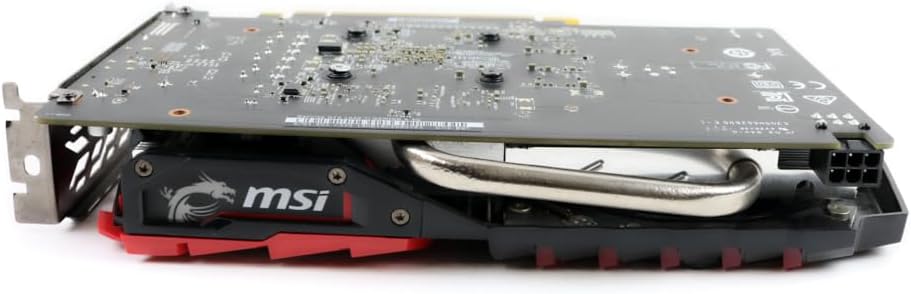
Image: Side view of the MSI Gaming GeForce GTX 1050 Ti graphics card, showing its profile and cooling solution, ready for installation.
- Secure Card: Secure the graphics card to the computer case with the screw or clip you removed earlier.
- Connect Power (if applicable): This graphics card requires a 6-pin PCIe power connector. Connect the 6-pin power cable from your power supply unit (PSU) to the corresponding port on the graphics card. Ensure the connection is firm.
4.3 Connecting Display Cables
Connect your monitor(s) to the appropriate output ports on the graphics card. This card supports DisplayPort, HDMI, and Dual-link DVI-D.
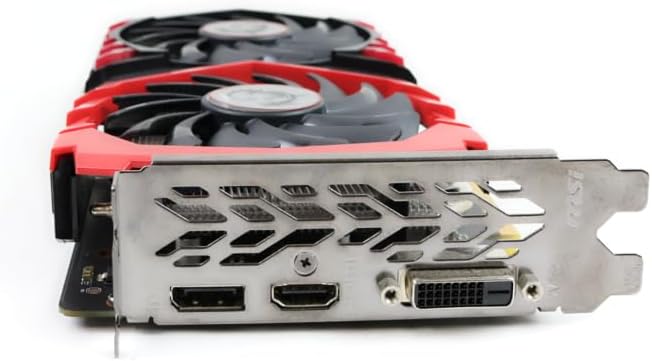
Image: Close-up view of the display output ports on the MSI Gaming GeForce GTX 1050 Ti, including DisplayPort, HDMI, and DVI-D.
4.4 Driver Installation
- Close Case: Once the card is installed and cables connected, close your computer case.
- Power On: Reconnect the power cord and turn on your computer.
- Install Drivers: If your operating system does not automatically install the necessary drivers, download the latest drivers from the official MSI website (www.msi.com) or NVIDIA website (www.nvidia.com). Follow the on-screen instructions to complete the installation.
5. Operating the Graphics Card
5.1 Initial Boot and Display Verification
After driver installation, your system should recognize the graphics card and display output correctly. You can verify this in your operating system's Device Manager.
5.2 Software Utilities
MSI provides several software utilities to enhance your experience:
- MSI Gaming App: Allows for quick performance mode switching (OC Mode, Gaming Mode, Silent Mode), LED control, and other system optimizations.
- MSI Afterburner: A widely recognized utility for graphics card overclocking, monitoring, and fan control. Use with caution and within recommended limits.
5.3 Multi-Monitor Setup
The graphics card supports up to three display monitors simultaneously. Connect your monitors to the available DisplayPort, HDMI, and DVI-D outputs. Configure your display settings within your operating system or through the NVIDIA Control Panel.

Image: Front view of the MSI Gaming GeForce GTX 1050 Ti graphics card, showcasing its dual TORX 2.0 fans and red/black design.
6. Maintenance
Regular maintenance helps ensure the longevity and optimal performance of your graphics card:
- Dust Removal: Periodically clean dust from the graphics card's heatsink and fans using compressed air. Ensure the computer is powered off and unplugged before cleaning. Hold the fan blades gently to prevent them from spinning too fast during cleaning, which can damage the bearings.
- Driver Updates: Keep your graphics drivers updated by regularly checking the MSI or NVIDIA websites for the latest versions. Driver updates often include performance improvements and bug fixes.
- Temperature Monitoring: Use software like MSI Afterburner to monitor the card's temperature during operation. Ensure temperatures remain within safe operating limits, especially during heavy loads.
7. Troubleshooting
If you encounter issues with your graphics card, try the following troubleshooting steps:
7.1 No Display Output
- Ensure the monitor is powered on and connected to the graphics card.
- Verify that the display cable is securely connected at both ends.
- Check if the graphics card is properly seated in the PCIe slot and that the 6-pin power connector is firmly attached.
- Try connecting the monitor to a different output port on the graphics card.
- Test the monitor with another device or try a different monitor.
7.2 Driver Issues or Instability
- Uninstall existing graphics drivers completely using a utility like Display Driver Uninstaller (DDU) in Safe Mode.
- Download and install the latest drivers directly from the MSI or NVIDIA website.
- Ensure your operating system is up to date.
7.3 Performance Problems
- Check the graphics card's temperature using monitoring software. High temperatures can lead to performance throttling.
- Ensure your power supply unit (PSU) meets the recommended 300W requirement and provides stable power.
- Close unnecessary background applications that may be consuming system resources.
- Verify that your system meets the minimum requirements for the applications or games you are running.
8. Specifications
| Feature | Specification |
|---|---|
| Chipset | NVIDIA GeForce GTX 1050 Ti |
| Video Memory | 4GB GDDR5 |
| Memory Interface | 128-bit |
| Boost Clock (OC Mode) | 1493 MHz |
| Memory Frequency (OC Mode) | 7108 MHz |
| Video Output | DisplayPort x 1, HDMI x 1, Dual-link DVI-D x 1 |
| Max Resolution | 2560 x 1600 (Supports 3x Display Monitors) |
| Dimensions | 9.1 x 5.2 x 1.5 inches |
| Item Weight | 12 ounces |
| Power Consumption | 75W |
| Recommended PSU | 300W |
| Power Connector | 6-Pin |
9. Warranty and Support
9.1 Warranty Information
For detailed warranty information regarding your MSI Gaming GeForce GTX 1050 Ti graphics card, please refer to the warranty card included with your product or visit the official MSI website. Warranty terms and conditions may vary by region and retailer.
9.2 Technical Support
If you require technical assistance or have questions not covered in this manual, please contact MSI customer support through their official website:
- MSI Official Website: www.msi.com
- Look for the 'Support' or 'Service' section to find contact information, FAQs, and driver downloads.


