
CHUWI CHUWI H7 Stylus Pen
CHUWI H7 Stylus Pen User Manual
Model: CHUWI H7 Stylus Pen
1. Introduction
Thank you for choosing the CHUWI H7 Stylus Pen. This active stylus is designed to enhance your digital experience on compatible devices, offering precise input for writing, drawing, and navigation. With 4096 levels of pressure sensitivity, it provides a natural and responsive feel. This manual will guide you through the setup, operation, and maintenance of your new stylus.
2. Safety Information
- Do not expose the stylus to extreme temperatures or direct sunlight.
- Avoid dropping the stylus or subjecting it to strong impacts.
- Keep the stylus away from water and other liquids.
- Do not attempt to disassemble or modify the stylus. This will void the warranty.
- Dispose of batteries according to local regulations.
3. Package Contents
Please check the package contents to ensure all items are present:
- CHUWI H7 Stylus Pen
- Replacement Pen Tip (may vary by package)
- User Manual (this document)
Note: AAAA battery is required for operation and is not included in the package.
4. Product Overview
Familiarize yourself with the components of your CHUWI H7 Stylus Pen:

Figure 4.1: Front view of the CHUWI H7 Stylus Pen, showcasing its sleek design and clip.

Figure 4.2: Detailed diagram illustrating the stylus components, including the tip, clip, right-click button, and eraser button. It also highlights the AAAA battery compartment.
- Tip: The fine point for precise writing and drawing.
- Clip: For attaching the stylus to a pocket or tablet cover.
- Right Click Button: Provides right-click functionality on compatible devices.
- Eraser Button: Activates the eraser function (primarily for Intel devices).
- Battery Compartment: Houses the AAAA battery.
5. Setup
5.1 Battery Installation
The CHUWI H7 Stylus Pen requires one AAAA battery (not included) for operation. Follow these steps to install the battery:
- Gently twist and pull the top cap of the stylus to reveal the battery compartment.
- Insert one AAAA battery into the compartment, ensuring the positive (+) and negative (-) ends are correctly aligned as indicated inside the compartment.
- Replace the top cap, twisting it gently until it is securely closed.
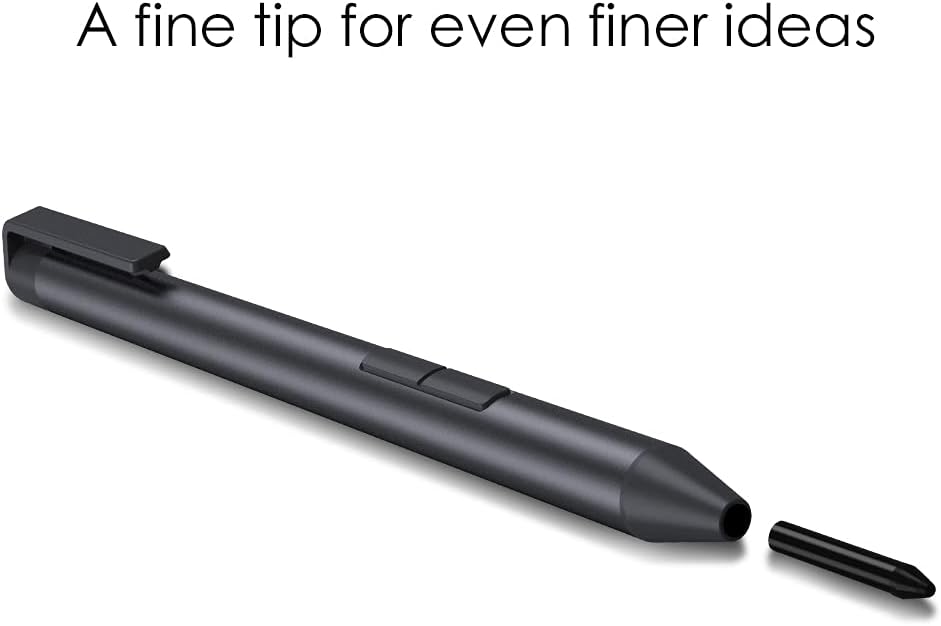
Figure 5.1: Illustration highlighting the AAAA battery requirement and the stylus's low power consumption design, which contributes to long battery life.
5.2 Initial Use and Pairing
The CHUWI H7 Stylus Pen utilizes active sensing technology and does not require manual pairing with your device. Once the AAAA battery is installed, the stylus is ready for use with compatible devices that support the MPP protocol.
6. Operating Instructions
6.1 Basic Operation
Simply touch the stylus tip to the screen of your compatible device to begin writing, drawing, or navigating. The stylus offers a natural and intuitive experience.

Figure 6.1: A hand demonstrating the use of the CHUWI H7 Stylus Pen on a tablet screen, illustrating its natural writing and drawing capabilities.
6.2 Pressure Sensitivity
The H7 stylus features 4096 levels of pressure sensitivity, allowing for varying line thickness and opacity based on how hard you press the tip against the screen. This provides a highly responsive and artistic experience.

Figure 6.2: The stylus in action, demonstrating its ability to create smooth, pressure-sensitive lines on a digital canvas.
6.3 Button Functions
- Right Click Button: Press and hold this button while touching the screen to activate the right-click function, similar to a mouse.
- Eraser Button: Press and hold this button while moving the stylus over digital ink to erase. Note that the eraser function is primarily available for Intel-based devices.
6.4 Compatibility
The CHUWI H7 Stylus Pen is compatible with devices that support the Microsoft Pen Protocol (MPP). This includes, but is not limited to, the following CHUWI models:
- CHUWI UBook X
- CHUWI UBook
- CHUWI UBook XPro
- CHUWI Hi10 X
- CHUWI FreeBook
- CHUWI Surpad
The stylus is also compatible with other Microsoft Surface PC series devices that support MPP.

Figure 6.3: An image showcasing the CHUWI H7 Stylus Pen's compatibility with various Microsoft Surface PC series devices, in addition to CHUWI tablets.
Models NOT supported:
- Hipad Xpro
- Hipad X
- Hipad max
- Hi10 go
- Hipad plus
- Minibook X
7. Maintenance
7.1 Cleaning the Stylus
To clean your stylus, gently wipe it with a soft, dry, lint-free cloth. Do not use abrasive cleaners, alcohol, or solvents, as these may damage the stylus finish or internal components.
7.2 Replacing the Pen Tip
Over time, the pen tip may wear down. If you notice reduced responsiveness or scratching on your screen protector, it may be time to replace the tip. Use a tip removal tool (if provided with replacement tips) or a pair of tweezers to gently pull out the old tip. Insert the new tip firmly until it clicks into place.

Figure 7.1: An image illustrating the removable tip of the CHUWI H7 Stylus Pen, indicating that the tip can be replaced for continued optimal performance.
7.3 Battery Replacement
When the stylus stops responding or its performance degrades, it is likely time to replace the AAAA battery. Follow the battery installation steps outlined in Section 5.1.
8. Troubleshooting
| Problem | Possible Cause | Solution |
|---|---|---|
| Stylus not responding. | Battery is dead or incorrectly installed. | Replace the AAAA battery or ensure it is installed correctly. |
| Inaccurate or inconsistent input. | Worn-out pen tip; screen protector interference; device compatibility issue. | Replace the pen tip. Ensure your device is compatible with MPP protocol. Remove any thick or damaged screen protectors. |
| Buttons (Right Click/Eraser) not working. | Software incompatibility; eraser function limited to Intel devices. | Ensure your application supports stylus button functions. For eraser, confirm your device is Intel-based. |
| Stylus feels uncomfortable after long use. | Improper grip. | Adjust your grip. The stylus is designed for ergonomic comfort. Take short breaks during extended use. |
9. Specifications
| Feature | Detail |
|---|---|
| Model Name | CHUWI H7 Stylus Pen |
| Pressure Sensitivity | 4096 Levels |
| Tip Size | 1.0mm (fine tip) |
| Battery Type | AAAA Alkaline Battery (not included) |
| Average Battery Life | Up to 6 hours (continuous use), 180 days (standby) |
| Connectivity | MPP (Microsoft Pen Protocol) |
| Color | Black |
| Material | Aluminum |
| Item Weight | 1.44 ounces (approx. 40.8g) |
| Dimensions | 6.38 x 2.05 x 0.67 inches (Package Dimensions) |
| Compatible Devices | CHUWI UBook X, Hi10 X, Surpad, UBook, FreeBook, UBook XPro Tablet PC, and other MPP-compatible devices. |
10. Warranty and Support
10.1 Service Period
The standard service period for CHUWI products, including tablets and laptops, is typically 1 year from the date of purchase. Please refer to your product's specific warranty card or purchase documentation for exact terms.
10.2 Contacting Support
For any issues, questions, or technical support, please contact CHUWI customer service. The most efficient way to get assistance is through your Amazon account:
- Log in to your Amazon account.
- Navigate to "Your Orders".
- Find the order for your CHUWI H7 Stylus Pen.
- Click on "Contact seller" to reach CHUWI's support team directly.
CHUWI is committed to providing professional and timely assistance to resolve any issues you may encounter.
Ask a question about this manual
Ask about setup, troubleshooting, compatibility, parts, safety, or missing instructions. Manuals+ will review the question and use this page’s manual context to help answer it.