
auna MG2-Worldwide CD WD
auna Worldwide CD Internet Radio User Manual
Model: MG2-Worldwide CD WD
Introduction
Thank you for choosing the auna Worldwide CD Internet Radio. This manual provides essential information for the safe and efficient operation of your device. Please read it thoroughly before use and keep it for future reference.
This versatile audio system combines traditional CD playback with modern internet radio, DAB/DAB+ digital radio, FM radio, Bluetooth connectivity, and USB playback. It also features Spotify Connect and multiroom functionality for a comprehensive listening experience.
Safety Instructions
Always observe the following safety precautions to prevent electric shock, fire, or damage to the device.
- Power Source: Use only the provided power adapter. Ensure the voltage matches your local power supply.
- Ventilation: Do not block any ventilation openings. Place the device on a stable, flat surface with adequate space around it for proper airflow.
- Water and Moisture: Do not expose the device to rain, moisture, or dripping/splashing liquids. Do not place objects filled with liquids, such as vases, on the device.
- Heat Sources: Keep the device away from heat sources such as radiators, heat registers, stoves, or other apparatus (including amplifiers) that produce heat.
- Cleaning: Unplug the device from the power outlet before cleaning. Use a soft, dry cloth only. Do not use liquid cleaners or aerosol cleaners.
- Servicing: Do not attempt to service this product yourself. Refer all servicing to qualified service personnel.
- Object and Liquid Entry: Never push objects of any kind into this product through openings as they may touch dangerous voltage points or short-out parts that could result in a fire or electric shock.
Package Contents
Please check that all items are present and in good condition:
- 1 x auna Worldwide CD Internet Radio Unit
- 1 x Power Adapter
- 1 x Remote Control (Battery not included for remote control, typically CR2025)
- 1 x User Manual (English, French, German)
Product Overview
The auna Worldwide CD Internet Radio features a sleek design with a walnut finish, integrating seamlessly into various home environments. Below is an overview of its main components and dimensions.

Figure 1: Front view of the auna Worldwide CD Internet Radio.

Figure 2: Dimensions of the auna Worldwide CD Internet Radio (Width: 45cm, Height: 18cm, Depth: 26cm).
Front Panel Controls and Display
The front panel houses the main controls, display, and media inputs for easy access.

Figure 3: Detailed view of the LCD display and front panel controls, including volume knob, select button, and navigation buttons.
- LCD Display: Shows current mode, station information, time, and menu options.
- Power Button: Turns the unit on or off.
- Volume Knob: Adjusts the audio output level.
- Select Button: Confirms selections in menus.
- Navigation Buttons: For navigating menus and tuning stations (Tuning/Skip, Back).
- Mode Button: Switches between different audio sources (Internet Radio, DAB, FM, CD, USB, Bluetooth, AUX).
- Info Button: Displays additional information about the current track or station.
- Menu Button: Accesses the main menu.
- CD Tray: For inserting audio CDs.
- USB Port (5V/1A): For connecting USB storage devices and charging.
- Audio In (3.5mm AUX): For connecting external audio sources.
Setup
1. Power Connection
Connect the provided power adapter to the DC IN port on the rear of the radio and then plug it into a wall outlet. The unit will enter standby mode.
2. Antenna Connection
Extend the telescopic antenna fully for optimal DAB/DAB+ and FM radio reception.
3. Initial Setup Wizard
Upon first power-on, the radio will guide you through an initial setup wizard. Follow the on-screen prompts to configure:
- Language: Select your preferred language.
- Network Connection: The radio will scan for available Wi-Fi networks. Select your network and enter the password using the navigation and select buttons. A stable internet connection is required for Internet Radio and Spotify Connect features.
- Time and Date: Set the correct time and date, or allow the radio to synchronize automatically via network or DAB signal.
4. Remote Control Battery Installation
Insert one CR2025 battery (not included) into the remote control, ensuring correct polarity.
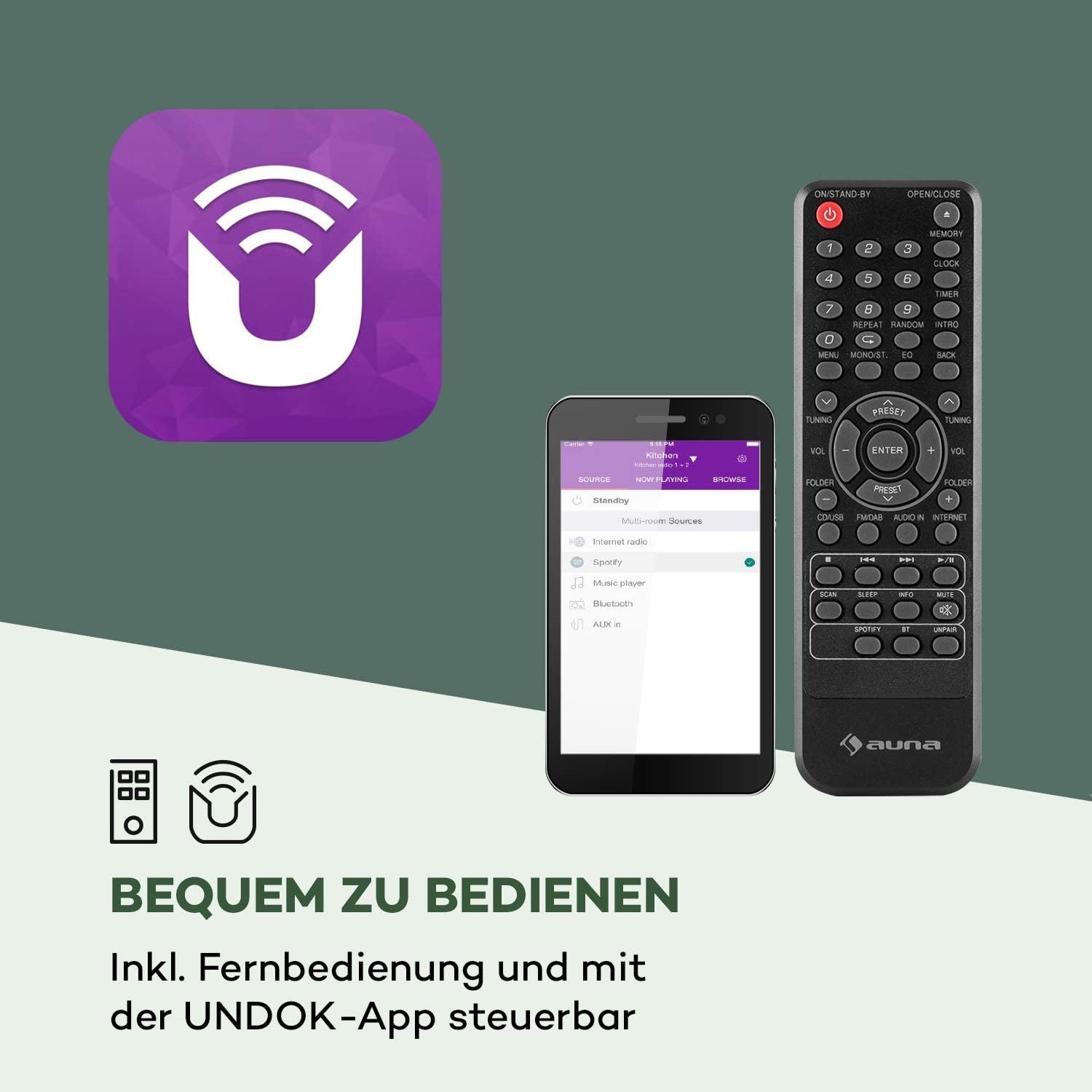
Figure 4: The included remote control and the UNDOK app interface.
Operating Instructions
Basic Operation
- Power On/Off: Press the Power button on the unit or remote control.
- Volume Adjustment: Rotate the Volume knob or use the VOL +/- buttons on the remote.
- Source Selection: Press the Mode button on the unit or remote to cycle through available sources (Internet Radio, DAB, FM, CD, USB, Bluetooth, AUX).
Internet Radio
Access thousands of radio stations from around the world via your internet connection.

Figure 5: The radio seamlessly integrates into your home, offering a vast selection of over 10,000 internet radio stations.
- Select "Internet Radio" as the source.
- Navigate through categories (e.g., Location, Genre, Popular) using the navigation buttons and press Select to confirm.
- You can save your favorite stations as presets for quick access.
DAB/DAB+ Radio
Enjoy high-quality digital radio broadcasts.
- Select "DAB Radio" as the source.
- The radio will automatically scan for available DAB/DAB+ stations.
- Use the navigation buttons to select a station from the list.
FM Radio
Tune into traditional FM radio stations.
- Select "FM Radio" as the source.
- Use the Tuning/Skip buttons to manually tune or auto-scan for stations.
CD Player
Play your favorite audio CDs.

Figure 6: The integrated CD player supports standard audio CDs and MP3-compatible discs.
- Gently insert an audio CD into the CD slot. The radio will automatically switch to CD mode and begin playback.
- Use the playback controls (Play/Pause, Stop, Skip) on the unit or remote.
USB Playback
Play music files from a USB flash drive.

Figure 7: The USB port allows playback of various audio formats from a USB storage device.
- Insert a USB flash drive into the USB port on the front panel.
- Select "USB" as the source. The radio will display the folder structure.
- Navigate and select your desired audio files. Supported formats include MP3, WMA, WAV, AAC, FLAC.
Bluetooth Connectivity
Stream audio wirelessly from your Bluetooth-enabled devices.

Figure 8: Wireless flexibility is provided through the Bluetooth interface, allowing connection to smartphones, tablets, and laptops.
- Select "Bluetooth" as the source. The radio will enter pairing mode.
- On your Bluetooth device (smartphone, tablet, etc.), search for "auna Worldwide CD" and connect.
- Once paired, you can play audio from your device through the radio.
AUX Input
Connect external audio devices using a 3.5mm audio cable.
- Connect one end of a 3.5mm audio cable to the "Audio In" port on the radio and the other end to the headphone jack or audio output of your external device.
- Select "AUX" as the source.
Spotify Connect
Stream music directly from your Spotify account to the radio.

Figure 9: Spotify Connect enables seamless music streaming and multiroom audio experiences.
- Ensure your radio is connected to the same Wi-Fi network as your device running the Spotify app.
- Open the Spotify app on your smartphone or tablet.
- Play a song and tap the "Devices Available" icon (speaker icon).
- Select your auna Worldwide CD radio from the list.
App Control (UNDOK App)
Control your radio conveniently from your smartphone or tablet using the UNDOK app.
- Download the "UNDOK" app from your device's app store (iOS App Store or Google Play Store).
- Ensure your smartphone/tablet and the radio are connected to the same Wi-Fi network.
- Open the UNDOK app, and it will automatically detect your radio.
- You can now control all functions of the radio, including source selection, station tuning, volume, and multiroom settings.
Alarm Clock and Timer Functions
The radio features dual alarms, a snooze function, and a sleep timer.
- Setting Alarms: Access the "Alarm" option in the main menu. You can set two independent alarms with customizable time, source (buzzer, internet radio, DAB, FM), and repetition (daily, once, weekdays, weekends).
- Snooze: When an alarm sounds, press any button (except Power) to activate snooze for a short period.
- Sleep Timer: Access the "Sleep" option in the main menu. Set a timer (e.g., 15, 30, 60 minutes) after which the radio will automatically turn off.
Multiroom Function
Connect multiple compatible auna devices to create a synchronized multiroom audio system, controlled via the UNDOK app.
- Ensure all multiroom devices are connected to the same Wi-Fi network.
- Use the UNDOK app to group devices and play synchronized audio across different rooms.
Maintenance
Proper care will ensure the longevity of your auna Worldwide CD Internet Radio.
- Cleaning: Disconnect the power before cleaning. Use a soft, dry, lint-free cloth to wipe the surfaces. Do not use abrasive cleaners, waxes, or solvents.
- CD Player: Handle CDs by their edges to avoid fingerprints. If the CD player experiences issues, try cleaning the lens with a specialized CD lens cleaner.
- Storage: If storing the unit for an extended period, unplug it from the power outlet and store it in a cool, dry place.
Troubleshooting
If you encounter any issues, please refer to the table below for common problems and their solutions.
| Problem | Possible Cause | Solution |
|---|---|---|
| No power | Power adapter not connected; Power outlet not active. | Ensure power adapter is securely connected and the outlet is working. |
| No sound | Volume too low; Mute function active; Incorrect source selected. | Increase volume; Check if mute is on; Select the correct audio source. |
| Cannot connect to Wi-Fi | Incorrect password; Router too far; Network issue. | Verify Wi-Fi password; Move radio closer to router; Restart router. |
| Poor radio reception (DAB/FM) | Antenna not extended; Weak signal. | Fully extend the telescopic antenna; Reposition the radio for better signal. |
| CD not playing | CD inserted incorrectly; Disc is dirty or scratched; Unsupported disc format. | Re-insert CD correctly; Clean the disc; Ensure it's an audio CD or compatible MP3 CD. |
| Bluetooth pairing fails | Radio not in pairing mode; Device too far; Bluetooth interference. | Ensure radio is in Bluetooth mode; Move devices closer; Turn off other Bluetooth devices. |
Specifications
Detailed technical specifications for the auna Worldwide CD Internet Radio.
| Feature | Detail |
|---|---|
| Brand | auna |
| Model Number | MG2-Worldwide CD WD |
| Product Dimensions (W x H x D) | 45 cm x 18 cm x 26 cm |
| Weight | 2.6 Kilograms |
| Connectivity Technology | USB, 3.5 mm audio, Bluetooth, Wi-Fi |
| Supported Radio Bands | Internet Radio, DAB/DAB+, FM |
| Output Power | 2 x 5 Watt RMS |
| Supported Playback Formats | MP3, WMA, WAV, AAC, FLAC |
| Display Technology | LCD |
| Special Features | CD Player, Spotify Connect, UNDOK App Control, Multiroom Function, Alarm Clock, Sleep Timer, USB Charging (5V, 1A) |
| Power Supply | 220-240 V~ | 50/60 Hz |
Warranty and Support
For warranty information and technical support, please refer to the documentation included with your product or visit the official auna website. Keep your proof of purchase for any warranty claims.
For further assistance, you may contact auna customer service directly.
Related documentsMG2-Worldwide CD WD


Ask a question about this manual
Ask about setup, troubleshooting, compatibility, parts, safety, or missing instructions. Manuals+ will review the question and use this page’s manual context to help answer it.