
1. Introduction
This manual provides detailed instructions for the operation and maintenance of your AUNA Worldwide Internet Radio. Please read this manual thoroughly before using the device to ensure proper function and to prevent damage. Keep this manual for future reference.
The AUNA Worldwide Internet Radio is a versatile audio system featuring Internet Radio, DAB/DAB+ and FM tuners, a CD player, Bluetooth connectivity, USB playback, and AUX input. It offers a wide range of listening options and convenient control features.
2. Safety Instructions
- Read all instructions before operating the device.
- Do not expose the device to rain or moisture to prevent fire or electric shock.
- Ensure proper ventilation. Do not block any ventilation openings.
- Place the device on a stable, flat surface.
- Use only the power adapter supplied with the device.
- Unplug the device during lightning storms or when unused for long periods.
- Do not attempt to repair the device yourself. Refer all servicing to qualified personnel.
3. Package Contents
Please check that all items are present and in good condition:
- 1 x AUNA Worldwide Internet Radio Unit
- 1 x Power Adapter
- 1 x Remote Control
- 1 x User Manual (German, English, French)
4. Product Overview
The AUNA Worldwide Internet Radio features a sleek design with intuitive controls and a clear LCD display.

Image 4.1: Front view of the AUNA Worldwide Internet Radio, showcasing the central LCD display, control knobs, buttons for various functions (USB, Audio In, Mode, Scan, Stop, Tuning, Back), and the CD slot. Two speaker grilles are visible on either side.

Image 4.2: A close-up of the radio's LCD display, showing 'Internet Radio' mode with 'Burn FM' and 'AIM - Wicked Game' displayed. The volume knob and 'SELECT' button are prominent, along with power and mode buttons.
4.1 Front Panel Controls
- Power Button: Turns the unit on/off or into standby mode.
- LCD Display: Shows current mode, station information, time, and date.
- Volume Knob: Adjusts the audio output level.
- Select Knob/Button: Navigates menus and confirms selections.
- USB Port (5V 1A): For connecting USB storage devices and charging.
- AUDIO IN (3.5mm AUX): For connecting external audio sources.
- Mode Button: Switches between different operating modes (Internet Radio, DAB, FM, CD, Bluetooth, USB, AUX).
- Scan Button: Initiates station scanning in radio modes.
- Stop/Play/Pause Buttons: Controls playback for CD, USB, and Bluetooth.
- Tuning/Skip Buttons: Navigates through stations or tracks.
- Back Button: Returns to the previous menu or screen.
- Info Button: Displays additional information about the current track or station.
- Menu Button: Accesses the main system menu.
4.2 Rear Panel Connections
- DC IN: Power adapter connection.
- Telescopic Antenna: For DAB/DAB+ and FM reception.
5. Setup
5.1 Power Connection
- Connect the supplied power adapter to the DC IN port on the rear of the radio.
- Plug the power adapter into a standard wall outlet (220-240V ~ | 50/60Hz).
- Press the Power button on the front panel to turn on the device.
5.2 Antenna Setup
Extend the telescopic antenna fully for optimal DAB/DAB+ and FM radio reception. Adjust its position to improve signal strength if needed.
5.3 Network Connection (Wi-Fi)
To access Internet Radio and Spotify Connect, the device requires a Wi-Fi connection.
- Upon first power-on, the radio will guide you through the initial setup, including Wi-Fi configuration.
- Alternatively, navigate to Menu > System Settings > Network > Wi-Fi Setup.
- The radio will scan for available Wi-Fi networks. Select your network from the list.
- Enter your Wi-Fi password using the Select knob and buttons.
- Once connected, the Wi-Fi icon will appear on the display.

Image 5.1: A hand holding a smartphone with a Wi-Fi symbol, illustrating the wireless connectivity feature of the AUNA radio, which allows for remote control via an app.
6. Operating Instructions
6.1 Basic Controls
- Power On/Off: Press the Power button.
- Volume Adjustment: Rotate the Volume knob.
- Mode Selection: Press the Mode button repeatedly to cycle through available sources (Internet Radio, DAB, FM, CD, Bluetooth, USB, AUX).
- Menu Navigation: Use the Select knob to scroll and press to confirm. Use the Back button to return.
6.2 Internet Radio
Access thousands of radio stations from around the world via your Wi-Fi connection.
- Select 'Internet Radio' mode using the Mode button.
- Navigate through categories (e.g., Location, Genre, Popular) using the Select knob.
- Select a station to begin playback.
6.3 DAB/DAB+ Radio
Enjoy digital radio broadcasts with clear sound quality.
- Select 'DAB' mode.
- The radio will automatically scan for available DAB/DAB+ stations on first use or if you initiate a scan via the Menu.
- Use the Tuning/Skip buttons to browse through the station list.
6.4 FM Radio
Tune into traditional analog FM broadcasts.
- Select 'FM' mode.
- Press the Scan button to automatically search for and store available stations.
- Use the Tuning/Skip buttons for manual tuning or to navigate stored stations.
- The RDS function provides additional information like station name and program details.
6.5 CD Player
Play your favorite audio CDs and MP3 CDs.

Image 6.1: A close-up of the AUNA Worldwide Internet Radio, showing a CD being inserted into the slot-loading CD player, highlighting its capability to play physical media.
- Select 'CD' mode.
- Insert an audio CD or MP3 CD into the slot. The disc will be loaded automatically.
- Playback will start automatically. Use the Play/Pause, Stop, and Skip buttons to control playback.
6.6 Bluetooth Connectivity
Stream audio wirelessly from your Bluetooth-enabled devices.
- Select 'Bluetooth' mode. The radio will enter pairing mode, indicated on the display.
- On your smartphone, tablet, or other Bluetooth device, enable Bluetooth and search for 'AUNA Worldwide'.
- Select the radio from your device's list to pair. Once connected, you can stream audio.
6.7 USB Playback
Play MP3 and WMA files from a USB storage device.
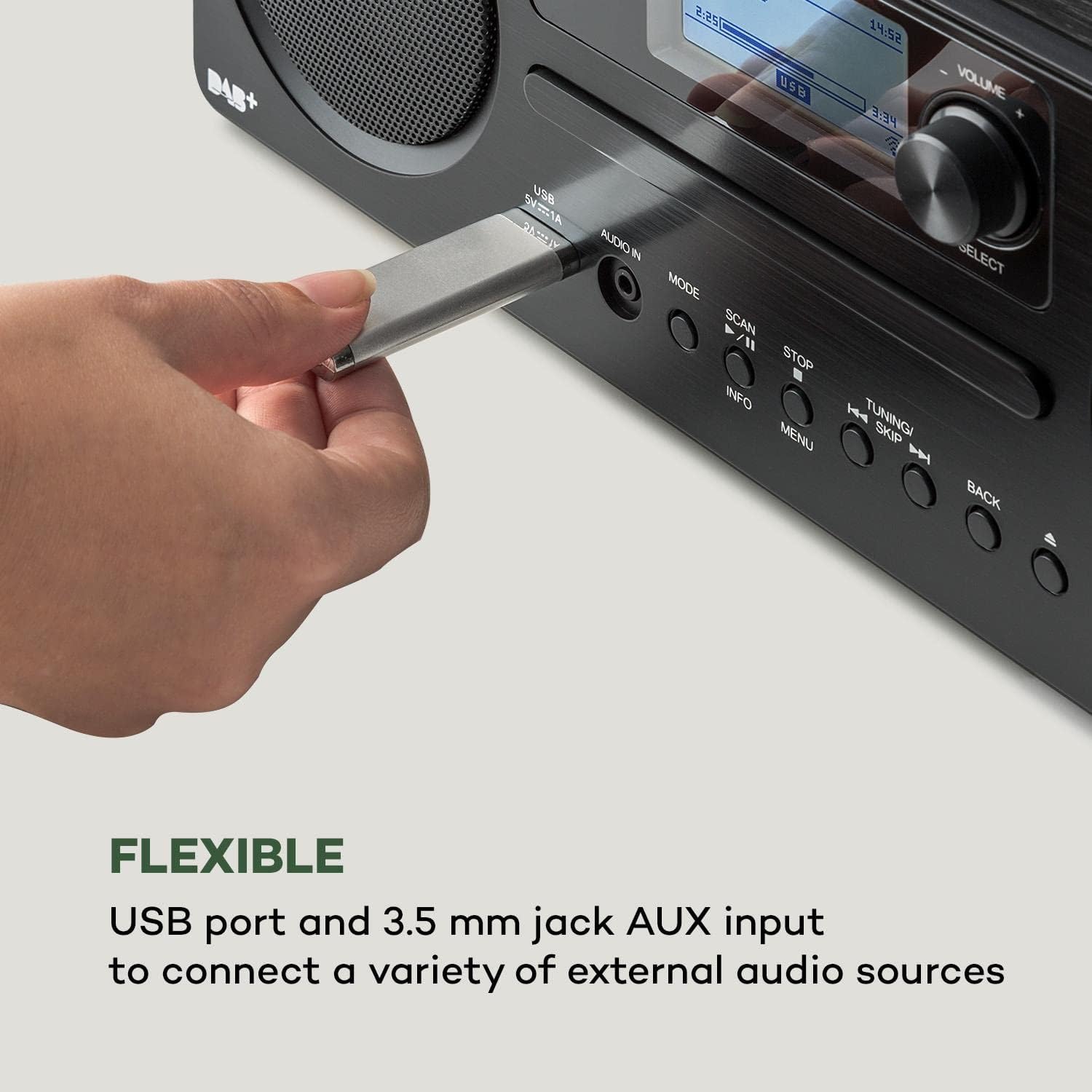
Image 6.2: A close-up view of a USB stick inserted into the USB port on the front panel of the AUNA Worldwide Internet Radio, demonstrating its capability for playing media from external storage.
- Insert a USB storage device into the USB port on the front panel.
- Select 'USB' mode. The radio will automatically detect and display the content.
- Navigate through folders and files using the Select knob and buttons. Use playback controls as needed.
6.8 AUX Input
Connect external audio devices using a 3.5mm audio cable.
- Connect your external audio device to the 'AUDIO IN' (3.5mm AUX) port on the front panel.
- Select 'AUX' mode.
- Control playback from your connected external device.
6.9 Spotify Connect
Stream music directly from your Spotify account.
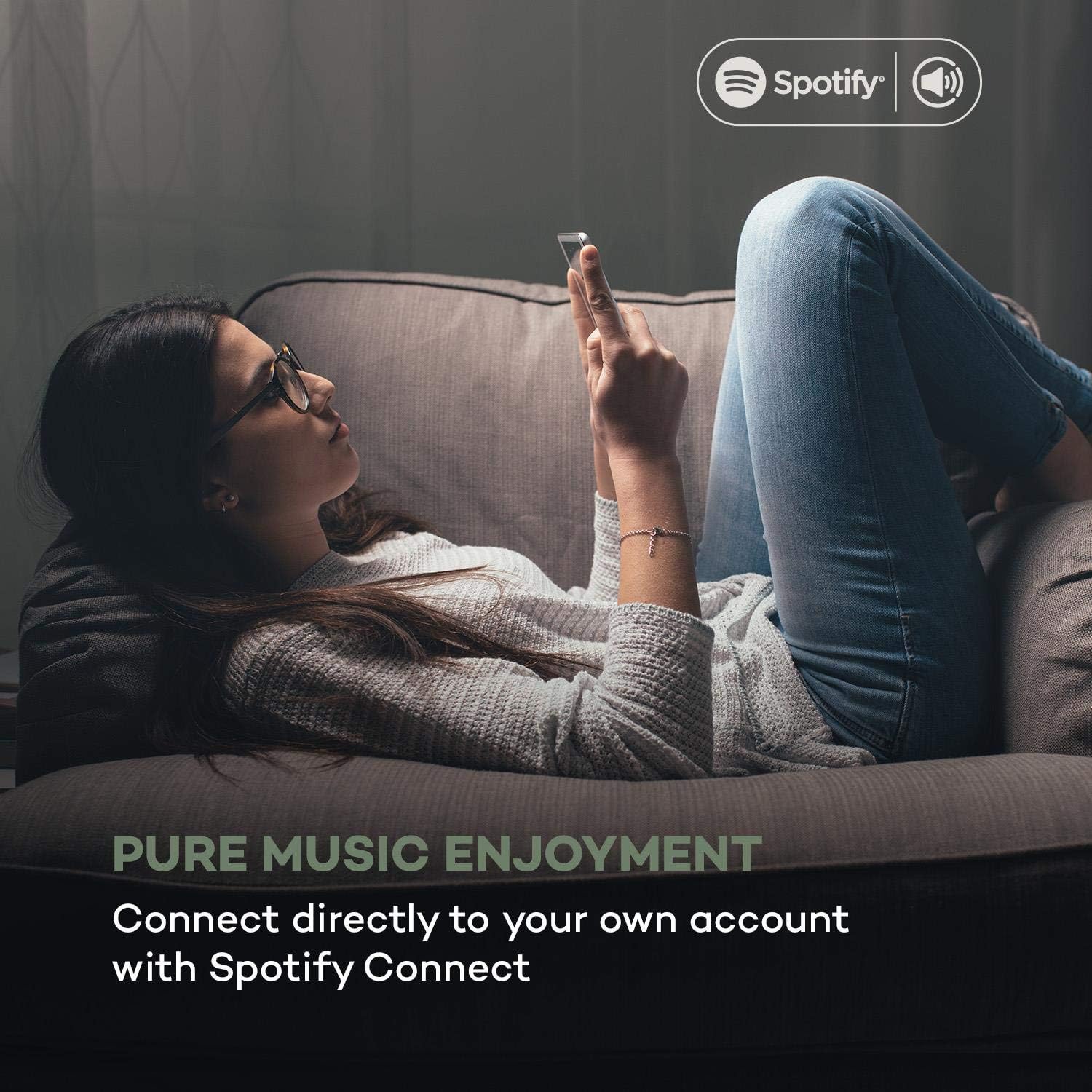
Image 6.3: A person relaxing on a couch, using a smartphone with the Spotify logo visible, illustrating the convenience of Spotify Connect for streaming music directly to the AUNA radio.
- Ensure your radio is connected to the same Wi-Fi network as your smartphone or tablet running the Spotify app.
- Open the Spotify app on your device.
- Play a song and select the 'Devices Available' icon.
- Choose your AUNA Worldwide radio from the list to start streaming.
6.10 UNDOK App Control
Control your radio remotely using the UNDOK app on your smartphone or tablet.

Image 6.4: A screenshot of the UNDOK app interface on a smartphone, displayed next to the physical remote control for the AUNA radio, demonstrating the dual control options available to the user.
- Download the 'UNDOK' app from your device's app store.
- Ensure your radio and smartphone/tablet are connected to the same Wi-Fi network.
- Open the UNDOK app. It will automatically detect your AUNA radio.
- Select your radio within the app to gain full control over modes, stations, volume, and settings.
6.11 Alarm Functions
The radio includes dual alarm, sleep timer, and snooze functions.
- Navigate to Menu > Alarms to set up dual alarms with customizable sources (buzzer, radio) and schedules.
- Set a Sleep Timer via the Menu to automatically turn off the radio after a set period.
- When an alarm sounds, press the Snooze button (often the Select knob) to temporarily silence it.
7. Maintenance
- Cleaning: Use a soft, dry cloth to clean the exterior of the unit. Do not use abrasive cleaners or solvents.
- CD Player: Keep the CD slot free from dust and debris. Do not insert damaged or dirty CDs.
- Storage: If storing the unit for an extended period, unplug it from the power outlet and store it in a cool, dry place.
8. Troubleshooting
| Problem | Possible Cause | Solution |
|---|---|---|
| No power | Power adapter not connected; outlet not working. | Check power adapter connection; try a different outlet. |
| No sound | Volume too low; incorrect source selected. | Increase volume; ensure correct mode (e.g., Internet Radio, CD) is selected. |
| Internet Radio not connecting | Wi-Fi connection issue; incorrect password. | Check Wi-Fi settings and password; ensure router is working; restart radio and router. |
| Poor DAB/FM reception | Antenna not extended; weak signal. | Fully extend and adjust the telescopic antenna; try repositioning the unit. |
| CD not playing | CD inserted incorrectly; CD is dirty or scratched. | Re-insert CD correctly; clean or try a different CD. |
| Bluetooth not pairing | Radio not in pairing mode; device too far. | Ensure radio is in Bluetooth mode; bring devices closer; restart Bluetooth on both devices. |
9. Specifications
- Model: MG2-2200-gfvd
- Power Supply: 220-240 V ~ | 50/60 Hz (via power adapter)
- Output Power: 2 x 5 W RMS
- Supported Playback Formats: MP3, WMA, WAV, AAC, FLAC
- Connections: 1 x USB port (5 V, 1 A charging function), 1 x 3.5 mm jack AUX input, Bluetooth, Wi-Fi
- Radio Tuners: Internet Radio, DAB/DAB+, FM/AM
- Special Features: Spotify Connect, UNDOK App Control, LCD Display, Time and Date Display, Standby Function, Alarm Functions (Dual Alarm, Sleep Timer, Snooze), RDS Function
- Dimensions (W x H x D): 35 x 12 x 20 cm
- Weight: Approx. 2.6 kg
- Color: Black
10. Warranty and Support
AUNA products are designed and manufactured to the highest quality standards. In the unlikely event of a problem with your device, please refer to the troubleshooting section of this manual. If the issue persists, please contact your retailer or authorized service center for assistance.
Please retain your proof of purchase for warranty claims. Information regarding spare parts availability and software updates is not available at this time.
