
TMEZON MZ-HD1004M-K4-00/JP
TMEZON 4-Channel 1080P HD Security Camera System User Manual
Model: MZ-HD1004M-K4-00/JP
Introduction
This manual provides comprehensive instructions for the installation, operation, and maintenance of your TMEZON 4-Channel 1080P HD Security Camera System. Please read this manual carefully before using the product to ensure proper setup and functionality. This system is designed for reliable surveillance with remote monitoring capabilities and motion detection features.

Image: The TMEZON 4-channel 1080P HD security camera system, featuring four white bullet cameras, a black Digital Video Recorder (DVR) unit, and a 1TB hard disk drive (HDD).
Package Contents
Verify that all items listed below are included in your package. If any items are missing or damaged, please contact customer support.
- 1 x Digital Video Recorder (DVR) with 1TB HDD pre-installed
- 4 x 1080P HD Weatherproof CCTV Cameras
- 4 x 18.3m BNC Video Cables
- 1 x USB Mouse
- 1 x 4-way Power Splitter Cable
- 1 x Power Adapter for DVR
- Mounting Screws and Wall Plugs

Image: A visual representation of the TMEZON security camera system's components, including four cameras, the DVR, BNC cables, a 1TB HDD, a USB mouse, a 4-way power splitter, a power adapter, and mounting screws.
Setup Guide
1. Physical Installation
- Mount Cameras: Choose suitable locations for your cameras, ensuring they cover the desired surveillance areas. Securely mount each camera using the provided screws and wall plugs.
- Connect Cameras to DVR: Connect one end of each 18.3m BNC video cable to the corresponding video input port on the DVR (V1, V2, V3, V4). Connect the other end to the video output of each camera.
- Connect Power to Cameras: Use the 4-way power splitter cable to connect all four cameras to a single power adapter (not explicitly listed as included, but implied by the splitter). Ensure all cameras receive power.
- Connect DVR to Monitor: Connect the DVR to a monitor or TV using an HDMI or VGA cable for local viewing.
- Connect DVR to Network (Optional for Remote Viewing): Connect the DVR's LAN port to your router using an Ethernet cable. This is necessary for remote access via smartphone or PC.
- Connect USB Mouse: Plug the USB mouse into one of the USB ports on the DVR for system navigation.
- Power On: Connect the DVR's power adapter to the DVR and then to a power outlet. The system will power on automatically.

Image: A detailed diagram illustrating the various connection ports on the TMEZON DVR, including video inputs, audio input/output, HDMI, VGA, LAN, USB ports for mouse and power adapter, and connections to a monitor/TV and router.
2. Initial System Configuration
Upon first boot, follow the on-screen prompts to set up basic system parameters such as language, date/time, and network settings. Ensure the network settings are correctly configured for remote access.
Operating Instructions
Remote Viewing via Smartphone App (XMEYE)
- Download App: Search for "XMEYE" in your smartphone's app store (available for iPhone and Android).
- Register Account: Create a new account within the XMEYE app.
- Add Device: In the app, select "Add Device" and scan the QR code displayed on your DVR's monitor (usually found in the network settings or P2P menu). Alternatively, manually enter the device ID.
- Live View & Playback: Once the device is added, you can view live feeds from all cameras and play back recorded footage from anywhere with WiFi, 2G, 3G, or 4G internet access.
Motion Detection and Alerts
The system can notify you of unexpected activity through customizable motion detection areas and alerts.
- Customize Detection Area: Access the DVR's motion detection settings. You can define specific areas within each camera's view where motion will trigger an alert. This helps minimize false alarms.
- Smart Notifications: When motion is detected, the system can push image-attached smart notifications directly to your iPhone or Android app.
- Email Alerts: Configure the DVR to send alarm messages with images to your specified email address upon motion detection.

Image: A screenshot demonstrating how to set up customizable motion detection areas within the camera's view on the DVR interface, highlighting the grid overlay for precise selection.

Image: An illustration showing the process of motion detection triggering an email alert and a mobile notification on a smartphone, indicating an event has occurred.
Recording Modes
The system offers three primary recording modes to suit various surveillance needs:
- Normal Recording: Continuous 24-hour recording to ensure constant security coverage of your property.
- Motion Detection Recording: Recording is triggered only when motion is detected within the camera's configured area. This mode significantly conserves HDD storage space.
- Scheduled Recording: Set specific time periods for the system to record. This allows for recording only during relevant hours, optimizing storage and review time.

Image: A visual guide explaining the three recording modes: Normal Recording (continuous), Motion Detection Recording (event-triggered), and Scheduled Recording (time-based), with examples of each.
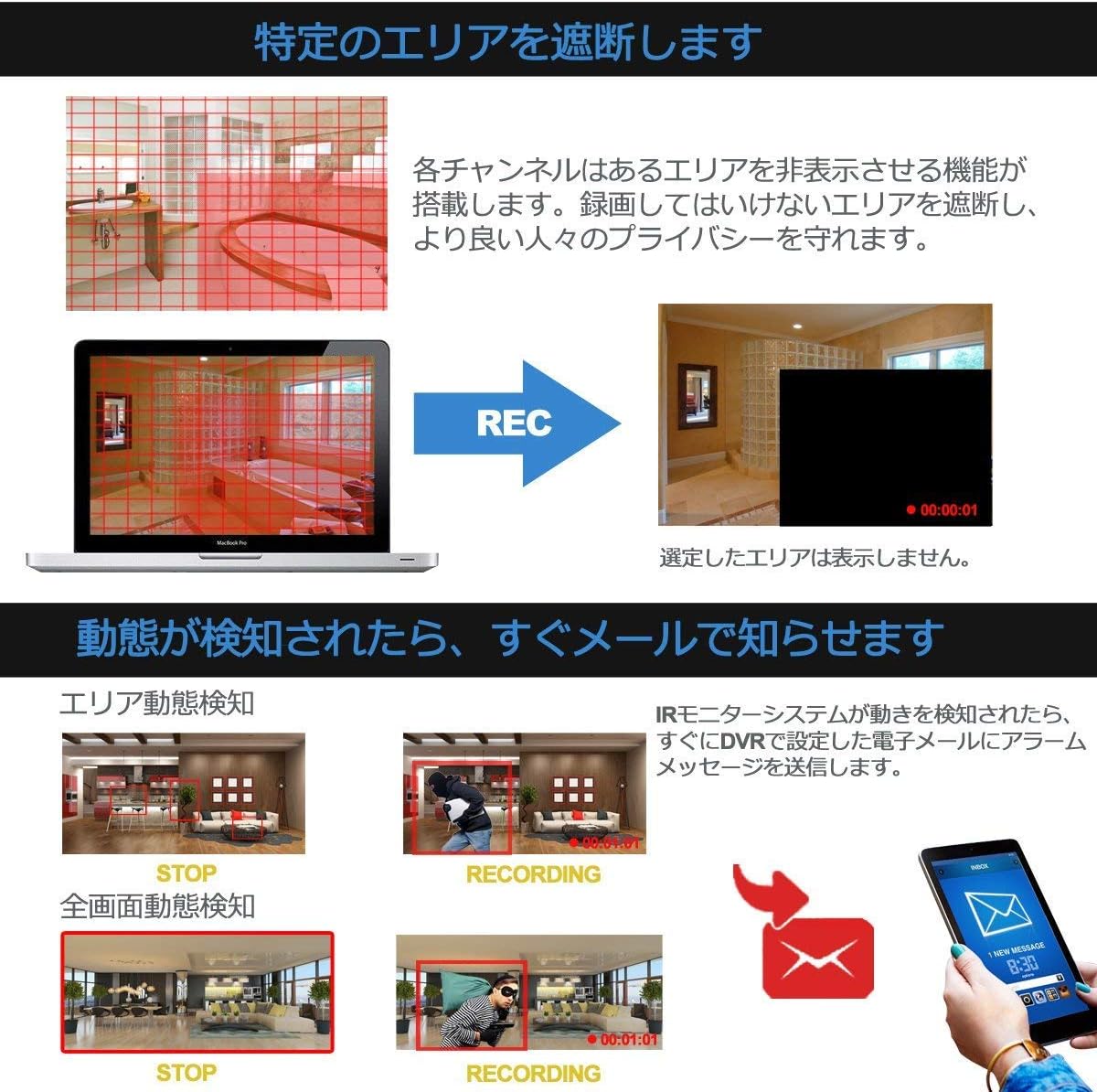
Image: A comparison demonstrating the difference in video quality between 1080P and 720P resolutions, highlighting that 1080P provides a larger and clearer image.
Maintenance
- Regular Cleaning: Periodically clean the camera lenses and DVR unit to prevent dust buildup, which can affect image quality and system performance. Use a soft, dry cloth.
- Check Connections: Ensure all cables (video, power, network) are securely connected to prevent signal loss or power interruptions.
- Firmware Updates: Check the TMEZON official website for any available firmware updates for your DVR. Keeping the firmware updated can improve performance and add new features.
- HDD Health: Monitor the health of the 1TB HDD through the DVR's system settings. Replace the HDD if signs of failure are detected to avoid data loss.
Troubleshooting
| Problem | Possible Cause | Solution |
|---|---|---|
| No image on monitor/TV | Loose video cable, incorrect input selected on monitor, DVR not powered on. | Check all video cable connections. Ensure monitor input is set to HDMI/VGA. Verify DVR power indicator is on. |
| Cannot access remotely via app | DVR not connected to network, incorrect network settings, app not configured correctly. | Ensure DVR is connected to router via Ethernet. Check DVR network settings (DHCP enabled or static IP configured). Verify device ID/QR code in XMEYE app. Ensure router allows outgoing connections. |
| Motion detection alerts not working or too frequent | Motion detection not enabled, sensitivity too low/high, detection area not set. | Enable motion detection in DVR settings. Adjust sensitivity. Define specific detection areas to exclude irrelevant movements (e.g., trees swaying). |
| No recording | HDD full or faulty, recording schedule not set, motion detection not triggered. | Check HDD status and capacity. Review recording schedule. If using motion detection, ensure it's configured correctly and events are occurring. |
Specifications
| Feature | Detail |
|---|---|
| Brand | TMEZON |
| Model Number | MZ-HD1004M-K4-00/JP |
| Product Type | Security Camera Set |
| Video Capture Resolution | 1080p |
| Connectivity Technology | Wired (cameras to DVR), Network (DVR to router for remote access) |
| Special Features | Smartphone compatibility, Motion Alert |
| Color | White (cameras), Black (DVR) |
| Product Dimensions (LxWxH) | 33.8 x 20 x 31 cm |
| Item Weight | 4.58 kg |
| Storage | 1TB HDD included |
Warranty and Support
TMEZON offers a 2-year warranty for this product, providing peace of mind for new users. Additionally, a 30-day money-back guarantee is provided.
For any questions, issues, or support inquiries regarding your TMEZON security camera system, please contact our customer support team:
Email: tmezoncctvsystem@yahoo.com
When contacting support, please provide your product model number (MZ-HD1004M-K4-00/JP) and a detailed description of your issue.
Related documentsMZ-HD1004M-K4-00/JP


Ask a question about this manual
Ask about setup, troubleshooting, compatibility, parts, safety, or missing instructions. Manuals+ will review the question and use this page’s manual context to help answer it.