
ALLIMITY HTR-A18M
ALLIMITY HTR-A18M Remote Control User Manual
For Haier LCD LED Televisions
1. Introduction
This user manual provides comprehensive instructions for the ALLIMITY HTR-A18M replacement remote control. This remote is designed to be compatible with a wide range of Haier LCD and LED television models, offering a direct replacement for your original remote without the need for complex programming. Please read this manual carefully to ensure proper use and to maximize your viewing experience.
2. Product Overview
The ALLIMITY HTR-A18M remote control features a standard layout for easy navigation and control of your Haier TV. Below is an image of the remote with a description of its key functions.
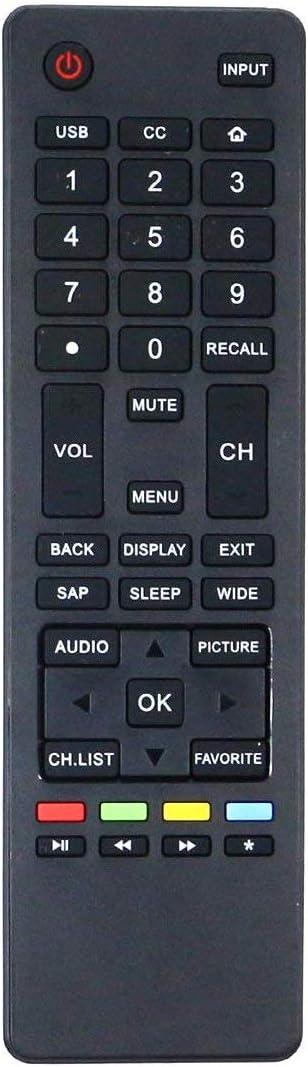
Image 1: ALLIMITY HTR-A18M Remote Control. This black rectangular remote control features a standard button layout. At the top are the Power and Input buttons. Below them are the numeric keypad (0-9), along with dedicated buttons for USB, CC (Closed Captioning), and Home. The central section includes Volume and Channel controls, Mute, Menu, Back, Display, Exit, SAP, Sleep, and Wide buttons. Navigation is handled by directional arrows and an OK button. The bottom section contains CH.LIST, FAVORITE, and colored media control buttons (Red, Green, Yellow, Blue) along with playback controls (Play/Pause, Rewind, Fast Forward) and an asterisk button.
Button Functions
| Button | Function |
|---|---|
| Power (Red Circle) | Turns the TV on or off. |
| INPUT | Selects the input source (e.g., HDMI, AV, USB). |
| USB | Direct access to USB media playback. |
| CC | Activates or deactivates Closed Captions. |
| Home (House icon) | Returns to the TV's home screen or smart TV interface. |
| 0-9 (Number Pad) | Direct channel selection or numerical input. |
| . (Dot) | Used for decimal input or specific functions depending on TV model. |
| RECALL | Switches between the current and previously viewed channel. |
| MUTE | Mutes or unmutes the TV audio. |
| VOL +/- | Adjusts the volume level. |
| CH +/- | Changes the TV channel up or down. |
| MENU | Opens the TV's main menu. |
| BACK | Returns to the previous menu or screen. |
| DISPLAY | Displays current channel information or on-screen display. |
| EXIT | Exits the current menu or function. |
| SAP | Selects Secondary Audio Program (e.g., different language audio). |
| SLEEP | Sets the sleep timer for automatic TV shutdown. |
| WIDE | Adjusts the screen aspect ratio or picture size. |
| AUDIO | Accesses audio settings or modes. |
| PICTURE | Accesses picture settings or modes. |
| Directional Arrows (Up, Down, Left, Right) | Navigates through menus and options. |
| OK | Confirms selections in menus. |
| CH.LIST | Displays the channel list. |
| FAVORITE | Accesses favorite channels list. |
| Red, Green, Yellow, Blue Buttons | Multi-functional buttons for specific features in menus or smart TV apps. |
| Play/Pause (►▮▮) | Controls media playback (play, pause). |
| Rewind (◀◀) | Rewinds media playback. |
| Fast Forward (►►) | Fast forwards media playback. |
| * (Asterisk) | May serve as a special function button depending on the TV model. |
3. Setup
3.1 Battery Installation
- Open the battery compartment cover on the back of the remote control.
- Insert two (2) new AAA alkaline batteries, ensuring the positive (+) and negative (-) terminals match the diagrams inside the compartment.
- Close the battery compartment cover securely.
Note: The ALLIMITY HTR-A18M remote control requires no programming or pairing. Once batteries are correctly installed, it is ready for immediate use with compatible Haier TVs.
4. Operation
To operate your TV using the HTR-A18M remote control, point the remote directly at the TV's infrared sensor. Ensure there are no obstructions between the remote and the TV.
- Power On/Off: Press the Power button once to turn the TV on or off.
- Changing Channels: Use the CH +/- buttons to cycle through channels, or use the 0-9 Number Pad for direct channel entry.
- Adjusting Volume: Press the VOL +/- buttons to increase or decrease the volume. Press MUTE to silence the audio.
- Selecting Input Source: Press the INPUT button to cycle through available input sources (e.g., HDMI 1, AV, USB).
- Navigating Menus: Press MENU to open the TV's main menu. Use the Directional Arrows to move through options and OK to confirm selections. Use BACK or EXIT to return or close menus.
- Media Playback: Use the dedicated media control buttons (Play/Pause, Rewind, Fast Forward) for controlling content from USB or other media sources.
5. Compatible Haier TV Models
The ALLIMITY HTR-A18M remote control is compatible with the following Haier LCD and LED TV models:
- 24D2000, 24D3000, 28E2000
- 32D2000, 32D3000, 32D3005, 32E3000
- 39D3005
- 40D2500, 40D3500M, 40D3505T, 40E3500
- 42E3500
- 48D3500, 48DR3505
- 50D3505
- 55D3550, 55E3500
- 65D3550, 65E3550
- LE24F33800, LE24M600M80
- LE32F32200, LE32M600M20
- LE39F32800, LE39M600M80
- LE40D3281
- LE46H32800
- LE48M600M80
- LE50M600M80
- LE55F32800, LE55M600M80
- LE58F3281
This list is not exhaustive. If your Haier TV model is not listed, the remote may still be compatible if it originally used an HTR-A18M type remote.
6. Specifications
- Model: HTR-A18M
- Brand: ALLIMITY
- Compatible Devices: Haier LCD LED Televisions
- Connectivity Technology: Infrared (IR)
- Power Source: AAA batteries (2 required, not included)
- Special Feature: No Programming Required
- Product Dimensions: Approximately 6 x 1.9 x 0.5 inches
- Item Weight: Approximately 1 ounce
- Material: ABS
7. Troubleshooting
If you encounter issues with your ALLIMITY HTR-A18M remote control, please refer to the following common troubleshooting steps:
- Remote Not Responding:
- Ensure batteries are inserted correctly with the correct polarity (+/-).
- Replace old batteries with new AAA alkaline batteries.
- Check for any obstructions between the remote control and the TV's infrared sensor.
- Ensure you are within the effective operating range and pointing the remote directly at the TV.
- Specific Buttons Not Working:
- Some advanced functions or smart TV features may require the original TV remote or specific TV settings. This remote is a replacement for basic TV functions.
- Clean the remote control buttons and surface to ensure no debris is interfering with button presses.
- Intermittent Operation:
- Weak batteries can cause intermittent operation. Replace them.
- Avoid strong light sources (like direct sunlight or bright fluorescent lights) that might interfere with the infrared signal.
8. Maintenance
To ensure the longevity and proper functioning of your remote control, follow these maintenance guidelines:
- Cleaning: Wipe the remote control with a soft, dry cloth. For stubborn dirt, slightly dampen the cloth with water or a mild cleaning solution, then wipe dry immediately. Do not use abrasive cleaners or immerse the remote in liquid.
- Battery Replacement: Replace batteries promptly when the remote's performance degrades. Remove batteries if the remote will not be used for an extended period to prevent leakage.
- Storage: Store the remote in a cool, dry place away from direct sunlight, extreme temperatures, and high humidity.
- Handling: Avoid dropping the remote or subjecting it to strong impacts, as this can damage internal components.
9. Warranty and Support
For any questions, technical support, or warranty inquiries regarding your ALLIMITY HTR-A18M remote control, please contact the seller or manufacturer directly through your purchase platform. Please retain your proof of purchase for warranty claims.
Related documentsHTR-A18M

Ask a question about this manual
Ask about setup, troubleshooting, compatibility, parts, safety, or missing instructions. Manuals+ will review the question and use this page’s manual context to help answer it.