
MIFA A20
MIFA A20 Bluetooth Speaker User Manual
Model: A20
1. Product Overview
The MIFA A20 is a portable Bluetooth speaker designed to deliver high-quality audio with powerful bass and True Wireless Stereo (TWS) capabilities. Its robust aluminum alloy housing ensures durability and a premium aesthetic. This manual will guide you through its features, setup, and operation.


2. Features
- Exceptional Wireless Stereo: Connect two A20 speakers via a single device for huge stereo sound and double the volume; two exposed radiators let you see the sound.
- Impressive Bass: Dual drivers, triple radiators and Class-D chips ensure distortion-free crystal loud sound and strong bass with 30W peak power output.
- Long Playback: 4000 mAh rechargeable Li-ion battery offers 12 hours playtime at 70% volume; LED indicators to tell you the battery remaining; can play while charging.
- Endless Audio Options: Aux capability for non-Bluetooth devices; 32GB Micro SD card supported to save your phone's battery; built-in microphone for HD hands-free calls.
- Bluetooth 4.2: Instantly pairs with your Smartphone, Tablet, Laptop, iPhone, Samsung, etc.; auto-reconnects to the last used device within 66 feets away.
3. Package Contents
Please check the box for the following items:
- MIFA A20 Bluetooth Speaker
- USB Charging Cable
- 3.5mm Audio Cable (AUX)
- User Manual
4. Product Diagram and Controls
Familiarize yourself with the speaker's layout and control buttons.
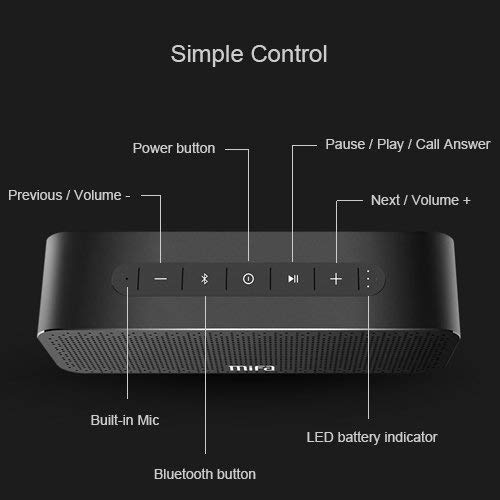
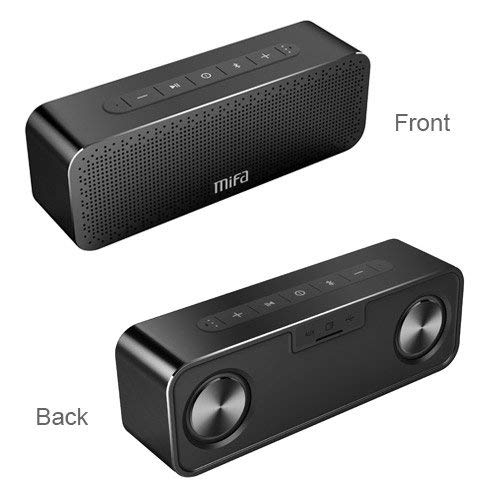
Control Buttons:
- Power Button: Press and hold to turn on/off.
- Bluetooth Button: Press to enter Bluetooth pairing mode.
- Play/Pause / Call Answer Button: Press to play/pause music; press to answer/end calls.
- Previous / Volume - Button: Press to go to previous track; press and hold to decrease volume.
- Next / Volume + Button: Press to go to next track; press and hold to increase volume.
Indicators and Ports:
- Built-in Mic: For hands-free calls.
- LED Battery Indicator: Shows battery status.
- Charging Port: USB port for charging.
- AUX Input: 3.5mm jack for wired audio connection.
- Micro SD Card Slot: For playing music directly from a Micro SD card (up to 32GB).
5. Setup
5.1 Charging the Speaker
Before first use, fully charge the speaker. Connect the provided USB charging cable to the speaker's charging port and the other end to a USB power adapter (not included) or a computer's USB port. The LED indicator will show charging status and turn off when fully charged.
5.2 Bluetooth Pairing
- Turn on the MIFA A20 speaker by pressing and holding the Power button.
- The speaker will automatically enter Bluetooth pairing mode, indicated by a flashing blue LED. If not, press the Bluetooth button.
- On your device (smartphone, tablet, laptop), enable Bluetooth and search for available devices.
- Select "MIFA A20" from the list of devices.
- Once paired, the LED indicator will turn solid blue, and you will hear a confirmation sound.
- The speaker will automatically reconnect to the last paired device when turned on, if within range.
5.3 True Wireless Stereo (TWS) Pairing
To achieve a wider stereo soundstage, you can pair two MIFA A20 speakers together.
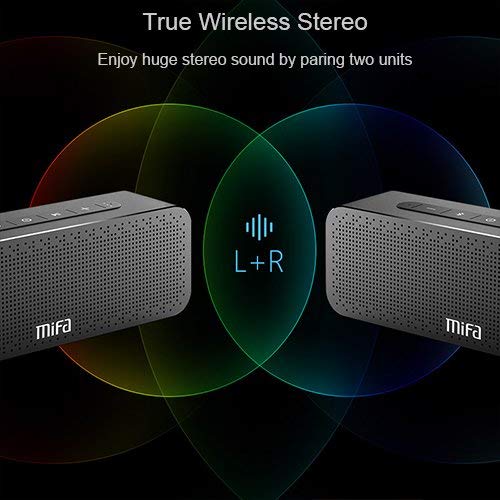
- Ensure both MIFA A20 speakers are turned on and not connected to any Bluetooth device.
- On one speaker (this will be the primary speaker), press and hold the Bluetooth button until you hear a prompt indicating TWS pairing mode.
- The two speakers will automatically search for and connect to each other. This may take a few seconds.
- Once connected, you will hear a confirmation sound, and the LED indicators on both speakers will change to reflect the TWS connection.
- Now, connect your device to the primary speaker via Bluetooth as described in section 5.2. Audio will play through both speakers in stereo.
5.4 Using Micro SD Card
Insert a Micro SD card (up to 32GB, formatted to FAT32) with your music files into the Micro SD card slot. The speaker will automatically switch to Micro SD card mode and begin playing music.
5.5 Using AUX Input
Connect one end of the 3.5mm audio cable to the AUX input port on the speaker and the other end to the audio output jack of your non-Bluetooth device. The speaker will automatically switch to AUX mode.
6. Operating the Speaker
6.1 Music Playback
- Play/Pause: Press the Play/Pause button.
- Volume Up: Press and hold the Volume + button.
- Volume Down: Press and hold the Volume - button.
- Next Track: Short press the Next / Volume + button.
- Previous Track: Short press the Previous / Volume - button.
6.2 Hands-Free Calling
When connected via Bluetooth, the speaker can be used for hands-free calls.
- Answer Call: Press the Play/Pause / Call Answer button.
- End Call: Press the Play/Pause / Call Answer button during a call.
- Reject Call: Press and hold the Play/Pause / Call Answer button when a call comes in.
7. Maintenance
- Cleaning: Use a soft, dry cloth to clean the speaker. Do not use abrasive cleaners or solvents.
- Battery Care: To prolong battery life, avoid fully discharging the speaker frequently. Charge it regularly, even if not in use for extended periods.
- Storage: Store the speaker in a cool, dry place away from direct sunlight and extreme temperatures.
- Water Resistance: The speaker is designed to be waterproof (as per specifications). However, avoid submerging it in water for extended periods or exposing it to high-pressure water jets. Ensure charging port cover is securely closed when near water.
8. Troubleshooting
| Problem | Possible Cause | Solution |
|---|---|---|
| Speaker does not turn on | Low battery | Charge the speaker fully. |
| No sound | Volume too low; Device not connected; Incorrect input mode | Increase volume on speaker and device; Ensure successful Bluetooth pairing or AUX connection; Check if correct input mode (Bluetooth/AUX/SD card) is selected. |
| Cannot pair via Bluetooth | Speaker not in pairing mode; Device Bluetooth off; Too far from speaker; Interference | Ensure speaker is in pairing mode (flashing blue LED); Turn on Bluetooth on your device; Move device closer to speaker; Turn off other Bluetooth devices nearby. |
| Distorted sound | Volume too high; Low battery; Device too far | Reduce volume; Charge speaker; Move device closer to speaker. |
| TWS pairing fails | Speakers already connected to a device; Not in TWS pairing mode | Disconnect both speakers from any Bluetooth devices; Ensure both speakers are in TWS pairing mode. |
9. Specifications

| Feature | Detail |
|---|---|
| Model Name | A20 |
| Material | Aluminum |
| Speaker Type | Woofer |
| Connectivity Technology | Bluetooth, Auxiliary, Wireless |
| Bluetooth Version | 4.2 |
| Wireless Range | Up to 66 feet (20 meters) |
| Speaker Maximum Output Power | 30 Watts |
| Audio Output Mode | Stereo |
| Surround Sound Channel Configuration | 2.0 |
| Battery Capacity | 4000 mAh |
| Battery Life | Up to 12 Hours (at 70% volume) |
| Micro SD Card Support | Up to 32GB |
| Built-in Microphone | Yes |
| Is Waterproof | Yes |
| Colour | Black |
10. Warranty and Support
Warranty Information
The MIFA A20 Bluetooth Speaker comes with a 30-day warranty from the date of purchase, covering manufacturing defects. Please retain your proof of purchase for warranty claims.
Customer Support
For any questions, technical assistance, or warranty inquiries, please contact MIFA customer support through the retailer's platform or the official MIFA website. Please have your product model and purchase details ready when contacting support.
Related documentsA20


Ask a question about this manual
Ask about setup, troubleshooting, compatibility, parts, safety, or missing instructions. Manuals+ will review the question and use this page’s manual context to help answer it.