
GoolRC T700
GoolRC T700 Mini Drone User Manual
Model: T700
1. Introduction
Thank you for purchasing the GoolRC T700 Mini Drone. This compact and versatile quadcopter is designed for beginners and kids, offering an enjoyable flying experience with features like 720P FPV camera, Altitude Hold, G-Sensor control, and One Key Return. Please read this manual thoroughly before operating the drone to ensure proper usage and safety.
2. Safety Guidelines
Always prioritize safety when operating the drone. Failure to follow these guidelines may result in injury, damage to property, or legal issues.
- Read the Manual: Understand all instructions and warnings before use.
- Age Recommendation: This product is recommended for users aged 14 years and up.
- Flight Environment: Fly in open, unobstructed areas, away from people, animals, buildings, and power lines. Avoid flying indoors unless sufficient space is available.
- Weather Conditions: Do not fly in strong winds, rain, snow, or other adverse weather conditions.
- Battery Safety: Use only the provided batteries and charger. Do not overcharge or short-circuit batteries. Discontinue use if batteries are damaged or swollen.
- Propeller Safety: Keep fingers, hair, and loose clothing away from rotating propellers. Always turn off the drone before handling propellers.
- Line of Sight: Always maintain visual line of sight with the drone during flight.
- Respect Privacy: Be mindful of privacy laws when using the camera function.
3. Package Contents
Verify that all items are included in your package:
- T700 Quadcopter
- Remote Controller
- 2 x 3.7V 500mAh Battery
- USB Cable
- Screwdriver
- 4 x Protective Ring
- 4 x Spare Propeller
- Instruction Manual (this document)

Figure 3.1: GoolRC T700 Mini Drone, remote controller, and two 3.7V 500mAh batteries.
4. Product Overview
4.1 Drone Components

Figure 4.1: Key features of the GoolRC T700 Mini Drone.
The GoolRC T700 drone features a compact design with four propellers, an integrated 720P HD camera, and landing gears. It incorporates a 6-axis gyroscope for stable flight and supports 2.4GHz frequency for remote control.
4.2 Remote Controller
The remote controller is designed for intuitive operation. It includes joysticks for flight control and dedicated buttons for various functions.

Figure 4.2: Remote controller with smartphone mount for FPV viewing.
- Left Joystick: Controls altitude (up/down) and yaw (rotate left/right).
- Right Joystick: Controls forward/backward and left/right movement.
- One Key Take-off/Land Button: Initiates automatic take-off or landing.
- Emergency Stop Button: Immediately stops the drone motors.
- Power Button: Turns the remote controller on/off.
- Photo/Video Button: Captures photos or starts/stops video recording.
- Speed Switch Button: Toggles between high and low-speed modes.
- One Key Return Button: Initiates automatic return to the take-off point.
5. Setup
5.1 Charging Batteries
- Connect the drone battery to the provided USB charging cable.
- Plug the USB cable into a USB power source (e.g., computer USB port, USB wall adapter).
- The indicator light on the USB cable will show charging status (refer to charger instructions for specific light behavior).
- Charging typically takes approximately 60-90 minutes. Do not leave batteries unattended while charging.
5.2 Installing Drone Battery
- Ensure the drone is powered off.
- Locate the battery compartment on the drone.
- Carefully insert the fully charged battery into the compartment, ensuring the connector is properly aligned.
- Close the battery compartment cover securely.
5.3 Installing Remote Controller Batteries
The remote controller requires 3 x AAA batteries (not included). Ensure correct polarity when inserting.
5.4 Propeller Installation/Replacement
The propellers are labeled 'A' and 'B'. Ensure they are installed on the correct motor arms as indicated in the manual or on the drone itself. Incorrect installation will prevent proper flight.
5.5 App Installation and WiFi Connection
- Scan the QR code in the manual or search for the designated app (e.g., 'GoolRC FPV' or similar) on your smartphone's app store.
- Install the app.
- Power on the drone. The drone's WiFi signal will become active.
- On your smartphone, go to WiFi settings and connect to the drone's WiFi network (e.g., 'GoolRC-T700-XXXX').
- Open the installed app. You should see the live video feed from the drone's camera.
6. Operating Instructions
6.1 Pairing the Drone and Remote Controller
- Place the drone on a flat, level surface.
- Power on the drone. The indicator lights will flash.
- Power on the remote controller.
- Push the left joystick all the way up, then pull it all the way down. The drone's indicator lights will stop flashing and become solid, indicating successful pairing.
6.2 Gyro Calibration
After pairing, it is recommended to calibrate the gyroscope for stable flight:
- Place the drone on a flat, level surface.
- Push both joysticks to the bottom-right corner simultaneously. The drone's lights will flash rapidly and then become solid, indicating successful calibration.
6.3 Take-off and Landing
- One Key Take-off: Press the One Key Take-off/Land button. The drone will automatically ascend to a certain height and hover.
- Manual Take-off: After pairing and calibration, push both joysticks to the bottom-left corner to unlock the motors. Then, slowly push the left joystick up to ascend.
- One Key Landing: Press the One Key Take-off/Land button again. The drone will automatically descend and land.
- Manual Landing: Slowly pull the left joystick down to descend. Once landed, pull both joysticks to the bottom-left corner to stop the motors.
6.4 Basic Flight Controls
- Ascend/Descend: Push the left joystick up/down.
- Forward/Backward: Push the right joystick up/down.
- Turn Left/Right (Yaw): Push the left joystick left/right.
- Fly Left/Right (Sideways): Push the right joystick left/right.
6.5 Special Features
- Altitude Hold: The drone will automatically maintain its current altitude, making it easier to control and capture stable photos/videos. This feature is active by default.
- Headless Mode: Press the Headless Mode button. In this mode, the drone's orientation is relative to the pilot, regardless of the drone's front direction. Press again to exit.
- One Key Return: Press the One Key Return button. The drone will automatically fly back towards its take-off point. Press any joystick to cancel.
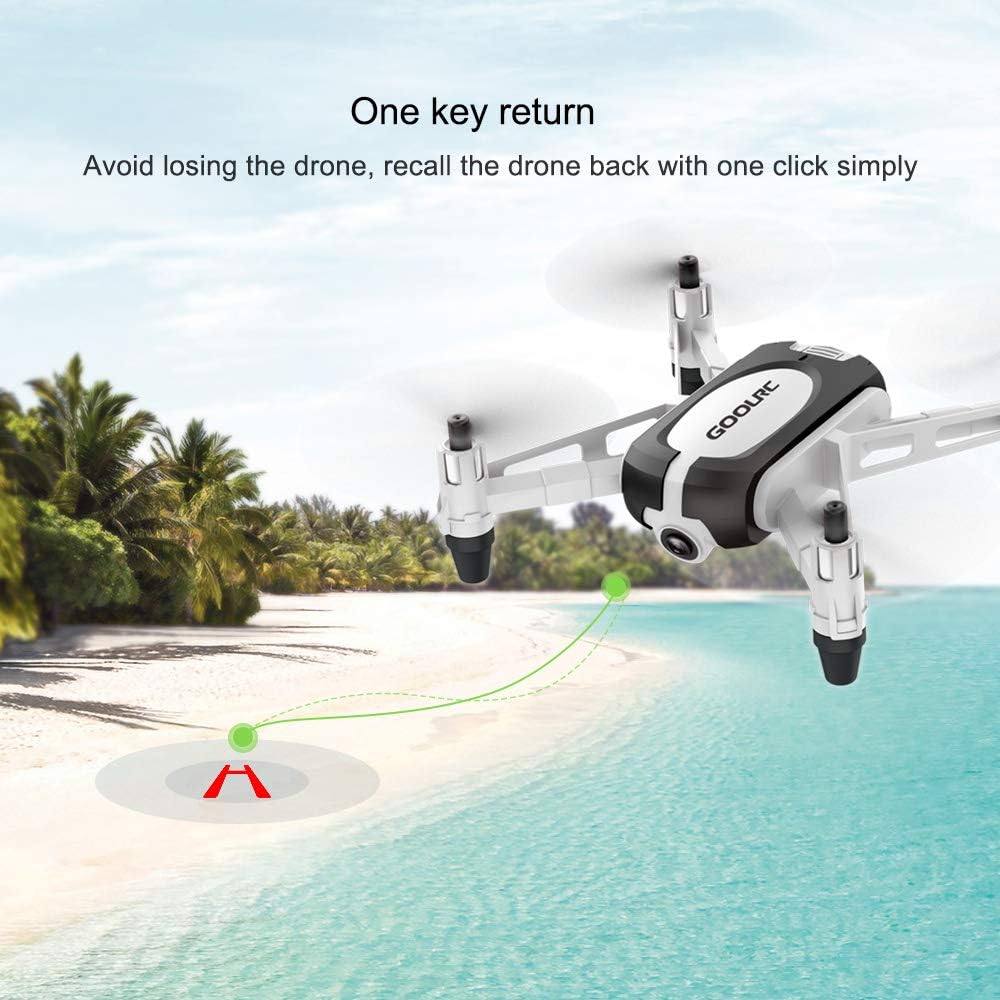
Figure 6.1: Illustration of the One Key Return function.
- 3D Flip and Roll: Fly the drone to a height of at least 2 meters. Press the 3D Flip button, then push the right joystick in the desired flip direction (forward/backward/left/right). The drone will perform a 360-degree flip.
- Trajectory Flight: (Requires app connection) Open the app, draw a flight path on the screen, and the drone will automatically follow the drawn trajectory.
- G-Sensor Control: (Requires app connection) In the app, activate G-Sensor mode. Tilt your smartphone in different directions to control the drone's flight direction.

Figure 6.2: G-Sensor control using a smartphone.
- High/Low Speed Switch: Press the speed switch button on the remote to toggle between different flight speeds.

Figure 6.3: The drone supports adjustable flight speeds.
6.6 Camera Operation (FPV)
With the app connected via WiFi, you can view the live feed and control the camera:
- Live FPV: The app displays the real-time video feed from the drone's 720P camera.
- Take Photo: Press the Photo button on the remote controller or tap the camera icon in the app to capture a still image.
- Record Video: Press the Video button on the remote controller or tap the video icon in the app to start/stop video recording.
- Captured photos and videos are saved directly to your smartphone's gallery.
7. Maintenance
- Cleaning: Use a soft, dry cloth to clean the drone. Do not use solvents or harsh chemicals.
- Propeller Replacement: If propellers are damaged, replace them with spare parts using the provided screwdriver. Ensure correct 'A' and 'B' propeller placement.
- Battery Care: Store batteries in a cool, dry place. Do not fully discharge batteries for extended periods. Charge them periodically if not in use.
- Storage: When not in use, store the drone and remote controller in a safe, dry place, away from direct sunlight and extreme temperatures.
8. Troubleshooting
| Problem | Possible Cause | Solution |
|---|---|---|
| Drone does not respond to remote. | Not paired; low battery; interference. | Re-pair drone and remote; charge batteries; move to an area with less interference. |
| Drone drifts during flight. | Gyro not calibrated; uneven surface at take-off. | Perform gyroscope calibration on a flat surface. |
| Propellers do not spin. | Motors locked; low battery; damaged motor/propeller. | Unlock motors (joysticks bottom-left); charge battery; check for obstructions; replace damaged parts. |
| No FPV video feed. | Not connected to drone WiFi; app not open. | Ensure smartphone is connected to drone's WiFi network; open the app. |
| Short flight time. | Battery not fully charged; old battery. | Ensure battery is fully charged; consider replacing old batteries. |
9. Specifications
| Feature | Detail |
|---|---|
| Model Name | T700 |
| Brand | GoolRC |
| Material Type | Acrylonitrile Butadiene Styrene |
| Video Capture Resolution | 720p |
| Connectivity Technology | USB, Wi-Fi |
| Remote Control Type | Wi-Fi |
| Control Type | Remote Control |
| Special Features | FPV, First Person View, Lightweight |
| Skill Level | All |
| Recommended Age | 14 years and up |
| Package Dimensions | 18.59 x 13.79 x 10.39 cm |
| Item Weight | 431 g |

Figure 9.1: Approximate product dimensions of the GoolRC T700 Mini Drone.
10. Customer Support
For further assistance, technical support, or warranty inquiries, please contact your retailer or the GoolRC customer service department. Refer to the product packaging or the official GoolRC website for contact information.
Related documentsT700

Ask a question about this manual
Ask about setup, troubleshooting, compatibility, parts, safety, or missing instructions. Manuals+ will review the question and use this page’s manual context to help answer it.