
EXFIT BCS-S1000
EXFIT FBS-S1000 Wireless Bluetooth Headphones User Manual
Model: BCS-S1000

Image 0.1: Overview of the EXFIT FBS-S1000 Wireless Bluetooth Headphones, showcasing its black neckband design with retractable earbuds.
1. Setup
1.1 Package Contents
Before beginning, ensure all items are present in the package:
- EXFIT FBS-S1000 Wireless Bluetooth Headphones
- USB Charging Cable
- Additional Ear Tips (various sizes)
- User Manual (this document)
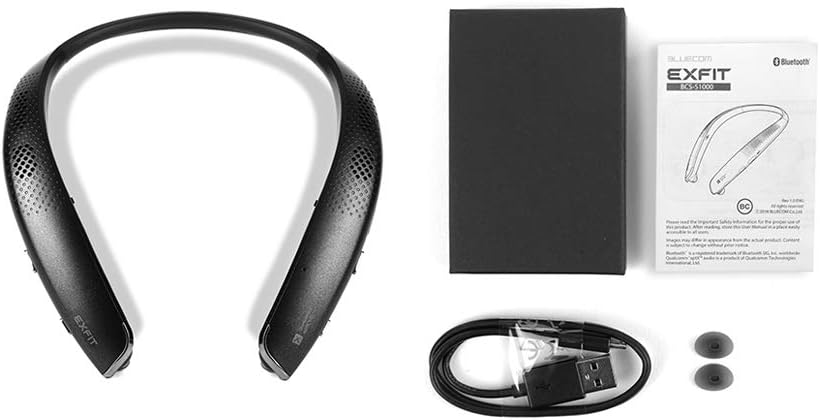
Image 1.1: Package contents of the EXFIT FBS-S1000 headphones, showing the neckband unit, USB charging cable, and spare ear tips.
1.2 Charging the Headphones
The headphones come with a built-in rechargeable battery. Before first use, fully charge the device.
- Connect the small end of the provided USB charging cable to the charging port on the headphones.
- Connect the larger end of the USB cable to a USB power adapter (not included) or a computer's USB port.
- The LED indicator will show charging status (e.g., red for charging, blue for fully charged).
- A full charge typically takes approximately 2 hours. The battery provides up to 25 hours of usage in in-ear mode and 7 hours in external speaker mode.
1.3 Bluetooth Pairing
To connect your headphones to a device:
- Ensure the headphones are powered off.
- Press and hold the Power button until the LED indicator flashes blue and red, indicating pairing mode.
- On your device (smartphone, tablet, computer), enable Bluetooth and search for available devices.
- Select "EXFIT FBS-S1000" from the list of found devices.
- Once connected, the LED indicator will flash blue periodically.
- The headphones can connect to two devices simultaneously. To connect a second device, repeat the pairing process.
1.4 Wearing the Headphones
For optimal sound quality and comfort, ensure the headphones are worn correctly and the ear tips fit properly.
- Place the neckband around your neck.
- Gently pull out the retractable earbuds.
- Insert the earbuds into your ears. Choose the ear tip size that provides a snug and comfortable fit to ensure good sound isolation.

Image 1.2: Illustration demonstrating the correct way to insert the earbuds and how to select the appropriate ear tip size for a secure fit.
2. Operating Instructions

Image 2.1: Side view of the EXFIT FBS-S1000 headphones, highlighting the location of control buttons for power, volume, and multi-function.
2.1 Power On/Off
- Power On: Press and hold the Power button for approximately 2 seconds until the LED indicator flashes blue.
- Power Off: Press and hold the Power button for approximately 3 seconds until the LED indicator flashes red and then turns off.
2.2 Retractable Earbuds
The headphones feature retractable earbuds for convenience.
- To extend the earbuds, gently pull them out from the neckband.
- To retract, press the earbud retraction button located on the side of the neckband. Guide the earbud back into its housing.
2.3 External Speakers
In addition to earbuds, the headphones include external speakers for an alternative listening experience.
- To activate external speakers, retract the earbuds into the neckband. The audio will automatically switch to the external speakers.
- To switch back to earbuds, pull out the earbuds and insert them into your ears.
2.4 Call Management
- Answer/End Call: Press the Multi-function button once.
- Reject Call: Press and hold the Multi-function button for approximately 2 seconds.
- Redial Last Number: Double-press the Multi-function button.
2.5 Music Playback
- Play/Pause: Press the Multi-function button once.
- Next Track: Press and hold the Volume Up button.
- Previous Track: Press and hold the Volume Down button.
2.6 Volume Control
- Increase Volume: Press the Volume Up button.
- Decrease Volume: Press the Volume Down button.
2.7 Voice Assistant (Siri/Google Assistant)
The headphones are compatible with Siri and Google Assistant.
- To activate your device's voice assistant, press the dedicated Voice Assistant button once.
3. Maintenance
3.1 Cleaning
- Wipe the headphones with a soft, dry cloth.
- Do not use abrasive cleaners, alcohol, or chemical solvents.
- Regularly clean the ear tips to prevent wax buildup, which can affect sound quality.
3.2 Storage
- Store the headphones in a cool, dry place away from direct sunlight and extreme temperatures.
- When not in use, retract the earbuds to protect them from damage.
3.3 Ear Tip Replacement
The ear tips are designed for a specific fit. If an ear tip is lost or damaged, use one of the provided spare ear tips. Ensure the replacement ear tip is securely attached to the earbud nozzle.
4. Troubleshooting
| Problem | Possible Cause | Solution |
|---|---|---|
| Headphones do not power on. | Low battery. | Charge the headphones fully using the provided USB cable. |
| Cannot pair with device. | Headphones not in pairing mode; Bluetooth off on device; device too far. | Ensure headphones are in pairing mode (flashing blue/red). Turn on Bluetooth on your device. Move device closer to headphones (within 10 meters). |
| No sound or poor sound quality. | Volume too low; improper ear tip fit; device not connected. | Increase volume on headphones and connected device. Ensure ear tips are correctly sized and inserted. Verify Bluetooth connection. |
| Earbuds do not retract smoothly. | Obstruction or internal mechanism issue. | Ensure no debris is blocking the retraction path. Do not force retraction. If issue persists, contact customer support. |
| Accidental calls when adjusting. | Multi-function button pressed inadvertently. | Be mindful of button placement when adjusting the neckband. The Multi-function button can redial the last number with a double press. |
5. Specifications
- Model Name: FBS-S1000
- Model Number: BCS-S1000
- Connectivity Technology: Bluetooth
- Wireless Communication Technology: Bluetooth
- Components Included: Voice assistant button, Retractable buds
- Material: Rubber, Silicone
- Compatible Devices: Desktop computers, Tablets, Mobile phones
- Control Method: Voice
- Special Features: Bluetooth, Wireless
- Average Battery Life: 25 Hours (in-ear mode)
- Product Dimensions: 16.79 x 16.64 x 1.55 cm
- Weight: 204 g
- Ear Placement: In-Ear
- Form Factor: In-Ear
- Headphone Jack: USB (for charging)
6. Warranty and Support
6.1 Limited Warranty
EXFIT products are manufactured to the highest quality standards. This product is covered by a limited warranty against defects in materials and workmanship. Please refer to the warranty card included with your purchase or visit the official EXFIT website for detailed warranty terms and conditions.
6.2 Customer Support
For technical assistance, troubleshooting, or warranty inquiries, please contact EXFIT customer support. Contact information can typically be found on the product packaging or the official EXFIT website.
Note: Keep your proof of purchase for warranty claims.
Ask a question about this manual
Ask about setup, troubleshooting, compatibility, parts, safety, or missing instructions. Manuals+ will review the question and use this page’s manual context to help answer it.