
AUNA KC6-SilverStar ST WHs
AUNA Silver Star Internet Stereo Radio User Manual
Model: KC6-SilverStar ST WHs | Brand: AUNA
1. Introduction
Thank you for choosing the AUNA Silver Star Internet Stereo Radio. This versatile music device combines powerful performance with multiple features and a stylish design. It offers a wide range of listening options including Internet Radio, DAB+, FM, Bluetooth, and USB playback. This manual provides essential information for setting up, operating, and maintaining your device to ensure optimal performance and longevity.

Figure 1: AUNA Silver Star Internet Stereo Radio, front view with display and controls.
2. Safety Information
Please read all safety instructions carefully before using the device. Keep this manual for future reference.
- Power Source: Use only the provided power adapter. Ensure the voltage matches the requirements of your region.
- Water and Moisture: Do not expose the device to rain, moisture, or dripping/splashing liquids. Do not place objects filled with liquids, such as vases, on the device.
- Ventilation: Ensure adequate ventilation. Do not block ventilation openings. Maintain a minimum distance of 10 cm around the device for proper airflow.
- Heat: Keep the device away from heat sources such as radiators, heat registers, stoves, or other apparatus (including amplifiers) that produce heat.
- Cleaning: Unplug the device from the power outlet before cleaning. Use a soft, dry cloth. Do not use liquid cleaners or aerosol cleaners.
- Servicing: Do not attempt to service this product yourself. Refer all servicing to qualified service personnel.
3. Package Contents
Carefully unpack your AUNA Silver Star Internet Stereo Radio and check that all items are present and in good condition:
- AUNA Silver Star Internet Stereo Radio Unit
- Remote Control
- Mains Adapter
- Owner's Manual (this document)
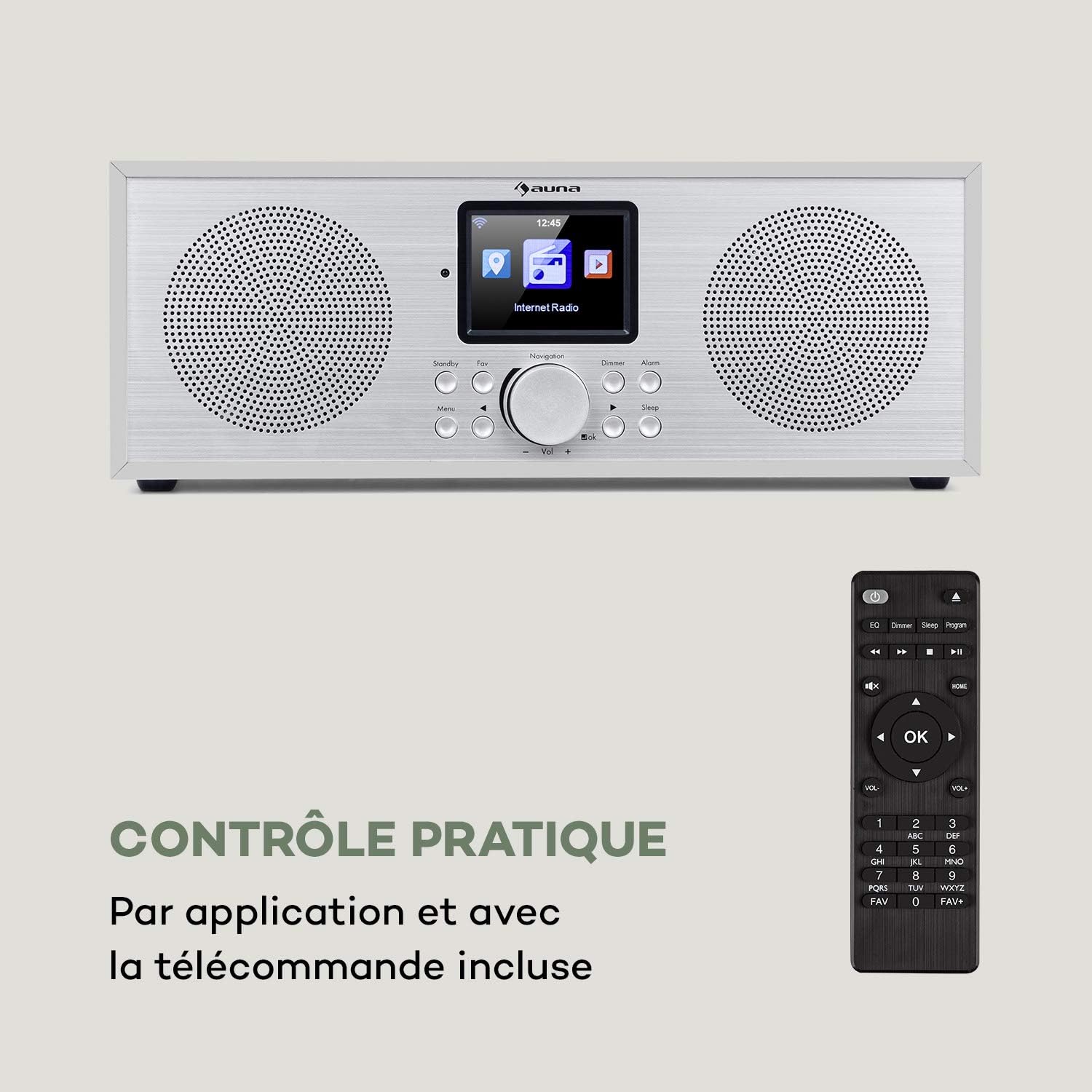
Figure 2: The AUNA Silver Star Internet Stereo Radio unit and its included remote control.
4. Setup
4.1 Connecting Power
Connect the provided mains adapter to the "DC IN" port on the rear of the radio and then plug the adapter into a wall outlet. Ensure the ON/OFF switch on the back is set to "ON".
4.2 Antenna Connection
For optimal FM and DAB+ reception, extend the telescopic antenna located at the rear of the unit fully.
4.3 Network Connection (Wi-Fi)
To access Internet Radio features, the device requires a Wi-Fi connection. Upon first power-on, the radio will guide you through the network setup process on its display. Select your Wi-Fi network from the list and enter the password using the navigation controls.
4.4 External Connections
The radio features various ports for external devices:
- AUX IN: Connect external audio sources (e.g., MP3 player) using a 3.5mm audio cable.
- LINE OUT: Connect the radio to an external amplifier or active speakers for enhanced audio output.
- USB: Insert a USB flash drive for MP3 file playback.

Figure 3: Rear panel connections including AUX IN, LINE OUT, USB, and DC IN.
5. Operating Instructions
5.1 Basic Controls
The radio can be operated using the buttons and rotary knob on the front panel, or via the included remote control. The 2.8" (7 cm) HCC display provides clear information and navigation.
- Power/Standby: Press the Standby button to turn the unit on or off.
- Navigation Knob: Rotate to scroll through menus or adjust volume. Press to confirm selection.
- Menu: Access the main menu.
- Back: Go back to the previous menu.
- Fav: Access favorite stations.
- Dimmer: Adjust display brightness.
- Alarm: Set alarms.
- Sleep: Set sleep timer.

Figure 4: The high-contrast color display for easy navigation.
5.2 Mode Selection
From the main menu, you can select different operating modes:
- Internet Radio: Access thousands of online radio stations worldwide. Browse by genre, location, or search.
- DAB+: Tune into digital audio broadcasting stations for high-quality sound.
- FM: Listen to traditional analog FM radio stations.
- Bluetooth: Pair your smartphone, tablet, or computer to stream audio wirelessly.
- USB: Play MP3 files from a connected USB flash drive.
- AUX In: Play audio from an external device connected to the AUX IN port.
5.3 Bluetooth Pairing
To pair a Bluetooth device:
- Select "Bluetooth" mode on the radio. The radio will enter pairing mode.
- On your mobile device, enable Bluetooth and search for available devices.
- Select "AUNA Silver Star" from the list. Once connected, you can stream audio to the radio.

Figure 5: Wireless audio streaming via Bluetooth from a smartphone.
5.4 USB Playback
Insert a USB flash drive into the USB port on the rear of the unit. Select "USB" mode from the menu. The radio will automatically detect and display playable MP3 files. Use the navigation controls to browse and select tracks.

Figure 6: Connecting a USB flash drive for MP3 playback.
5.5 Air Music Control App
For convenient control, download the "Air Music Control" app from your smartphone's app store (available on App Store and Google Play). This app allows you to control the radio, browse stations, and manage settings from your mobile device.

Figure 7: Controlling the radio using the Air Music Control app.
6. Maintenance
6.1 Cleaning
Always unplug the radio from the power outlet before cleaning. Use a soft, dry, lint-free cloth to wipe the surfaces. Do not use abrasive cleaners, waxes, or solvents as they may damage the finish. Avoid spraying liquids directly onto the unit.
6.2 Storage
If you plan to store the radio for an extended period, unplug it from the power supply and store it in a cool, dry place, away from direct sunlight and extreme temperatures.
7. Troubleshooting
If you encounter issues with your AUNA Silver Star Internet Stereo Radio, refer to the following common problems and solutions:
| Problem | Possible Cause | Solution |
|---|---|---|
| No power | Power adapter not connected; ON/OFF switch is off. | Ensure power adapter is securely connected and plugged into a live outlet. Check ON/OFF switch on the back. |
| No sound | Volume too low; Mute activated; Incorrect source selected. | Increase volume. Check if mute is active. Select the correct input source (Internet Radio, DAB+, FM, Bluetooth, USB, AUX). |
| Cannot connect to Wi-Fi | Incorrect password; Router issue; Weak signal. | Double-check Wi-Fi password. Restart your router. Move the radio closer to the router or use a Wi-Fi extender. |
| Poor DAB+/FM reception | Antenna not extended; Location interference. | Fully extend the telescopic antenna. Try repositioning the radio to a different location. |
| USB playback not working | USB format not supported; Files not MP3; USB drive issue. | Ensure USB drive is formatted to FAT32. Verify files are in MP3 format. Try a different USB drive. |
If the problem persists after trying these solutions, please contact customer support.
8. Specifications
| Brand | AUNA |
| Model Number | KC6-SilverStar ST WHs |
| Product Dimensions | 33 x 12 x 15 cm (L x H x D) |
| Item Weight | 2.3 kg |
| Output Power | 2 x 8 Watts RMS |
| Display | 2.8" (7 cm) HCC (High Contrast Color) |
| Tuner Technology | FM, Internet Radio, DAB+ |
| Connectivity Technology | Bluetooth, Auxiliary, Wi-Fi, USB |
| Material | Wood, Aluminium |
| Power Source | Corded Electric |
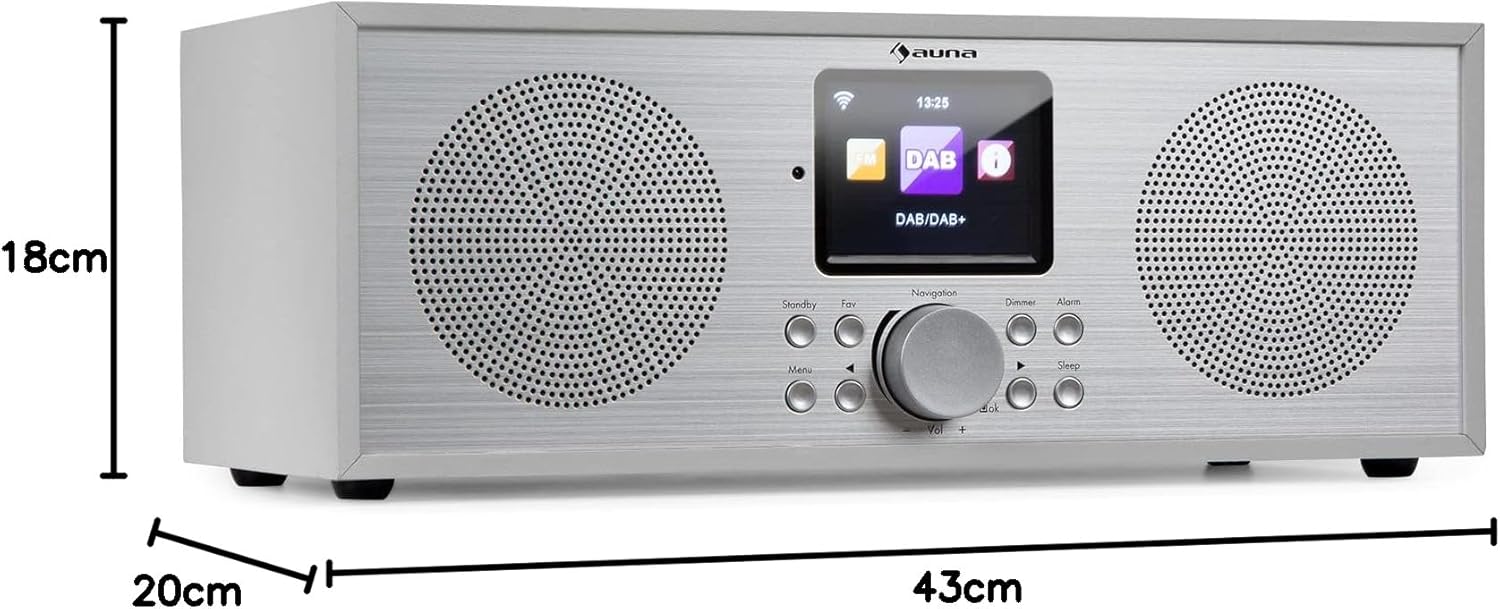
Figure 8: Product dimensions.
9. Warranty and Support
Your AUNA Silver Star Internet Stereo Radio comes with a standard manufacturer's warranty. Please refer to the warranty card included in your package or visit the official AUNA website for detailed warranty terms and conditions.
For technical support, troubleshooting assistance beyond this manual, or spare parts, please contact AUNA customer service through their official website or the contact information provided with your purchase.
Related documentsKC6-SilverStar ST WHs


Ask a question about this manual
Ask about setup, troubleshooting, compatibility, parts, safety, or missing instructions. Manuals+ will review the question and use this page’s manual context to help answer it.