
EVERSECU Light Bulb Security Camera
EVERSECU Tuya Smart Security Camera User Manual
Model: Light Bulb Security Camera
Brand: EVERSECU
1. Introduction
This manual provides detailed instructions for the installation, operation, and maintenance of your EVERSECU Tuya Smart Security Camera. This device is designed to provide reliable surveillance with advanced features such as 1080P HD video, two-way audio, motion detection, auto tracking, and night vision, all integrated into a convenient E26/E27 light bulb form factor.

Image 1.1: Two EVERSECU Smart Security Cameras. These cameras are designed to resemble and fit into standard E26/E27 light bulb sockets, offering a discreet and easy-to-install surveillance solution.
2. Key Features
- Wireless & Easy Installation: Compatible with E26/E27 light sockets (110V~240V), allowing for simple screw-in installation without drilling, wiring, or power cables. Setup is completed via the Tuya app within minutes.
- 1080P 2MP HD Video Resolution: Provides super clear viewing experience with fluent and stunning videos.
- Advanced Night Vision: Built-in 4pcs IR LEDs + 4pcs white LEDs offer 31ft black & white and 65.6ft full-color night vision capabilities.
- Pan-Tilt-Zoom (PTZ) Functionality: Features 355° pan, 110° tilt, and 4x digital zoom, controllable remotely via the Tuya App.
- Motion Detection & Auto Tracking: Equipped with a highly sensitive motion sensor that tracks and records movement, with optional voice alerts.
- Two-Way Audio & Sound Alarm: Integrated microphone and speaker enable real-time conversation and the ability to create sound alarms to deter intruders.
- Multiple View & Double Storage: Share camera access with friends and family for simultaneous viewing. Supports local storage via SD card (not included) and cloud storage (30-day free trial).
- Privacy Protection: High-level encryption ensures your videos are accessible only by you.

Image 2.1: Overview of camera features including 1080P HD resolution, support for TF cards, sound alarm, two-way audio, day/night vision, waterproof design, LED light, and pan (355°) and tilt (90°) capabilities.

Image 2.2: Full Color Night Vision. The camera utilizes 2 Pcs Array IR LEDs or 6 Pc White Supplement Lights to provide clear, full-color video even in low-light conditions.
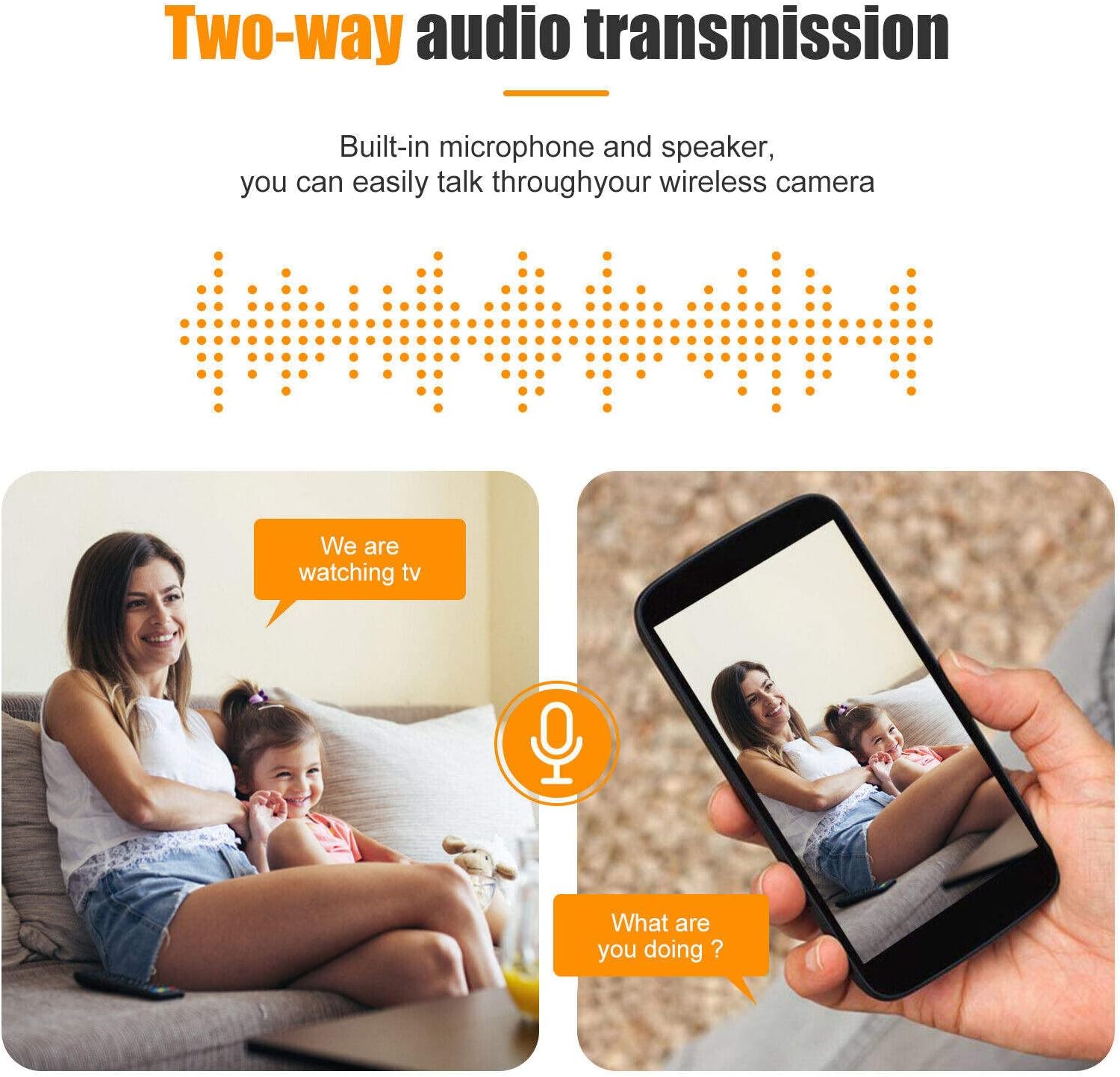
Image 2.3: Pan and Tilt Functionality. The camera offers a wide viewing range with 355 degrees of horizontal rotation and 90 degrees of vertical tilt, allowing comprehensive coverage of the monitored area.
3. Setup and Installation
3.1 Package Contents
Before beginning installation, ensure all components are present:
- EVERSECU Tuya Smart Security Camera(s)
- User Manual
- Mounting accessories (if applicable, for non-light socket installation)
3.2 Installation Steps
- Power Off: Ensure the power to the light socket where you intend to install the camera is turned off at the circuit breaker to prevent electrical shock.
- Screw In Camera: Carefully screw the EVERSECU Smart Security Camera into a standard E26/E27 light socket. Ensure it is securely fastened but do not overtighten.
- Power On: Restore power to the light socket. The camera will power on and initiate its startup sequence.
- Download Tuya App: Download the Tuya Smart app from your mobile device's app store (iOS or Android).
- Register/Login: Open the Tuya Smart app and register a new account or log in with an existing one.
- Add Device: In the app, tap the "+" icon to add a new device. Select "Security & Video Surveillance" and then "Smart Camera".
- Connect to Wi-Fi: Follow the on-screen prompts to connect the camera to your 2.4GHz Wi-Fi network. Ensure your phone is connected to the same Wi-Fi network during setup.
- Scan QR Code: The app will display a QR code. Hold your phone with the QR code in front of the camera lens (approximately 6-8 inches away) until you hear a confirmation sound from the camera.
- Completion: Once connected, the camera will be added to your app. You can then rename the device and begin using its features.
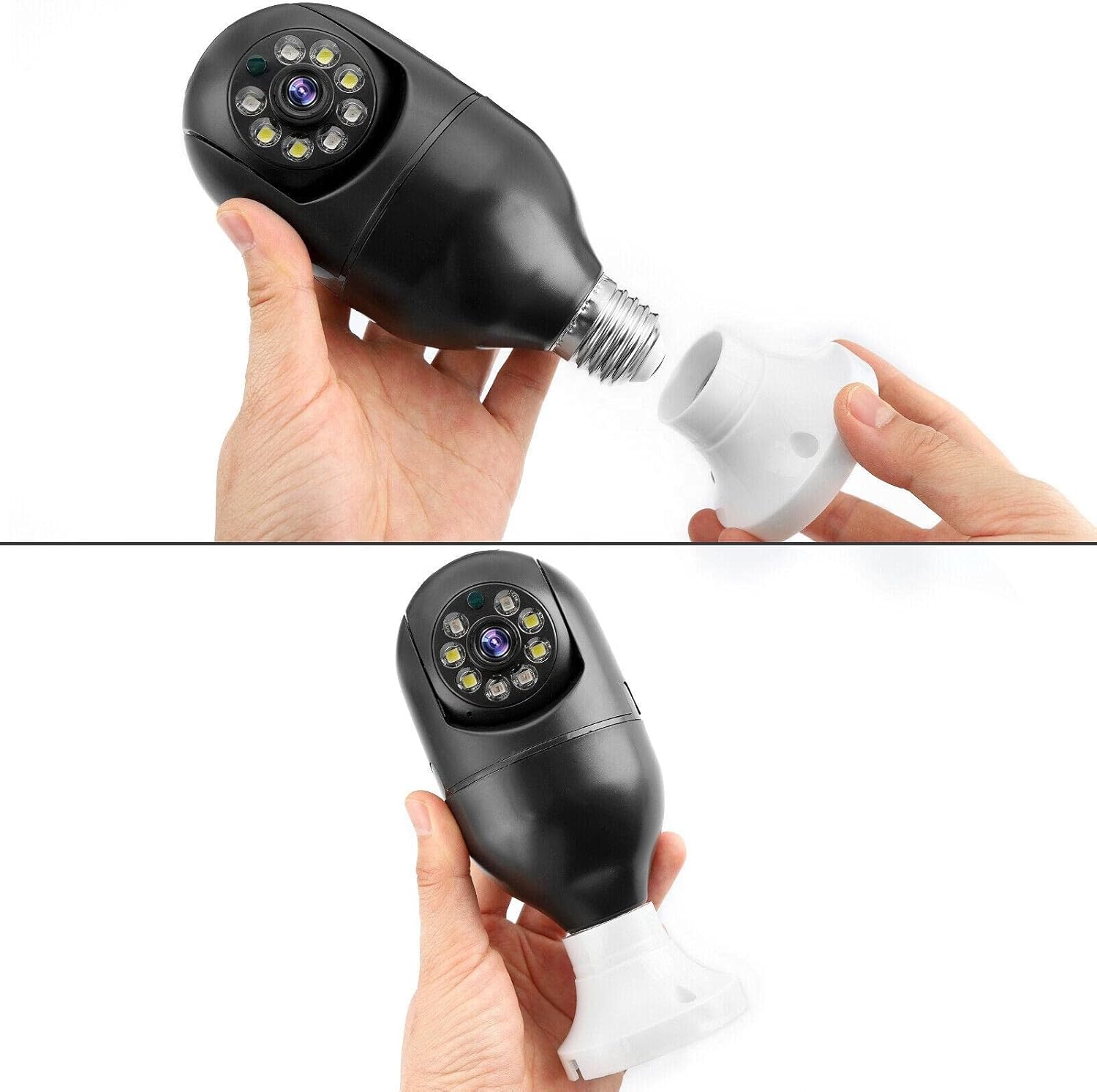
Image 3.1: Easy Installation. The camera screws directly into a standard E26/E27 light bulb socket, making installation as simple as replacing a light bulb.

Image 3.2: Quick Installation. The camera is designed for easy and quick installation, fitting into an ordinary bulb base.
4. Operation
4.1 Live View and PTZ Control
Once the camera is connected to the Tuya Smart app, you can access the live video feed. Use the on-screen joystick or swipe gestures to control the camera's pan (horizontal 355°) and tilt (vertical 110°) movements. You can also use the digital zoom feature to get a closer look.
4.2 Two-Way Audio
To use the two-way audio feature, tap the microphone icon in the live view interface. You can then speak through your phone, and your voice will be projected through the camera's speaker. Similarly, you can hear audio from the camera's environment through your phone.

Image 4.1: Two-Way Audio. The built-in microphone and speaker allow for seamless two-way communication, enabling you to interact with individuals near the camera.
4.3 Motion Detection and Auto Tracking
Enable motion detection in the app settings to receive alerts when movement is detected. The auto-tracking feature allows the camera to automatically follow moving objects within its field of view, ensuring continuous monitoring of suspicious activity.

Image 4.2: Mobile Tracking. The camera features high-sensitivity motion detection that tracks moving objects until they disappear from the effective monitoring distance, providing continuous surveillance.
4.4 Recording and Storage
The camera supports both local storage via a Micro SD card (not included) and cloud storage. Insert an SD card into the designated slot on the camera for continuous or event-triggered recording. Cloud storage options are available through the Tuya app, often with a free trial period.
5. Maintenance
- Cleaning: Gently wipe the camera lens and body with a soft, dry cloth. Do not use liquid cleaners or abrasive materials.
- Firmware Updates: Regularly check the Tuya Smart app for available firmware updates. Keeping your camera's firmware up-to-date ensures optimal performance and access to new features.
- Network Stability: Ensure your Wi-Fi network is stable and strong in the camera's location for uninterrupted operation.
6. Troubleshooting
6.1 Common Issues and Solutions
| Issue | Possible Cause | Solution |
|---|---|---|
| Camera offline/Cannot connect to Wi-Fi | Weak Wi-Fi signal; Incorrect Wi-Fi password; Camera too far from router; Only supports 2.4GHz Wi-Fi. | Ensure camera is within Wi-Fi range. Verify Wi-Fi password. Confirm router is 2.4GHz. Try moving router closer or using a Wi-Fi extender. Reset camera and try setup again. |
| Motion detection not working or too sensitive | Motion detection disabled; Sensitivity set too low/high; Environmental factors (e.g., wind, light changes). | Check app settings to ensure motion detection is enabled. Adjust sensitivity levels. Consider the camera's placement to minimize false alarms from environmental factors. |
| Poor night vision quality | Lens obstruction; Insufficient ambient light for full-color mode; IR LEDs blocked. | Clean the camera lens. Ensure no obstructions are blocking the IR or white LEDs. If in full-color night vision mode, ensure there is enough ambient light; otherwise, switch to black & white IR mode. |
| Two-way audio issues (e.g., static, no sound) | Microphone/speaker obstruction; Network latency; App volume settings. | Ensure nothing is covering the microphone or speaker on the camera. Check your phone's volume settings. Verify network stability. Restart the app or camera. |
| Camera not recording to SD card | SD card full/corrupted; SD card not inserted correctly; Recording settings incorrect. | Check if the SD card is properly inserted. Format the SD card via the app. Verify recording settings (e.g., continuous recording, event recording) are enabled. Replace SD card if corrupted. |
7. Specifications
| Feature | Detail |
|---|---|
| Model Number | Light Bulb Security Camera |
| Connectivity Technology | Wireless (Wi-Fi) |
| Power Source | Corded Electric (E26/E27 light socket, 110V~240V) |
| Video Capture Resolution | 1080P (2MP Maximum Webcam Image Resolution) |
| Pan/Tilt Range | Pan: 355°, Tilt: 110° |
| Night Vision | Full-Color Night Vision (4pcs IR LEDs + 4pcs white LEDs) |
| Special Features | Motion Sensor, Auto Tracking, Two-Way Audio, Sound Alarm |
| Storage Options | Micro SD Card (not included), Cloud Storage |
| Indoor/Outdoor Usage | Indoor |
| Material | Plastic |
| Item Weight | 1.1 pounds |
| International Protection Rating | IP67 |
| UPC | 646690668276 |
8. Warranty and Support
For warranty information and technical support, please refer to the product packaging or contact EVERSECU customer service directly. Keep your purchase receipt as proof of purchase for any warranty claims.
For further assistance, you may visit the EVERSECU store on Amazon: EVERSECU Store
Related documentsLight Bulb Security Camera


Ask a question about this manual
Ask about setup, troubleshooting, compatibility, parts, safety, or missing instructions. Manuals+ will review the question and use this page’s manual context to help answer it.