
1. Introduction and Overview
The R QIDI TECHNOLOGY X-PlusⅡ is an intelligent industrial-grade 3D printer designed for high-quality and high-performance printing. It features a large print size of 10.6x7.9x7.9 inches and is capable of printing with a wide range of materials including PLA, ABS, TPU, Nylon, Carbon Fiber, and PC. This manual provides detailed instructions for setting up, operating, maintaining, and troubleshooting your X-PlusⅡ 3D printer to ensure optimal performance and longevity.

Figure 1: R QIDI TECHNOLOGY X-PlusⅡ 3D Printer. This image shows the front view of the X-PlusⅡ 3D printer with its enclosed printing chamber and touchscreen display.
Key Features:
- QIDI Third Generation Extruder Assembly: Features two newly upgraded dual-gear extruders for accurate printing, better heat dissipation, and reduced clogging. Includes a standard extruder (max 250℃ for PLA, ABS, TPU) and a high-temperature extruder (max 300℃ for Nylon, PA12-CF, PC).
- Double Z-axis Driver: Ensures stable and precise printing, especially for large models.
- Filament Detection Function: Alerts users when filament is running low, preventing print failures.
- Resume Printing: Automatically saves print progress in case of power outages.
- Latest Slicer Software (QIDI Print 6.5.3): Redesigned UI, improved slicing algorithm for 30% better print quality and 20% faster speed.
- Large Print Size: 10.6 x 7.9 x 7.9 inches (270 x 200 x 200 mm).
2. Setup and Initial Preparation
2.1 Unboxing and Component Check
Carefully remove all components from the packaging. Refer to the packing list to ensure all items are present and undamaged.

Figure 2: Packing List. This image displays the various components included with the QIDI X-PlusⅡ 3D Printer, such as the printer itself, spare parts box, top cover, side panel, power cord, screwdriver, leveling paper, user guide, USB flash drive, LAN cable, filament holder, random color PLA filament, high temperature extruder, scraper, PEI plate, and solid glue.
2.2 Printer Placement
Place the printer on a stable, level surface in a well-ventilated area, away from direct sunlight, heat sources, and excessive dust. Ensure sufficient space around the printer for operation and maintenance.
2.3 Power Connection
Connect the power cord to the printer and a suitable power outlet. Ensure the power switch is in the OFF position before connecting.
2.4 Software Installation (QIDI Print)
Install the QIDI Print slicer software from the provided USB flash drive or download the latest version from the official QIDI website. This software is essential for preparing your 3D models for printing.

Figure 3: Self-developed slicing software - QIDI Print. This image shows the QIDI X-PlusⅡ printer next to a laptop displaying the QIDI Print software interface, indicating the software's role in preparing models for printing.
3. Operating Instructions
3.1 Touchscreen Interface
The X-PlusⅡ features a 4.3-inch touchscreen for intuitive control. Navigate through menus for printing, system settings, tools, and service options.

Figure 4: 4.3 inch Touchscreen. This image shows a hand interacting with the printer's touchscreen, highlighting its large interface for precise and easy operation.
3.2 Extruder Selection and Filament Loading
The printer comes with two types of extruders: a normal dual-gear extruder for common filaments like PLA, ABS, and TPU (max 250℃), and a high-temperature dual-gear extruder for advanced materials such as PC, Nylon, and Carbon Fiber (max 300℃). Ensure the correct extruder is installed for your chosen filament.
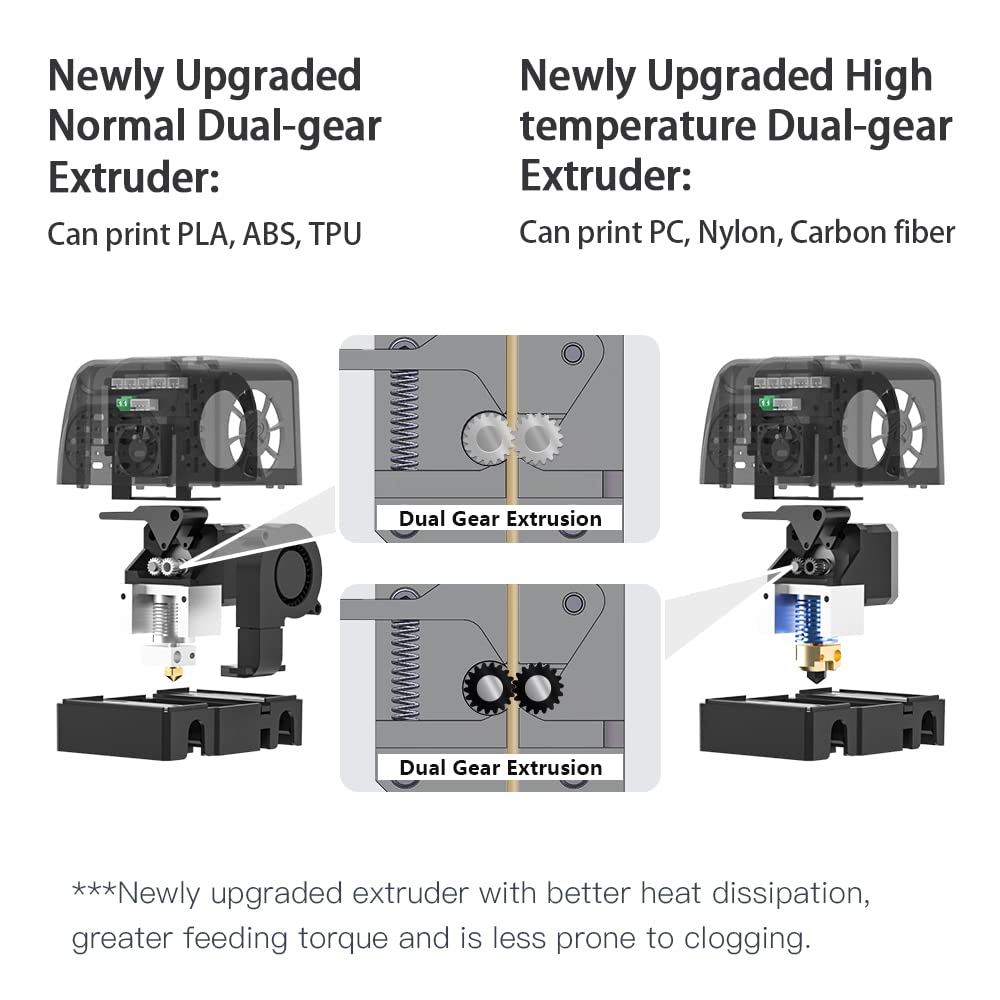
Figure 5: Newly Upgraded Dual-gear Extruders. This image illustrates the design of both the normal and high-temperature dual-gear extruders, emphasizing their improved heat dissipation and feeding torque.
To load filament:
- Place the filament spool on the external holder (A) or use the built-in spool holder (B) for internal placement.
- Feed the filament into the extruder until it is gripped by the gears.
- On the touchscreen, select the option to load filament and follow the on-screen prompts.

Figure 6: Filament Loading. This image shows the external filament holder (A) and the internal built-in spool holder (B) for filament management.
3.3 Printing Process
Before printing, ensure your 3D model is sliced using QIDI Print software and saved to a USB flash drive.
- Insert the USB flash drive into the printer's USB port.
- On the touchscreen, select "Print" and choose your desired model.
- Confirm print settings and initiate the print.
The printer features a filament runout sensor that will pause the print and alert you if the filament depletes. It also has a resume printing function that automatically saves the breakpoint in case of a power outage, allowing you to continue printing from where it left off.

Figure 7: Double Z-axis and Filament Detection. This image highlights the double Z-axis for stable printing and illustrates the filament runout sensor, which suspends printing and alerts the user when filament is broken or used up.
3.4 Supported Materials
The X-PlusⅡ supports a wide array of materials, enabling diverse printing applications:
- PLA (Polylactic Acid): Common, easy to print, biodegradable.
- ABS (Acrylonitrile Butadiene Styrene): Durable, heat-resistant, requires good ventilation.
- TPU (Thermoplastic Polyurethane): Flexible and elastic.
- Nylon: Strong, durable, and flexible, often used for functional parts.
- Carbon Fiber (PA12-CF): High strength-to-weight ratio, rigid.
- PC (Polycarbonate): Very strong, heat-resistant, and impact-resistant.
- PETG (Polyethylene Terephthalate Glycol-modified): Durable, good layer adhesion, less prone to warping than ABS.

Figure 8: Print Models Display. This image showcases various 3D printed objects made from different materials like ABS, PC, Carbon Fibre, PLA, and TPU, demonstrating the printer's versatility.
4. Maintenance
4.1 Print Bed Maintenance (Double Sided PEI Plate)
The X-PlusⅡ utilizes a double-sided PEI (Polyetherimide) printing plate, which offers excellent adhesion and helps prevent warping. After printing, allow the plate to cool before removing your print. For stubborn prints, gently flex the plate to release the object. Clean the PEI surface with isopropyl alcohol regularly to maintain adhesion.

Figure 9: Double Sided PEI Plate. This image illustrates the layered construction of the print bed, showing the PEI coating, spring steel plate, 3M magnetic stickers, and hot bed, which collectively improve print adhesion and prevent warping.
4.2 Extruder and Nozzle Cleaning
Regularly inspect the extruder and nozzle for filament residue or clogs. If a clog occurs, refer to the detailed instructions provided on the USB drive or the QIDI official website for proper unclogging procedures. This typically involves heating the nozzle and carefully removing the blockage.
4.3 General Cleaning and Lubrication
Keep the printer clean from dust and debris. Periodically lubricate the Z-axis rods and other moving parts as recommended in the full user guide to ensure smooth operation and prevent wear.
5. Troubleshooting
This section addresses common issues you might encounter during operation. For more complex problems, please contact customer support.
| Problem | Possible Cause | Solution |
|---|---|---|
| Filament not extruding / Clogged nozzle | Filament blockage, incorrect temperature, worn nozzle. | Perform a cold pull or hot pull to clear the nozzle. Ensure correct printing temperature for the filament. Replace nozzle if worn. Refer to the user guide for detailed unclogging steps. |
| Poor first layer adhesion | Bed not level, dirty print surface, incorrect Z-offset, wrong bed temperature. | Level the print bed using the leveling paper. Clean the PEI plate with isopropyl alcohol. Adjust Z-offset. Ensure appropriate bed temperature for the filament. Consider using a glue stick for certain materials. |
| Print quality issues (layer shifts, stringing) | Loose belts, incorrect retraction settings, wet filament, printing too fast. | Check and tighten belts. Adjust retraction settings in slicer. Dry filament if it's absorbed moisture. Reduce print speed. |
| Filament runout alert | Filament spool empty or broken. | Replace the filament spool. The printer will pause and allow you to load new filament before resuming. |
| Power outage during print | Unexpected power loss. | The printer automatically saves the breakpoint. Upon power restoration, you will be prompted to resume the print. |
6. Specifications
| Feature | Detail |
|---|---|
| Model Number | QDPLUS201905 |
| Print Size (L x W x H) | 10.6 x 7.9 x 7.9 inches (270 x 200 x 200 mm) |
| Product Dimensions | 22.05 x 0.02 x 16.54 inches |
| Item Weight | 50.71 Pounds (23 Kilograms) |
| Extruder Type | Dual-gear (Normal & High-Temperature) |
| Max Extruder Temperature (Normal) | 250 ℃ |
| Max Extruder Temperature (High-Temp) | 300 ℃ |
| Supported Filaments | PLA, ABS, TPU, Nylon, Carbon Fiber, PC, PETG, ASA, UltraPA |
| Print Bed | Double-sided PEI Plate (Magnetic) |
| Connectivity | USB, Wi-Fi (implied by feature bullets) |
| Slicer Software | QIDI Print (Version 6.5.3 or later) |
| Manufacturer | RUIAN QIDI TECHNOLOGY CO.,LTD |
| Date First Available | October 11, 2018 |
7. Warranty and Support
R QIDI TECHNOLOGY provides a free one-year warranty for the X-PlusⅡ 3D Printer. Additionally, lifetime technical assistance is available to all customers. The professional after-sale service team is committed to helping customers resolve issues within 12 hours.
For technical support, software updates, or to purchase spare parts, please visit the official R QIDI TECHNOLOGY website or contact their customer service directly. You can also refer to the comprehensive user guide and video tutorials provided on the USB flash drive that came with your printer.

Figure 10: 12-Hour Customer Support. This image depicts a customer service representative with a headset, symbolizing the prompt 12-hour response time for technical assistance offered by QIDI TECHNOLOGY.
8. Media Gallery
This section provides additional visual aids for understanding the R QIDI TECHNOLOGY X-PlusⅡ 3D Printer.

Overview of key features including large print size, precise and stable operation, upgraded extruders, filament runout sensor, and resume printing.

Promotional image highlighting the X-Plus II and its capability to print various materials like PETG, PLA, Nylon, Carbon Fibre, PC, and TPU.
Official Product Videos:
No official seller-created videos were found for this product. Please refer to the included USB drive for video tutorials or visit the manufacturer's official website for support resources.