
Creative MF8360
Creative Stage 2.1 Soundbar System User Manual
Model: MF8360
Introduction
This manual provides detailed instructions for the setup, operation, maintenance, and troubleshooting of your Creative Stage 2.1 Channel Under-Monitor Soundbar with Subwoofer. Please read this manual thoroughly before using the product to ensure proper and safe operation.
What's in the Box
Upon unboxing, please verify that all the following components are included:
- Creative Stage Soundbar
- Creative Stage Subwoofer
- Remote Control
- 3.5mm Stereo to Stereo Cable
- Quick Start Guide
- Wall Mounting Kit (screws and wall plugs)
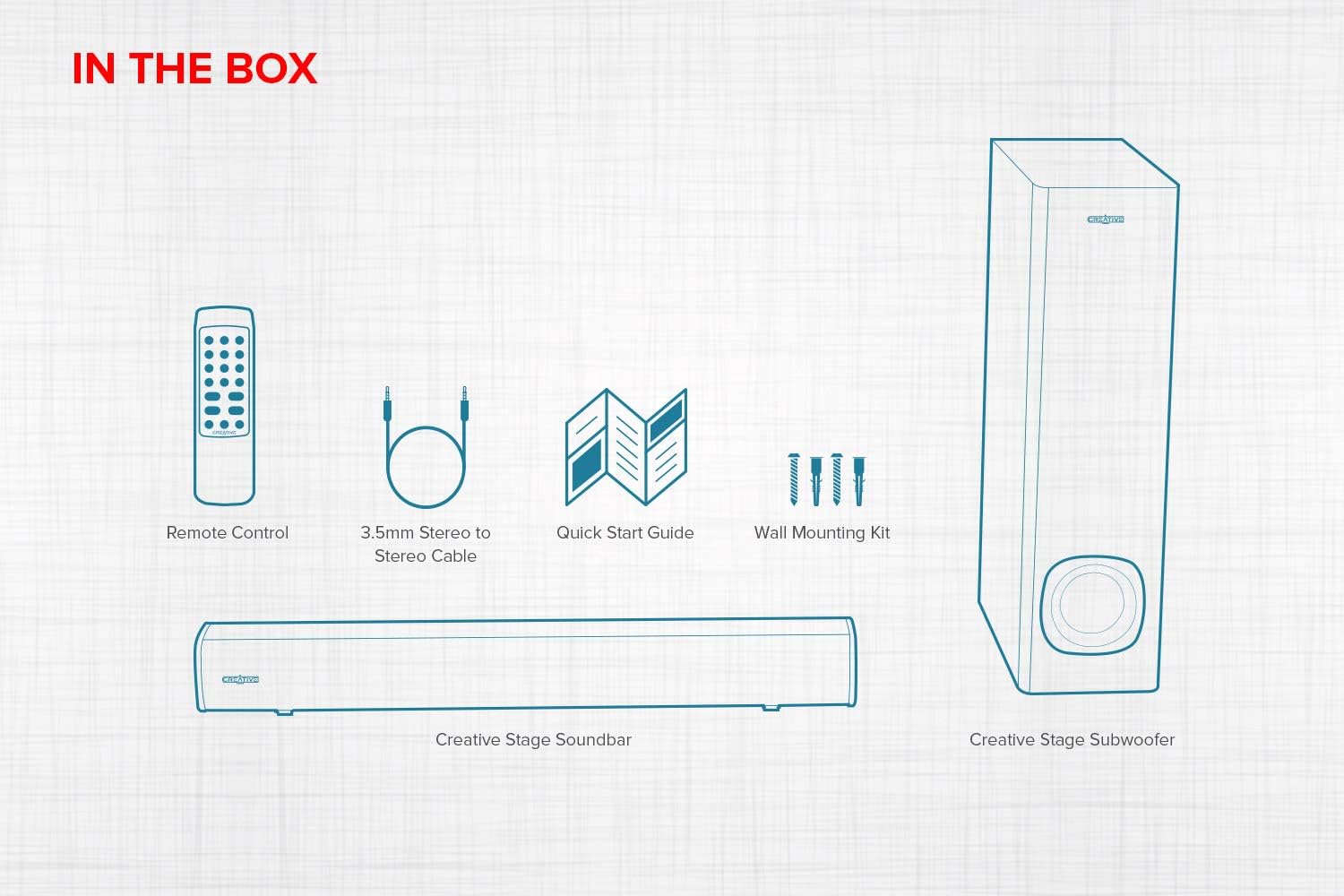
Figure 1: Contents of the Creative Stage 2.1 Soundbar System package.
This image displays all the items you should find inside the product packaging: the main soundbar unit, the separate subwoofer, a remote control, a 3.5mm audio cable, a quick start guide, and a wall mounting kit.
Setup
1. Placement
The Creative Stage soundbar is designed to fit neatly under a PC monitor or TV. The subwoofer can be placed on the floor near the soundbar for optimal bass performance. Alternatively, the soundbar can be wall-mounted using the included kit.

Figure 2: Recommended placement options for the Creative Stage soundbar.
This image illustrates two common setups: the soundbar positioned directly beneath a computer monitor on a desk, and the soundbar mounted on a wall below a television, demonstrating its versatility for different environments.
2. Connections
Connect the subwoofer to the soundbar. The subwoofer connects wirelessly to the soundbar. Ensure both units are powered on and within range for automatic pairing.
The Creative Stage offers multiple connectivity options:
- TV (ARC): Connect an HDMI cable from the soundbar's HDMI ARC port to your TV's HDMI ARC port. This allows audio from your TV to play through the soundbar and enables control of the soundbar volume using your TV remote.
- Optical Input: Use an optical cable to connect the soundbar to your TV or other audio source for high-quality digital audio.
- Bluetooth: Pair your mobile device, computer, or other Bluetooth-enabled device wirelessly with the soundbar.
- 3.5mm AUX-in: Connect devices with a 3.5mm audio output using the provided stereo cable.
- USB MP3: Insert a USB flash drive (up to 32GB, FAT32 format) with MP3 audio files into the USB port on the soundbar for direct playback.

Figure 3: Overview of compatible devices and connectivity options.
This diagram visually represents the broad compatibility of the Creative Stage soundbar, showing it can connect to televisions, desktop and laptop computers, and various mobile devices such as smartphones and tablets.
3. Power On
Connect the soundbar's power cable to a wall outlet. The soundbar is powered by a single built-in power plug. The subwoofer will automatically connect to the soundbar once both are powered.
Operating Instructions
Using the Remote Control
The included remote control provides full command over the soundbar's functions. Ensure batteries are inserted correctly (batteries not included).

Figure 4: Remote control in use for the Creative Stage soundbar.
This image shows the convenience of the remote control for operating the soundbar from a distance, highlighting its ease of use in a living room setting. A detailed view of the remote control is also provided.
- Power Button: Turns the soundbar on or off.
- Volume Control: Adjusts the overall volume level.
- Source Selection: Cycles through input modes (Bluetooth, Optical, TV ARC, AUX-in, USB MP3).
- EQ Presets: Select from optimized audio modes such as Movies, Music, Concert, and Gaming.
- Treble/Bass Adjustment: Fine-tune the high and low frequencies to your preference.
- Playback Controls: For USB MP3 mode, controls include Play/Pause, Skip Forward, and Skip Backward.
USB MP3 Playback
The soundbar supports direct playback of MP3 files from a USB flash drive.
- Insert a USB flash drive (formatted to FAT32, up to 32GB) containing MP3 files into the USB port on the side of the soundbar.
- Select the USB input source using the remote control.
- Use the remote's playback controls to manage your music.

Figure 5: USB MP3 playback functionality.
This image provides a close-up view of the soundbar's USB port, demonstrating how a USB flash drive can be inserted for direct MP3 audio playback without needing an external music device.
Maintenance
To ensure the longevity and optimal performance of your Creative Stage soundbar system, follow these maintenance guidelines:
- Cleaning: Use a soft, dry cloth to wipe down the soundbar and subwoofer. Do not use liquid cleaners or aerosol sprays directly on the units.
- Ventilation: Ensure the soundbar and subwoofer have adequate ventilation. Do not block any vents.
- Environment: Avoid placing the units in direct sunlight, near heat sources, or in areas with high humidity or extreme temperatures.
- Cables: Periodically check all cables for any signs of damage. Replace damaged cables immediately.
Troubleshooting
If you encounter any issues with your Creative Stage soundbar system, refer to the following common problems and solutions:
| Problem | Possible Cause | Solution |
|---|---|---|
| No power | Power cable not connected or power outlet not active. | Ensure the power cable is securely plugged into the soundbar and a working wall outlet. Try a different outlet. |
| No sound | Incorrect input source selected, volume too low, or cables not connected properly. |
|
| Subwoofer not producing bass | Subwoofer not paired or volume too low. |
|
| Remote control not working | Dead batteries, obstructed signal, or incorrect aiming. |
|
| Bluetooth pairing issues | Device too far, soundbar not in pairing mode, or previous connection interference. |
|
Specifications
| Feature | Detail |
|---|---|
| Model Name | Creative Stage |
| Model Number | MF8360 |
| Speaker Type | 2.1 Channel Soundbar System with Subwoofer |
| Speaker Maximum Output Power | 160 Watts Peak Power |
| Connectivity Technology | Bluetooth, Optical, TV (ARC), 3.5mm AUX-in, USB MP3 |
| Wireless Communication Technology | Bluetooth |
| Bluetooth Range | Up to 10 meters (33 feet) |
| Subwoofer Connectivity | Wireless |
| Controller Type | Remote Control |
| Recommended Uses | For Computers, For Gaming Consoles, For Televisions |
| Product Dimensions (Soundbar) | Approx. 23.7" W x 2.95" D x 2.75" H (602mm x 75mm x 70mm) |
| Product Dimensions (Subwoofer) | Approx. 6.69" D x 6.69" W x 16.06" H (170mm x 170mm x 408mm) |
| Item Weight | 2.6 Pounds (total system weight) |
| Power Source | Corded Electric |
| UPC | 054651192379 |
Note: Dimensions for soundbar and subwoofer are estimated based on the combined product dimensions provided (6.69"D x 23.7"W x 16.06"H) and typical component sizes. Actual individual dimensions may vary slightly.
Warranty Information
The Creative Stage 2.1 Soundbar System comes with a Limited Warranty. For specific terms and conditions, including warranty period and coverage details, please refer to the warranty card included in your product packaging or visit the official Creative website. Keep your proof of purchase for warranty claims.
Support
For further assistance, technical support, or to download the latest drivers and firmware updates, please visit the official Creative support website:
You may also find helpful resources and FAQs on the product's Amazon page or by contacting Creative customer service directly.
Related documentsMF8360


Ask a question about this manual
Ask about setup, troubleshooting, compatibility, parts, safety, or missing instructions. Manuals+ will review the question and use this page’s manual context to help answer it.