
1. Introduction
This manual provides instructions for the ELECOM WRC-2533GST2 WiFi Wireless LAN Router. It covers the setup, operation, maintenance, and troubleshooting of your device. Please read this manual thoroughly before using the product to ensure correct and safe operation.

Image 1.1: Front view of the ELECOM WRC-2533GST2 Wireless LAN Router.
2. Package Contents
Verify that all items listed below are included in your package. If any items are missing or damaged, please contact customer support.
- Wireless LAN Router Unit (WRC-2533GST2) x1
- Stand x1
- Dedicated AC Adapter x1
- LAN Cable (approx. 1m) x1
- Wall Mounting Screws x2
- Various Manuals x1
- Easy Setup Sheet x1
- Trend Micro License Agreement x1

Image 2.1: All items included in the package: router, stand, AC adapter, LAN cable, wall mounting screws, and documentation.
3. Product Overview
The ELECOM WRC-2533GST2 is an 11ac compatible wireless LAN Gigabit router designed for high-speed and stable internet connectivity. It supports IPv6 IPoE for reduced network congestion and features advanced security from Trend Micro.
Key Features:
- High-Speed Dual-Band Wi-Fi: 5GHz band (11ac/n/a) up to 1733Mbps and 2.4GHz band (11n/g/b) up to 800Mbps.
- IPv6 IPoE Support: For faster and more stable internet connections.
- Trend Micro Smart Home Network™: Built-in security to protect against malicious websites, vulnerability attacks, and information leakage.
- Easy Migration Function: Simplifies router replacement by copying existing Wi-Fi settings.
- Dual-Core CPU: Reduces processing wait times during simultaneous 5GHz and 2.4GHz communication.
- MU-MIMO: Enables simultaneous communication with multiple compatible devices.
- Beamforming Z: Concentrates radio waves for improved connection stability and speed to compatible devices.
- High-Power Internal Antennas (4x4): Utilizes DX Antenna know-how for strong, noise-resistant signals.
- Multiple Operating Modes: Router, Repeater, Client, and Access Point modes.
- Child Net Timer 3: Parental control feature to manage internet usage.
- Guest Wi-Fi (Friend Wi-Fi): Securely provides Wi-Fi access to guests while protecting your private network.

Image 3.1: Illustration of high-speed and stable communication capabilities, highlighting Wi-Fi 5 technology and integrated Trend Micro security.

Image 3.2: Visual comparison demonstrating the speed increase from 11n (300 Mbps) to 11ac (1733 Mbps).
4. Setup Guide
4.1 Initial Connection
- Connect the dedicated AC adapter to the router's power connector and plug it into an electrical outlet.
- Connect a LAN cable from your internet modem or optical line terminal (ONU) to the router's Internet (WAN) port.
- If you have a wired device, connect a LAN cable from one of the router's LAN ports to your device.
- Wait for the router's indicator lights to stabilize, indicating a successful connection.
- For most IPv6 IPoE internet connections, the internet will be immediately available. If an initial setup screen appears, follow the on-screen instructions.
4.2 Easy Migration Function
When replacing an old router, the Easy Migration Function allows you to transfer your existing Wi-Fi settings (SSID and password) to the WRC-2533GST2 without manual configuration.
- Ensure your old router is powered on and its WPS function is active.
- Press the WPS button on your old router.
- Within two minutes, press the WPS button on the WRC-2533GST2 router.
- The router will automatically copy the Wi-Fi settings. Once complete, your devices can connect using the old SSID and password.
4.3 IPv6 IPoE Setup
The WRC-2533GST2 supports IPv6 IPoE internet connections, which are designed to be less prone to congestion. If your internet service provider (ISP) supports IPv6 IPoE, simply connecting the LAN cable from your modem to the router's Internet port should establish the connection automatically. No complex configuration is typically required.

Image 4.1: Diagram illustrating the benefits of IPv6 IPoE over traditional PPPoE, showing smoother data flow and automatic switching with ALS (Auto Line Switching) for simplified setup.
4.4 Mode Switching
The router supports four operating modes: Router Mode, Repeater Mode, Client Mode, and Access Point Mode. You can easily switch between these modes using the slide switch located on the device.
- Router Mode: Connects to the internet and provides Wi-Fi and wired network access.
- Repeater Mode: Extends the range of an existing Wi-Fi network.
- Client Mode: Connects a wired device to a Wi-Fi network.
- Access Point Mode: Converts a wired network into a Wi-Fi network.
4.5 Easy Setup 4
The WRC-2533GST2 supports 'Easy Setup 4', allowing you to configure the router easily from a web browser on your smartphone or PC, without the need for an app or CD-ROM.
5. Operating Instructions
5.1 Wi-Fi Connection
To connect your devices to the Wi-Fi network:
- On your device (smartphone, tablet, PC), open the Wi-Fi settings.
- Select the SSID (network name) of your ELECOM router. The SSID and password can be found on a label on the router or the Easy Setup Sheet.
- Enter the Wi-Fi password when prompted.
- Your device should now be connected to the Wi-Fi network.

Image 5.1: The router intelligently guides devices to the optimal Wi-Fi band (2.4GHz or 5GHz) based on network congestion and device compatibility.
5.2 Guest Wi-Fi (Friend Wi-Fi)
The 'Friend Wi-Fi' (Guest SSID) function allows you to provide temporary internet access to guests without sharing your main network password. This helps protect your privacy and network security. This feature is available only on the 2.4GHz band.
- Access the router's web-based management interface (refer to the Easy Setup Sheet for the address).
- Navigate to the Guest Wi-Fi settings.
- Enable the Guest Wi-Fi and configure its SSID and password.
- Provide the Guest Wi-Fi credentials to your visitors.
5.3 Child Net Timer 3
The 'Child Net Timer 3' function helps parents manage and restrict internet usage for children. You can set schedules for internet access for specific devices.
- Access the router's web-based management interface.
- Locate the Child Net Timer settings.
- Configure time limits and schedules for devices used by children.
6. Advanced Features
6.1 Trend Micro Smart Home Network™ Security
The router integrates Trend Micro's Smart Home Network™ to provide robust security for all connected devices, including those that cannot install traditional security software (e.g., smart TVs, network cameras, smart home appliances). It blocks malicious websites, attacks targeting vulnerabilities, and unauthorized external communications that could lead to information leakage. This feature operates only in router mode and is enabled by default. It provides a maximum of 5 years of service or until April 30, 2026, whichever comes first.

Image 6.1: Visual representation of Trend Micro Smart Home Network security actively blocking threats such as malicious websites, vulnerability attacks, and data leakage attempts.
6.2 MU-MIMO
MU-MIMO (Multi-User, Multiple-Input, Multiple-Output) technology allows the router to communicate with multiple compatible devices simultaneously, rather than sequentially. This significantly improves network efficiency and speed, especially in environments with many connected devices.

Image 6.2: Illustration of MU-MIMO in action, showing the router sending data streams to four different devices concurrently, enhancing overall network performance.
6.3 Beamforming Z
Beamforming Z technology intelligently detects the location of your Wi-Fi devices and directs stronger Wi-Fi signals towards them. This results in improved signal strength, range, and overall performance, particularly for compatible devices like iPhone 8 and X, even in more distant areas.

Image 6.3: Depiction of Beamforming Z, showing concentrated radio waves being sent directly to a smartphone, ensuring a stronger and more stable connection.
6.4 Dual-Core CPU
The integrated dual-core CPU efficiently handles simultaneous communication on both the 5GHz and 2.4GHz bands. This design minimizes processing delays, ensuring smoother and more responsive network performance even when multiple devices are actively using the network.

Image 6.4: Diagram comparing a single-core CPU, which processes 5GHz and 2.4GHz sequentially, to a dual-core CPU, which processes them simultaneously, eliminating wait times.
6.5 High-Sensitivity Internal Antennas (4x4)
The WRC-2533GST2 features independent high-sensitivity internal antennas (4x4) for both the 5GHz and 2.4GHz bands. These antennas are designed to be strong against noise, providing reliable and extended Wi-Fi coverage throughout your home.
7. Placement Options
The router offers flexible placement options to suit various environments:
- Vertical Placement: Standard upright position.
- Horizontal Placement: Ideal for fitting into narrow spaces, such as around a TV.
- Wall-Mounted: Reduces interference from obstacles and saves space.
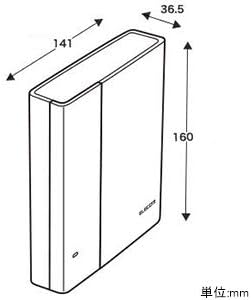
Image 7.1: Dimensional drawing of the ELECOM WRC-2533GST2 router, showing its compact size (approx. 141mm width x 36.5mm depth x 160mm height).
7.1 Removable Lamp Cover
For users who are concerned about the blinking indicator lights at night, a removable lamp cover is included to minimize light disturbance.
8. Maintenance
To ensure optimal performance and longevity of your router, follow these maintenance guidelines:
- Cleaning: Gently wipe the router with a soft, dry cloth. Do not use liquid cleaners or abrasive materials.
- Ventilation: Ensure the router is placed in a well-ventilated area. Do not cover ventilation openings.
- Firmware Updates: Regularly check for and install firmware updates through the router's web-based management interface. Updates can improve performance, add features, and enhance security.
- Restarting: If you experience network issues, try restarting the router by unplugging the power adapter, waiting 10 seconds, and then plugging it back in.
9. Troubleshooting
If you encounter issues with your router, refer to the following common problems and solutions:
| Problem | Possible Cause / Solution |
|---|---|
| No internet connection |
|
| Slow Wi-Fi speed |
|
| Cannot connect to Wi-Fi |
|
| Router indicator lights are off/red |
|
10. Specifications
| Feature | Detail |
|---|---|
| Brand | ELECOM |
| Model Number | WRC-2533GST2 |
| Wireless Standards | IEEE 802.11ac/n/a (5GHz), IEEE 802.11n/g/b (2.4GHz) |
| Wireless Speed | 5GHz: Up to 1733Mbps (theoretical) 2.4GHz: Up to 800Mbps (theoretical) |
| Frequency Band Class | Dual-Band |
| LAN Ports | 4 x Gigabit Ethernet (10/100/1000Mbps) |
| WAN Port | 1 x Gigabit Ethernet (10/100/1000Mbps) |
| Recommended Environment | 3-story detached house / 4LDK apartment, up to 24 connected devices |
| Input Voltage | AC100~240V±10% 50/60Hz |
| Power Consumption | Approx. 13.2W (Max) |
| Power Connector | DC Jack |
| Dimensions (W×D×H) | Approx. 141.0 × 36.5 × 160.0 mm (main unit only) |
| Weight | Approx. 380g (main unit only) |
| Casing Material | Plastic (Black) |
| Operating Environment | Temperature: 0℃~40℃, Humidity: 10%~85% (non-condensing) |
| Certifications | VCCI Class B / TELEC / JATE / PSE |
| Supported OS | Windows 10S/10/8.1/7 (SP1 or later), macOS 10.13/10.12, Mac OS X 10.11/10.10/10.9/10.8, Android 4.4 or later, iOS 10.0 or later |
11. Warranty and Support
ELECOM provides a 1-year warranty for the WRC-2533GST2 router from the date of purchase. For technical assistance, troubleshooting, or warranty claims, please contact ELECOM customer support.
- Support Dial: Year-round support is available. Please refer to the included documentation for contact details.
- On-site Setup Service: A paid on-site setup service may be available in some regions. Contact support for more information.
Please retain your proof of purchase for warranty purposes.


